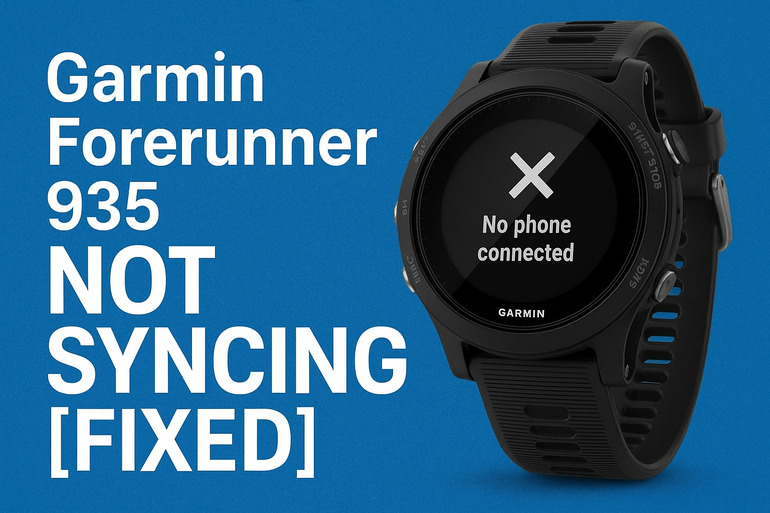
Few things frustrate a runner more than finishing a solid workout only to find your Garmin Forerunner 935 refusing to sync. You’re standing there, watch on your wrist, watching that sync icon spin endlessly or just sit there doing nothing. Meanwhile, your activity data remains trapped on your device.
This syncing hiccup happens more often than you’d think. Sometimes it’s a simple fix that takes seconds. Other times, it needs a bit more attention. Either way, your data doesn’t have to stay stuck on your watch forever.
By the time you finish reading this guide, you’ll know exactly what causes these sync failures and how to get your Forerunner 935 talking to your phone again. Let’s get your workout data flowing where it belongs.
What’s Actually Happening When Your Watch Won’t Sync
Syncing is basically your watch and phone having a conversation through Bluetooth. Your Forerunner 935 packages up all your activity data, heart rate info, and settings changes, then sends them over to the Garmin Connect app on your phone. From there, everything uploads to the cloud where you can see it on any device.
When this conversation breaks down, you’re left with data sitting on your watch that nobody else can see. Your morning run exists, but Garmin Connect doesn’t know about it. Your weekly mileage stays incomplete. Training plans don’t update. Friends can’t see your activities.
The sync process relies on several moving parts working together. Your watch needs working Bluetooth. Your phone needs the Garmin Connect app running properly. Both devices need to recognize each other. Any weak link in this chain stops everything.
Ignoring sync problems creates bigger headaches down the road. Activities pile up on your watch, eating storage space. Eventually, your device runs out of room for new workouts. Plus, waiting too long makes troubleshooting harder because you forget what changed recently on either device.
Garmin Forerunner 935 Not Syncing: Common Causes
Sync failures rarely happen without reason. Your watch and phone communicate through specific channels, and disruptions in any of these channels trigger problems. Let’s break down what typically interferes with syncing so you can spot the issue faster.
1. Bluetooth Connection Issues
Bluetooth acts as the bridge between your watch and phone, but it’s pickier than most people realize. Your phone might show Bluetooth as ‘on’ in settings, yet something blocks the actual connection to your Forerunner. Other devices competing for Bluetooth bandwidth can crowd out your watch.
Distance matters too. Walking around your house with your phone in one room and watch in another pushes Bluetooth to its limits. Physical obstacles like walls and interference from other wireless devices weaken the signal. Even your body blocks Bluetooth signals when you position your watch and phone on opposite sides.
2. Outdated Software on Watch or Phone
Software updates aren’t just about new features. They fix communication bugs between your watch and Garmin Connect app. Running old software creates compatibility mismatches where your devices literally speak different versions of the same language.
Garmin releases watch firmware updates regularly to address sync problems and improve Bluetooth stability. Your phone’s operating system updates can change how Bluetooth permissions work. Missing these updates leaves your devices stuck using outdated protocols that don’t mesh well together.
The Garmin Connect app itself needs regular updates. App updates often include fixes specifically for sync failures with certain watch models. Skipping app updates means missing out on patches designed to solve the exact problem you’re experiencing.
3. Corrupted Data or Cache Files
Apps accumulate cache files over time to speed up operations. Sometimes these files get corrupted, creating digital roadblocks that prevent syncing. The Garmin Connect app might be trying to read corrupted cache data and getting stuck in a loop.
On your watch, temporary files can become damaged during incomplete syncs or when the device shuts down unexpectedly. These corrupted files confuse the sync process because your Forerunner keeps trying to send bad data that the app can’t process. The whole system grinds to a halt until you clear the problematic files.
4. Garmin Connect App Background Restrictions
Modern smartphones aggressively manage battery life by limiting what apps can do in the background. Your phone’s battery optimization features might be throttling Garmin Connect, preventing it from listening for your watch’s sync attempts. When the app gets restricted, it can’t maintain the Bluetooth connection needed for syncing.
These restrictions happen automatically on both Android and iOS. Your phone sees Garmin Connect as a battery drain and quietly limits its background activity. The app appears to work fine when you open it directly, but the moment you switch to another app, syncing stops because your phone put Garmin Connect to sleep.
5. Full Storage on Your Watch
Your Forerunner 935 has limited internal storage for activities, music, and other data. When storage fills up, your watch struggles to create the temporary files needed for syncing. The device needs working space to package your activities before sending them to your phone.
Activities pile up fast if you’ve been skipping syncs. Music files eat storage quickly. Old activity files that should have synced weeks ago might still be sitting on your watch, using valuable space. Once storage hits capacity, new syncs fail because there’s nowhere to put the sync operation’s temporary files.
Garmin Forerunner 935 Not Syncing: DIY Fixes
Getting your Forerunner 935 to sync again usually doesn’t require technical expertise. Most fixes take just a few minutes and solve the problem immediately. Work through these solutions in order, testing the sync function after each one to see if it’s working again.
1. Restart Both Your Watch and Phone
The classic ‘turn it off and on again’ advice exists because it works. Restarting clears temporary glitches in both devices’ memory and resets their Bluetooth stacks. This simple action fixes sync problems more often than any other solution.
Hold the Light button on your Forerunner 935 until the power menu appears. Select ‘Power Off’ and wait for the watch to shut down completely. After 30 seconds, press the Light button again to power it back on. While your watch restarts, turn off your phone using its power button. Wait another 30 seconds before powering your phone back on.
Once both devices finish restarting, open the Garmin Connect app and wait for it to automatically detect your watch. The app should start syncing within a few seconds. This fresh connection often resolves mysterious sync failures that appeared without warning.
2. Check and Refresh Your Bluetooth Connection
Sometimes Bluetooth connections get stuck in a half-connected state where devices think they’re paired but can’t actually communicate. Breaking this connection and rebuilding it from scratch usually fixes the issue. Start by opening your phone’s Bluetooth settings and locating your Forerunner 935 in the list of connected devices.
Tap the information icon next to your watch’s name and select ‘Forget This Device’ or ‘Unpair.’ This completely removes the pairing. Keep your phone nearby and open the Garmin Connect app. Navigate to the devices menu and select ‘Add Device.’ Follow the pairing prompts to reconnect your watch. The app will walk you through the Bluetooth pairing process, establishing a clean connection.
3. Update Your Watch Firmware and Garmin Connect App
Running outdated software causes compatibility problems that prevent syncing. Check for watch firmware updates first. Connect your Forerunner to WiFi by going to Settings > Phone > WiFi on your watch. Once connected, go to Settings > About > Software Update. If an update is available, select it and let your watch download and install the new firmware.
Your phone’s app store holds the latest version of Garmin Connect. Open the App Store on iOS or Google Play Store on Android. Search for Garmin Connect and check if an update button appears next to the app. Tap ‘Update’ if available and wait for the installation to complete.
After updating both the watch and app, restart both devices again. This ensures all updates take effect properly. The new software versions should communicate more reliably, fixing sync problems caused by outdated code.
4. Clear Garmin Connect App Cache and Data
Corrupted cache files in the Garmin Connect app can block syncing even when everything else works correctly. Clearing this cache forces the app to rebuild its data from scratch. On Android, go to Settings > Apps > Garmin Connect > Storage. Tap ‘Clear Cache’ first, then try syncing. If that doesn’t work, tap ‘Clear Data’ but note this logs you out of the app.
iOS handles cache differently. You need to delete and reinstall the Garmin Connect app completely. Press and hold the app icon on your home screen until it wiggles, then tap the X to delete it. Visit the App Store, download Garmin Connect again, and log back into your account. This gives you a completely fresh app installation without any corrupted files.
5. Adjust Battery Optimization Settings
Your phone’s battery saver might be putting Garmin Connect to sleep, cutting off communication with your watch. Android users should open Settings > Apps > Garmin Connect > Battery. Select ‘Unrestricted’ or ‘Don’t Optimize’ to prevent your phone from limiting the app’s background activity. This keeps Garmin Connect always ready to receive sync requests from your watch.
iPhone users need to check Background App Refresh. Go to Settings > General > Background App Refresh and ensure it’s enabled globally. Then scroll down to find Garmin Connect in the app list and make sure it’s toggled on. This allows the app to maintain its Bluetooth connection even when you’re using other apps.
Some Android manufacturers add their own battery management on top of standard Android. Samsung, Huawei, and Xiaomi phones often have additional battery settings buried in their custom interfaces. Search your phone’s settings for terms like ‘battery optimization,’ ‘power saving,’ or ‘background restrictions’ and whitelist Garmin Connect in every location you find.
6. Free Up Storage Space on Your Watch
Full storage prevents your watch from creating the temporary files needed for syncing. Check your storage by going to Settings > About > Storage on your Forerunner 935. If storage looks full, you need to remove some content. Delete old music files first since they consume the most space.
Force a sync of all pending activities even if normal syncing isn’t working. Connect your watch to your computer using the USB cable that came with it. Your watch appears as a removable drive. Open Garmin Express software on your computer and let it sync all activities. This clears out old activity files stuck on your watch, freeing up significant storage space. Once storage drops below 80 percent capacity, your watch should sync normally again.
7. Contact Garmin Support
If none of these solutions restore syncing, your watch might have a hardware problem or an issue requiring Garmin’s intervention. Bluetooth hardware can fail, especially in older devices. The Garmin Connect servers might be experiencing problems on their end.
Reach out to Garmin’s support team through their website or by phone. Have your watch’s serial number ready, along with details about when the sync problem started and what you’ve already tried. Their technical support team can run diagnostics, check if your account has issues, or arrange a warranty replacement if your watch has a hardware defect.
Wrapping Up
Sync problems with your Garmin Forerunner 935 feel frustrating, but they’re usually fixable without much hassle. Most issues come down to simple Bluetooth hiccups, outdated software, or storage constraints that you can address in minutes. Starting with a basic restart and working through each solution methodically gets most watches syncing again.
The key is catching sync problems early before activities pile up on your watch. Regular syncing keeps your device running smoothly and ensures your training data reaches Garmin Connect while it’s still fresh. Your workouts deserve to be tracked properly, and now you’ve got the tools to make that happen.