The cause can vary by television model. Some Samsung support documentation links Error 102 to network firmware registration, while other troubleshooting reports associate it with network or Smart Hub connectivity. Identifying which situation applies to your TV helps you choose the right fix.
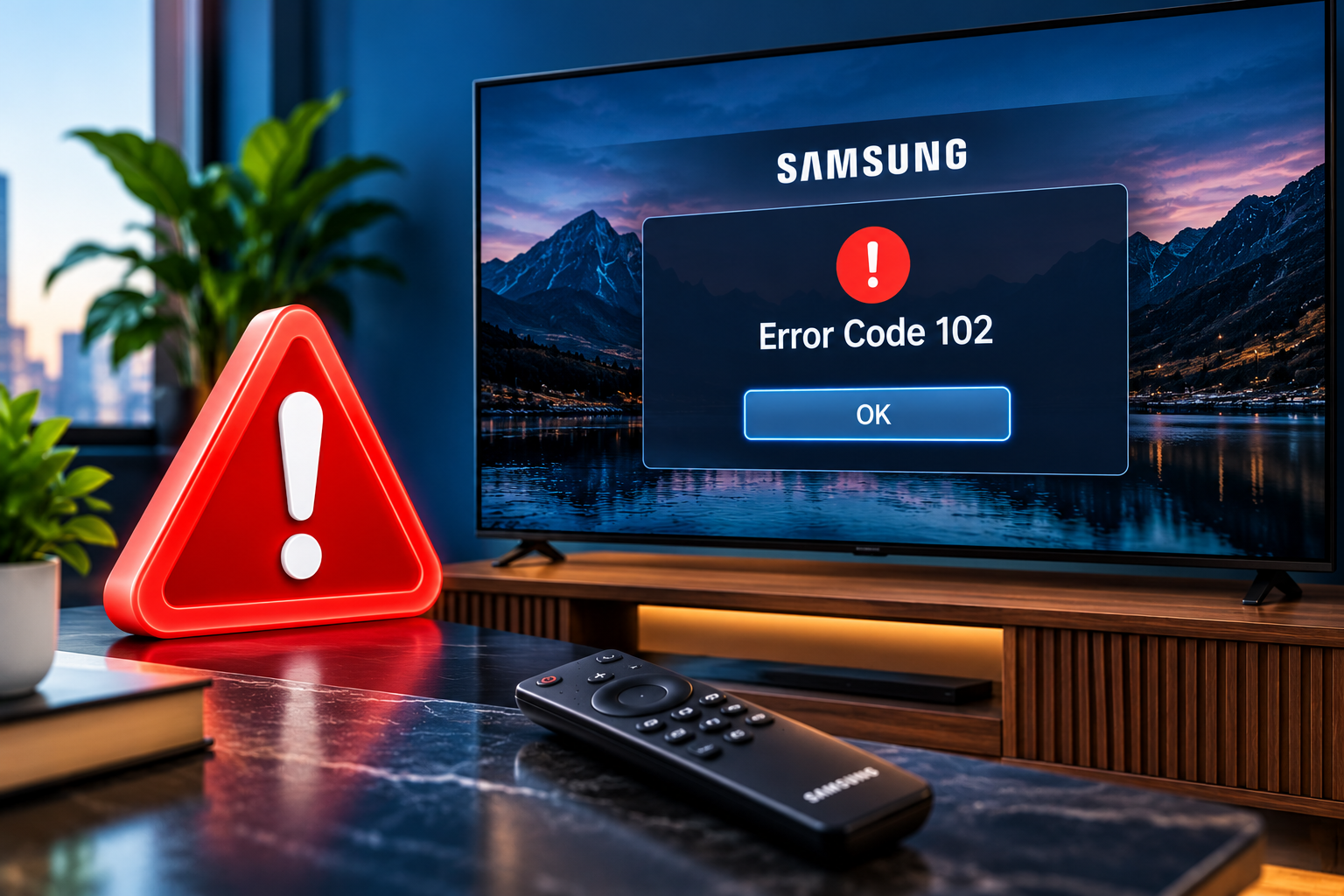
What Samsung TV Error Code 102 Means
Error Code 102 does not have one universally documented explanation for every Samsung television. Samsung’s support documentation for certain older models states that Error 102 means the network firmware has not yet been registered on the server. The recommended solution for those models is a firmware update using a USB drive.
Samsung community troubleshooting discussions also associate the error with difficulties connecting to Smart Hub or completing a network connection. These explanations make network diagnostics useful, but you should check your TV’s model and the exact error message before assuming that a Wi-Fi fault is responsible.
When the television cannot establish the connection required for its online features, you may experience several symptoms.
-
The TV displays Error Code 102 while trying to connect to the internet.
-
Streaming applications fail to load or display connection messages.
-
Smart Hub functions become unavailable even though the television still displays regular broadcast channels or HDMI devices.
-
Your phone connects to the same Wi-Fi network successfully, but the TV does not.
-
The error continues after restarting the television or router.
Your television can connect to a wireless router without successfully reaching an online service. Similarly, working internet access does not necessarily mean that the TV’s firmware can communicate properly with Samsung’s servers.
These differences matter because a router problem, an incorrect DNS configuration, and a firmware registration issue require different solutions. Working through the checks below helps narrow down the fault without immediately resetting the entire television.
Samsung TV Error Code 102: Common Causes
Several problems can produce symptoms associated with Error Code 102. The following are the main possibilities to investigate, with particular attention to firmware and Smart Hub connectivity.
1. Network Firmware Registration Problems
Samsung’s documentation for certain older television models specifically identifies Error 102 as a situation in which the network firmware has not been registered on the server. This makes the TV’s installed software a key area to investigate when the exact code appears.
Firmware is the software that controls the television’s functions, including communication between internal components and online services. If the relevant network firmware cannot be recognized by the required server, certain Smart TV functions may fail even when the physical network connection appears normal.
This explanation is especially relevant if your television matches the models covered by the older support documentation. Check your full model number before applying model-specific instructions, since Samsung TV software and error handling vary by product generation.
2. Incorrect DNS or IP Configuration
Your TV relies on network settings to communicate with your router and reach online services. An incorrect IP address, an unavailable DNS server, or a failed automatic network configuration can interfere with that process.
DNS translates server names into numerical addresses that devices use to establish connections. If DNS resolution fails, the television may appear connected to Wi-Fi while certain online features remain inaccessible.
This possibility becomes more likely when your phone or computer can access the internet normally but the Samsung TV cannot. A network reset or a manual DNS setting can help establish whether the saved network configuration is contributing to the issue.
3. Router or Wi-Fi Connection Problems
The TV may struggle to communicate with your router because of a weak signal, incorrect wireless credentials, or router settings that prevent the connection. These problems can occur after changing your Wi-Fi password, replacing network equipment, or modifying access restrictions.
Distance also matters. A router separated from the television by thick walls or several rooms may deliver a signal that the TV can detect but cannot maintain reliably.
Samsung notes that supported Wi-Fi frequencies vary between TV models. Some older televisions, for example, cannot connect to 5 GHz networks. Compatibility problems are worth checking when the TV cannot detect your network or repeatedly fails to connect.
4. Outdated or Incompatible TV Software
An outdated software version can contribute to connectivity problems or interfere with access to online features. If a suitable firmware update is available for your specific model, installing it may correct a software-related fault.
The problem can become difficult to resolve when the television cannot connect to the internet to download the update. A USB update offers another option because the firmware can be obtained using a separate computer.
However, an update will not repair every network problem. If the router is offline or Samsung’s service is temporarily unavailable, you may need to address that separate issue.
5. A Temporary Smart Hub or Samsung Server Problem
Smart Hub depends on online communication to provide access to Samsung services and applications. A temporary service interruption or connection failure can prevent some Smart TV features from working.
This is a possibility when the television connects to the internet successfully but continues to struggle with Smart Hub. The same symptom can occur if the TV’s software has difficulty completing the required server connection.
To distinguish this from a local network fault, test other devices on the same connection and check whether the TV can reach other online services. If the network works and the television still displays Error 102, the next step is to investigate its firmware and model-specific support guidance.
Samsung TV Error Code 102: DIY Fixes
Start with simple network checks, then move to firmware troubleshooting if the error remains. Because some Samsung support documentation associates Code 102 directly with firmware registration, a USB update deserves particular attention when ordinary connection fixes fail.
1. Restart Your Samsung TV and Router
A power reset can clear temporary software and network faults. It is a useful first step because it does not erase your saved settings.
Follow these steps.
-
Turn off the television.
-
Disconnect the TV’s power cable from the outlet.
-
Unplug your router and modem, if they are separate devices.
-
Leave the equipment disconnected for about 60 seconds.
-
Reconnect the modem first, if applicable, and wait for its connection to become stable.
-
Reconnect the router and then the television.
-
Open Smart Hub or the affected application and test the connection.
If other devices also lack internet access, investigate the router or contact your internet service provider. If those devices work normally but Error 102 remains on the TV, continue with the next step.
2. Check the TV’s Network Status
The Network Status test helps identify whether the television is having trouble connecting to the router or reaching the internet.
On many Samsung Smart TVs, you can open the test using this menu path.
Settings → Connection or General → Network → Network Status
The exact menu names depend on your TV model and software version.
Allow the test to finish, then examine the connection indicators. If the TV fails to connect to the router, verify the Wi-Fi password and signal strength. Move the router closer if practical, or temporarily use a wired Ethernet connection if your television supports it.
If the TV connects to the router but cannot access the internet, test another device on the same network. A wider connection failure points to your router or internet provider, while a TV-specific problem calls for further network and firmware checks.
3. Reset the Network Settings
Saved network settings can sometimes prevent the television from establishing a fresh connection. Resetting the network clears those settings so you can connect again.
To perform the reset, open Settings, select Connection or General, and then select Network. Choose Reset Network and confirm the action when prompted.
After the reset, return to the network setup screen. Select your Wi-Fi network, enter the password carefully, and allow the TV to reconnect.
Run the Network Status test again and check whether Smart Hub works. If the error disappears, the previous network configuration may have contributed to the problem. If Code 102 returns despite a successful network connection, investigate the firmware rather than repeatedly resetting the network.
4. Change the DNS Server
If your TV connects to Wi-Fi but struggles to reach online services, changing the DNS server is a practical diagnostic step.
Google Public DNS uses 8.8.8.8 as one of its IPv4 DNS addresses. Samsung includes this address in its guidance for troubleshooting television internet connections.
To try it:
-
Open Settings on the television.
-
Select Connection or General, then open Network.
-
Choose Network Status.
-
Select IP Settings.
-
Find DNS Setting and change it to Enter Manually.
-
Enter
8.8.8.8in the DNS Server field. -
Save the setting and test the connection again.
Menu options may differ between models. Keep other network settings on automatic unless you have a specific reason to change them.
If the television connects successfully afterward, the previous DNS configuration may have been involved. If nothing changes, restore the DNS setting to automatic and continue troubleshooting.
A DNS change cannot resolve an unavailable Samsung server or correct a firmware registration problem by itself.
5. Update the TV Firmware Using a USB Drive
This is a particularly important step for Error Code 102 because Samsung’s support documentation for certain older models explicitly recommends a USB firmware update when this code appears.
Use a computer to obtain the correct update for your television.
-
Locate the full model number on the TV’s label or in its settings.
-
Visit the official Samsung Support website.
-
Search for your exact model and open its support or download page.
-
Download the latest compatible firmware, if one is available.
-
Follow Samsung’s instructions to extract the firmware onto a USB drive.
-
Insert the drive into the television’s USB port.
-
Open Settings, then Support, then Software Update.
-
Select Update Now and follow the on-screen instructions.
The firmware may be packaged in an archive that needs to be extracted before installation. Follow the instructions provided for your exact model and prepare the USB drive accordingly. Do not install software intended for a different television.
Keep the TV connected to power throughout the installation. Avoid removing the USB drive or interrupting the process while the update is running.
After the TV restarts, reconnect to your network and test Smart Hub. If the error persists, record the installed software version and your TV’s full model number for Samsung Support.
Samsung provides further instructions for USB firmware installation in its official error message troubleshooting guide.
6. Contact Samsung Support or a Qualified Technician
If Error Code 102 continues after the network checks and appropriate firmware update, contact Samsung Support for model-specific assistance.
Provide the exact error message, model number, current software version, and results of the Network Status test. Explain whether other devices can access the internet and whether the TV connects through another network, such as a compatible mobile hotspot.
These details help distinguish a local Wi-Fi problem from a television software issue or a server-side fault. If Samsung confirms that the television requires service, use an authorized repair provider where available.
Avoid opening the TV or attempting internal electrical repairs. Error Code 102 alone does not establish that a hardware component has failed, so replacing parts without a diagnosis can lead to unnecessary costs.
Wrap-Up
Samsung TV Error Code 102 can involve network connectivity, DNS settings, Smart Hub access, or a firmware registration problem, depending on the television model. Start by restarting your TV and router, then test the network and refresh the saved connection settings.
If those steps fail, pay particular attention to the installed firmware and Samsung’s instructions for your exact model. A compatible USB update may be the relevant solution for certain older TVs. When the error remains, provide Samsung Support with the model number and diagnostic results so the next step addresses the actual cause rather than relying on repeated resets.