The cause is often related to network connectivity or the TV’s access to online services. By checking your connection, refreshing your network settings, and adjusting a few options, you can narrow down the problem without immediately paying for a repair.
What Samsung TV Error Code 202 Means
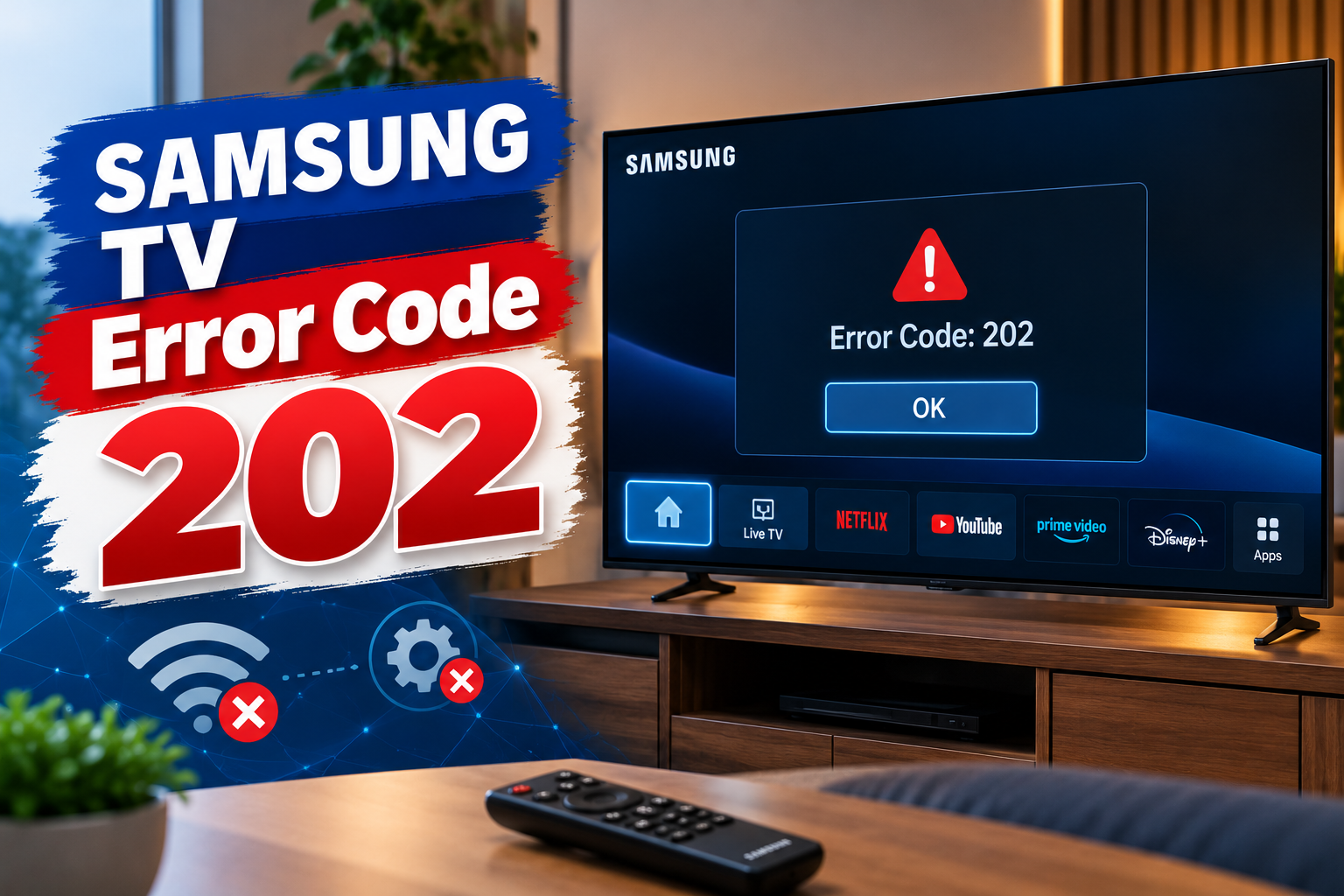
Error Code 202 is commonly associated with a Samsung Smart TV’s inability to establish or maintain the connection required for internet-based services. Depending on the TV model, software version, and circumstances, the message may appear while connecting to the internet, accessing an online service, or using a Smart TV feature.
The exact meaning is not documented as a universal definition for every Samsung TV model. However, reports of this error and Samsung’s network troubleshooting guidance point to connectivity problems as a sensible starting point. A Samsung community support response specifically recommends a power reset, a firmware update, and changing the DNS server if earlier steps fail.
Your TV communicates with your router before sending requests across the internet. A successful Wi-Fi connection confirms that the television can reach the local network, but it doesn’t guarantee access to online servers. The internet connection, DNS service, router settings, or the requested online service may still prevent communication.
Depending on the underlying issue, you might notice one or more of these symptoms:
-
Streaming apps fail to open, load, or play content.
-
The TV connects to Wi-Fi but reports an internet connection error.
-
Samsung online services fail while other TV functions continue working.
-
Error Code 202 returns after restarting the television.
-
Network tests show a problem connecting to the router or accessing the internet.
The distinction matters because an internet outage requires a different response from a TV network configuration problem. Diagnosing the connection first helps you avoid unnecessary resets and repairs.
Samsung TV Error Code 202: Common Causes
Several network-related problems can produce symptoms associated with Error Code 202. The error alone does not establish which component has failed, so use the following possibilities as diagnostic starting points rather than confirmed diagnoses.
1. An Unstable Internet Connection
A weak or interrupted internet connection can prevent a Samsung TV from reaching online services. Even if the Wi-Fi symbol indicates a connection, your router may not be receiving a reliable internet signal from your provider.
This can happen during a service outage, after a temporary router failure, or when too many devices are competing for limited network capacity. You may notice that websites load slowly on your phone or that streaming services stop working on several connected devices.
To identify this problem, connect your phone or computer to the same Wi-Fi network and test a few websites. If those devices also struggle to access the internet, the television is unlikely to be the only source of the problem.
2. Incorrect DNS Settings
The Domain Name System, or DNS, translates website and server names into numerical addresses that devices use to communicate. Your Samsung TV depends on this process when it contacts many online services.
If the DNS server supplied by your router or internet provider is unavailable or fails to resolve an address correctly, the TV may connect to Wi-Fi without reaching its intended destination. This can make an otherwise functional internet connection appear broken on the television.
A DNS issue becomes more plausible when other devices can access the internet normally but the TV continues to have trouble. Samsung’s support guidance includes manually setting a DNS server as one of the recommended network troubleshooting steps.
Samsung be
3. Router or Wi-Fi Configuration Problems
Your router manages communication between the TV and other devices on your home network. Incorrect network settings, temporary software faults, or restrictions on connected devices can interfere with the television’s access to the internet.
The problem may begin after changing the router password, replacing a router, adjusting security settings, or modifying network access controls. A router may also have trouble assigning the TV a valid network address.
Weak Wi-Fi coverage can contribute to connection failures, especially when the television is far from the router or separated by thick walls. If the connection improves when the TV is closer to the router, signal strength may be part of the problem.
4. Outdated TV Software or Temporary Software Errors
A Samsung Smart TV uses internal software to manage its network connection, applications, and online features. A temporary software fault can interfere with these functions, even when your home internet is working correctly.
Older firmware may also contain problems that have been corrected in a later update. If Error Code 202 started appearing after a software update or a period of unusual behavior, the TV’s current software state deserves attention.
Software is only one possible cause, though. Updating the TV will not correct an internet service outage or guarantee that the television can reach a server that is temporarily unavailable.
5. A Temporary Samsung Service or Account Connection Problem
Some Smart TV features depend on Samsung’s online services or the servers operated by individual streaming providers. If the relevant service is temporarily unavailable, the TV may fail to complete a connection even when its local network is working.
Account-related problems can also affect access to certain online features. For example, an application may request a fresh sign-in or fail to load information linked to your account.
This possibility becomes more likely when the television passes its network tests but only particular online services fail. If several services stop working at the same time, check the TV’s connection and Samsung service availability before assuming an account problem.
Samsung TV Error Code 202: DIY Fixes
The best way to address Error Code 202 is to begin with simple checks and move to settings changes only when necessary. Follow these steps in order, testing the television after each significant change so you can identify what resolves the issue.
1. Restart the TV and Check Your Internet Connection
A temporary software or network fault can sometimes clear after the television and network equipment restart. Start with this basic procedure before changing any settings.
First, check whether other devices connected to the same internet service can browse websites or stream content. If they cannot, contact your internet provider or wait for the connection to return.
Next, perform a power reset on the TV.
-
Turn off the television.
-
Disconnect its power cable from the electrical outlet.
-
Leave it unplugged for about 60 seconds.
-
Reconnect the power cable and turn the TV on.
-
Open the affected app or run a network test again.
Simply turning the TV off with the remote may leave some internal processes running, so disconnecting its power provides a more complete restart.
If the error persists, restart the router and modem as well, if they are separate devices. Disconnect their power, wait approximately 60 seconds, and reconnect the modem first. Allow it to establish its internet connection before powering on the router. Once the network is operational, test the TV again. Samsung recommends power cycling network equipment as part of its connectivity troubleshooting guidance.
Samsung be
2. Run the TV’s Network Status Test
The Network Status test helps you determine where the connection is failing. It is particularly useful when the TV connects to Wi-Fi but cannot access online content.
On many Samsung Smart TVs, follow these steps:
-
Press the Home button on your remote.
-
Open Settings.
-
Select Connection or General, depending on your model.
-
Open Network.
-
Select Network Status and allow the test to finish.
Some models place the options under Settings, then All Settings, Connection, and Network.
Look at the connection indicators displayed by the TV. An interruption between the television and router suggests a local network problem. An interruption between the router and the internet points more strongly to the router’s internet connection or your service provider.
If the TV cannot communicate with the router, verify that you selected the correct Wi-Fi network and entered the correct password. Check that the router is powered on and that the signal reaches the room where the TV is installed.
When the TV reaches the router but fails to reach the internet, test your other devices and restart the network equipment. The result helps you choose the next step instead of changing settings at random.
3. Reset the TV’s Network Settings
If your internet works on other devices but the Samsung TV continues to report Error Code 202, its saved network configuration may be causing the problem.
A network reset removes the TV’s saved network settings so you can establish a fresh connection. It is less disruptive than a factory reset because it focuses on networking rather than restoring the entire television.
To reset the network:
-
Open Settings on your TV.
-
Select General or Connection.
-
Open Network.
-
Select Reset Network.
-
Confirm the reset when prompted.
-
Return to Open Network Settings and choose Wireless or Wired.
-
Select your Wi-Fi network and enter the password again, or reconnect your Ethernet cable.
Menu names may differ by model and software version. Consult the television’s manual if you cannot find the reset option.
Once connected, run Network Status again and open the affected application. If the error disappears, the previous network configuration may have contributed to the failure. If it returns, continue to the next step.
4. Change the DNS Server
Changing the DNS server is worth trying when the TV connects to the router but struggles to reach online services. It gives the television an alternative way to resolve internet addresses.
Google Public DNS uses 8.8.8.8 as one of its IPv4 DNS addresses. Samsung’s connectivity guidance also lists this address as an option for manual DNS configuration.
Follow these steps:
-
Open Settings on the TV.
-
Select Connection or General, then open Network.
-
Select Network Status.
-
Open IP Settings.
-
Find DNS Setting or DNS Server.
-
Select Enter Manually if that option is available.
-
Enter
8.8.8.8as the DNS server. -
Save the setting and test the internet connection again.
Keep your IP address and other network settings on their existing automatic configuration unless you have a specific reason to change them.
If the television now reaches online services, the previous DNS configuration may have been responsible. If nothing changes, you can restore the DNS option to automatic and investigate the remaining possibilities.
A manual DNS server cannot repair a complete internet outage, a faulty Wi-Fi connection, or an unavailable Samsung server. It is a diagnostic measure rather than a guaranteed solution.
5. Update the Samsung TV’s Software
An available firmware update may address software issues affecting network connectivity. Check for updates after confirming that the television has a usable internet connection.
On many Samsung TVs, the process is as follows:
-
Open Settings.
-
Select Support.
-
Choose Software Update.
-
Select Update Now.
-
Follow the on-screen instructions and allow the TV to restart if necessary.
On some models, the menu may appear under All Settings, then Support. Do not unplug the television while a firmware update is being installed.
If Error Code 202 prevents the TV from going online, you may be able to update it using a USB drive. Visit the official Samsung Support website and locate the download page for your exact TV model. Download its compatible firmware, follow Samsung’s USB installation instructions, and ensure the update file is prepared exactly as directed.
Do not install firmware intended for another model. When the update finishes, reconnect the television to your network and test the affected features. Samsung recommends software updates for certain TV server connection errors.
6. Contact Samsung Support or a Qualified Technician
If the previous steps do not resolve the problem, further diagnosis may be necessary. Repeatedly resetting settings is unlikely to help when the underlying cause is a persistent network compatibility issue, a service-side problem, or a fault within the television.
Before contacting support, collect the TV’s model number, software version, exact error message, and Network Status result. Explain whether other devices can use the same internet connection and whether the TV works with another network.
Samsung Support may be able to provide model-specific troubleshooting or determine whether service is required. If the television fails to connect through multiple known-working networks, the support team can help establish whether the problem is internal to the TV.
Use a qualified electronics technician if diagnostics indicate a hardware fault. Avoid opening the television or attempting repairs to internal electrical components yourself. A connection error alone does not establish that any hardware needs replacing.
Wrap-Up
Samsung TV Error Code 202 often points to a problem involving the internet connection or access to online services, but the code alone cannot identify the exact cause. Start with a power reset and Network Status test, then work through network settings, DNS configuration, and software updates as needed.
Pay attention to what changes after each step. If other devices also lose internet access, investigate the router or service provider. If the television continues to fail across different working networks, contact Samsung Support for model-specific guidance. A careful diagnosis is the best way to restore your TV’s online features without making unnecessary changes.