Having trouble modifying the settings on your Xiaomi air fryer can be frustrating, especially when the appliance won’t let you change the cooking time or temperature. You might notice that the controls aren’t responding, your changes aren’t being saved, or the Xiaomi Home app isn’t updating your cooking settings.
Fortunately, these problems often involve the selected cooking mode, control knob, or app connection. Understanding the possible causes can help you restore normal operation without unnecessary repairs.
What Does the Modify Error Mean on a Xiaomi Air Fryer?
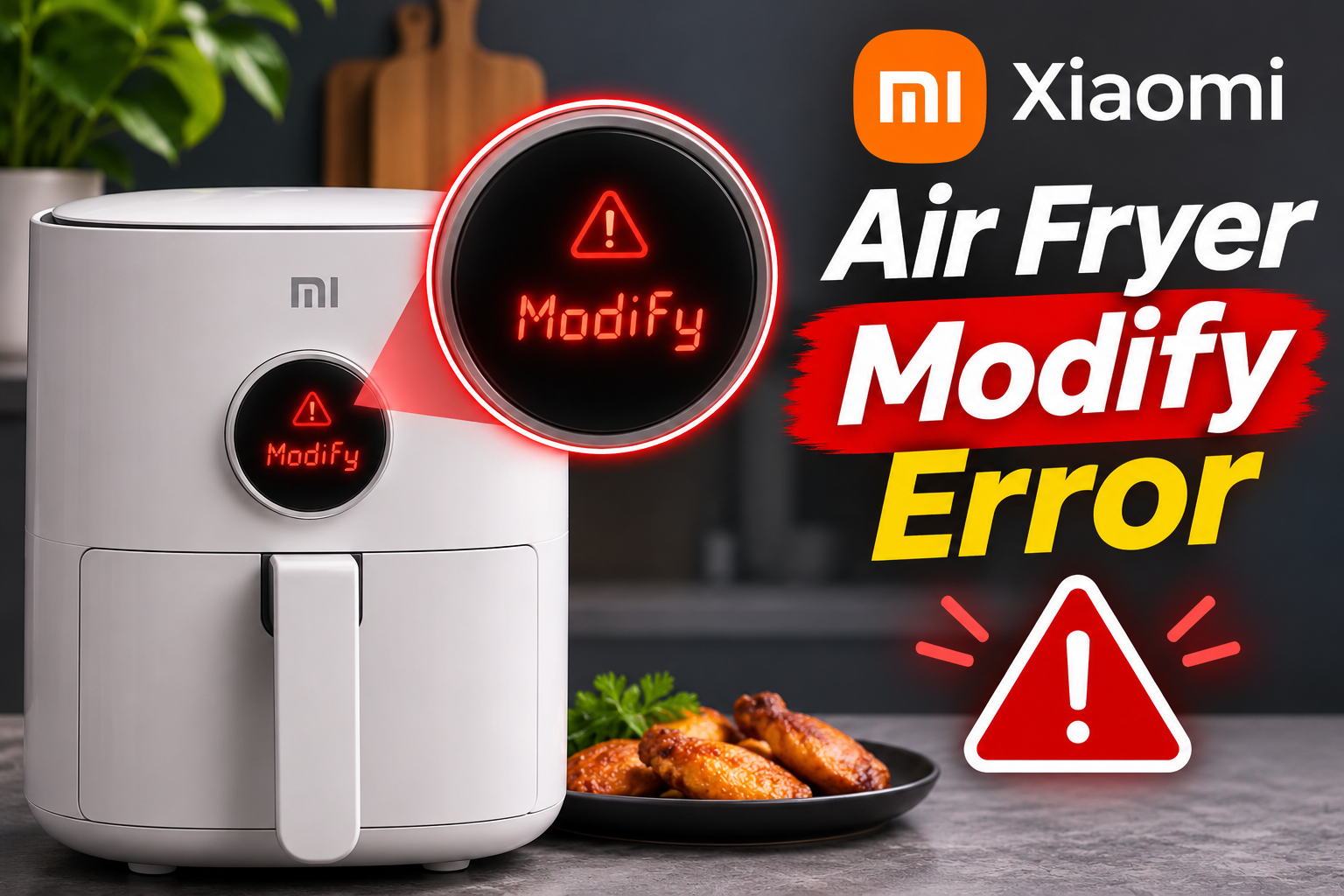
The Xiaomi air fryer Modify error generally refers to difficulty changing or saving cooking settings. However, Xiaomi doesn’t identify “Modify” as a standard fault code in its published troubleshooting information for several popular models.
Xiaomi air fryers allow you to adjust cooking temperatures, cooking times, and supported preset programs. Depending on the model, these adjustments are made using a control knob, buttons, or the Xiaomi Home app.
If the appliance doesn’t accept your changes, it may be operating in a mode that restricts certain adjustments. An unresponsive control knob, an improperly inserted basket, or a connection problem with the Xiaomi Home app can also interfere with normal operation.
Some Xiaomi models display actual error codes such as E1 and E2 when their temperature sensors develop electrical faults. These problems are different from being unable to modify cooking settings.
Therefore, identifying the exact message on your air fryer and checking its model number can help you determine the appropriate solution.
Xiaomi Air Fryer Modify Error: Likely Causes
Several problems can prevent your Xiaomi air fryer from accepting cooking adjustments. The most common possibilities involve the cooking settings, physical controls, and wireless connection.
- Incorrect Cooking Mode
Your Xiaomi air fryer has different cooking programs, and some of them restrict which settings you can change.
For example, preset programs may use specific temperatures and cooking times. Depending on your model, you may need to select Manual Mode or enter the appropriate settings menu before making adjustments.
If you attempt to modify a setting while another function is active, the appliance may ignore the change or return to its previous selection.
This can happen when switching between preset recipes and manual cooking. If the controls otherwise work normally, check the selected cooking mode before assuming the appliance is faulty.
- Unresponsive Control Knob or Buttons
The control knob or buttons allow you to select cooking programs and adjust temperature and time.
If these controls become unresponsive, you may struggle to modify the settings even when the display is working normally.
Food residue, physical damage, or an internal control fault can interfere with their operation. For instance, dirt around a control knob may affect its movement, while a damaged button may stop responding when pressed.
However, an unresponsive control doesn’t always mean the component has failed. Some Xiaomi models restrict operation when the cooking basket isn’t correctly inserted.
If your air fryer ignores every adjustment, check the basket position and visible controls before considering a repair.
- Xiaomi Home App Connection Problems
If you’re using the Xiaomi Home app, a connection problem may prevent changes from reaching your air fryer.
Compatible Xiaomi smart air fryers use Wi-Fi to communicate with the app. This allows you to manage supported cooking functions and customize recipes.
If the connection becomes unstable, the app may show the appliance as offline or fail to apply your settings.
Some Xiaomi models require a 2.4 GHz Wi-Fi network. Connecting through an incompatible network or operating the appliance where the wireless signal is weak may cause communication problems.
If the air fryer’s physical controls work but the app doesn’t, the connection is worth checking first.
- Outdated Software or Firmware
Some Xiaomi smart air fryers receive firmware updates through the Xiaomi Home app. These updates may improve device operation or address software problems.
An outdated app or firmware version could contribute to problems with supported smart features.
For example, the Xiaomi Smart Air Fryer 5.5L supports firmware updates through the Xiaomi Home app.
However, software problems shouldn’t automatically be blamed for every settings issue. Incorrect control procedures, connection problems, and physical component faults can produce similar symptoms.
If the settings issue started after an app update, check whether the device remains connected and whether its available controls have changed.
- Improperly Inserted Cooking Basket
Your Xiaomi air fryer needs its cooking basket correctly inserted before certain operations can continue.
If the basket isn’t fully seated, the appliance may display a warning or prevent normal cooking.
For example, the Xiaomi Air Fryer 6.5L can display three dashes when its basket isn’t properly inserted. Some other models display a message asking you to close the basket.
If the appliance refuses to respond to your settings, a basket position problem may be responsible.
However, if the basket is correctly installed and the warning remains, the basket detection system may require professional attention.
Xiaomi Air Fryer Modify Error: How to Fix
Start with simple checks that don’t require opening the appliance. The correct procedure depends on your Xiaomi model and whether you’re using its physical controls or the Xiaomi Home app.
- Restart Your Xiaomi Air Fryer
Restarting your air fryer may help if its controls have temporarily stopped responding.
First, stop the current cooking program and switch off the appliance. Unplug it from the electrical outlet and allow it to cool completely.
Once the appliance has cooled, check that the cooking basket is properly inserted and that nothing is blocking the controls.
Reconnect the power cord, switch on the air fryer, and try adjusting the cooking settings again.
If the controls respond normally after restarting, the problem may have been temporary.
However, if the display remains unresponsive or shows an actual error code, avoid repeatedly restarting the appliance. A persistent fault may require further diagnosis.
- Select the Correct Cooking Mode
If you can’t change the cooking temperature or time, make sure you’re using a mode that allows the adjustment.
On Xiaomi models with a rotating control knob, the knob may perform several functions depending on which menu is selected.
For example, supported Xiaomi smart air fryers allow you to adjust settings through Manual Mode.
To modify your cooking settings, follow these general steps.
- Switch on the air fryer.
- Select Manual Mode or another adjustable cooking program.
- Choose the temperature setting.
- Use the control knob or buttons to select your preferred temperature.
- Confirm the adjustment.
- Select the cooking time and adjust it.
- Confirm the settings before starting the cooking cycle.
The exact procedure depends on your model, so follow its instruction manual.
If a preset doesn’t allow the changes you want, using Manual Mode may provide greater control.
Also, avoid pressing several controls repeatedly when the appliance doesn’t respond. Check the display and confirm that you’ve selected the correct setting before making another adjustment.
- Check and Clean the Control Knob
If the control knob isn’t responding, inspect it for visible dirt or damage.
Start by switching off and unplugging your Xiaomi air fryer. Allow it to cool completely before cleaning.
Use a soft, dry cloth to remove loose dirt around the knob and accessible control panel surfaces.
For grease or stubborn marks, use a slightly damp cloth if permitted by your model’s cleaning instructions.
Avoid spraying water or cleaning liquid directly into the control panel. Moisture entering the electrical components can cause additional problems.
Once the exterior is clean and dry, reconnect the appliance and check whether the controls respond.
If the knob is cracked, unusually loose, or still unresponsive, contact Xiaomi support rather than attempting to remove or repair it yourself.
A damaged control component may need replacement. However, the problem should be properly diagnosed before any internal repair is attempted.
- Check the Xiaomi Home App and Wi-Fi Connection
If you can’t modify settings through the Xiaomi Home app, confirm that the air fryer is connected.
Open the app and select your appliance. Check whether it appears online and responds to supported commands.
If the device is offline, examine your Wi-Fi connection.
For models requiring 2.4 GHz Wi-Fi, make sure your router provides a compatible network. Also, ensure that the air fryer is within a suitable distance of the router.
Next, check your phone’s app store for an updated version of Xiaomi Home.
Install any available official updates, then reopen the app.
If the connection still doesn’t work, follow the Wi-Fi reconnection procedure in your model’s instruction manual.
Once the appliance reconnects, try changing the cooking settings again.
If the physical controls work but app commands continue failing, the issue may involve the wireless connection or app configuration.
You can also restart your router if other connected devices are experiencing similar problems. However, avoid resetting the air fryer to its factory settings unless the manufacturer’s instructions recommend doing so.
- Edit or Create a Custom Cooking Recipe
If you’re unable to change a preset cooking program, creating a custom recipe may help.
Some Xiaomi smart air fryers, including the 4.5L and 5.5L models, support custom recipes through the Xiaomi Home app.
On supported models, follow these steps.
- Open the Xiaomi Home app.
- Select your connected air fryer.
- Choose the option for creating a custom recipe.
- Enter the recipe name.
- Set your preferred cooking temperature and time.
- Save the recipe.
Once saved, you can use the custom recipe through the supported app functions.
You can also edit cooking modes on certain Xiaomi models by opening the device’s settings, selecting Edit, and choosing the available adjustment option.
The exact menu names may vary depending on the model and app version.
If your air fryer doesn’t support custom recipes, use its manual temperature and time controls instead.
Also, check the temperature and cooking time limits for your model. The appliance may refuse settings outside its supported operating range.
- Check for Firmware Updates and Contact Xiaomi Support
If the controls still aren’t working properly, check whether your Xiaomi model supports firmware updates.
For example, the Xiaomi Smart Air Fryer 5.5L allows users to check for updates through the Xiaomi Home app.
Open the connected device’s settings and look for the Firmware Upgrade option.
If an update is available, follow the instructions displayed in the app. Make sure the appliance has a stable power supply and Wi-Fi connection during the process.
Don’t unplug the air fryer while the update is being installed.
If the problem continues after the appropriate checks, contact Xiaomi customer support or an authorized repair center.
Professional assistance may be necessary if your air fryer refuses to respond to its physical controls, continues displaying an unfamiliar error message, or has a damaged control knob or buttons.
You should also seek professional assistance if the appliance displays E1, E2, or another internal fault code, stops heating unexpectedly, or produces smoke or a burning electrical smell.
Stop using the appliance immediately if you notice signs of electrical damage.
Before contacting support, identify your air fryer’s model number and explain whether the problem occurs through the control panel, the Xiaomi Home app, or both.
If your appliance is still under warranty, contact the manufacturer or retailer before arranging repairs. Avoid opening the housing or attempting to replace internal electrical components yourself.
Wrap-Up
Problems modifying settings on a Xiaomi air fryer often involve the selected cooking mode, unresponsive controls, app connectivity, or outdated software. However, “Modify” isn’t a confirmed standard Xiaomi error code, so its meaning depends on the exact message and model.
Start by restarting the appliance, checking the cooking basket, and selecting the correct cooking mode. If you’re using Xiaomi Home, check the Wi-Fi connection and available updates. When the controls remain unresponsive or a genuine fault code appears, seek professional assistance.