Your Logitech G923 racing wheel sits there on your desk, ready for action. But something feels off. The lights that usually glow and pulse with every turn, every acceleration, are completely dark.
It’s frustrating, especially if you’ve gotten used to that visual feedback during races. The lighting system on the G923 isn’t just for show. It gives you real-time information about your RPMs, gear shifts, and overall performance while you’re tearing through virtual tracks.
This guide will help you figure out why those lights went dark and how to get them glowing again. You’ll learn what causes this issue and the exact steps to fix it yourself.
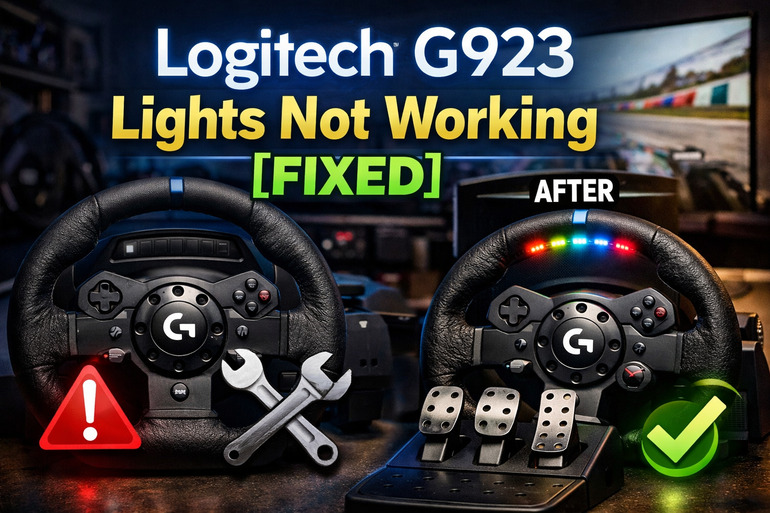
What’s Happening With Your Wheel
The lighting system on your G923 is part of what makes this racing wheel feel alive. Those LEDs usually light up in different colors and patterns depending on what’s happening in your game. They tell you when to shift gears, warn you about redlining your engine, and add that extra layer of immersion to your racing setup.
When the lights stop working, your wheel still functions for steering and pedals. But you lose that crucial visual feedback. Many racing games rely on these lights to help you drive better. Without them, you might miss shift points or push your car too hard without realizing it.
The issue can show up in different ways. Sometimes all the lights just stay off from the moment you plug in your wheel. Other times, they might work for a while and then suddenly go dark mid-race. A few people even see the lights flicker or only partially light up, which can be even more distracting than having no lights at all.
This happens to both new wheels fresh out of the box and older units that have seen plenty of racing action. Your computer recognizes the wheel just fine, the force feedback works, and you can steer and brake without problems. But those stubborn lights refuse to cooperate.
Logitech G923 Lights Not Working: Likely Causes
Several things can make your G923 lights stop working. Let’s look at what might be happening with your setup so you can pinpoint the exact issue.
1. Software Configuration Problems
Your G Hub software controls almost everything about how your wheel works, including the lighting. If the settings get changed accidentally or reset after an update, your lights might turn off completely. Some games have their own lighting profiles that override your default settings.
This happens more often than you’d think. Maybe you were tweaking some settings late at night and accidentally toggled something off. Or perhaps the software updated itself and reset everything back to factory defaults.
The software might also conflict with other programs running on your computer. If you have multiple RGB control applications or other gaming peripherals with their own software, they can sometimes interfere with G Hub’s ability to manage your wheel’s lights properly.
2. USB Connection Issues
The way your wheel connects to your computer matters a lot. G923 pulls power and data through the same USB cable. If that connection gets weak or unstable, the lights are usually the first thing to go dark because they draw extra power.
Your USB port might not supply enough power, especially if you’re using a hub or an older port. The cable itself could have damage you can’t see from the outside. Even a slightly loose connection at either end can cause the lights to fail while everything else still works fine.
3. Outdated Firmware
Logitech releases firmware updates to fix bugs and improve how your wheel performs. If your wheel is running old firmware, it might have known lighting issues that newer versions have already fixed. Your wheel won’t automatically update its firmware unless you specifically tell G Hub to do it.
Older firmware versions sometimes have trouble communicating with newer games or operating systems. The lights might work perfectly in some games but fail in others because the firmware doesn’t know how to handle newer lighting protocols.
4. Game-Specific Settings
Racing games have their own settings for how they talk to your wheel. Some games let you turn the rev lights on or off independently from the G Hub settings. If those in-game options are disabled, your lights will stay dark no matter what you do in the Logitech software.
Certain games need you to enable telemetry data sharing before the lights will work. Others require specific compatibility modes or need you to select Logitech G923 from a dropdown menu instead of just detecting it automatically. Missing any of these steps leaves you with dark lights even though everything else functions normally.
5. Hardware Failure
Sometimes the LED strip inside your wheel just fails. This can happen from normal wear and tear over time or from the wheel getting too hot during long racing sessions. Manufacturing defects occasionally slip through quality control too.
Physical damage from drops or impacts can break the internal wiring that connects the LEDs to the main circuit board. You might not see any external damage, but something inside got knocked loose. In rare cases, a power surge or static electricity can fry the lighting controller chip while leaving the rest of your wheel working fine.
Logitech G923 Lights Not Working: DIY Fixes
Getting your lights back on is usually pretty straightforward. Try these solutions in order, and you’ll likely solve the problem before you reach the last one.
1. Check G Hub Settings
Open your Logitech G Hub software and look for your G923 in the device list. Click on it, then find the lighting tab or section. Make sure the lights are actually turned on in the software. Some people accidentally turn them off or set the brightness to zero.
Look for any profiles that might override your main settings. G Hub lets you create different profiles for different games, and one of those profiles might have the lights disabled. Switch between profiles to see if that changes anything.
If you see the lights option but it’s greyed out or won’t respond to changes, try restarting G Hub completely. Close it from the system tray, then launch it again. Sometimes the software just needs a fresh start to recognize your settings properly.
2. Reinstall G Hub Software
Uninstall G Hub from your computer completely. Go to your Windows settings, find Apps, locate Logitech G Hub, and remove it. After it’s gone, restart your computer before doing anything else.
Download the latest version of G Hub directly from Logitech’s official website. Install it fresh and let it detect your wheel automatically. This wipes out any corrupted settings or files that might have been causing problems.
During installation, make sure you’re running the installer as an administrator. Right-click the installer file and choose “Run as administrator” if it doesn’t do this automatically. This ensures G Hub gets all the permissions it needs to control your hardware properly.
3. Update Your Wheel’s Firmware
Launch G Hub and find your G923 in the devices section. Look for a settings icon, gear icon, or menu button on the wheel’s card. Click it and search for firmware update options. If an update is available, you’ll see a button to start the process.
Follow these steps carefully:
- Keep your wheel plugged in and don’t touch it during the update
- Don’t turn off your computer or unplug the wheel until the update finishes
- Wait for the confirmation message that says the update completed successfully
- Restart your computer after the firmware update finishes
The update process usually takes a few minutes. Your wheel might restart itself or flash its lights briefly while updating. This is normal. Just let it finish without interruption.
4. Try Different USB Ports
Unplug your wheel from its current USB port. Try plugging it into a different port directly on your computer’s motherboard. Avoid using USB hubs or front panel ports if possible. The ports on the back of your computer usually provide more stable power.
USB 3.0 ports (the blue ones) sometimes cause issues with racing wheels. If you’re currently using a USB 3.0 port, try switching to a USB 2.0 port instead. Many people find their lights start working again just from this simple change.
Make sure the cable is pushed in all the way at both ends. Give the connector at the wheel base a firm push to ensure it’s seated properly. A connection that feels secure might still be just loose enough to cause problems.
5. Configure In-Game Settings
Open your racing game and go to the settings or options menu. Look for sections about controllers, wheels, or input devices. Find any options related to force feedback devices or wheel telemetry.
Check if there’s a specific setting for rev lights, shift lights, or RPM indicators. Enable these if they’re turned off. Some games hide these settings in advanced options or force feedback menus rather than putting them with other lighting controls.
You might need to select your wheel model specifically from a list rather than using automatic detection. Choose “Logitech G923” if you see it listed. Save your settings, exit the game completely, and restart it to make sure the changes take effect.
6. Test With Different Games
Your lights might work perfectly fine in some games but fail in others. This helps you figure out if the problem is with your wheel or with a specific game’s settings. Download a free racing sim or demo and see if the lights work there.
If the lights work in one game but fail in another, the issue is definitely with that specific game’s configuration. Go back to that game’s forums or support pages to find lighting setup guides specific to your wheel model.
7. Contact Logitech Support
If none of these fixes work, you might be dealing with a hardware failure that needs professional attention. Logitech support can run diagnostics and determine if your wheel needs repair or replacement. Check if your wheel is still under warranty before reaching out.
Have your wheel’s serial number ready when you contact them. You can find it on a sticker on the bottom of the wheel base. Explain what you’ve already tried so they don’t make you repeat the same steps. They might have additional troubleshooting specific to your situation or can arrange a warranty replacement if the hardware failed.
Wrapping Up
Getting your G923 lights working again usually comes down to software settings or connection problems. Most people fix the issue by checking G Hub settings, updating firmware, or switching USB ports. These lights really do make your racing experience better once they’re back up and running.
If you’ve tried everything here and still see darkness where those LEDs should be glowing, the hardware itself might need professional repair. That’s pretty rare though. Usually, one of these solutions gets things working again within just a few minutes of trying.