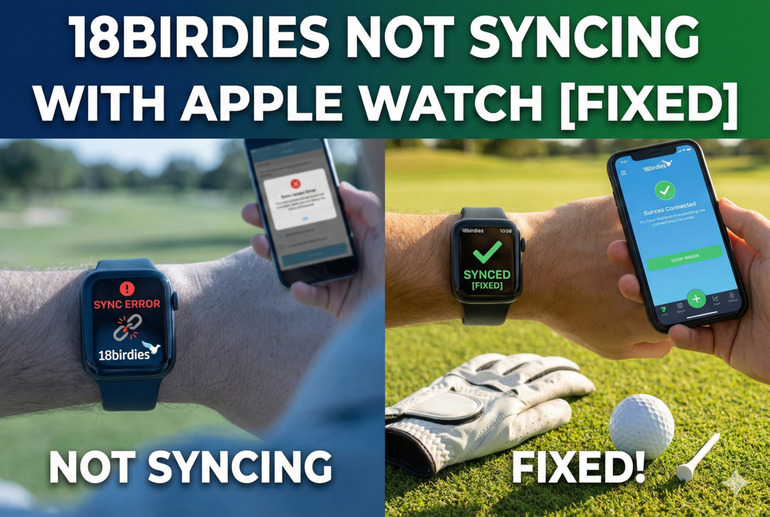
Your golf game is going great, but your 18Birdies app has other plans. You finish a round, check your Apple Watch, and nothing shows up on your phone. Your scores are trapped somewhere between your wrist and your device.
This syncing problem is frustrating because you’re losing data you worked hard to track. Let’s figure out why this happens and how you can get everything working smoothly again.
Why Your 18Birdies and Apple Watch Aren’t Talking
Your 18Birdies app relies on a constant conversation between your Apple Watch and your iPhone. Think of it like a walkie-talkie system. Both devices need to be listening at the same time for messages to get through. When that connection breaks, your golf stats get stuck on your watch instead of moving to your phone where you can see them properly.
This happens because the app uses something called Bluetooth to send information back and forth. Your watch collects your data during your round, then tries to hand it off to your phone. But if anything interrupts that handoff, your sync fails.
What makes this tricky is that both the watch app and the phone app need to be running properly at the same time. Your iPhone needs to receive the data, process it, and then send it to 18Birdies’ servers. Any weak link in that chain stops everything.
If you leave this unfixed, you’ll keep losing rounds of golf data. Some people have lost weeks of scores because they thought the problem would fix itself. Your handicap tracking gets messed up, and you lose all those stats you were building up.
18Birdies Not Syncing With Apple Watch: Likely Causes
Several things can break the connection between your devices. Understanding what’s causing your specific issue helps you fix it faster.
1. Bluetooth Connection Problems
Your Apple Watch talks to your iPhone through Bluetooth. If that connection drops or gets weak, nothing syncs. This is actually the most common reason for syncing failures.
Sometimes your Bluetooth is technically on, but the connection quality is poor. Maybe you walked too far from your phone during your round. Or there’s interference from other wireless devices at the golf course.
Your watch might also be connected to your phone but not actively communicating. This happens when Bluetooth gets into a weird stuck state where it looks like everything is fine but data isn’t moving.
2. Outdated App Versions
Running old versions of 18Birdies creates compatibility issues. The watch app and phone app need to match up properly. If one is updated and the other isn’t, they can’t speak the same language anymore.
App developers fix bugs and improve syncing with updates. When you skip those updates, you’re stuck with whatever problems existed in the old version. This is especially true after iOS updates, which can change how apps communicate with Apple Watch.
3. Background App Refresh Disabled
Your iPhone needs permission to let 18Birdies work in the background. If this setting is turned off, the app can’t receive data from your watch when you’re doing other things on your phone.
Background App Refresh is what allows apps to update their content even when you’re not actively using them. Without it, 18Birdies sits idle waiting for you to open it manually. Your watch is trying to send data, but your phone app isn’t listening because it’s essentially asleep.
Think of it like trying to deliver a package when nobody’s home. The delivery (your golf data) is ready, but there’s no one to receive it.
4. Watch App Not Properly Installed
Sometimes the 18Birdies watch app isn’t fully installed even though it looks like it is. The icon might be there, but the app files could be corrupted or incomplete.
This happens more often than you’d think, especially if your watch storage got full during installation. The installation starts but doesn’t finish completely. You end up with a partial app that looks normal but doesn’t function right.
5. Network Connection Issues
Your iPhone needs an active internet connection to complete the sync. The data goes from your watch to your phone, then from your phone to 18Birdies’ servers. If your phone has no WiFi or cellular connection, that final step fails.
Golf courses are often in areas with spotty cell coverage. You might finish your round in a location where your phone can’t get online. The data sits on your phone waiting to upload but never makes it to the cloud.
18Birdies Not Syncing With Apple Watch: How to Fix
Getting your sync working again usually takes just a few simple steps. Try these fixes in order until your data starts flowing properly.
1. Restart Both Devices
Turning your devices off and back on clears out temporary glitches. This simple fix solves sync problems more often than you’d expect.
Power off your Apple Watch first by holding the side button until you see the power slider. Swipe it to turn off completely. Then do the same with your iPhone. Wait about 30 seconds before turning them both back on.
After they restart, give them a minute to reconnect to each other. Open 18Birdies on your phone and check if your missing data appears. Sometimes it just needed that fresh start to push everything through.
2. Check Bluetooth and Reconnect
Make sure Bluetooth is actually working between your devices. Go to Settings on your iPhone, tap Bluetooth, and look for your Apple Watch in the device list. It should say “Connected.”
If it says “Not Connected” or your watch isn’t listed, you need to repair the connection. Toggle Bluetooth off, wait 10 seconds, then turn it back on. Your watch should reconnect automatically.
Try opening the Watch app on your iPhone too. This often triggers the devices to talk to each other again. You’ll see your watch appear at the top of the screen if everything’s working.
3. Update Both Apps
Head to the App Store on your iPhone and search for 18Birdies. If you see an “Update” button, tap it. This ensures you have the latest version.
For your Apple Watch app, updates usually happen automatically when you update the iPhone app. But you can check by opening the Watch app on your iPhone, scrolling down to 18Birdies, and seeing if there’s an update available there.
After updating, open 18Birdies on both your phone and watch. Let them sit there for a minute to establish a fresh connection with the new software.
4. Enable Background App Refresh
Open Settings on your iPhone and scroll down to 18Birdies. Tap on it, then look for “Background App Refresh.” Make sure it’s turned on.
You should also check the main Background App Refresh setting. Go to Settings, then General, then Background App Refresh. Make sure the master switch at the top is enabled. Below that, find 18Birdies in the list and confirm it’s set to “On.”
This tells your phone to keep listening for data from your watch even when you’re using other apps. Your golf stats can now sync anytime instead of only when you’re actively looking at the app.
5. Reinstall the Watch App
Sometimes you need to start fresh with the watch app. Open the Watch app on your iPhone and scroll down to find 18Birdies. Tap it, then toggle “Show App on Apple Watch” to off.
Wait a minute, then toggle it back on. This forces a clean reinstall of the watch app. The app will download fresh files and set up the connection properly.
Give it a few minutes to fully install. You can check the progress by looking at your watch. Once the app icon appears and stays there, try syncing your data again.
6. Force Sync Through the App
Open 18Birdies on your iPhone and go to your profile or settings area. Look for a sync option or pull down to refresh. Many times there’s a manual sync button that forces the app to check your watch for data.
Some versions of the app let you swipe down on your rounds screen to trigger a refresh. Try that if you don’t see a specific sync button. The app will reach out to your watch and pull any data that’s sitting there.
7. Contact 18Birdies Support
If nothing works, reach out to the 18Birdies support team. They can check your account on their end and see if there’s a server-side issue blocking your sync.
Your data might be stuck in their system rather than on your devices. They have tools to manually push syncs through or reset your account’s connection. Explain exactly what you’ve tried so they don’t make you repeat steps you’ve already done.
Wrapping Up
Syncing issues between 18Birdies and your Apple Watch usually come down to connection problems or software hiccups. Most of the time, a simple restart or enabling the right settings gets everything back on track.
Your golf data is important for tracking your progress, so fixing this quickly means you won’t lose any more rounds. Try the easier fixes first, and if those don’t work, the reinstall or support contact options should get you sorted. Your scores will start showing up where they belong soon enough.