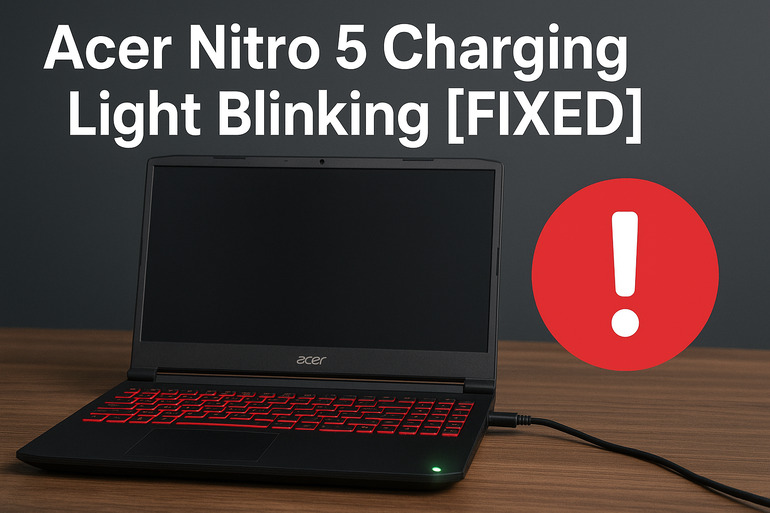
Your Acer Nitro 5 won’t charge properly, and that little light on the side keeps flashing at you. Frustrating, right? You plug in your laptop expecting it to power up, but instead you get this mysterious blinking signal that leaves you wondering if your gaming sessions are about to come to an abrupt halt.
This blinking light issue is actually pretty common among Nitro 5 users, and there’s good news. Most of the time, you can fix it yourself without spending a dime at a repair shop. Let’s walk through what’s happening with your laptop and how you can get it charging normally again.
What’s Really Going On With That Blinking Light
That charging light on your Acer Nitro 5 serves as a communication tool between you and your laptop. When everything works fine, it glows solid white or amber while charging. But when it starts blinking, your laptop is trying to tell you something is wrong with the charging process.
The blinking pattern usually means your laptop detects power coming in but can’t use it properly. Think of it like a door that’s half open. The electricity is there, but something is blocking it from flowing smoothly into your battery. Sometimes the laptop charges for a few seconds, then stops, then tries again. This creates that annoying on-and-off blinking pattern.
If you ignore this issue, your laptop battery will eventually drain completely. You might find yourself unable to use your Nitro 5 at all, even when plugged in. The battery could also suffer long-term damage from inconsistent charging cycles, which means you’ll need to replace it sooner than expected. Your gaming or work sessions could get interrupted at the worst possible moments.
Here’s what makes this particularly tricky. The blinking can start suddenly, even if your laptop worked perfectly yesterday. One day you’re gaming without a care, and the next morning your charging light is doing its little dance. The battery percentage might show it’s charging on screen, but it barely moves or actually drops while plugged in.
Acer Nitro 5 Charging Light Blinking: Common Causes
So what triggers this blinking behavior in your Nitro 5? Several factors can interrupt the smooth flow of electricity into your laptop. Let’s look at each one so you can pinpoint what might be affecting your specific situation.
1. Loose or Damaged Charging Cable
Your charging cable takes a beating over time. You wrap it up, toss it in bags, and accidentally roll your chair over it. Those little actions add up, creating weak spots in the cable that interfere with power delivery.
The connection at either end of the cable gets particularly vulnerable. You know how you sometimes wiggle the plug to make it work? That’s a clear sign of internal wire damage. The copper wires inside might be partially broken, allowing some electricity through but not enough for stable charging.
Even tiny bends or kinks in the cable can cause problems you can’t see from the outside. The insulation might look perfect, but inside, the wires could be hanging by a thread. Your laptop receives inconsistent power, triggering that blinking light as it repeatedly tries to start and stop the charging process.
2. Faulty Power Adapter
The power brick that converts wall electricity into laptop-friendly power can fail too. These adapters work hard, getting warm during use and cooling down when you unplug them. This constant temperature change stresses the internal components.
Sometimes the adapter partially dies. It still turns on and might even feel warm, but it can’t deliver the full wattage your Nitro 5 needs. Your laptop detects power but realizes it’s insufficient, causing the charging light to blink as a warning. Gaming laptops like the Nitro 5 need substantial power, usually around 135 to 180 watts, and a weakening adapter can’t keep up.
3. Dirty or Corroded Charging Port
That small charging port on your laptop collects dust, lint, and other tiny particles over time. You probably don’t think about it much, but every time you plug and unplug your charger, you might push debris deeper inside.
This buildup creates a barrier between the charging plug and the metal contacts inside the port. Poor contact means inconsistent power flow. Your laptop might charge for a moment when the connection is good, then stop when the debris shifts slightly. This creates the blinking pattern you’re seeing.
Moisture can also sneak into the port, especially if you use your laptop in humid environments or accidentally spill something nearby. Even a tiny amount of liquid can cause corrosion on those delicate metal pins. Corroded contacts can’t transfer electricity properly, leading to interrupted charging cycles and that telltale blinking light.
4. Battery Connection Issues
Inside your Nitro 5, the battery connects to the motherboard through a small plug. This connection can work loose over time, especially if you move your laptop around frequently or if it experiences any bumps or drops.
A loose battery connection creates an intermittent link between your battery and the charging system. Sometimes the connection is good enough to charge, other times it breaks contact. This on-and-off behavior manifests as the blinking charging light you’re dealing with. The laptop can’t maintain a stable charging state because the battery keeps losing its connection to the power supply.
5. Overheating or Power Management Problems
Your Nitro 5 has built-in protection systems that monitor temperature and power flow. If your laptop gets too hot, these systems might interrupt charging to prevent damage. The cooling fans work overtime during intense gaming, but if they’re clogged with dust or not working properly, heat builds up fast.
Excessive heat can trigger the laptop’s safety features, causing it to pause charging until temperatures drop. This creates a cycle where charging starts, the laptop heats up, charging stops, things cool down a bit, and then it tries again. You see this as a blinking light, but it’s actually your laptop protecting itself from thermal damage.
Software glitches in the power management system can also confuse your laptop about its charging state. After Windows updates or driver changes, the system might misread battery levels or power input. This confusion can trigger false alarms that make the charging light blink even when nothing is physically wrong with your hardware.
Acer Nitro 5 Charging Light Blinking: How to Fix
Now that you know what causes the blinking, let’s get your Nitro 5 charging properly again. These fixes work for most situations, and you can try them at home without any special tools. Start with the easiest solutions and work your way through if needed.
1. Check and Reseat All Connections
Start by unplugging everything from your laptop. This means the power adapter from both the wall and your laptop. Wait about 30 seconds to let any residual charge dissipate completely.
Now plug everything back in carefully. Make sure the adapter plugs firmly into the wall outlet. Then connect the charging cable to your laptop port, pushing it in until you feel it seat properly. Sometimes a connection that looks fine is actually slightly loose, and reseating everything can restore proper contact.
Try wiggling the cable gently at the laptop end while watching the charging light. If the blinking changes or stops during this wiggle test, you’ve found your problem. The connection isn’t secure, and you’ll need to either clean the port or replace the cable.
2. Clean the Charging Port
Get a can of compressed air or a soft, clean toothbrush. If using compressed air, hold the can upright and give short bursts into the charging port. Don’t spray continuously or hold the can at an angle, as this can release liquid propellant that damages electronics.
For stubborn debris, gently brush inside the port with the toothbrush. Be very careful and don’t apply pressure. You’re just trying to dislodge visible particles, not scrub aggressively. Shine a flashlight into the port to see if you’re making progress.
After cleaning, let everything dry for a few minutes if you used any moisture. Then plug in your charger again and check if the blinking stops. A clean port often solves the issue immediately because it restores proper electrical contact.
3. Test With a Different Power Outlet
Your wall outlet might be the culprit. Some outlets develop loose connections or don’t provide stable voltage. This is especially common in older buildings or with frequently used outlets.
Unplug your adapter and try a completely different outlet in another room. Don’t use power strips or extension cords for this test. Plug directly into the wall outlet to eliminate any variables. If the blinking stops, your original outlet needs attention from an electrician.
4. Perform a Hard Reset
This simple trick clears temporary glitches in your laptop’s power management system. First, shut down your Nitro 5 completely. Don’t just close the lid or put it to sleep. You want a full shutdown.
Once it’s off, unplug the charger. Now hold down the power button for about 30 seconds. This drains any stored electrical charge in the system and resets the power circuits. You might see the power light flicker briefly during this process.
After the 30 seconds, plug your charger back in before pressing the power button. Let the laptop boot up while connected to power. This reset often clears software hiccups that cause false charging alerts and blinking lights.
5. Check Battery Connection Internally
This fix requires opening your laptop, so only try it if you feel comfortable doing so. You’ll void any warranty if your Nitro 5 is still covered, so consider that first.
Turn off your laptop and flip it over. Remove the screws holding the bottom panel in place. You’ll need a small Phillips screwdriver for this. Once the panel is off, locate the battery. It’s the large rectangular component taking up much of the internal space.
Find where the battery cable plugs into the motherboard. It’s usually a white connector with multiple wires. Gently unplug this connector, wait a few seconds, then plug it back in firmly. Make sure it clicks into place. Reassemble your laptop, plug in the charger, and see if the blinking issue is resolved.
6. Update Battery Drivers and BIOS
Outdated software can cause charging problems even when your hardware works fine. Press the Windows key and type “Device Manager” to open it. Look for “Batteries” in the list and expand that section.
Right-click on “Microsoft ACPI-Compliant Control Method Battery” and select “Uninstall device.” Don’t worry, Windows will reinstall it automatically. Restart your laptop while plugged in. The driver reinstalls during startup, often fixing software-related charging issues.
For BIOS updates, visit the Acer support website and download the latest BIOS for your specific Nitro 5 model. Follow the installation instructions carefully. BIOS updates can resolve deep-level power management bugs that cause charging light problems.
7. Contact Acer Support or a Technician
If none of these fixes work, your issue likely requires professional diagnosis. The problem might be a failing motherboard component or a battery that needs replacement. These aren’t repairs you should attempt at home without proper training and tools.
Reach out to Acer support through their website or call their service line. Have your laptop’s serial number ready. They can run remote diagnostics or arrange for repair service. If your warranty has expired, find a reputable computer repair shop that works with laptops regularly. They’ll have the equipment to properly test your charging system and identify the exact component that needs replacement.
Wrapping Up
That blinking charging light on your Acer Nitro 5 might seem scary at first, but it’s usually something you can fix yourself. Most of the time, it comes down to dirty ports, loose connections, or software hiccups that need a simple reset. Even replacing a cable or adapter is cheaper and faster than you might think.
Your gaming laptop is built to last, and this charging issue is just a bump in the road. Try each fix patiently, and chances are you’ll have your Nitro 5 back to normal charging behavior within minutes. Once everything works again, keep your charging port clean and handle your cables gently to prevent the problem from coming back.