These problems can originate from incorrect software configuration, missing drivers, activation issues, unsupported firmware, or communication failures. Identifying the exact error message is essential because each problem requires a different solution.
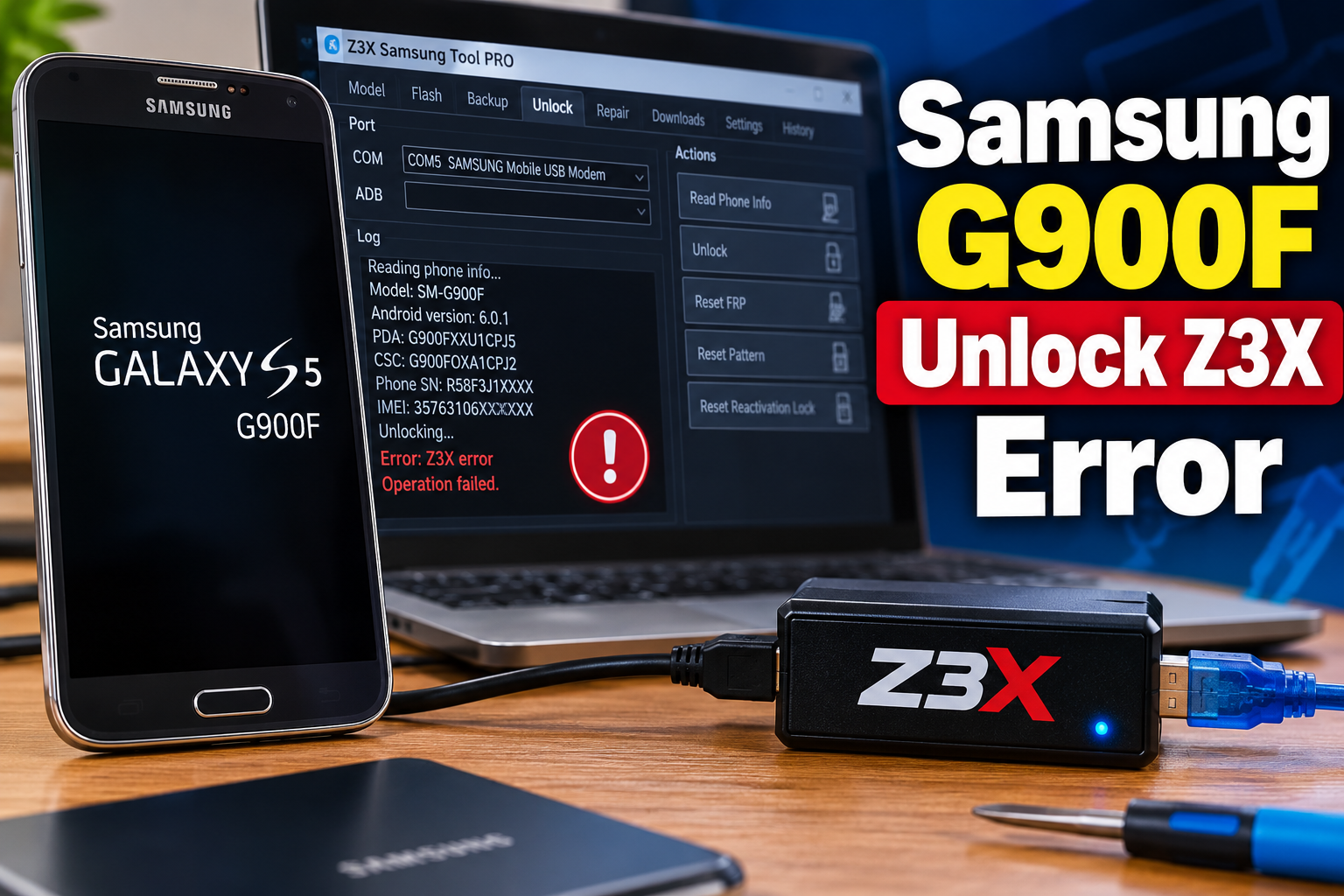
What the Samsung G900F Unlock Z3X Error Means
The Samsung G900F is the international version of the Samsung Galaxy S5. It runs Android firmware and communicates with a Windows computer through a USB connection when technicians perform supported servicing operations.
Z3X Samsung Tool is a professional servicing application used for supported Samsung phone operations. Depending on the software version, hardware activation, and available credits, its functions may include network unlocking, firmware servicing, and device identification.
An unlock error occurs when the software cannot complete the requested operation. Sometimes, the problem is with the computer or Z3X hardware rather than the phone itself. In other cases, the selected operation may not support the phone’s particular network operator or firmware version.
You may encounter messages such as Card Not Found, Wrong Login/Password, 403 Forbidden, Could Not Connect to Server, or Sending First Loader Error (4.4.1).
These messages indicate different problems. A card detection error concerns the Z3X hardware or its drivers, while a server authentication error relates to account access or connectivity. A loader error indicates difficulty communicating with the connected device.
It is also important to distinguish a SIM or network lock from a screen lock or Google Factory Reset Protection (FRP). These are different security features and require different authorized recovery procedures.
Samsung G900F Unlock Z3X Error: Common Causes
Several conditions can prevent Z3X Samsung Tool from completing an operation on the Galaxy S5 SM-G900F. The following are five important causes to investigate.
1. Unsupported Firmware Version or Network Operator
One possible reason for an unsuccessful unlock operation is that the phone’s firmware or network operator is not supported by the selected Z3X function.
Although two phones may both carry the SM-G900F model number, they may have different firmware configurations depending on their original network providers and regional distribution.
Some operators also require different servicing methods or server credits. Selecting the correct phone model alone does not guarantee that the requested operation will succeed.
A mismatch between the installed firmware and the supported configuration can cause the operation to fail or remain unavailable in the software.
2. Missing Z3X Activation or Insufficient Credits
Z3X Samsung Tool requires the appropriate hardware activation or software subscription, depending on the edition being used. Certain server-based unlocking operations also require credits.
When the necessary activation is missing, the application may display a Product Not Activated message or prevent access to the selected function.
An account with insufficient credits may also be unable to complete an operation that requires a paid server service.
This problem can occur when a newly purchased box has not been activated, when the wrong account is being used, or when the required Samsung activation has not been added.
3. Incorrect or Missing USB and Z3X Drivers
Communication between the Galaxy S5 and the computer depends on compatible USB drivers. The Z3X hardware also uses separate drivers to establish communication between its box, smart card, and Windows software.
When these drivers are missing, outdated, or incorrectly installed, the computer may fail to recognize the connected equipment.
You may notice that Z3X Samsung Tool opens normally but cannot detect the box or phone. In other cases, the software may stop during device identification or report a communication failure.
Driver conflicts can also occur when several mobile servicing tools have been installed on the same computer. An incomplete installation may leave the required drivers unavailable to the application.
4. Poor USB Connection or Loader Communication Failure
A stable USB connection is necessary when the software communicates with the Galaxy S5 during a supported servicing operation.
A damaged cable, loose USB port, or unstable connection can interrupt communication between the phone and the computer. This may cause the operation to stop before the required data transfer is completed.
The problem may also involve the phone’s operating condition or the software’s ability to communicate with its selected device interface.
One specific message is Sending First Loader Error (4.4.1). This indicates difficulty during the loader transfer process. A poor USB connection, incompatible drivers, or an incorrect device communication state may contribute to the problem.
5. Z3X Server, Login, or Smart Card Problems
Some Z3X operations require communication with the manufacturer’s server. When the software cannot establish this connection, it may display 403 Forbidden, Could Not Connect to Server, or Wrong Login/Password.
A wrong login error may result from entering an incorrect username or password. Incorrect capitalization or additional spaces can also prevent authentication.
A 403 error can have different causes, including network problems, access restrictions, or a blocked IP address.
A damaged or undetected smart card can produce another category of error. The software may report Card Not Found or Program Damaged when it cannot communicate with the card or its reader.
These problems should be distinguished carefully because reinstalling the phone’s firmware will not correct a Z3X account, server, or smart card issue.
Samsung G900F Unlock Z3X Error: How to Fix
The appropriate solution depends on the exact error displayed by Z3X Samsung Tool. Begin with the software configuration and hardware connection before considering more involved servicing.
1. Confirm the Phone Model and Supported Firmware
Before attempting another operation, verify that the connected device is actually the Samsung Galaxy S5 SM-G900F.
Open the phone’s settings and check the model information under About Device or About Phone. Also record the installed Android version and firmware build number.
Compare these details with the supported model and firmware information available through Z3X support.
Pay attention to the original network operator as well. A device originally supplied by one carrier may have different servicing requirements from another SM-G900F with a different network configuration.
Do not assume that every firmware version supports the same operation. If the exact combination isn’t listed as supported, confirm compatibility before proceeding.
2. Verify Z3X Activation, Account, and Credits
If the application reports a missing activation or account error, check the status of your Z3X hardware and software subscription.
Open Z3X Shell and inspect the available hardware and activation information. For older Z3X boxes, the Hardware Wizard can be used to register the box, update card firmware, and activate purchased services.
Check the following:
-
Confirm that your Z3X box or dongle is recognized.
-
Verify that the Samsung activation is available.
-
Check that the correct software module is installed.
-
Confirm that the required credits are available for the selected service.
-
Contact your reseller if a purchased activation has not appeared.
If the software displays Product Not Activated, adding more credits may not solve the issue. The missing activation must first be addressed.
Avoid purchasing additional credits until you have confirmed which service is required.
3. Reinstall the Z3X Drivers and Check Hardware Detection
Driver problems can prevent the software from communicating with the box or smart card. Reinstalling the correct drivers can resolve detection problems caused by an incomplete installation.
Follow these general checks:
-
Disconnect the Z3X box from the computer.
-
Close Z3X Shell and other servicing applications.
-
Open Device Manager in Windows.
-
Check whether the Z3X hardware appears with a warning symbol or is listed as an unidentified device.
-
Reinstall the appropriate official box and card drivers.
-
Restart the computer and reconnect the hardware.
-
Open Z3X Shell and check whether the equipment is detected.
If the error concerns a smart card, inspect its contact pins for visible dirt. Clean them gently with an appropriate lint-free material, ensuring that the card is dry before reconnecting it.
If card detection problems continue, test the equipment with another compatible computer or card reader.
Avoid downloading modified driver packages or cracked versions of the software. Use the official installation resources to reduce the risk of incompatible files or damaged activation data.
4. Resolve Server and Login Errors
When Z3X displays a login or server connection error, concentrate on the account and network configuration rather than changing the phone’s firmware.
For a Wrong Login/Password message, check that you are using the correct Z3X account credentials. Pay attention to uppercase and lowercase characters, underscores, and accidental spaces.
For a Could Not Connect to Server message, check that the computer has a working internet connection. Review the firewall settings to ensure that the legitimate Z3X application is permitted to communicate with its service.
A 403 Forbidden warning may require assistance from Z3X support. The error can result from connection restrictions or an IP access restriction.
If the problem continues, submit a support request containing the exact error message, software version, and relevant hardware information. Never share your account password or private authentication details.
Avoid using cracked software, unauthorized server access methods, or modified application files. These can create additional access and security problems.
5. Correct the USB or Loader Communication Error
If the phone is not detected or the operation stops during loader transfer, inspect the physical connection first.
Use a reliable data-capable USB cable rather than a charging-only cable. Connect the phone directly to a working USB port on the computer instead of relying on an unstable hub.
Check for dirt or visible damage around the phone’s charging port. A loose connection can interrupt communication even when the battery is charging normally.
For the specific Sending First Loader Error (4.4.1) message, consult the software’s model-specific troubleshooting instructions before attempting the operation again.
If the error continues, check the drivers, cable, and model compatibility.
Avoid interrupting a firmware or servicing operation once data transfer has started. An incomplete operation can leave the phone unable to start normally.
6. Contact a Qualified Mobile Phone Technician
If the error persists after checking the software, account, drivers, and USB connection, professional diagnosis may be necessary.
A qualified mobile phone technician can examine the device’s USB interface, charging port, internal connections, and software condition. They can also investigate whether the problem relates to the installed firmware or a supported servicing limitation.
The Z3X box or smart card may also require attention if it repeatedly fails to register or communicate with the software.
Provide the technician with the exact error message, phone model, firmware build, Z3X software version, and details of what happened before the failure.
Avoid attempting unverified firmware modifications, changes to device identifiers, or methods intended to bypass screen-lock and account-protection features. For SIM or network restrictions, use the original carrier’s authorized unlocking service or an approved servicing provider.
Professional diagnosis is particularly important when the phone becomes unresponsive, repeatedly disconnects during servicing, or cannot start after an interrupted operation.
Wrap-Up
The Samsung G900F Unlock Z3X error can originate from unsupported firmware, missing activation, driver conflicts, USB communication problems, or Z3X server restrictions. The exact error message provides an important starting point for identifying the affected system.
Check the model and firmware compatibility first, then verify the Z3X hardware, account, drivers, and network connection. Avoid repeating failed servicing operations without identifying the underlying problem. When the error persists, qualified technical support can help determine whether the issue lies with the phone, the servicing equipment, or the software configuration.