These problems can originate from paper feeding faults, toner cartridge issues, wireless connection failures, or internal component defects. Understanding the warning indicators and identifying the affected component will help you choose the appropriate repair.
What the Samsung Xpress M2020W Error Means
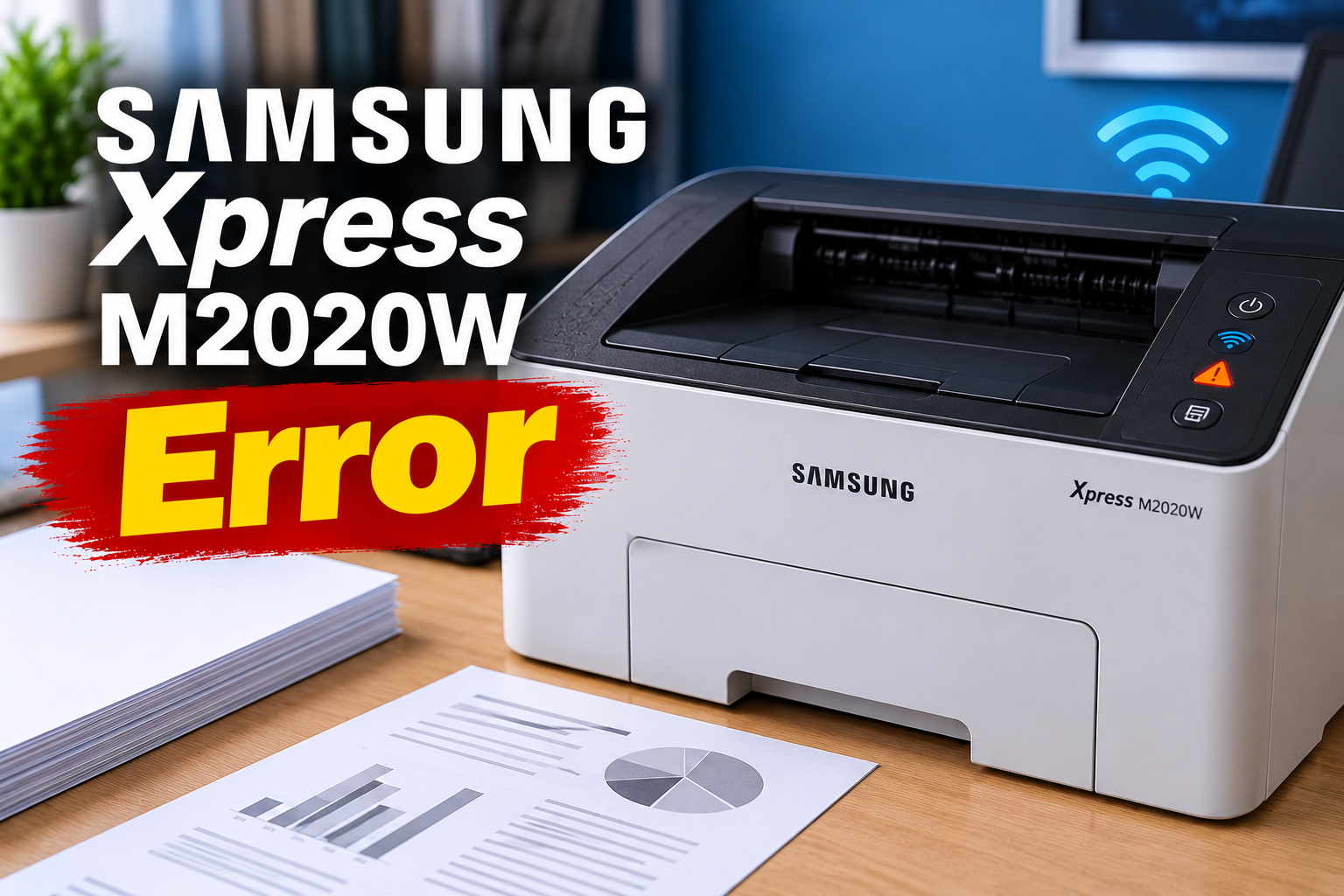
The Samsung Xpress M2020W is a monochrome laser printer with wireless and USB connectivity. Unlike printers with a conventional LCD display, this model communicates many operating conditions through indicator lights on its control panel. A connected computer may also display additional error messages when printing fails.
The printer has separate indicators for general machine status, toner condition, wireless connectivity, and power. Each indicator provides useful information about the machine’s operating condition. For example, a solid red status light can indicate an open cover, an empty paper tray, or a major machine error. An illuminated orange status light indicates a paper jam.
The symptoms can vary depending on the affected component. You might experience repeated paper feeding failures, documents remaining in the print queue, missing printouts, or a printer that refuses to connect to your wireless network.
The toner indicator also deserves attention. A blinking orange toner light indicates that the cartridge is running low, while a continuously illuminated toner light indicates that the cartridge has nearly reached its estimated service life. These warnings can affect printing availability and quality.
Identifying the correct indicator is essential because different faults can produce similar symptoms. Replacing the toner cartridge will not resolve a wireless connection problem, just as reinstalling the printer driver will not correct a mechanical paper feeding fault.
Samsung Xpress M2020W Error: Common Causes
Several conditions can cause the Samsung Xpress M2020W to stop printing or display an error warning. The following are five common areas to investigate before considering an internal repair.
1. Paper Feeding Problems and Paper Jams
Paper feeding problems are among the common reasons the Samsung Xpress M2020W stops printing. The printer relies on pickup rollers and other feeding components to draw individual sheets into the printing mechanism. When these components cannot move the paper correctly, the machine may register a feeding error.
Incorrectly loaded paper, an overloaded tray, curled sheets, and unsuitable media can interrupt this process. Paper exposed to moisture may also stick together, causing the printer to pull multiple sheets at once or fail to feed any paper.
Some paper problems are associated with specific service error codes. For example, M2-1110 indicates a paper jam inside the machine, while M2-1116 can indicate a paper jam or an empty tray. Code M2-1317 identifies a paper jam detected in the fuser area.
Repeated feeding errors can also point to contaminated or worn pickup rollers, a damaged friction pad, or a problem with the paper detection mechanism.
2. Incorrectly Closed Top Cover
The top cover protects the internal printing mechanism and helps keep the toner cartridge correctly positioned. The printer has a cover detection mechanism that prevents normal operation when the cover is not properly closed.
A cover that is slightly raised, incorrectly seated, or obstructed can trigger an error indication. This may happen after replacing the toner cartridge, clearing a paper jam, or performing routine maintenance.
The M2020W service documentation associates error code S2-4110 with an open door or a problem involving the cover detection switch. If the cover appears completely closed but the warning remains, the detection mechanism may require further inspection.
3. Low, Empty, or Incompatible Toner Cartridge
The toner cartridge contains the fine powder used to create printed text and images. When the toner level becomes low, the printer communicates the condition through its orange toner indicator.
A blinking orange toner light indicates that the remaining toner is running low. A continuously illuminated orange toner light means the cartridge has nearly reached its estimated service life.
An incorrectly installed cartridge can also prevent printing. The M2020W may produce an error when the cartridge is missing, incompatible, or not properly recognized by the machine.
For example, service code C2-1410 indicates that the toner cartridge is not installed, while C2-1510 indicates an incompatible cartridge. Contaminated cartridge contacts or a defective cartridge can also interfere with proper recognition.
4. Wireless Connection or Printer Driver Problems
The Samsung Xpress M2020W supports wireless printing through an 802.11b/g/n wireless network, as well as a USB connection. This allows you to send print jobs from compatible computers without connecting a cable directly to the printer.
However, a wireless connection can become unavailable when the printer loses its network connection, the router is restarted, or the computer sends a print job to an incorrect printer destination.
The blue WPS indicator helps identify the wireless connection condition. A blinking blue light means the printer is attempting to connect to a network, while a steady blue light indicates an established wireless connection. When the indicator is off, the printer is disconnected from the wireless network.
Software problems can produce similar symptoms. An outdated or incorrectly installed printer driver, an incorrect port selection, or a stalled print queue can prevent the computer from communicating properly with the machine.
opweb.de+2
5. Worn Internal Components or Electrical Faults
When basic troubleshooting fails, an internal component may be preventing the printer from operating correctly. The pickup roller, friction pad, feed sensor, and other mechanical assemblies are involved in moving paper through the machine.
Repeated use can cause some feeding components to become worn or contaminated. A damaged roller may rotate without gripping the paper properly, while a faulty sensor may fail to detect the movement of a sheet.
Electrical faults can also interrupt normal operation. Problems involving the power supply board, main board, or internal connections may cause the machine to stop responding or fail during startup.
A printer that repeatedly displays major error warnings, fails to power on, or develops persistent paper detection problems may require professional diagnosis rather than repeated resets.
Samsung Xpress M2020W Error: DIY Fixes
The correct solution depends on the warning displayed and the symptoms experienced. Start with the accessible checks below before attempting any internal repair.
1. Identify the Warning Light and Reset the Printer
Before changing any components, inspect the printer’s status indicators. Their colors and patterns can help you identify the type of problem affecting the machine.
The Samsung Xpress M2020W uses the following status indications.
| Indicator | Meaning |
|---|---|
| Green, blinking | Receiving or printing data |
| Green, steady | Printer is ready |
| Red, blinking | Minor error requiring attention |
| Red, steady | Open cover, empty tray, or major error |
| Orange, blinking | Firmware upgrade in progress |
| Orange, steady | Paper jam |
| Toner light, orange blinking | Toner running low |
| Toner light, orange steady | Cartridge nearing estimated end of life |
| WPS light, blue blinking | Connecting to wireless network |
| WPS light, blue steady | Connected to wireless network |
| WPS light, off | Disconnected from wireless network |
Once you have identified the warning, switch off the printer using its power button. Wait briefly before turning it back on.
Allow the machine to complete its startup process and observe whether the warning disappears. A restart may clear a temporary operating problem, but a persistent warning means the underlying fault still needs attention.
2. Reload the Paper and Clear Any Jammed Sheets
If the printer displays a paper-related warning, inspect the input tray and accessible paper path.
Begin by removing the paper stack and checking for folded, torn, damp, or damaged sheets. Fan the remaining paper gently to separate sheets that may have stuck together.
The M2020W has a maximum standard paper capacity of 150 sheets of plain paper at the specified paper weight. Avoid exceeding this capacity or mixing different paper sizes and types in the same stack.
To clear an accessible paper jam:
-
Turn off the printer and disconnect its power cable.
-
Remove the remaining paper from the input tray.
-
Fold down the output support if necessary.
-
Open the top cover according to the manufacturer’s instructions.
-
Locate any visible jammed paper and remove it gently.
-
Check for small paper fragments that may have remained inside.
-
Reload the paper correctly and close the top cover.
Take care around the fuser area. This component becomes hot during printing, so allow the printer to cool before removing paper from inside. Never use sharp objects or force a sheet through a restricted opening.
Restart the printer and send a test document. If the paper warning disappears and sheets feed normally, the obstruction or incorrect loading may have caused the problem.
3. Reinstall or Replace the Toner Cartridge
A toner-related warning may occur when the cartridge is running low, improperly installed, or no longer recognized by the printer.
Start by switching off the machine and opening the top cover. Carefully remove the toner cartridge and check that its protective cover and sealing materials have been removed.
If you have just installed a replacement cartridge, make sure it is compatible with the M2020W. An unsuitable cartridge may trigger an incompatibility warning even when it contains sufficient toner.
When the cartridge is running low, you can try redistributing the remaining toner:
-
Remove the cartridge from the printer.
-
Hold it horizontally and gently move it from side to side several times.
-
Avoid shaking it forcefully or turning it upside down.
-
Reinstall the cartridge securely.
-
Close the top cover and restart the printer.
Redistributing toner can temporarily improve print quality when the powder is unevenly distributed. It does not restore an exhausted cartridge, so replacement will eventually be necessary.
If the printer continues to report a cartridge installation or compatibility error, try a suitable replacement cartridge. Persistent recognition problems may require inspection of the cartridge contact area.
opweb.de+2
4. Clear the Print Queue and Check the Printer Driver
When the printer appears ready but refuses to print documents, the problem may originate from the connected computer.
A stalled print job can prevent other documents from entering the printing process. An incorrectly configured driver can also send instructions that the printer cannot process correctly.
On a Windows computer, follow these steps:
-
Open Settings and select Bluetooth & devices.
-
Open Printers & scanners.
-
Select Samsung Xpress M2020W.
-
Open the print queue.
-
Cancel any documents that are stuck or displaying an error.
-
Check that the printer is selected as the default printing device.
-
Send a new test document.
If the printer still refuses to print, check the installed driver. Download a compatible driver from the Samsung printer support resources now provided through HP, using the exact model number and your computer’s operating system.
Remove the existing driver when necessary and install the replacement. For USB printing, also check that the cable is firmly connected and that the correct printer port is selected.
A successful test print confirms that communication between the computer and printer has been restored.
If your Samsung Xpress M2020W refuses to print wirelessly, check the network connection before assuming that the printer has developed a hardware fault.
Start by confirming that the wireless router is working and that your computer is connected to the intended network. Check the printer’s blue WPS indicator to determine whether it is connected.
If the WPS light is off, the printer may have lost its wireless connection. Re-establish the connection using the printer’s supported wireless setup procedure. You can use WPS when your router supports it, or configure the connection through the appropriate Samsung wireless setup software.
After completing the connection process, check that the computer and printer are communicating through the same intended network. Also confirm that the correct printer is selected when sending documents.
Avoid repeatedly changing network settings without checking the existing configuration. Once the wireless connection is restored, print a test page to confirm that the machine can receive jobs correctly.
6. Contact a Qualified Printer Technician
When the suggested fixes fail, the problem may involve an internal mechanical or electrical component.
A qualified printer technician can examine the pickup roller, friction pad, feed sensor, toner recognition contacts, and other internal assemblies. The technician can also investigate persistent error codes and determine whether a component needs cleaning, adjustment, or replacement.
For example, recurring M2-1110 or M2-1116 errors may require inspection of the pickup roller, friction pad, feed sensor connections, or sensor actuator. Replacing the sensor without checking these other components may leave the original problem unresolved.
Problems involving the fuser, power supply board, or main board also require appropriate diagnostic equipment and repair experience.
Avoid dismantling the printer to reach electrical assemblies or attempting repairs around the high-voltage sections. Professional servicing is the appropriate option when the printer refuses to start, repeatedly develops major errors, or continues to malfunction after basic troubleshooting.
Wrap-Up
Samsung Xpress M2020W errors can originate from paper feeding difficulties, toner cartridge problems, incorrect printer settings, wireless connection failures, or damaged internal components. Paying attention to the status indicators makes it easier to identify the affected system and choose an appropriate solution.
Start with accessible checks such as clearing paper jams, reinstalling the toner cartridge, and verifying the computer connection. When warnings persist or return repeatedly, arrange a proper inspection before replacing internal parts. A correct diagnosis helps restore reliable printing and prevents unnecessary repairs.