Understanding what triggers the alert helps you protect your phone and choose the right fix without damaging its internal components.
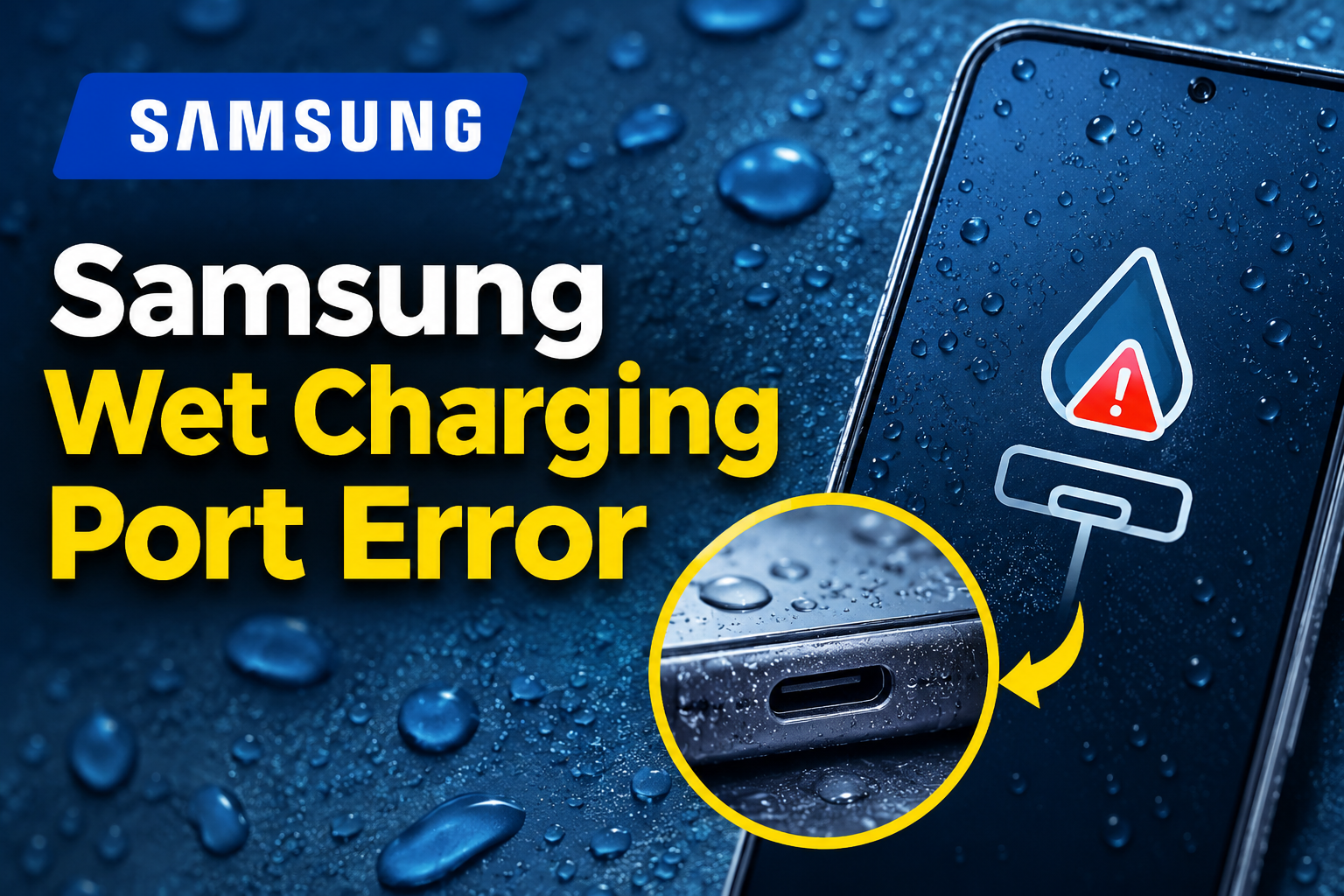
What the Samsung Wet Charging Port Error Means
Samsung phones with moisture detection can display a warning when the charging system detects moisture or a potentially unsafe condition in the USB charging port. The feature helps prevent electrical problems, corrosion, and damage that could occur if you connect a charging cable while moisture is present.
When the warning appears, wired charging may be disabled until the phone considers the port safe. Depending on your model and software version, you might see a water droplet icon, a notification stating that moisture has been detected, or a message instructing you to disconnect the charger.
The alert can appear after your phone gets wet in the rain, comes into contact with spilled liquid, or is used in a humid environment. Condensation can also form when a phone moves between environments with different temperatures.
Sometimes, the warning persists after the charging port has dried. This can happen if moisture remains inside the connector, debris interferes with detection, or a software or hardware fault affects the charging system. A persistent alert doesn’t automatically mean that your phone is permanently damaged.
Avoid repeatedly connecting and disconnecting the charger to test whether the warning has disappeared. If moisture is present, doing so may increase the risk of corrosion or electrical damage. Start with safe drying procedures before attempting other troubleshooting methods.
Samsung Wet Charging Port Error: Likely Causes
Several conditions can trigger the moisture warning on a Samsung phone. Identifying the likely cause helps you choose a safe solution without exposing the charging port to further damage.
1. Actual Moisture Inside the Charging Port
Water can enter the USB-C port when your phone gets caught in the rain, comes into contact with spilled drinks, or is used with wet hands. Even a small amount of liquid inside the connector can trigger the moisture detection system.
The warning may appear immediately after exposure or when you connect a charging cable later. Disconnect the cable if one is attached, switch off the phone if appropriate, and allow the port to dry completely before attempting wired charging. Samsung recommends gentle moisture removal and drying in a well-ventilated area.
Samsung UK+1
2. High Humidity and Condensation
Your phone can display a wet charging port warning even if it hasn’t been directly exposed to water. Moisture in the surrounding air may collect inside the connector, particularly in humid conditions or when the phone moves between environments with different temperatures.
For example, moving a phone from a cool, air-conditioned room into warm, humid outdoor air can encourage condensation. The moisture may be difficult to see because the port is small and recessed.
If the warning appears in humid conditions, place the phone in a dry room with good airflow. Avoid connecting a charger until the warning clears and the port is completely dry.
3. A Wet or Faulty Charging Cable
The moisture warning may be triggered by liquid on the USB-C connector of your charging cable rather than water inside the phone itself. A cable that has been placed on a wet surface or stored in a damp bag can transfer moisture into the port.
A damaged or unreliable cable may also contribute to charging problems, although that doesn’t prove the moisture sensor is faulty. Check the cable’s connector for visible moisture, corrosion, or physical damage.
If your phone is completely dry, try a different, compatible cable after the warning has cleared. Never use a cable with damaged insulation or corroded metal contacts.
4. Dust, Debris, or Contamination in the Port
Pocket lint, dust, and other debris can accumulate inside the charging port over time. Dirt may interfere with the charging connection, while contamination or residue can complicate moisture detection.
This is particularly relevant if the phone has been carried in a pocket, handbag, or dusty environment. You might notice that the cable doesn’t fit properly, charging starts and stops, or the connector feels loose.
Don’t push a pin, needle, metal tool, or cotton swab into the port to remove the material. These objects can damage the connector or leave fibers behind. If debris is lodged inside and cannot be removed safely, have a qualified technician clean the port.
5. A Software Glitch or Charging Port Fault
Sometimes, the warning remains after the phone and cable have dried completely. A temporary software issue may prevent the moisture warning from clearing correctly, or a fault in the charging port and its associated circuitry may cause repeated alerts.
Software-related problems may occur after a system update or an unexpected interruption. Hardware problems become more likely when the warning returns frequently, the phone charges inconsistently, or the port has suffered physical damage.
These symptoms alone cannot confirm the cause. Start with a restart and the appropriate software troubleshooting steps. If the warning persists despite proper drying and basic troubleshooting, professional diagnosis may be necessary.
Samsung Wet Charging Port Error: How to Fix
The right fix depends on whether moisture is actually present or the warning is appearing incorrectly. Start with the basic drying steps, then try software troubleshooting only after you’re confident the charging port is completely dry.
1. Disconnect the Charger and Dry the Port
If the warning appears while your phone is connected to a charger, unplug the cable immediately. Continuing to charge through a wet port can cause corrosion or damage.
Follow these steps.
-
Disconnect the charging cable from the phone.
-
Switch off the phone if it has been exposed to liquid.
-
Wipe the exterior with a clean, dry, soft cloth.
-
Hold the phone with its charging port facing down and gently shake it several times to help release excess moisture.
-
Place it on a dry surface in a well-ventilated area.
Allow the port to dry naturally. Drying time varies with the amount of moisture and surrounding conditions, so don’t assume it is safe to charge simply because an hour has passed. A fan providing cool air can help with evaporation.
Avoid using a hair dryer on hot air, compressed air, direct sunlight, or rice. Don’t insert tissue, cotton swabs, pins, or other objects into the connector. These methods can damage the port or leave material inside it.
Samsung UK+1
2. Restart Your Samsung Phone
If the port is completely dry but the warning remains, restarting the phone may clear a temporary system error.
Save any open work, then restart the device using the power menu or the restart option available on your model. Wait for the phone to finish starting up and check whether the water droplet icon has disappeared.
If the alert clears, inspect the phone’s charging port and cable before reconnecting them. If the warning remains, don’t repeatedly connect a charger to force the phone to charge. Move on to the next troubleshooting step.
A restart may resolve a temporary software problem, but it won’t fix physical damage or moisture that remains inside the connector.
3. Clear the USB Settings Cache
Samsung recommends clearing the USB Settings cache when the moisture warning persists despite the port being completely dry. The exact menu names may differ between Galaxy models and software versions.
Samsung UK+1
To try this method:
-
Open Settings on your Samsung phone.
-
Select Apps.
-
Tap the filter and sort icon, then enable Show system apps. Confirm the selection if prompted.
-
Find USB Settings in the app list.
-
Open Storage.
-
Tap Clear cache.
-
Restart the phone and check whether the warning has disappeared.
Be careful to select the USB Settings system app. Menu layouts vary, and some models may use different names.
Clearing the cache removes temporary data associated with the system component. It doesn’t erase your photos, contacts, or personal files. If the warning continues, don’t assume that a factory reset is the next necessary step. Check the cable and consider professional diagnosis instead.
4. Try a Different Compatible Charging Cable
A charging cable can carry moisture into the port or contribute to charging problems if its connector is damaged. Testing a different cable can help distinguish a cable-related issue from a persistent phone fault.
First, ensure the phone’s port and the replacement cable are completely dry. Use a compatible cable from a reputable manufacturer, preferably one approved for your device.
Connect it only after the moisture warning has cleared. If the phone charges normally, inspect the original cable for damage and stop using it if its connector is corroded or otherwise defective.
If the warning appears with multiple cables, the phone may still have moisture in the port, contamination, a software issue, or a hardware fault. Changing cables alone won’t resolve those underlying problems.
Samsung UK+1
5. Update Your Phone’s Software
If the warning appears repeatedly despite proper drying, check for available software updates. Samsung recommends keeping the phone’s software up to date when troubleshooting persistent moisture detection alerts.
Samsung UK+1
To check for an update:
-
Open Settings.
-
Select Software update.
-
Tap Download and install.
-
Follow the on-screen instructions if an update is available.
Keep the battery sufficiently charged before updating. If wired charging is unavailable, use a compatible wireless charger if your phone supports it and the device is otherwise safe to use.
An update may address a software-related issue, but it isn’t a guaranteed fix for every moisture warning. If the phone was recently exposed to liquid, prioritize drying and safety before attempting software troubleshooting.
6. Use Wireless Charging if Your Phone Supports It
Wireless charging can provide a temporary alternative when the USB port is unavailable. However, your Samsung phone must support wireless charging, and the phone itself must be safe to use.
Confirm that the phone’s exterior is dry before placing it on a compatible wireless charging pad. Position it according to the manufacturer’s instructions, and remove any case or accessory that interferes with charging.
If wireless charging works while the USB port continues to display a moisture warning, that suggests the battery can receive power through a separate charging method. It doesn’t prove that the USB port is damaged or that the rest of the phone is free of liquid damage.
Avoid wireless charging if the phone has been heavily soaked, becomes unusually hot, shows signs of battery damage, or behaves abnormally after liquid exposure. Seek qualified assistance instead.
7. Contact a Samsung Service Center or Qualified Technician
If the moisture warning persists after thorough drying, restarting, and the appropriate software checks, a technician should inspect the phone.
Professional assessment is particularly important if the charging port looks corroded, the cable no longer fits securely, charging repeatedly disconnects, or the device has recently suffered liquid damage.
A technician can examine the charging connector and related circuitry to determine whether cleaning, a component repair, or another service is required. Avoid dismantling the phone yourself, especially if you lack the appropriate tools and repair experience.
If the phone becomes unusually hot, emits a burning smell, or shows signs of battery swelling, stop using it and disconnect it from power if this can be done safely. Do not attempt further charging tests.
Wrap-Up
The Samsung wet charging port error is a protective warning that helps prevent charging damage when moisture or another triggering condition is detected. Proper drying, a restart, clearing the USB Settings cache, and testing a different cable can resolve many cases, depending on the cause.
Start with the safest steps and give the port enough time to dry completely. If the warning keeps returning, have the phone inspected rather than forcing a wired connection. Taking care of the charging port now can help prevent a minor charging problem from becoming a more expensive repair.