Your Xfinity modem has been sitting there with a blinking blue light for what feels like forever, and your internet is basically useless right now. I get it. That little flashing light is frustrating, especially if you’re trying to stream a show, finish some work, or help the kids with their homework.
Here’s some relief: this problem is usually fixable without calling a technician or spending hours on hold with customer service. I’m going to walk you through what’s causing that blue light to blink and, more importantly, how you can get your internet back up and running.
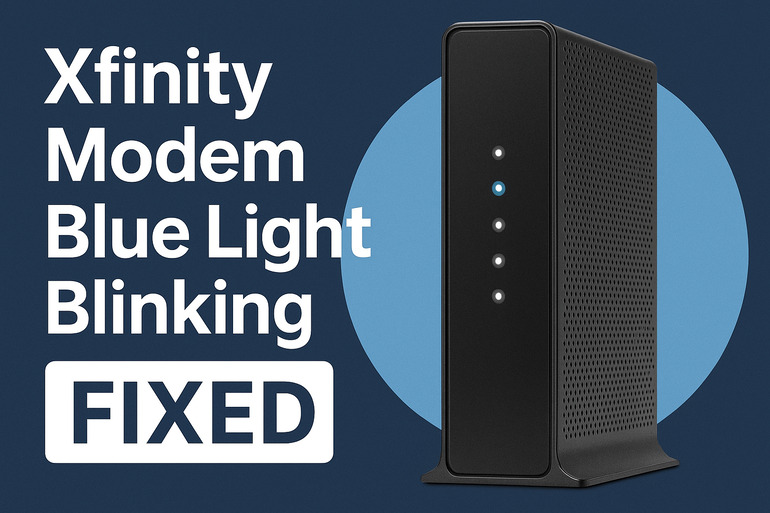
What’s Happening With That Blue Light
That blinking blue light on your Xfinity modem means something specific. Your modem is trying to connect to Xfinity’s network but can’t quite get there. Think of it like someone knocking on a door but nobody’s answering. The modem keeps trying, which is why you see that continuous blinking instead of a steady light.
Your modem goes through several stages during startup. First, it powers on. Then it looks for a signal from your cable line. After that, it attempts to register with Xfinity’s system and grab an IP address. The blinking blue light usually means the modem is stuck somewhere between finding the signal and completing registration.
While this happens, you won’t have internet access. Your devices might show they’re connected to WiFi, but nothing will actually load. No websites, no streaming, no online gaming. Everything just times out or shows error messages.
If you leave this unfixed, you’re essentially paying for internet service you can’t use. Sometimes the modem will eventually connect on its own after several minutes or even hours, but that’s rare. Most times, you’ll need to step in and fix it yourself.
Xfinity Modem Blue Light Blinking: Likely Causes
Several things can trigger this blinking blue light situation. Let me break down what’s usually behind this issue so you know what you’re dealing with.
1. Loose or Damaged Cable Connections
Your coaxial cable (that thick cable screwed into your modem) might be loose, damaged, or not properly connected. This happens more often than you’d think, especially if you recently moved your modem or if pets and kids have been around it.
Even a slightly loose connection can interrupt the signal flow between Xfinity’s network and your modem. The modem receives partial signals but can’t maintain a stable connection, which triggers that blinking blue light. Sometimes the cable itself gets bent or pinched behind furniture, which damages the wiring inside.
You might have knocked the cable while cleaning or someone might have bumped your setup without realizing it. These cables can also loosen over time just from normal wear and the weight of the cable pulling on the connection.
2. Service Outage in Your Area
Xfinity might be experiencing network problems or doing maintenance work in your neighborhood. These outages can affect entire streets or even whole communities at once.
Sometimes a storm damages equipment, or Xfinity needs to upgrade their systems. During these times, your modem will keep trying to connect but there’s simply nothing on the other end to connect to. That’s when you see the blue light blinking endlessly.
3. Modem Needs Activation or Re-Activation
If you just got your modem, moved to a new address, or if Xfinity’s system somehow lost your modem’s registration, you’ll see this blue light. Your modem needs to be properly registered in Xfinity’s database before it can provide service.
This registration links your modem’s unique ID to your account and tells the network that you’re authorized to use the service. Without it, the modem stays in limbo, continuously searching for approval it never receives.
4. Old Firmware or Software Glitches
Your modem runs on software called firmware, and sometimes that software gets stuck or needs updating. Think of it like your phone freezing and needing a restart. Electronic devices just act weird sometimes, and modems are no exception.
Temporary bugs or corrupted data can prevent your modem from completing its connection sequence. The modem might have crashed during a previous firmware update, or maybe it’s been running for months without a fresh start. All these little software hiccups add up.
5. Signal Strength Issues
The signal coming into your home from Xfinity’s network might be too weak or too strong. Both extremes cause problems. A weak signal means your modem can’t hear the network clearly enough to connect, while an overly strong signal can overload your modem’s receiver.
This often happens if there are too many splitters on your cable line (those little boxes that split one cable into multiple cables). Each splitter weakens the signal a bit. On the flip side, if you live very close to Xfinity’s equipment, the signal might be too powerful. Your modem expects a signal within a certain range, and anything outside that range causes connection problems.
Xfinity Modem Blue Light Blinking: DIY Fixes
You can fix this yourself in most cases. Here’s what actually works based on years of troubleshooting these exact issues.
1. Check and Secure All Cable Connections
Start with the simplest fix because it works surprisingly often. Look at where your coaxial cable connects to your modem. That’s the cable with the metal connector that screws on.
Unscrew it completely, then screw it back on firmly. Make sure you feel it tighten, but don’t force it so hard that you strip the threads. While you’re at it, check the other end where it connects to your wall outlet. Give that the same treatment.
Look closely at the cable itself. Run your hand along its length and feel for any kinks, sharp bends, or spots where it might be pinched. If you spot damage, that cable needs replacing. You can grab a new coaxial cable from any electronics store, and they’re pretty cheap.
2. Power Cycle Your Modem Properly
This is different from just unplugging and replugging. Here’s the right way:
- Unplug the power cable from the back of your modem
- Wait a full 30 seconds (I know it feels long, but this lets the modem fully discharge)
- Plug it back in and let it go through its startup sequence
- Watch the lights as they cycle through different colors
This gives your modem a completely fresh start. All those temporary glitches and stuck processes get cleared out. It’s like the difference between closing a frozen app and actually restarting your whole phone.
Your modem should cycle through several light colors during startup. You’ll typically see red or orange first, then blinking blue, and finally a steady white light when everything’s working. This process usually takes 5 to 10 minutes, so be patient.
3. Verify There’s No Service Outage
Before you spend more time troubleshooting, make sure Xfinity’s service is actually working in your area. Grab your phone and check Xfinity’s website or app for outage information. You can also text OUT to 266278 from your registered phone number.
If there’s an outage, your modem will keep blinking blue until Xfinity fixes their end. There’s nothing you can do except wait it out. The good news is that most outages get resolved within a few hours.
4. Reset Your Modem to Factory Settings
If the basic restart didn’t work, try a full factory reset. Find the tiny reset button on your modem (usually on the back or bottom). You’ll need a paperclip or pin to press it.
Hold that button down for 10 to 15 seconds while the modem is powered on. You’ll see all the lights flash or turn off briefly. This wipes everything and puts your modem back to day-one settings. After the reset, your modem will restart automatically.
Keep in mind this erases your WiFi name and password if you changed them from the defaults. You’ll need to set those up again after the modem reconnects. The default settings are usually on a sticker on the modem itself.
5. Remove Extra Splitters
Walk through your home and find where your cable line comes in from outside. Look for any splitters on that line before it reaches your modem. A splitter is a small metal box that takes one cable and turns it into two or more cables.
If you find splitters and you don’t need them (maybe they were there from a previous setup), remove them and connect your modem directly to the main cable line. Fewer splitters means a stronger signal reaching your modem. Sometimes that’s all it takes to solve the problem.
Each splitter can reduce your signal by 3 to 7 decibels, and that adds up quickly. If you need splitters for other devices like cable boxes, at least make sure your modem gets the most direct connection possible.
6. Contact Xfinity Support
If none of these fixes work, you need to call Xfinity at 1-800-XFINITY or chat with them through their app. There might be an issue on their end, like your modem not being properly activated on their system or signal problems they need to fix at the street level.
Sometimes they need to send a refresh signal to your modem or update something in their database. Other times, a technician needs to visit and check the signal levels or fix something outside your home. Let them guide you from here because they have tools to see things you can’t.
Wrapping Up
That blinking blue light is annoying, but you’ve now got the knowledge to fix it yourself. Most times, it’s something simple like a loose cable or a modem that needs a good restart. Even if it turns out to be a bigger issue requiring Xfinity’s help, at least you’ve ruled out the easy stuff first.
Your internet should be back soon, whether you fix it in the next few minutes or need to wait for a technician. Either way, you’re not stuck staring at that blue light without knowing what to do anymore.