You settle onto your couch, ready for movie night, and notice your Apple TV has a blinking light on the front. This little flashing indicator can feel confusing, especially if your streaming box was working perfectly fine yesterday.
That blinking light is actually your Apple TV trying to tell you something. Sometimes it means nothing serious at all, while other times it signals a problem that needs your attention. Understanding why it blinks and how to fix it can save you time, stress, and maybe even a trip to the repair shop.
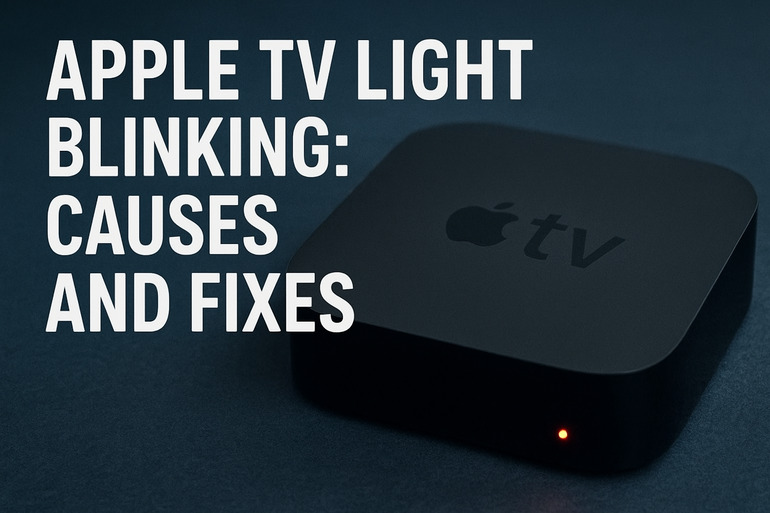
What That Blinking Light Really Means
Your Apple TV uses its front light as a communication tool. Think of it like a silent messenger that speaks through patterns of flashing. Most of the time, a steady white light means everything is running smoothly. But when that light starts blinking, it usually indicates your device is either starting up, updating, or experiencing some kind of hiccup.
Different blinking patterns can mean different things. A slow, rhythmic blink often appears during startup or when the device is processing an update. Fast, erratic blinking typically signals something more urgent, like a connection problem or internal error. Your Apple TV might even blink continuously without ever settling into its normal steady glow.
Ignoring a blinking light can sometimes lead to bigger issues down the line. If your device is struggling with overheating or a failing power supply, that small warning signal could be your chance to catch the problem early. On the flip side, some blinking is completely normal and temporary, lasting just a few seconds during routine operations.
The key is learning to read these signals correctly. Your streaming experience depends on your Apple TV functioning properly, and that little light is your first clue about what’s happening inside the box.
Apple TV Light Blinking: Likely Causes
Several factors can trigger that persistent blinking on your Apple TV. Understanding what’s causing it helps you pick the right fix faster.
1. Software Update in Progress
Your Apple TV automatically downloads and installs updates to keep everything running smoothly. During this process, you’ll often see that front light blinking steadily.
These updates happen in the background, usually overnight or during periods when you’re not using the device. The blinking tells you the system is busy installing new features, security patches, or bug fixes. This is completely normal behavior.
If the blinking continues for more than an hour, something might have interrupted the update process. Your internet connection could have dropped mid-update, or the device might have encountered an error while installing the new software.
2. Overheating Issues
Heat is a major enemy of electronic devices, and your Apple TV is no exception. When internal temperatures climb too high, the device can start behaving strangely, including triggering that blinking light.
Poor ventilation is often the culprit here. If your Apple TV sits inside a closed cabinet, surrounded by other heat-producing devices, or covered by anything that blocks airflow, heat builds up fast. The small vents on the device need clear space to breathe.
3. Power Supply Problems
A faulty power connection can cause all sorts of odd behavior, including light blinking. If your Apple TV isn’t getting consistent, clean power, it struggles to operate normally.
Sometimes the issue lies with the power cable itself. These cables take daily wear and tear from being plugged and unplugged, bent at sharp angles, or tugged on accidentally. Internal wires can fray or break even when the outer coating looks fine.
Other times, your power outlet might be the problem. Loose connections, voltage fluctuations, or outlets sharing a circuit with heavy appliances can all affect how your Apple TV receives power. Even power strips and surge protectors can develop faults over time that impact the devices plugged into them.
4. HDMI Connection Troubles
Your Apple TV uses an HDMI cable to send video and audio to your television. When this connection gets disrupted, the device may signal the problem through a blinking light.
HDMI cables can work loose over time, especially if you move your TV stand or clean behind your entertainment center. Dust and debris can also build up inside the ports, creating poor contact between the cable and the device.
5. Hardware Failure
Sometimes the blinking light points to something broken inside your Apple TV. This is less common but can happen, especially with older units.
Internal components wear out with age and use. The processor might develop issues, memory chips can fail, or other electronic parts simply reach the end of their lifespan. Physical damage from drops or impacts can also cause internal problems.
You might also be dealing with a manufacturing defect if your Apple TV is relatively new. These issues are rare but do occur, and they’re usually covered under warranty.
Apple TV Light Blinking: How to Fix
Getting your Apple TV back to normal often requires just a few simple steps. These fixes work for most common causes of the blinking light.
1. Wait Out the Update
If your Apple TV recently started an automatic update, give it some time to finish. Software updates need patience.
Check your internet connection while you wait. Open another device and make sure you have stable connectivity. If your Wi-Fi is working fine, let the Apple TV continue for at least 30 minutes before trying anything else.
After waiting, if the blinking hasn’t stopped, you might need to restart the update process manually. Go into Settings, then System, and check for updates. Sometimes forcing a fresh start helps complete installations that got stuck halfway through.
2. Perform a Power Cycle
This classic tech fix solves more problems than you’d expect. Unplugging your Apple TV completely resets its temporary memory and clears minor glitches.
Here’s how to do it properly:
- Unplug the power cable from the back of your Apple TV
- Wait a full 60 seconds (not just 10 or 20 seconds)
- Plug the cable back in firmly
- Let your device boot up completely before checking the light
That minute of waiting actually matters. It gives capacitors time to discharge fully and allows the system to reset properly. Many users skip this step and don’t get the full benefit of the power cycle.
3. Check Your Cables and Connections
Loose or damaged cables cause countless electronics problems. Examining your setup takes just a few minutes.
Start with the power cable. Unplug it, inspect the entire length for any visible damage, and check both ends for bent pins or debris. Plug it back in firmly, making sure you feel it click or seat properly in the port.
Do the same with your HDMI cable. Check both the Apple TV end and the TV end. Try unplugging and replugging to ensure a solid connection. If you have a spare HDMI cable handy, swap it out to see if that resolves the blinking. Sometimes cables fail without any visible signs of damage.
4. Improve Ventilation and Cooling
Heat-related problems need space and airflow to resolve. Take a close look at where your Apple TV lives.
Move anything blocking the vents on your device. Clear at least three inches of space on all sides if possible. If your Apple TV sits inside a cabinet, leave the door open or consider relocating it to an open shelf. Electronics packed together create heat pockets that individual devices can’t escape.
You can also help by turning off your Apple TV completely when you’re not using it for extended periods. Let it cool down for an hour if it feels warm to the touch. Feel the bottom of the device with your hand. If it’s uncomfortably hot, overheating is definitely contributing to your problems.
5. Try a Different Power Outlet
Electrical issues hide in unexpected places. Testing a different outlet rules out power supply problems.
Plug your Apple TV directly into a wall outlet rather than a power strip or extension cord. This eliminates potential issues with those intermediary devices. If the blinking stops, you’ve found your answer. That power strip either has a loose connection or can’t provide stable power anymore.
6. Factory Reset as a Last Resort
When nothing else works, resetting your Apple TV to factory settings often clears persistent software problems. This erases all your settings and downloaded content, so save it for when you’ve tried everything else.
You can do this through the Settings menu if your Apple TV is responsive enough. Go to System, then Reset, and choose Reset and Update. This wipes the device and installs the latest software version.
If your Apple TV won’t respond to the remote at all, you can force a reset using your computer. Connect the Apple TV to your computer with a USB-C cable (for newer models) or micro-USB (for older ones). Open Finder on a Mac or iTunes on a PC, then follow the prompts to restore the device.
7. Contact Apple Support
After trying all these fixes, if your Apple TV still blinks without stopping, professional help is your best option. Apple Support can run diagnostics and determine if you’re dealing with a hardware defect.
Check if your device is still under warranty before reaching out. Apple typically covers manufacturing defects for one year, and you might have purchased extended coverage through AppleCare. Even out-of-warranty devices can sometimes receive repair exceptions, especially if there’s a known widespread issue with your model.
Wrap-Up
That blinking light on your Apple TV usually signals something simple and fixable. Most cases resolve with a quick power cycle, cable check, or just waiting for an update to finish.
Even when problems seem mysterious at first, methodical troubleshooting gets you back to streaming faster than you’d think. Your Apple TV is built to last, and these occasional hiccups are normal for any electronic device that works as hard as this one does.