Your Eero router is sitting there on the shelf, blinking white at you. You’re trying to stream your favorite show, but nothing’s working. Your phone says there’s no internet connection.
This blinking white light usually means your Eero is stuck trying to connect to the internet or start up properly. Let me walk you through why this happens and how you can get everything back online.
What the White Blinking Light Really Means
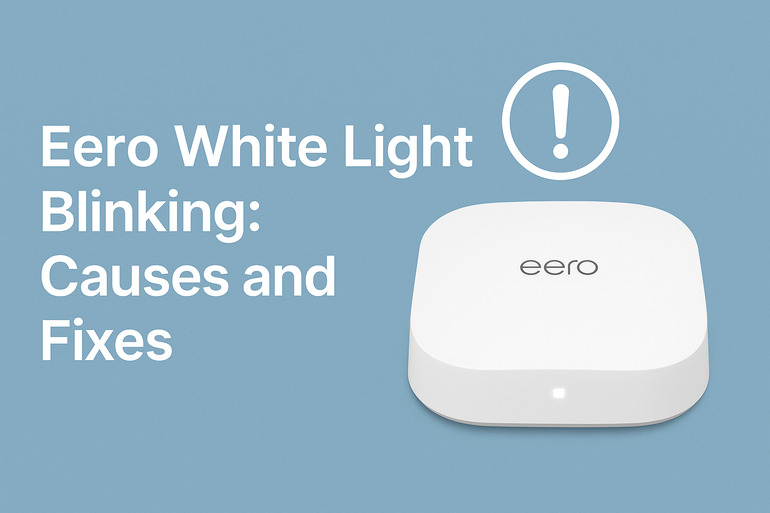
That white light on your Eero isn’t random. It’s actually talking to you. Your router uses different colors and patterns to tell you what’s going on inside. A steady white light means everything is perfect and your network is running smoothly. But when that light starts blinking, your Eero is telling you it’s in startup mode or struggling to establish a connection.
During normal startup, you’ll see the white light blink for maybe a minute or two. This is completely normal. Your router is booting up, checking its settings, and trying to connect to your modem and the internet. Think of it like your computer starting up after you turn it on.
The trouble starts when that blinking doesn’t stop. If your Eero has been blinking white for ten minutes, twenty minutes, or even longer, something’s blocking it from finishing its startup process. Your devices can’t connect to the internet, and you’re stuck waiting.
If you ignore this issue, you’ll keep losing your internet connection. Your smart home devices will stop working. Video calls will drop. Your kids won’t be able to do their homework online. The sooner you fix it, the better.
Eero White Light Blinking: Likely Causes
Several things can trap your Eero in this blinking state. Let me break down what usually causes this frustrating problem.
1. Your Internet Connection Has Dropped
Your Eero needs a working internet signal from your modem to function properly. If that connection breaks, your router will keep blinking white while it searches for an internet signal that isn’t there.
Maybe your internet service provider is having technical problems in your area. Sometimes a storm can knock out service. Other times, maintenance work disrupts the connection. Your modem might have lost sync with your provider’s network.
You can check if other devices plugged directly into your modem work. If they don’t, the problem is with your internet service, not your Eero.
2. The Cable Connections Are Loose or Damaged
That ethernet cable connecting your modem to your Eero might look fine, but appearances can fool you. A cable that’s slightly loose, bent at a weird angle, or damaged inside will cause connection failures.
Cables get bumped when you’re cleaning. Pets sometimes chew on them. The plastic clip that holds the cable in place can break off. Even if the cable stays in the port, a broken clip means the connection isn’t secure enough.
3. Your Modem Needs a Reset
Modems are like any other electronic device. They can freeze up, lose their settings, or just stop working correctly after running for weeks without a restart. Your modem might be powered on and looking normal, but internally it’s not sending data properly.
This happens more often than you’d think. Modems handle a lot of data traffic every single day. They heat up. Their temporary memory gets cluttered. Small software glitches build up over time.
A stuck modem will make your Eero blink white indefinitely because your router keeps trying to connect to something that isn’t responding correctly.
4. Firmware Update Issues
Your Eero occasionally downloads updates to improve its performance and security. Usually, these updates install smoothly while you sleep. But sometimes an update gets interrupted or doesn’t install correctly.
If you unplugged your Eero during an update, the firmware could be corrupted. Power outages can interrupt updates too. Even a temporary internet drop at the wrong moment can cause problems.
Your Eero might be blinking white because it’s stuck in a half-updated state, unable to move forward or go back.
5. Hardware Failure Inside the Eero
Electronic components wear out. Your Eero has circuit boards, memory chips, and other parts that can fail after years of constant use. Heat is a big enemy here. If your Eero sits in a hot, poorly ventilated spot, the internal components break down faster.
Physical damage counts too. Maybe someone dropped your Eero. Perhaps water splashed on it. These incidents can damage the internal hardware without obvious external signs.
Eero White Light Blinking: DIY Fixes
Getting your Eero back to normal doesn’t require special tools or technical expertise. Here’s how you can fix this yourself.
1. Power Cycle Your Entire Network
This simple step fixes about 60% of networking problems. You’re giving all your devices a fresh start by clearing their temporary memory and resetting their connections.
Start by unplugging your modem from the wall. Then unplug your Eero. Wait for a full thirty seconds. This waiting period is crucial because it lets the capacitors inside fully discharge.
Plug your modem back in first. Wait until all its lights look normal and stable. This usually takes two or three minutes. Then plug your Eero back in. Watch that white light. If everything’s working correctly, it should blink for a minute or two, then turn solid white or blue.
2. Check and Replace Your Ethernet Cable
Pull out the ethernet cable connecting your modem to your Eero. Look at both ends carefully. Are the little plastic clips broken? Do you see any bent pins inside the connector? Is the cable kinked or damaged anywhere along its length?
Try wiggling the cable while it’s plugged in. If your Eero’s light changes or flickers, the cable has a bad connection. Even if the cable looks fine, swap it out with a different ethernet cable if you have one available. Sometimes internal wire breaks aren’t visible from outside.
When you plug the cable back in, you should hear and feel a distinct click. Push firmly until the clip locks into place.
3. Reset Your Modem Independently
Your modem has its own power issues that can affect your Eero. Find the reset button on your modem. It’s usually a small hole that requires a paperclip or pin to press.
Unplug your modem first. Wait ten seconds, then plug it back in. Let it boot up completely until all the lights stabilize. This can take up to five minutes depending on your modem model.
If your modem has a battery backup, you’ll need to remove the battery during this process. Otherwise, the modem never truly powers off, and the reset won’t work properly.
4. Try a Different Power Outlet
Electrical outlets can develop problems. The one your Eero uses might be delivering inconsistent power. Fluctuating voltage confuses your router and prevents it from starting up correctly.
Unplug your Eero and move it to a different outlet in another part of your room. Make sure this outlet isn’t on a circuit with heavy-use appliances like space heaters or air conditioners. These appliances can cause voltage drops.
Use the power adapter that came with your Eero. Third-party adapters might not provide the exact voltage and amperage your router needs. A slightly wrong power supply can cause startup problems.
5. Position Your Eero Away From Interference Sources
Electronic interference can disrupt your Eero’s startup process. Move your router away from devices that emit strong electromagnetic fields. Microwaves, baby monitors, cordless phones, and even fish tank pumps can cause interference.
Keep your Eero at least three feet away from these devices. Make sure it’s not sitting directly on top of metal surfaces or inside metal cabinets. Metal reflects and blocks wireless signals.
Good ventilation matters too. Your Eero needs air circulation to stay cool. Place it on an open shelf where air can flow around all sides.
6. Contact Eero Support or Your Internet Provider
If none of these fixes work, you’re dealing with either a hardware failure or a problem with your internet service. Reach out to Eero’s customer support team. They can run diagnostics on your router remotely and determine if you need a replacement.
You might need to contact your internet service provider as well. They can check if there’s a service outage in your area or if your modem needs replacement. Sometimes the problem lies with their equipment or the connection between their network and your home.
Wrapping Up
That blinking white light on your Eero is fixable most of the time. You’ll usually solve it by restarting your equipment, checking your cables, or moving your router to a better location. These fixes work because most connection problems stem from temporary glitches rather than permanent failures.
Your Eero is a reliable piece of equipment, but like anything electronic, it needs occasional troubleshooting. Keep your firmware updated, restart your network equipment every few months, and watch for signs of cable wear. A little maintenance goes a long way in preventing future problems.