You’re trying to print something important, and suddenly your Epson L320 starts flashing that annoying red light. The printer refuses to work, and you’re left staring at this blinking signal, wondering what went wrong.
This red light isn’t just there to frustrate you. It’s actually your printer’s way of telling you that something needs your attention. Once you understand what’s causing it, fixing the issue becomes much easier than you’d think.
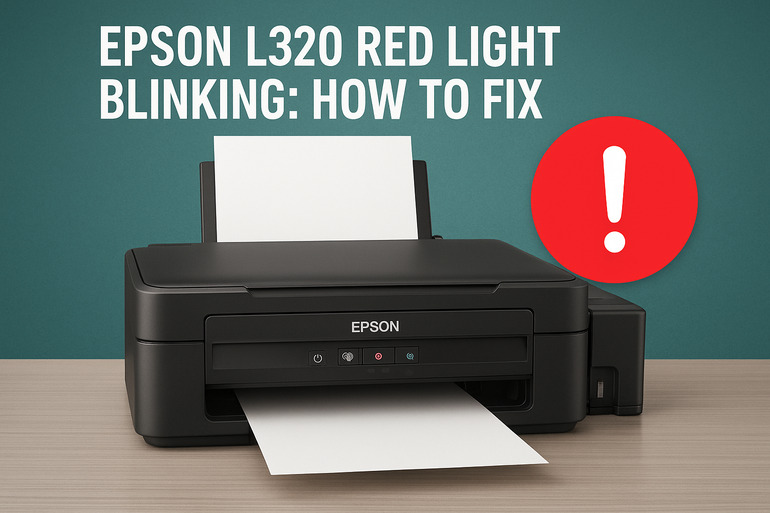
What the Red Light Really Means
Your Epson L320 uses colored lights as a communication system. That blinking red light is basically your printer saying “Hey, I need help here!” It’s an error indicator that stops all printing operations until you fix whatever’s bothering it.
Think of it like a check engine light in your car. Something’s wrong under the hood, and your printer won’t move forward until you sort it out. The red light can blink in different patterns, each telling a slightly different story about what’s happening inside.
Most times, this red light shows up because of issues with ink levels, paper jams, or internal parts that need cleaning. Sometimes it happens after you’ve just refilled your ink tanks or when waste ink builds up inside the printer.
Your printer might still turn on and make sounds, but it simply won’t print anything while that light keeps flashing. Leaving this problem unaddressed means your printer stays useless, gathering dust on your desk instead of getting your documents printed.
Epson L320 Red Light Blinking: Likely Causes
Several things can trigger this red light situation. Understanding what causes it helps you fix it faster and prevents it from happening again.
1. Waste Ink Pad is Full
Your Epson L320 has something called a waste ink pad sitting inside. Every time your printer cleans its print heads, tiny amounts of ink get absorbed by this pad. Over time, this pad fills up completely.
The printer keeps count of how many cleaning cycles it performs. Once it reaches a certain number, it assumes the pad is full and triggers that red light. This is actually a protective measure to stop ink from leaking inside your printer.
You might not see any visible ink problems, but the printer’s internal counter has maxed out. This happens more often if you print frequently or if your printer does lots of automatic head cleaning.
2. Paper Jam or Paper Feed Problem
Paper jams are sneaky. Sometimes a tiny piece of torn paper gets stuck deep inside your printer where you can’t easily see it. Your printer senses this obstruction and blinks the red light as a warning.
Even if there’s no actual jam, problems with the paper feed rollers can cause the same issue. These rollers might be dirty, worn out, or misaligned. When they can’t grip paper properly, the printer thinks something’s wrong and stops working.
3. Ink Tank Issues
Your L320’s ink tank system needs proper ink levels to function. If any tank runs completely dry or has air bubbles in the lines, the red light comes on. The printer refuses to print because running without ink can damage the print heads permanently.
Sometimes the issue isn’t about being empty. Maybe you recently refilled the tanks but didn’t reset the ink level indicator. The printer still thinks it’s out of ink based on its memory, even though the tanks are full.
Ink tubes can also get blocked or kinked, stopping ink from flowing smoothly to the print head. This creates the same effect as having empty tanks, triggering that frustrating red light.
4. Print Head Problems
The print head is where all the printing magic happens. If it gets clogged with dried ink or dirty, your printer can’t function properly. This triggers the error light because the printer detects that print quality would be terrible.
Clogs usually develop when you don’t use your printer regularly. Ink dries up inside those tiny nozzles, creating blockages that stop fresh ink from getting through.
5. Hardware or Sensor Malfunction
Your printer has several sensors inside that monitor different functions. If any sensor gets dirty or stops working correctly, it sends wrong signals to the printer’s brain. This causes the red light to blink even when nothing’s actually wrong.
The carriage unit that moves your print head back and forth might also get stuck. If it can’t move freely along its track, the printer detects this as a serious error and shuts down operations.
Epson L320 Red Light Blinking: DIY Fixes
Getting your printer back to work usually takes just a few simple steps. Try these fixes one at a time until your red light stops blinking.
1. Check for Paper Jams
Start by opening all the printer covers and looking carefully inside. Pull out the paper tray and check every corner for stuck paper pieces. Even small scraps can cause big problems.
If you spot paper stuck inside, pull it out slowly and gently. Yank it too hard and you’ll tear it, leaving pieces behind that are even harder to remove. Check the rear access panel too, as paper sometimes gets stuck there during misprints.
After removing any jammed paper, make sure your paper stack is properly aligned in the tray. Fanned paper works better than a tight stack because it prevents multiple sheets from feeding at once.
2. Reset the Waste Ink Counter
This fix requires a special tool called a reset utility or adjustment program. You can find this software online by searching for “Epson L320 reset utility.” Download it from a trusted source and install it on your computer.
Connect your printer to your computer with a USB cable. Run the reset utility and select your printer model from the list. Look for the option that says “Waste Ink Pad Counter” and click reset.
Follow any on-screen instructions carefully. Your printer might go through some automatic processes during this reset. Once completed, turn off your printer, wait 10 seconds, then turn it back on. The red light should stop blinking if this was the issue.
3. Clean the Print Head
Your printer has a built-in cleaning function you can access through the control panel. Press the maintenance button on your printer and select the head cleaning option. The printer will pump ink through the nozzles to clear any blockages.
Run this cleaning cycle twice if the first attempt doesn’t work. Each cycle uses a bit of ink, so don’t overdo it. After cleaning, print a test page to check if the print quality improved.
For stubborn clogs, you might need manual cleaning. Turn off the printer and carefully remove the print head following your user manual. Soak it in warm distilled water for about 30 minutes, then dry it completely before reinstalling. This breaks down dried ink better than automatic cleaning.
4. Refill and Prime the Ink Tanks
Open your ink tank covers and check each color level. If any tank looks low or empty, refill it with the correct ink color. Use genuine Epson ink or high-quality compatible ink to avoid future problems.
After refilling, you need to prime the system to remove air bubbles. Here’s how:
- Turn off the printer completely
- Hold down the power button while turning it back on
- Keep holding until you see the ink charging process start
- Let the printer complete its automatic priming cycle
This process can take several minutes. Don’t interrupt it or you might make things worse. Once finished, your printer should recognize the new ink levels.
5. Check and Clean the Sensors
Dust and ink residue can block the sensors inside your printer. Use a soft, lint-free cloth slightly dampened with water to wipe the sensor areas. These are usually small transparent plastic pieces located along the paper path and near the print head carriage.
Pay special attention to the encoder strip, which is a clear plastic strip behind the carriage. If this gets dirty, the printer can’t track the print head position properly. Clean it gently without leaving any fibers behind.
Let everything dry completely before closing up your printer and testing it again. Moisture on sensors can cause more errors.
6. Contact a Technician
If you’ve tried everything and that red light still won’t stop blinking, you likely have a hardware problem that needs professional attention. A qualified printer technician has specialized tools and replacement parts that aren’t available to regular users.
Some internal components might need replacement, or your printer’s mainboard could have issues. These repairs require technical knowledge and aren’t suitable for DIY fixes. Find an authorized Epson service center or a reputable local technician who has experience with L320 models.
Wrapping Up
Your Epson L320’s red light usually points to fixable issues rather than serious damage. Most problems stem from full waste ink pads, paper feeding troubles, or ink system hiccups that you can handle yourself with patience and the right steps.
Start with the simpler fixes like checking for paper jams and refilling ink before moving to more technical solutions like resetting counters. Regular maintenance, such as running head cleanings monthly and using your printer consistently, keeps these red light problems from showing up in the first place. Your printer wants to work for you, it just needs a little help sometimes.