You’re trying to stream your favorite show or jump into an online meeting, and then you notice it. That green light on your Xfinity modem is blinking at you like it’s sending morse code. Your internet is either super slow or completely out, and you’re stuck staring at that little flashing light.
This happens way more often than you’d think, and the good news is that you can usually fix it yourself in just a few minutes. We’ll walk through what that blinking green light actually means, why it happens, and exactly how to get your internet back up and running. Most fixes are simple enough that you won’t need to call tech support or wait around for someone to show up at your door.
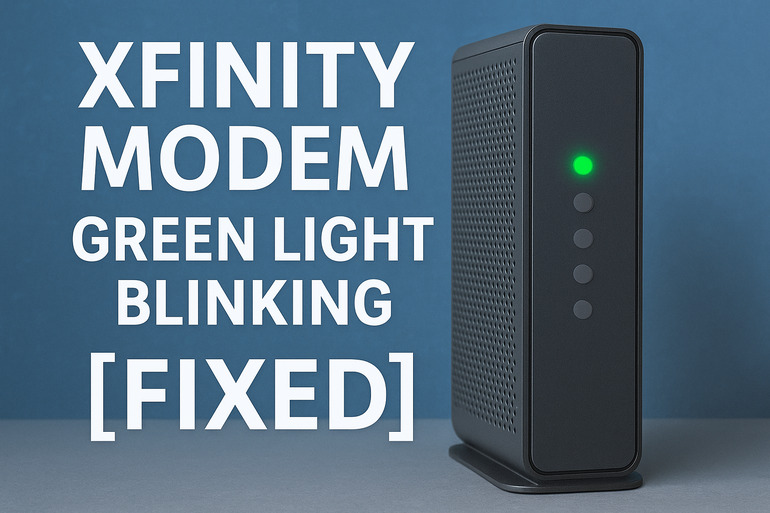
What That Blinking Green Light Means
Here’s what’s actually going on with your modem. That blinking green light is your modem’s way of saying it’s trying really hard to connect to the internet but can’t quite get there. Think of it like your modem is knocking on a door, but nobody’s answering yet.
Your Xfinity modem normally shows a solid white light when everything is working perfectly. When you see green instead, and it’s blinking, your modem is stuck in what technicians call the “connection phase.” It sees the network, it knows where to go, but something is blocking it from completing the handshake with Xfinity’s servers.
This can mean a few different things. Sometimes your modem is getting a weak signal from the cable line. Other times, it’s having trouble talking to Xfinity’s equipment on their end. The modem might also be confused about its settings or dealing with old information that doesn’t match up anymore.
If you leave this unfixed, you’re basically without internet. Some people might get very slow, spotty service that drops every few minutes. Others won’t be able to connect at all. Your devices might show they’re connected to WiFi, but nothing loads because the modem itself can’t reach the internet.
Xfinity Modem Green Light Blinking: Common Causes
Several things can trigger that blinking green light, and knowing what causes it helps you fix it faster. Let’s look at what usually makes your modem get stuck in this state.
1. Service Outage in Your Area
Sometimes the problem isn’t your modem at all. Xfinity might be having issues in your neighborhood or city. This happens during bad weather, construction accidents where someone cuts a cable, or when Xfinity is doing maintenance work on their equipment.
Your modem is working fine, but it can’t connect because there’s nothing to connect to on the other end. It’s like trying to call someone whose phone is turned off. The call goes through on your end, but there’s no answer because the other side isn’t available.
You can usually tell this is the issue if your neighbors who also have Xfinity are having the same problem. Check with them quickly, or look at Xfinity’s outage map online to see if your area is affected.
2. Loose or Damaged Coax Cable
That thick cable screwing into the back of your modem carries all your internet data. If it’s loose, bent, or damaged, your signal gets weak or cuts out completely. Even a tiny bit of looseness can cause problems.
Over time, these cables can wiggle loose from normal movement around your house. Pets, kids, or even just bumping into the modem can jostle that connection. Sometimes the cable itself gets old and worn, especially where it bends or connects.
3. Modem Needs a Reset
Your modem is basically a small computer, and like any computer, it can get confused or overloaded. It might be holding onto old connection data that doesn’t work anymore. Maybe it tried to update its software and something went wrong. These issues build up over time, especially if your modem has been running for weeks or months without a restart.
Think about how your phone sometimes acts weird until you restart it. Your modem is the same way. It collects little glitches and errors that pile up, and eventually it gets stuck in that blinking green light state.
4. Outdated Modem Firmware
Xfinity pushes updates to your modem regularly to fix bugs and improve performance. Sometimes these updates don’t install correctly, or your modem is running really old software that can’t talk properly to newer equipment on Xfinity’s side.
Your modem might have missed several updates if it was unplugged during update times or if there were connection problems during previous update attempts. This creates a mismatch between what your modem knows how to do and what Xfinity’s network expects from it.
Firmware issues are sneaky because your modem looks fine physically, but its internal software is causing the connection to fail. You won’t see any obvious signs except that blinking green light and no internet.
5. Signal Problems from Xfinity’s Line
The cable line bringing internet to your house might be sending a signal that’s too weak or too strong. Both cause connection problems. Weak signals happen when there’s damage somewhere in the line, too many connections splitting the signal, or just distance from Xfinity’s equipment.
Strong signals seem like they’d be good, but they’re actually just as bad. Too much signal overloads your modem’s receiver, kind of like trying to drink from a fire hose. Your modem can’t process it correctly and fails to connect.
Signal issues can develop slowly as cables age and weather affects outdoor equipment. They can also pop up suddenly if something changes in your home’s wiring or if Xfinity makes changes to their local equipment.
Xfinity Modem Green Light Blinking: How to Fix
Let’s get your internet working again. These fixes go from simplest to more involved, so start at the top and work your way down until that green light turns solid white.
1. Check for Service Outages
Before touching anything, verify that Xfinity’s service is actually running in your area. This takes two minutes and saves you from troubleshooting a problem that isn’t yours to fix.
Pull out your phone and use your mobile data to visit Xfinity’s website or open their app. Look for their outage map or status checker. Type in your address and see if they’re reporting any issues. You can also text “status” to Xfinity’s support number, and they’ll tell you if there’s an outage.
If there is an outage, all you can do is wait for Xfinity to fix it. They usually give an estimated repair time. Your modem will automatically connect once service is restored, so just leave it alone and check back later.
2. Power Cycle Your Modem
This is the classic “turn it off and on again” fix, and it works surprisingly often. It clears your modem’s memory and forces it to make a fresh connection attempt.
Here’s exactly how to do it right:
- Unplug the power cable from the back of your modem
- Wait a full 30 seconds (this is important, don’t skip ahead)
- Plug the power cable back in and wait for the modem to restart
- Watch the lights as they cycle through their startup sequence
- Give it 5 minutes to fully reconnect and stabilize
That 30-second wait isn’t random. Your modem needs time to fully discharge and clear its memory. If you plug it back in too quickly, you might not clear the problem.
3. Tighten and Check Cable Connections
Physical connections matter more than you’d think. Let’s make sure everything is snug and undamaged.
Start with the coax cable. That’s the thick round cable screwing into your modem. Unscrew it completely, look inside both the cable end and the modem port for any bent pins or debris, then screw it back on firmly. You want it tight, but don’t force it so hard you strip the threads.
Check where that same cable connects to your wall outlet. Tighten that connection too. Follow the cable with your eyes and look for any obvious damage like cuts, extreme bends, or places where it’s been crushed. If you find damage, you’ll need to replace that cable.
Do the same with the power cable. Make sure it’s fully inserted into the modem and plugged firmly into the wall outlet. Try a different outlet if possible, just to rule out electrical issues.
4. Reset Your Modem to Factory Settings
If power cycling didn’t work, a full reset might. This wipes all your modem’s settings and makes it set itself up from scratch like it’s brand new.
Find the small reset button on your modem. It’s usually recessed to prevent accidental presses. You’ll need a paperclip or similar thin object to reach it. Press and hold that button for about 10 to 15 seconds while the modem is powered on. You’ll see all the lights go crazy for a moment.
Your modem will restart and go through its full setup process. This takes about 5 to 10 minutes. During this time, the lights will blink in different patterns and colors. That’s normal. Wait until it settles, and check if the light turns solid white.
Be aware that this erases any custom settings you had, but Xfinity modems pull most settings automatically from their servers anyway. You shouldn’t lose anything important.
5. Disconnect Extra Devices
Too many devices trying to connect at once can sometimes overwhelm your modem during its connection phase. This is less common, but worth trying if nothing else has worked.
Turn off or disconnect all your devices from the WiFi. That means phones, tablets, computers, smart TVs, everything. You can do this by turning off WiFi on each device or just unplugging them. Leave your modem alone to connect without any devices asking for internet.
Wait for the modem light to stabilize. Once it’s solid white, start reconnecting your devices one at a time. This also helps you identify if one specific device is causing connection problems.
6. Contact Xfinity Support
If you’ve tried everything and that green light is still blinking, something bigger is going on that needs professional help. You might have a signal issue on Xfinity’s end, faulty equipment, or a problem with your account.
Call Xfinity support or use their chat feature. Explain what you’ve already tried so they don’t make you repeat steps. They can run diagnostics on your modem remotely and check signal levels. They might need to send a technician if there’s damage to the line outside your home or if your modem needs replacing.
Sometimes modems just die. If yours is several years old, it might be time for a new one anyway. Newer modems handle faster speeds better and have fewer issues.
Wrapping Up
That blinking green light is annoying, but now you know it’s usually something you can fix yourself. Most of the time, a simple power cycle or checking your cables does the trick. Even if you need to do a factory reset, you’re still looking at less than 15 minutes of work.
Keep this guide handy for next time, because these things tend to happen at the worst moments. Your modem might act up again during a storm or after a power outage. At least now you’ll know exactly what to do instead of sitting there frustrated, watching that little green light blink at you while your internet stays down.