Your Spectrum router’s blue light won’t stop blinking, and you’re stuck without internet. This flashing blue signal typically means your router is trying to connect but can’t establish a stable connection with Spectrum’s network.
The blinking blue light is actually your router’s way of telling you it’s working hard to get online. Most of the time, you can fix this yourself with simple troubleshooting steps that take just a few minutes.
You’ll learn exactly what causes this blinking pattern, step-by-step solutions that work, and when to call for backup if needed.
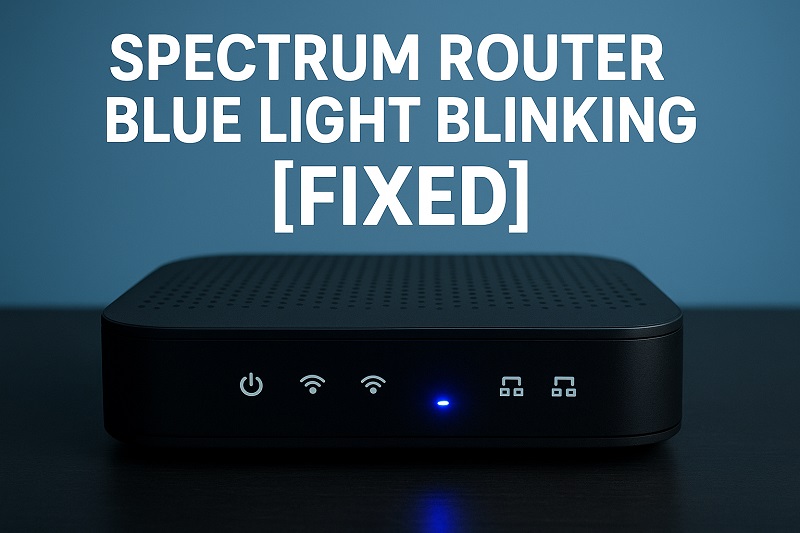
What the Blinking Blue Light Really Means
That pulsing blue glow on your Spectrum router isn’t random. Your device uses different colored lights to communicate its current status, and blue specifically indicates the router is attempting to establish an internet connection but hasn’t succeeded yet.
During normal startup, your router should show a blinking blue light for about 30 seconds to 2 minutes before switching to solid blue or white, indicating a successful connection. If it keeps blinking beyond this timeframe, something is preventing the connection process from completing.
Several factors can interrupt this connection sequence. Network outages in your area, loose cable connections, outdated firmware, or even temporary server issues on Spectrum’s end can all trigger this persistent blinking pattern.
The longer your router stays stuck in this blinking state, the more frustrated you’ll likely become. However, understanding that this light pattern is actually diagnostic information helps you approach the problem systematically rather than randomly unplugging things.
Spectrum Router Blue Light Blinking: Common Causes
Multiple factors can trigger your Spectrum router’s blue light to blink continuously. Identifying the root cause helps you apply the most effective solution quickly.
1. Network Service Outages
Service interruptions are surprisingly common and often the simplest explanation for your blinking blue light. Spectrum’s network experiences planned maintenance, unexpected equipment failures, or weather-related damage that can affect entire neighborhoods.
These outages typically resolve themselves once Spectrum’s technical teams complete repairs or maintenance work. Your router keeps trying to connect during these periods, resulting in the continuous blue blinking pattern you’re seeing.
2. Loose or Damaged Coaxial Connections
The coaxial cable carrying your internet signal can work loose over time, especially if it’s been bumped or moved recently. Even a slightly loose connection can interrupt the signal flow enough to prevent your router from establishing a stable connection.
Cable damage is another culprit that’s easy to overlook. Pets chewing cables, furniture pressing against connections, or general wear and tear can create intermittent connection issues that manifest as the blinking blue light.
Weather changes can also affect these connections as materials expand and contract, potentially loosening previously secure connections.
3. Router Overheating Issues
Heat buildup inside your router can cause performance problems that prevent proper network connection. Routers generate considerable heat during operation, and inadequate ventilation can push internal temperatures beyond safe operating limits.
Dust accumulation makes this problem worse by blocking air vents and insulating heat-generating components. Your router might work fine for hours before overheating triggers connection problems and the dreaded blinking blue light.
4. Outdated Router Firmware
Router firmware controls how your device communicates with Spectrum’s network infrastructure. Outdated firmware might not be compatible with recent network updates or security protocols, preventing successful connection establishment.
Automatic firmware updates sometimes fail to download or install properly, leaving your router running obsolete software. This compatibility gap between your router and Spectrum’s updated systems can trigger persistent connection attempts indicated by the blinking blue light.
5. Power Supply Problems
Inadequate power delivery can cause your router to malfunction in subtle ways. The device might appear to boot normally but lack sufficient power to maintain stable network communications, resulting in repeated connection attempts.
Power adapters can degrade over time, providing inconsistent voltage that creates intermittent problems. Your router might work perfectly some days while struggling to connect on others, depending on power fluctuations.
Spectrum Router Blue Light Blinking: How to Fix
These practical solutions address the most common causes of persistent blue light blinking. Start with the simplest fixes before moving to more complex troubleshooting steps.
1. Check for Service Outages
Before trying any technical fixes, verify whether Spectrum is experiencing service issues in your area. Visit Spectrum’s official website or call their customer service line to check outage reports for your zip code.
You can also check social media platforms where other customers often report service problems in real-time. If there’s a confirmed outage, your only option is waiting for Spectrum to restore service.
Third-party websites like DownDetector also track internet service provider outages and can give you a broader picture of whether problems are widespread or localized to your specific area.
2. Power Cycle Your Router
The classic “turn it off and on again” approach often resolves temporary software glitches causing connection problems. Unplug your router’s power cable for exactly 30 seconds, then plug it back in and wait for the full startup sequence.
During this power cycle, your router clears its memory and resets all internal processes. This fresh start often resolves minor software conflicts or temporary communication errors with Spectrum’s network.
Watch the light sequence carefully after power cycling. The blue light should blink during startup, then transition to solid blue or white within two minutes if the connection is successful.
3. Inspect and Secure All Cable Connections
Examine every cable connection between your router and the wall outlet, paying special attention to the coaxial cable. Ensure all connections are hand-tight and fully seated in their respective ports.
Look for visible damage like bent connectors, cracked cable sheathing, or loose fittings. Even minor damage can cause intermittent connection issues that trigger the blinking blue light pattern.
If you find loose connections, tighten them carefully without over-torquing. Coaxial connectors should be snug but not so tight that you risk damaging the threads or internal components.
- Check the coaxial cable connection at both the router and wall outlet
- Examine ethernet cables for damage or loose connections
- Verify power adapter connection is secure and not loose
- Look for cable damage like cuts, bends, or pet damage
4. Improve Router Ventilation and Cooling
Move your router away from heat sources like direct sunlight, heating vents, or other electronic devices that generate heat. Ensure at least three inches of clearance on all sides for proper air circulation.
Clean dust from your router’s vents using compressed air or a soft brush. Dust buildup restricts airflow and traps heat inside the device, potentially causing overheating that interrupts network connections.
Consider relocating your router to a more ventilated area if it’s currently enclosed in a cabinet or entertainment center. Better cooling can resolve intermittent connection problems that appear as persistent blue light blinking.
5. Reset Your Router to Factory Settings
If other solutions haven’t worked, a factory reset might resolve deeper software issues preventing proper network connection. Locate the small reset button on your router, usually recessed to prevent accidental activation.
With the router powered on, press and hold the reset button for 10-15 seconds using a paperclip or similar tool. The router will restart and return to its original factory configuration, clearing any corrupted settings.
After the factory reset, you’ll need to reconfigure your wireless network name and password. This information is often printed on a sticker attached to your router, or you can set up new credentials during the initial configuration process.
6. Contact Spectrum Technical Support
When all DIY solutions fail to resolve the persistent blue light blinking, professional technical support becomes necessary. Spectrum’s technicians have access to diagnostic tools and network information that can identify problems beyond your router’s hardware.
Wrapping Up
That persistently blinking blue light on your Spectrum router usually signals a fixable connection problem rather than permanent hardware failure. Most cases resolve quickly with simple troubleshooting steps like power cycling, checking connections, or improving ventilation.
Starting with the easiest solutions saves time and often gets you back online within minutes. When DIY fixes don’t work, Spectrum’s technical support can diagnose network-side issues that require professional intervention to resolve completely.