You know that sinking feeling when you open your Blink app and see that red light flashing away like an angry beacon? I get it – your brain immediately jumps to worst-case scenarios. “Is my camera broken? Did someone mess with it? How much is this going to cost me?”
Take a deep breath. After years of troubleshooting these little devices, I can tell you that blinking red light is usually your camera’s polite way of asking for attention. Nine times out of ten, it’s something you can handle yourself without calling tech support or buying a replacement.
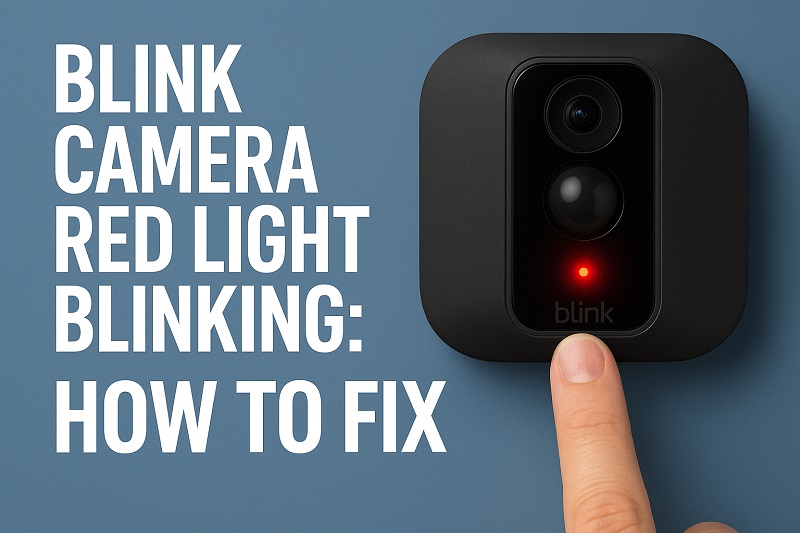
What Your Camera Is Actually Telling You
Your Blink camera talks to you through lights. When everything’s working fine, you might see a solid blue light during setup or a brief red flash when it’s recording. But when that red light starts blinking and won’t stop, your camera is basically raising its hand for help.
Think of it like your car’s check engine light. The blinking red light means something specific is wrong, and your camera won’t work properly until you fix it. Different blink patterns tell different stories – sometimes it’s fast blinking, sometimes slow, sometimes it comes and goes.
Here’s the thing: your camera is pretty smart. When it can’t connect to your Wi-Fi, when its batteries are dying, or when something’s blocking its signal, it immediately starts that red light show. It’s not trying to annoy you – it’s trying to stay connected to your home network so it can keep protecting your property.
The frustrating part is when this happens at the worst times. Maybe you’re traveling and can’t access your camera feeds, or you’re trying to check if a package arrived and the app won’t connect. That blinking red light usually means your camera has gone offline, and you need to get it back up and running.
Blink Camera Red Light Blinking: Common Causes
Most red light problems come from just a few issues that pop up again and again. Once you know what to look for, you can usually spot the problem right away.
1. Your Wi-Fi Connection Went Bad
Your Blink camera lives and breathes Wi-Fi. Cut off that connection, and your camera turns into an expensive paperweight with a blinking red light. This happens more often than you’d think, especially if your camera sits far from your router.
Maybe your internet went down for a few minutes, or your router rebooted itself during the night. Your camera tried to reconnect but couldn’t, so it started blinking that red light to let you know. Sometimes the signal is just too weak where your camera is mounted.
I see this a lot with cameras placed in garages, sheds, or far corners of houses. The Wi-Fi signal has to travel through walls, and every wall weakens it. Add some metal siding or a concrete wall, and your signal drops to almost nothing.
2. Dead or Dying Batteries
Blink cameras run on regular AA batteries, and when those batteries start dying, your camera warns you with that red light. Cold weather kills batteries faster than anything else, so if you live somewhere with harsh winters, expect this problem more often.
Here’s what most people don’t realize: batteries don’t just suddenly die. They gradually lose power over weeks or months, and your camera notices this voltage drop way before the batteries are completely dead. That red light is your early warning system.
3. Sync Module Acting Up
Your sync module is like the traffic controller for all your Blink cameras. When it has problems, every camera on your system might start blinking red lights at the same time. This little box plugs into your wall and connects to your router, then talks to all your cameras.
Power problems with the sync module cause most of these issues. Maybe the outlet it’s plugged into is controlled by a wall switch that got turned off, or the power adapter came loose. Sometimes the module just needs a good restart to clear its memory and reconnect everything.
4. Software Glitches and Updates
Sometimes your camera’s brain gets confused. Maybe there’s a new firmware update that didn’t install correctly, or the Blink app on your phone is having a bad day. These software hiccups can make your camera think there’s a hardware problem when everything is actually fine.
I’ve seen cameras start blinking red lights right after app updates or when Blink’s servers are having issues. Your camera tries to phone home to Blink’s servers, can’t get through, and assumes something’s wrong with the connection.
5. Weather and Physical Problems
Outdoor cameras take a beating from weather, animals, and just plain old age. Extreme heat, freezing cold, heavy rain, or snow can mess with your camera’s electronics. Sometimes bugs or spiders build webs over the camera’s sensors.
Physical damage doesn’t always look obvious either. A camera might look perfectly fine from the outside but have internal problems from temperature changes or moisture getting inside. Even vibrations from nearby traffic or construction can shake connections loose over time.
Radio interference from other devices can also cause problems. New baby monitors, wireless speakers, or even your neighbor’s new Wi-Fi router might operate on frequencies that interfere with your camera’s signal.
Blink Camera Red Light Blinking: How to Fix
Let’s get that red light to stop blinking. I’ll start with the quickest fixes and work up to the more involved solutions. Most of the time, one of the first few steps will solve your problem.
1. Swap Out Those Batteries
This fixes about 60% of blinking red light problems, so start here. Pop open your camera’s back cover and pull out the batteries. Look at the metal contacts inside – if you see any white or green crusty stuff, that’s corrosion eating away at your connections.
Clean those contacts with a dry cotton swab or even a pencil eraser. Just rub gently until they’re shiny again. Don’t use water or cleaning products – you want everything bone dry.
Put in fresh lithium AA batteries. I always tell people to buy the good ones – cheap batteries die faster and can leak acid inside your camera. Make sure the plus and minus ends are facing the right way, push them in firmly, and snap the cover closed. Your camera should wake up and start working within a minute or two.
2. Fix Your Wi-Fi Connection
Open your Blink app and find your problem camera. Look for network or Wi-Fi settings – the exact wording changes depending on your app version. Delete your current Wi-Fi network from the camera’s memory completely.
Now add it back like you’re setting up the camera for the first time. Type in your network name and password super carefully. One wrong letter and your camera won’t connect. If you’re not sure about your password, check the sticker on your router or look it up in your phone’s Wi-Fi settings.
3. Move Your Camera or Boost Your Signal
Grab your camera and walk it closer to your Wi-Fi router. If the red light stops blinking when you’re closer, you’ve found your problem – weak signal strength. Your camera was too far away to get a good connection.
You’ve got a few options here. You can move your camera to a different spot that’s closer to your router. Or you can get a Wi-Fi extender to boost the signal in that area. Some people move their sync module to a more central location in their house, which can help all their cameras connect better.
If you’re renting or can’t add Wi-Fi equipment, try repositioning your camera just a few feet in different directions. Sometimes moving it away from metal objects or closer to a window makes all the difference.
4. Restart Your Sync Module
Unplug your sync module from the wall and count to 30. This gives all the electronics inside time to completely reset and clear out any temporary glitches. Plug it back in and watch the lights on top cycle through their startup sequence.
The sync module needs about two minutes to fully boot up and reconnect to your network. Don’t panic if your cameras don’t immediately start working – they need time to reestablish contact with the module. Once everything reconnects, those red lights should disappear.
5. Update Everything
Check if your Blink app needs an update by looking in your phone’s app store. Install any updates you find, then open the app and look for system updates or firmware notifications. These updates fix bugs and connection problems that might be causing your red light issues.
Let any firmware updates finish completely before testing your camera again. Interrupting an update can cause bigger problems than what you started with. Your camera might restart a few times during the update process, which is totally normal.
6. Factory Reset Your Camera
When nothing else works, it’s time for the nuclear option. Find the small reset button on your camera – it’s usually a tiny button you need to press with a paperclip or pen tip. With fresh batteries in the camera, press and hold this button for about 20 seconds.
You’ll see different colored lights flash during the reset, which means it’s working. Let go and wait for the camera to finish its reset cycle. This erases everything and takes your camera back to factory settings.
After resetting, you’ll need to add the camera back to your Blink system through the app, just like when you first bought it. Go through the whole setup process again – scan the QR code, connect to Wi-Fi, and position the camera where you want it.
If you’ve tried all these fixes and that red light is still blinking, call Blink support. You might have a camera with internal hardware problems that needs professional repair or replacement under warranty.
Wrapping Up
That blinking red light on your Blink camera usually means something simple is wrong – dead batteries, weak Wi-Fi, or a sync module that needs restarting. The key is working through the fixes systematically instead of panicking or assuming your camera is broken.
Keep spare batteries on hand and check your camera’s connection strength when you first install it. A little prevention goes a long way toward avoiding these problems. When issues do pop up, you now have the tools to fix them yourself and get back to monitoring your home.