You’re settling in for your favorite show, remote in hand, ready to relax. But instead of switching to Netflix, that little light on your Firestick remote starts blinking at you like a tiny disco ball. Nothing happens on the screen. The buttons feel useless.
This blinking light situation is one of the most common Firestick remote problems out there, and honestly, it’s pretty annoying. The good part is that most of the time, you can get things working again without calling anyone or buying a new remote. This guide will walk you through why this happens and exactly what to do about it, step by step, in plain English.
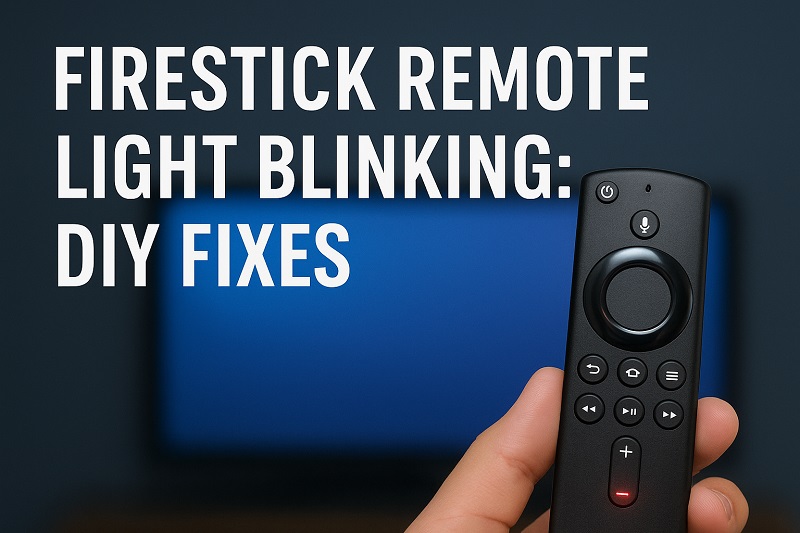
What’s Really Going On With That Blinking Light
That blinking orange or amber light on your Firestick remote isn’t just being dramatic for no reason. It’s actually trying to tell you something important. The remote is searching desperately for your Fire TV device but can’t find it or connect to it. Think of it like your remote is calling out “Hello? Anyone there?” and hearing nothing back.
Your Firestick remote uses Bluetooth technology to talk to your Fire TV Stick or Fire TV Cube. When that connection breaks or never forms properly, the remote goes into search mode. The blinking light is its way of saying “I’m looking for my partner, but I can’t find them.”
Sometimes the light blinks a few times and then stops. Other times it keeps going and going like an energizer bunny. The pattern can tell you things too. A steady, repeated blink usually means the remote lost its pairing completely. If it blinks once or twice and stops, it might just be a temporary hiccup in the connection.
Here’s what makes this frustrating: while that light is blinking, your remote basically won’t work. You’re stuck. Can’t browse. Can’t play or pause. Can’t even turn the volume down when that commercial suddenly blasts at full volume. Your entertainment plans are on hold until you fix this connection problem.
Firestick Remote Light Blinking: Common Causes
A few different things can make your remote’s light start blinking like crazy. Let’s look at what typically causes this so you understand what you’re dealing with.
1. The Pairing Got Lost
Your remote and Fire TV need to be paired together, kind of like how you pair your phone with wireless headphones. This pairing can break for several reasons. Maybe you were setting up a new device nearby and accidentally paired the remote to something else. Or perhaps there was a power surge that reset everything.
Sometimes the Fire TV itself forgets the pairing after a software update. Your Firestick gets new features, restarts, and boom, suddenly your remote is a stranger to it. This happens more often than you’d think.
The remote stores pairing information in its memory, and if that gets corrupted somehow, it loses track of which Fire TV it belongs to. It’s sitting there ready to work but has no idea who to talk to.
2. Dead or Dying Batteries
This one seems obvious, but weak batteries cause all sorts of weird behavior. Your remote might have just enough juice to power that blinking light but not enough to maintain a solid Bluetooth connection. The light blinks because the remote keeps trying and failing to connect due to low power.
Batteries don’t always die evenly either. Sometimes they seem fine for basic functions but can’t handle the energy needed for Bluetooth communication. You might notice the remote worked fine yesterday and suddenly today it’s blinking nonstop.
3. Your Fire TV Device Lost Power or Reset
If your Fire TV Stick isn’t actually on or ready, your remote has nothing to connect to. Maybe the HDMI connection got loose. Maybe someone unplugged the Fire TV to plug in something else. Maybe the TV’s USB port that powers the Stick isn’t working right.
Fire TV devices can also crash or freeze, just like computers. When that happens, they stop responding to remotes even though they look like they’re on. The screen might be stuck on a logo or just showing a black screen.
4. Bluetooth Interference From Other Devices
Your home is probably full of devices using wireless signals. Wi-Fi routers, wireless speakers, baby monitors, cordless phones, even your microwave when it’s running. All of these can create interference that messes with Bluetooth connections.
If you recently added new wireless devices near your TV setup, they could be causing problems. Bluetooth operates on the 2.4 GHz frequency, and so do many other household devices. When too many things are trying to use similar frequencies, they can interfere with each other.
5. Distance or Physical Obstructions
Bluetooth has limits. Your Fire TV remote usually works within about 30 feet, but walls, furniture, and other objects can block the signal. If your Fire TV Stick is tucked behind your TV or inside a cabinet, the signal might not reach it properly.
Metal objects are especially problematic because they reflect and absorb wireless signals. If there’s a metal shelf, a filing cabinet, or even aluminum foil anywhere between your remote and the Fire TV, that could explain the connection issues. Glass and water also affect Bluetooth signals more than you might expect.
Firestick Remote Light Blinking: DIY Fixes
Time to actually fix this thing so you can get back to streaming. These solutions work for most blinking light situations, and you don’t need any special tools or technical knowledge.
1. Replace the Batteries
Start with the simplest fix because it works surprisingly often. Pop open the back of your remote and take out both batteries completely. Don’t just swap them out, actually remove them and leave the remote empty for about 30 seconds.
This brief timeout lets any residual charge drain from the remote’s circuits, which can help clear minor glitches. After waiting, put in fresh batteries. Use good quality alkaline batteries, not those random ones from the junk drawer that have been sitting there since 2019.
Make sure the batteries go in the right way. Check the plus and minus symbols inside the battery compartment and match them to the battery ends. It sounds basic, but reversed batteries can cause all sorts of weird behavior. Once the new batteries are in, try using the remote and see if the blinking stops.
2. Restart Your Fire TV Device
Your Fire TV needs a fresh start too. Unplug the power cable from your Fire TV Stick or Cube. Not just from the TV’s USB port, but actually disconnect the power adapter from the wall outlet. Let it sit unplugged for a full minute.
This complete power cycle clears the device’s memory and resets its Bluetooth radio. While you’re waiting, check that the HDMI cable is firmly connected to your TV. Sometimes cables work their way loose over time. After the minute is up, plug everything back in and wait for the Fire TV to fully boot up. You’ll see the Amazon logo and then your home screen. Give your remote another try.
3. Re-Pair the Remote
If the remote is still blinking, you need to make it and your Fire TV friends again. Hold down the Home button on your remote. That’s the button with the house icon. Press and hold it for at least 10 seconds. Don’t let go early.
You’ll see the light on the remote blink faster or change its pattern. Keep holding. After about 10 to 15 seconds, the remote should start pairing. Your TV screen might show a message saying a new remote is being connected.
If nothing happens, try this: unplug your Fire TV device, then while it’s unplugged, hold the Home button on your remote for 10 seconds. Keep holding it while you plug the Fire TV back in. Maintain that button press for another 30 seconds after the Fire TV powers up. This forces the remote and Fire TV to search for each other at the same time, which often works when other methods fail.
4. Clear Bluetooth Interference
Move any wireless devices away from your TV area temporarily. This includes speakers, routers, tablets, phones charging nearby, anything wireless. Turn off your Wi-Fi router for just a minute to see if that helps the remote connect.
Try pointing the remote directly at your Fire TV device, not at the TV screen. Get closer too, within just a few feet. Sometimes establishing that initial connection requires a strong, clear signal. Once paired, you can move back to your normal viewing distance.
Check if anything is physically blocking the path between your remote and Fire TV. Move the Fire TV Stick so it’s hanging freely by its HDMI cable rather than pressed against the back of the TV. Sometimes just changing its position by a few inches makes all the difference.
5. Check for Fire TV Software Updates
Sometimes your Fire TV needs a software update to fix bugs that cause pairing problems. If you can still control your Fire TV with your TV’s original remote or the Fire TV app on your phone, go into Settings. Select “My Fire TV” or “Device,” then “About,” and finally “Check for Updates.”
Let any available updates install completely. Your Fire TV will restart on its own. After it comes back online, try pairing your remote again using the Home button method. Updates often include fixes for Bluetooth connectivity issues that Amazon discovered and solved.
If you can’t access the menus because your remote isn’t working and you don’t have an alternative way to control the Fire TV, you can still force an update. Keep your Fire TV plugged in and connected to the internet for several hours. It should automatically download and install updates in the background.
6. Factory Reset the Remote
This is a more aggressive fix, but it works when nothing else does. Take out the batteries from your remote. With the batteries out, press and hold any button for 20 seconds. This drains all power from the remote’s memory.
Now press and hold the Left button, Menu button (the one with three lines), and Back button all at the same time. Keep holding all three buttons while you put one battery back in. After five seconds, release the buttons and insert the second battery. The remote will reset to factory settings.
After this reset, you’ll need to pair the remote again by holding the Home button for 10 seconds like we covered earlier. This reset erases any corrupted pairing data that might have been causing the blinking light.
7. Contact Amazon Support
If you’ve tried everything and that light is still blinking, something might be actually broken. Hardware failures do happen. The Bluetooth chip inside the remote could be damaged, or there could be an issue with your Fire TV device itself.
Reach out to Amazon customer support through their website or by phone. They can run diagnostics remotely and might send you a replacement remote if yours is still under warranty. Fire TV devices typically come with a one-year limited warranty, and they’re usually pretty good about replacing faulty equipment.
Wrapping Up
That blinking light on your Firestick remote doesn’t have to ruin your streaming plans. Most of the time, it’s a simple pairing issue or weak batteries causing the problem. Starting with the easy fixes like fresh batteries and restarting your Fire TV solves the issue for most people.
The pairing process might seem finicky at first, but once you get it working, your remote should stay connected reliably. If problems keep coming back, think about what’s changed in your setup recently. New wireless devices, moved furniture, or even a new aquarium can affect Bluetooth connections. A little troubleshooting goes a long way, and soon enough you’ll be back to binge-watching without interruption.