You grab your AirPods case, and there it is—that annoying green light won’t stop blinking. It’s been going at it for hours, maybe even days, and you have no clue what it wants from you.
Here’s the thing: your AirPods aren’t broken. That blinking green light is just your case’s way of saying something needs fixing, and it’s usually something pretty simple. I’ve seen this exact problem hundreds of times, and in most cases, you can get it sorted in under five minutes.
This guide walks you through every reason why that light keeps blinking and shows you exactly how to make it stop. No tech jargon, no confusing steps—just straight answers that actually work.
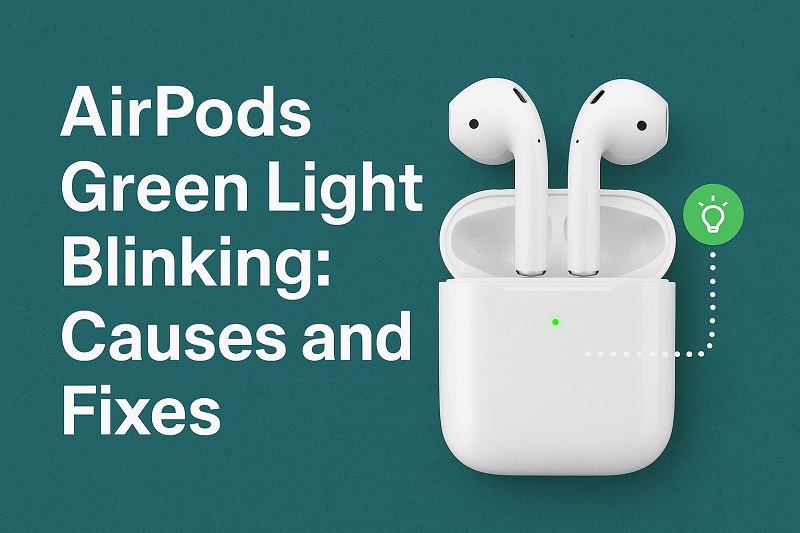
What That Blinking Green Light Really Means
Your AirPods case has one job when it comes to that little LED light: tell you what’s going on inside. When it blinks green, something’s not right, and your case is basically throwing up a warning flag.
Think of it like a smoke detector. It doesn’t beep just to annoy you—it beeps because there’s actually smoke somewhere. Same deal here. That green light blinks because your case has detected a real problem that needs your attention.
Most people think a green light means everything’s fine, and they’re partly right. A solid green light means you’re good to go. But when it starts blinking? That’s your case saying, “Hey, I’m trying to do my job here, but something’s stopping me.”
The case runs little checks constantly—making sure your AirPods are charging right, keeping track of which device they’re connected to, monitoring battery levels. When one of these checks fails, out comes the blinking green light. It’s actually pretty smart when you think about it.
AirPods Green Light Blinking: Likely Causes
Your AirPods case doesn’t just start blinking for no reason. There are specific things that trigger this behavior, and knowing what they are makes fixing the problem much easier.
1. Your AirPods Lost Their Connection
This happens more often than you’d think. Your AirPods were working fine yesterday, but today they can’t figure out how to talk to your phone. Maybe you updated your iPhone, or maybe you walked too far away and the connection just got confused.
Bluetooth can be finicky sometimes. Your AirPods might be sitting right there in the case, fully charged, but they’ve somehow forgotten how to connect to your device. When this happens, the case gets confused too and starts blinking green.
2. Something’s Blocking the Charging Spots
Look inside your AirPods case. See those little metal contacts where your AirPods sit? If there’s dust, pocket lint, or any kind of gunk on those spots, your AirPods can’t charge properly.
Even a tiny bit of debris can mess things up. Your AirPods need to make perfect contact with those charging pins, and when they can’t, the case knows something’s wrong. It starts blinking green to let you know the charging process isn’t working like it should.
Your pockets are full of stuff—lint from your jeans, crumbs from snacks, dust from who knows where. All of this can end up in your AirPods case over time.
3. The Software Got Confused
Sometimes your AirPods just have a brain freeze. Maybe you tried connecting them to a new device, or maybe an app update changed something, and now the software inside your AirPods doesn’t know what to do.
This is like when your computer starts acting weird and you have to restart it. Your AirPods have tiny computers inside them, and sometimes those computers need a fresh start too. When they get stuck, the case notices and starts blinking green.
The problem gets worse when you have multiple devices trying to connect to your AirPods at once. Your case can’t figure out which device should be in charge, so it just keeps blinking.
4. The Battery Counter Is Wrong
Your AirPods case keeps track of how much battery is left, but sometimes it gets its math wrong. It might think your AirPods aren’t charging even when they actually are, or it might think they’re dead when they’re not.
This usually happens slowly over time. Every time you charge your AirPods, the case does a little calculation to figure out battery levels. After hundreds of charging cycles, these calculations can start adding up wrong, and the case gets confused about what’s actually happening.
5. The Sensors Aren’t Working Right
Inside your AirPods case are tiny sensors that can tell when your AirPods are sitting in the right spot. When these sensors get dirty or stop working, the case can’t tell if your AirPods are actually there or not.
It’s like the case is playing a guessing game. It knows it should be charging something, but the sensors aren’t giving it clear information about what’s happening. So it defaults to blinking green because it can’t figure out the situation.
These sensors are pretty small and delicate. Over time, they can get covered in dust or just wear out from regular use. When they stop working properly, your case loses its ability to monitor your AirPods correctly.
AirPods Green Light Blinking: How to Fix
Let’s get that green light to stop blinking. Start with the first solution and work your way down the list until something works. Most of the time, one of the first few fixes will solve your problem.
1. Give Everything a Good Cleaning
Grab a dry toothbrush—one you don’t use for your teeth—and gently brush out the inside of your AirPods case. Pay extra attention to those metal charging contacts. You want to get every speck of dust and lint out of there.
Clean your AirPods too. Use a slightly damp cloth on the outside, but keep water away from any openings. Make sure everything’s completely dry before you put your AirPods back in the case.
Don’t forget the charging port on the bottom of your case. Use a toothpick or small brush to carefully remove any debris that might be blocking the connection.
2. Reset the Whole Connection
Put both AirPods in the case and close the lid. Wait 30 seconds, then open it up and find the small button on the back of the case. Press and hold that button until you see the light flash amber, then white.
This wipes out all the connection information and forces your AirPods to start over from scratch. It’s like giving them amnesia about all their previous connections, which often fixes whatever was confusing them.
Now you’ll need to pair them with your devices again, but that’s usually worth it to get rid of the blinking light.
3. Update Your Phone or Computer
Check if your iPhone, iPad, or Mac needs any software updates. Old software sometimes doesn’t play nice with AirPods, and updating can fix connection problems that cause the blinking light.
On your iPhone, go to Settings, then General, then Software Update. On Mac, check System Preferences for Software Update. Install whatever updates are available and restart your device.
4. Let the Battery Die Completely
This sounds backwards, but sometimes you need to let your AirPods case battery drain all the way to zero. This resets the battery monitoring system that might be causing the green light problem.
Leave your case open and don’t charge it until it’s completely dead. Then charge it back to 100% with the original cable. This full cycle often fixes battery tracking issues that confuse the case.
5. Check for Physical Damage
Take a close look at your AirPods case. Look for cracks, dents, or any damage around the LED light or charging contacts. Sometimes physical damage causes the blinking light issue.
If you see bent charging pins or corrosion on the metal contacts, that could be your problem right there. Physical damage often affects how well the case can detect and charge your AirPods.
6. Get Professional Help
If nothing else works, something inside your AirPods case probably needs professional attention. Apple’s support team can run tests to figure out exactly what’s wrong and whether you need a repair or replacement.
Don’t feel bad about needing professional help. Sometimes hardware problems require tools and expertise that regular people don’t have access to.
Wrapping Up
That blinking green light isn’t as mysterious as it seems. Most of the time, it’s just telling you about a simple problem that you can fix yourself in a few minutes.
Try cleaning first, then reset your connection if that doesn’t work. These two steps solve the majority of blinking green light problems. If you’re still stuck after trying everything here, at least you’ll know you’ve covered all the basics before getting professional help.