A blinking red light on your Zebra ZD230 printer means something needs your attention. The printer has stopped working and won’t start again until you figure out what’s wrong. That light is its way of telling you there’s an issue.
The good news is that most red light problems are easy to fix yourself. You don’t need special tools or technical knowledge. Just a few minutes and some basic troubleshooting will usually get things running again.
This guide walks you through everything you need to know. We’ll cover what causes the red light to blink and exactly how to fix each problem step by step.
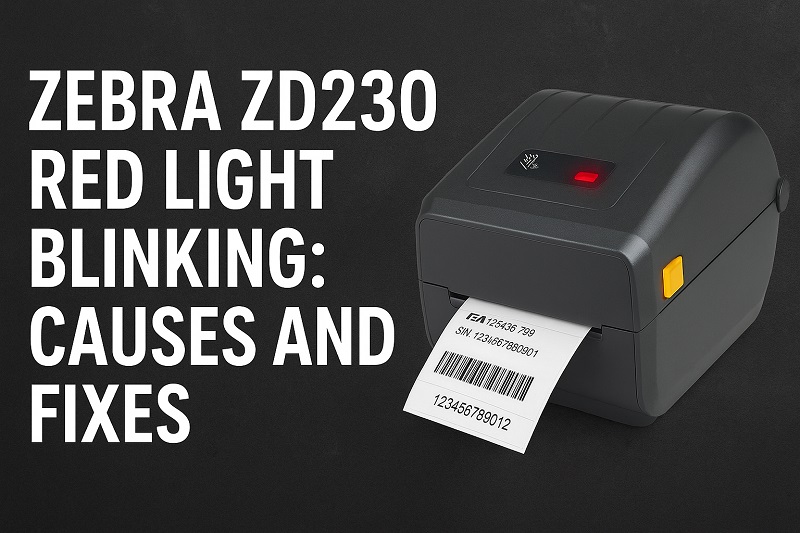
What That Blinking Red Light Really Means
Your Zebra ZD230 uses that red light as a warning system. When something goes wrong, the light starts blinking instead of the printer just sitting there doing nothing. It’s actually trying to help you understand what needs fixing.
Different blinking patterns can mean different things. Sometimes it blinks once and pauses. Sometimes it blinks several times in a row. The pattern is a clue about what’s going on inside.
Here’s what matters though. Most of these issues are simple fixes. We’re talking about things like labels not loaded right, sensors that need cleaning, or settings that got messed up somehow. Nothing scary.
Ignoring the light and trying to force the printer to work anyway is a bad idea. You could jam things up worse, damage the print head, or waste a bunch of labels on bad prints. Better to stop for a few minutes and fix it properly.
Zebra ZD230 Red Light Blinking: Likely Causes
The printer doesn’t flash that red light randomly. There are specific reasons behind it, and once you know what they are, fixing things gets a lot easier. Let’s look at what typically triggers it.
1. Label or Media Issues
This is the number one reason you’ll see that red light. Your labels might have run out. They might be loaded wrong. The size could be incorrect for what the printer expects.
Labels need to sit properly on the rollers or the sensors get confused. They can’t find the gaps between individual labels anymore. Sometimes the roll gets loose on the spindle or the labels bunch up slightly as they feed through.
Damaged labels cause problems too. Wrinkles, tears, or sticky spots from bad storage can all trigger the sensors. The printer needs everything lined up just right to work correctly, so even small imperfections make it stop and blink that warning light.
2. Ribbon Problems
If you’re using thermal transfer printing with a ribbon, ribbon issues are a common culprit. The ribbon might be installed wrong. It could be running out or getting tangled somewhere in the mechanism.
These ribbons need to wind smoothly from one spool to another while the printer works. Any twist, snag, or tear gets detected immediately by the sensors. That’s when the red light kicks in.
3. Sensor Misalignment or Dirt
Your printer has tiny sensors that detect where each label starts and stops. They need to be clean and sitting in the right spot to work. When they get dirty or move out of position, everything breaks down.
Dust builds up over time. Adhesive residue sticks to things. Tiny paper fibers accumulate on the sensors. Even a thin layer of this stuff blocks the sensor from reading the labels properly, and suddenly the printer thinks something is wrong.
Moving the printer around or bumping it can knock sensors out of alignment too. We’re talking about really small movements here. Just a millimeter or two off and the sensor might miss the label edges completely, triggering that error state.
4. Print Head Not Seated Properly
The print head has to lock down tight into its housing. If it’s not fully closed or clicked into place, the printer refuses to work. This is a safety feature to prevent damage and poor print quality.
After you clean the printer or change labels, you might not push the head back down hard enough. It looks closed but hasn’t actually locked. The printer knows this and turns on the error light.
5. Communication or Calibration Errors
Sometimes nothing mechanical is wrong at all. The printer just lost its calibration settings and doesn’t know what size labels to expect anymore. Power outages do this. Firmware updates can cause it. Sometimes settings just get changed by accident.
Communication problems between your computer and printer also create error states. Corrupted data or incomplete print jobs make the printer pause and flash that red light while it waits for better instructions. USB issues, driver conflicts, network problems. Any of these can be the real problem behind that blinking light.
Zebra ZD230 Red Light Blinking: DIY Fixes
Time to actually fix this thing. These steps are straightforward and you can do them right now to get back to printing.
1. Check and Reload Your Labels
Start here because it’s the easiest and most common fix. Open the printer and look at how your labels are sitting. Pull the whole roll out and check for damage, tears, or anything that looks off.
When you put them back in, center the roll on the guide rails. The edges should fit snugly against the guides without being forced or squeezed. The roll needs to spin freely on the spindle. Thread that first label through the print area exactly like the manual shows.
Close the print head and press the feed button a few times. Watch what happens. The labels should move smoothly with the printer finding each gap between them. If the red light stops and you hear the printer doing its calibration thing, you just fixed it.
2. Inspect and Replace the Ribbon
For thermal transfer models, open things up and check the ribbon path. Look at both spools, the supply side and the take-up side. The ribbon should be wound tight on both without any slack or tangles.
Replace it if the ribbon looks damaged, wrinkled, or has run out. When you install a new one, follow the threading path carefully. There are usually diagrams inside the printer showing exactly how it should go. Make sure it passes under the print head correctly and winds onto the other spool in the right direction.
Close everything up and run a test print. The red light should clear once the printer sees that the ribbon is installed properly.
3. Clean the Sensors
Grab a lint-free cloth or cotton swab and some rubbing alcohol. Open the printer and find the sensors. On the ZD230, they’re usually near where the labels pass through. Small black or clear plastic pieces.
Wipe each sensor gently with the alcohol on your cloth. Don’t press hard or you could break something. Let it all dry before closing the printer. Alcohol dries fast, usually in under a minute.
This removes all that built-up dust and sticky residue blocking the sensors. Clean sensors can see the label gaps again, which fixes the error causing the red light.
4. Reseat the Print Head
Open the print head by lifting the latch or pressing whatever release it has. Lift it all the way up. Now push it back down firmly until it clicks. Don’t be gentle here. It needs real pressure to lock into place properly.
Check that any locking pieces are fully engaged. Some models have a secondary lock that needs to snap down. If the head still feels loose when it’s supposedly closed, it’s not actually seated right.
5. Run a Printer Calibration
The printer needs to know what size and type of labels you’re using. If it forgets this information, it can’t work. You can usually run a calibration by holding down the feed button while you turn the printer on.
Hold it until the light changes or starts blinking differently. Then let go. The printer will feed several labels through while it learns their size and spacing. Takes maybe 30 seconds to a minute. When it’s done, everything should be back to normal.
You can also calibrate through your computer. Open the printer properties, find the calibration option, and follow what it tells you to do. This way gives you more control over specific settings if you need it.
6. Check All Cable Connections
Sometimes the fix is almost embarrassingly simple. Unplug the USB cable or power cord, wait ten seconds, plug it all back in firmly. Loose connections cause weird problems including random error lights.
Try a different USB port on your computer if you’re using USB. Some ports have issues with power or data transfer. Switching ports can fix communication problems. For network printers, make sure the Ethernet cable is clicked in tight at both ends.
Restart both the printer and your computer while you’re at it. This clears temporary glitches that might be causing the error.
7. Contact a Zebra Technician
If nothing here works and that red light keeps blinking, you probably have a hardware problem that needs professional help. Internal parts like motors, sensors, or circuit boards can fail and need replacement or specialized repair knowledge.
Call Zebra’s support team or find an authorized service center nearby. Have your printer’s serial number ready and a quick summary of what you’ve already tried. This helps the technician figure things out faster and might save you money on the service call.
Wrap-Up
A blinking red light on your Zebra ZD230 doesn’t mean disaster. Most times it’s pointing to something simple you can fix yourself in minutes. Reloading labels correctly, cleaning a sensor, running a quick calibration. These basic steps solve most issues.
Just be methodical about it. Start with the easy fixes first and work through the list. Don’t force anything. Your printer is solid equipment when it’s taken care of properly, and a little regular maintenance keeps those red lights from showing up in the first place.