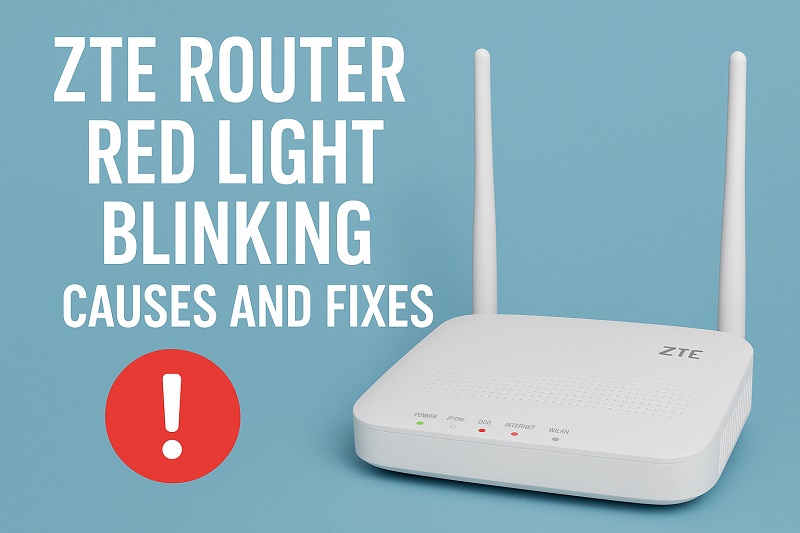
You’ve probably noticed that little red light blinking on your ZTE router and wondered what’s going on. That flashing red signal is your router’s way of telling you something isn’t right, and it usually means you’re dealing with a connection issue.
This isn’t something you need to panic about, though. Most times, these red light problems are pretty straightforward to fix, and you won’t need to call a technician or spend hours on the phone with customer support. In this guide, you’ll learn exactly what that red light means, why it’s happening, and how to get your internet connection back up and running.
What the Red Blinking Light Actually Means
That red light on your ZTE router is basically a distress signal. While a solid green or blue light typically means everything is working fine, a red light tells you there’s a connectivity problem between your router and your internet service provider’s network. Think of it like a traffic light: green means go, red means stop.
When you see that red blink, your router is actively trying to establish a connection but failing to do so. It’s stuck in a loop of attempting and failing, attempting and failing. This could be happening at different points in the connection chain, from the physical cables all the way to your ISP’s servers.
Your router has different colored lights for different statuses. The internet or WAN light is the one you need to watch. When it blinks red, your router can still power on and might even let devices connect to it via Wi-Fi, but those devices won’t have actual internet access. You’ll be connected to the router but isolated from the wider web.
The frustrating part is that you might not know immediately whether the problem is on your end or with your service provider. Your cables might be fine, your settings might be correct, but something somewhere in that connection chain is broken. That’s why understanding the potential causes helps you troubleshoot systematically instead of randomly trying things and hoping something works.
ZTE Router Red Light Blinking: Common Causes
Several things can trigger that annoying red blink on your router. Let’s look at the most frequent culprits so you can narrow down what’s affecting your specific setup.
1. Loose or Damaged Cables
Your internet connection relies on physical cables to carry data, and these cables take more abuse than you might realize. Every time you move furniture, vacuum, or accidentally kick the router, those cables can get loosened or damaged.
The cable connecting your router to the wall outlet or modem is particularly vulnerable. If this cable isn’t seated properly in its port, the connection will drop intermittently or fail completely. You might not even notice that it’s slightly loose because it can still look connected while not making proper contact.
Damaged cables are another story entirely. Pets love to chew on cables, and over time, the protective coating can crack or wear away. Even a tiny break in the internal wiring can cause your connection to fail. Sometimes the damage is internal and invisible, making it harder to diagnose.
2. ISP Network Outage or Maintenance
Your internet service provider occasionally needs to perform maintenance on their network infrastructure. They might be upgrading equipment, fixing problems, or expanding capacity. During these times, your connection will drop regardless of how perfect your home setup is.
Network outages can also happen unexpectedly due to technical issues, severe weather, or physical damage to infrastructure in your area. A car might have hit a utility pole, or a storm might have damaged above-ground cables. These situations are completely out of your control.
3. Overheating Issues
Routers generate heat while operating, especially when handling heavy traffic loads. If your router is sitting in an enclosed space, stacked under other devices, or covered with dust, it can’t dissipate heat properly. When the internal temperature rises too high, the router starts malfunctioning.
Overheating affects the sensitive electronic components inside your router. These components need to operate within specific temperature ranges to function correctly. Once they get too hot, they begin to fail, causing connection drops and that red blinking light.
You might notice this problem gets worse during hot summer months or after several hours of continuous use. The router might work fine when it’s cool but start acting up after it’s been running for a while. This pattern is a clear sign that heat is your enemy.
4. Outdated Firmware
Your router runs on software called firmware, which controls how it operates and communicates with other devices. Manufacturers regularly release firmware updates to fix bugs, patch security vulnerabilities, and improve performance. If your router is running old firmware, it might struggle to maintain stable connections.
Outdated firmware can cause compatibility issues with your ISP’s network equipment. As service providers upgrade their systems, older router firmware might not speak the same language anymore. This mismatch can result in connection failures and that persistent red light.
5. Account or Service Issues
Sometimes the problem isn’t technical at all but administrative. Your internet service might be suspended due to billing issues, or there could be a problem with your account settings on your ISP’s end. Maybe a payment didn’t go through, or your service plan expired without you realizing it.
Service providers can also place temporary holds on accounts for various reasons. There might be unusual activity that triggered a security flag, or technical changes to your plan that require verification. These situations won’t resolve themselves no matter how many times you reset your router.
ZTE Router Red Light Blinking: How to Fix
Getting rid of that red light usually involves some simple troubleshooting steps. Let’s walk through the most effective solutions in order from easiest to more involved.
1. Check and Reseat All Cables
Start by examining every cable connected to your router. Look at the ethernet cable going from the wall or modem to your router’s WAN port. Make sure it’s pushed in all the way until you hear or feel a click.
Unplug the cable completely, inspect both ends for any visible damage, and plug it back in firmly. Do the same with the power cable. Sometimes cables can look connected but aren’t making proper contact. A loose connection can cause intermittent failures that trigger the red light.
While you’re at it, check the cable for any signs of damage along its length. Bent pins, frayed wiring, or chew marks mean you need a replacement cable. If you have a spare ethernet cable lying around, swap it out to see if that fixes the problem.
2. Power Cycle Your Router
This classic tech support move works because it clears the router’s memory and forces it to re-establish all connections from scratch. Turn off your router using the power button or by unplugging it from the wall outlet.
Wait a full 30 seconds before plugging it back in. This waiting period is important because it allows capacitors inside the router to fully discharge, ensuring a complete reset. If you skip this wait time, the router might retain some error states that caused the problem.
After plugging it back in, give the router about two to three minutes to fully boot up and attempt to reconnect. Watch the lights during this process. If the red light changes to green or blue, you’ve solved the issue.
3. Move Your Router to a Cooler Location
If your router feels hot to the touch, overheating is likely your problem. Move it to a spot with better airflow, away from other heat-generating devices like gaming consoles or cable boxes.
Make sure your router sits on a hard, flat surface rather than on carpet or fabric that can block ventilation holes. Leave at least a few inches of space around all sides so air can circulate freely. Never stack anything on top of your router or trap it in a closed cabinet.
Clean any dust buildup from the vents using compressed air or a soft brush. Dust acts like insulation, trapping heat inside the device. Once you’ve relocated and cleaned your router, let it cool down for 10 to 15 minutes before turning it back on. Monitor whether the red light issue returns during extended use.
4. Update Your Router’s Firmware
Log into your router’s admin panel by typing its IP address into your web browser. For ZTE routers, this is commonly 192.168.1.1 or 192.168.0.1. You’ll need your admin username and password, which might be printed on a sticker on the router itself if you haven’t changed them.
Once logged in, look for a section labeled Firmware Update, System Update, or something similar. The exact location varies by model. Check if a newer firmware version is available. If there is, download and install it following the on-screen instructions.
Keep your router plugged in and connected during the entire update process. Don’t turn it off or unplug it while the firmware is installing, as this can corrupt the software and brick your router. The update might take several minutes, and your router will probably restart automatically when finished.
5. Contact Your ISP
Before assuming your ISP is at fault, check their website or social media pages for outage announcements. Many providers post real-time updates about service interruptions in different areas. You can also use your mobile data to check outage-tracking websites that aggregate user reports.
If there’s no widespread outage, call your ISP’s support line. Explain that you’re getting a red light on your router and describe the troubleshooting steps you’ve already tried. They can run diagnostics on their end to check signal strength, verify your account status, and see if there are any issues with your connection at the network level.
Sometimes the problem requires a technician visit to check the connection point where your service enters your home or to replace faulty equipment. Your ISP can also confirm whether your router is compatible with their network and might provide a replacement if the hardware is defective. Be prepared to provide your account information and potentially schedule a service appointment.
6. Factory Reset Your Router
This is your nuclear option, so only try it after everything else has failed. A factory reset erases all your custom settings and returns the router to its original state. You’ll need to reconfigure your Wi-Fi network name, password, and any other custom settings afterward.
Find the small reset button on your router, usually recessed to prevent accidental presses. Use a paperclip or pin to press and hold this button for about 10 to 15 seconds. The lights will flash or turn off briefly, indicating the reset is happening.
After the reset completes and the router restarts, you’ll need to set it up again using the default login credentials. Follow the setup wizard to configure your internet connection with the details provided by your ISP. This fresh start often resolves persistent software glitches causing the red light.
7. Seek Professional Help
If you’ve tried everything and that red light still won’t quit, it’s time to call in a professional. Contact your ISP to arrange for a technician to visit your location. They have specialized equipment to test signal strength, identify line problems, and diagnose issues you can’t fix on your own.
Your router might have internal hardware failure that requires replacement. Most ISPs will provide a new router if yours is defective, especially if you’re leasing it as part of your service plan. A technician can also check for problems with the physical infrastructure bringing internet to your home.
Wrapping Up
That red blinking light on your ZTE router might seem alarming, but it’s usually pointing to something fixable. Most connection problems stem from simple issues like loose cables, overheating, or temporary service interruptions that you can handle without technical expertise.
Start with the basics like checking cables and restarting your router before moving to more complex solutions. If you’ve worked through all the fixes and nothing helps, your ISP’s support team can take over from there. Getting your internet back doesn’t have to be a headache when you know where to look.