Picture this: You’re settling down for your favorite show, remote in hand, ready to channel surf. Then you notice it – that tiny red light on your Jio remote won’t stop blinking. Press the volume button. Nothing. Try changing channels. Still nothing.
I’ve seen this exact situation hundreds of times, and here’s what I always tell people: that blinking red light is actually your remote trying to tell you something important. It’s like your car’s check engine light, but much easier to fix. Most folks think their remote is broken and start shopping for a new one. Big mistake.
What you’re about to read will save you that trip to the electronics store. I’ll walk you through exactly why this happens and show you the simple fixes that work 9 times out of 10.
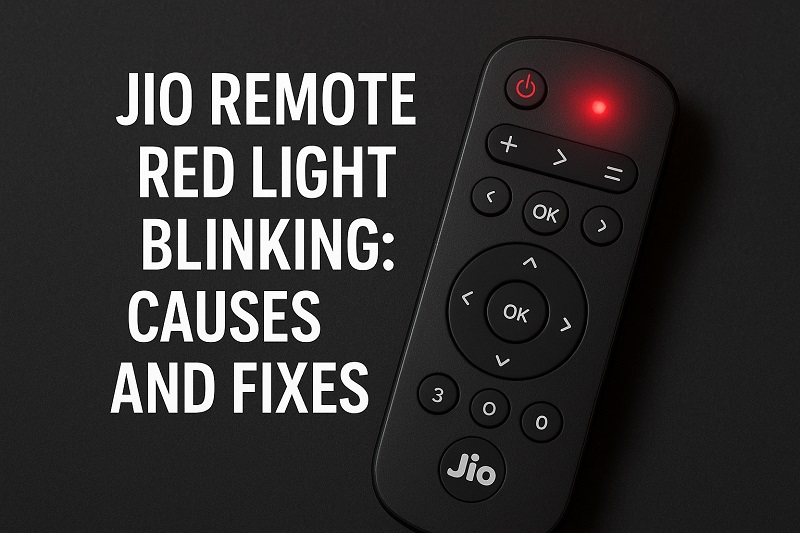
Why Your Remote Starts Acting Up
Your Jio remote talks to your set-top box using invisible light signals. Think of it like a flashlight that you can’t see – every time you press a button, your remote sends out a quick flash to tell your box what to do. That little red light you normally see for a split second? That’s your remote saying “message sent.”
But when that light starts blinking like crazy, something’s gone wrong with this conversation. Your remote keeps trying to talk to your set-top box, but it’s like shouting into a tunnel and hearing no echo back. So it keeps trying, over and over, which is why you see that constant blinking.
Here’s the thing – your remote doesn’t know if the problem is on its end or the box’s end. All it knows is that it’s not getting the usual “got it” response back. So it just keeps sending the same signal, hoping something will change.
This whole mess usually starts small. Maybe your remote works fine in the morning but gets sluggish by evening. Or certain buttons stop working while others are fine. But if you ignore it, things get worse fast. Within a day or two, you might find yourself pressing buttons five times just to change one channel.
The worst part? All that extra effort drains your batteries way faster than normal. I’ve seen remotes that usually last six months burn through batteries in just a week when this problem kicks in.
Jio Remote Red Light Blinking: Common Causes
Most people think their remote just “died” randomly, but there’s always a reason behind the madness. After fixing thousands of these things, I’ve noticed the same few problems pop up again and again.
1. Your Batteries Are Giving Up
This one’s the big winner – probably 6 out of 10 remotes I see have battery issues. But here’s what most people don’t get: batteries don’t just die overnight like a light switch. They get weaker gradually, and weak batteries make your remote act weird.
When your batteries start running low, they can’t push out strong signals anymore. Your remote sends out weak, wobbly signals that your set-top box can barely hear. Sometimes the signal gets through, sometimes it doesn’t. That’s why you might notice your remote working fine from up close but failing from across the room.
2. Something’s Blocking the Signal
Your remote shoots out invisible light beams, just like a TV remote. But unlike regular light, these beams can’t bend around corners or punch through objects. Even a thin layer of dust on your remote’s front tip can mess things up.
I’ve found everything from pet hair to sticky residue from spilled drinks blocking these signals. Sometimes it’s obvious – like a stack of magazines sitting right in front of your set-top box. Other times it’s sneaky, like a thin film of cooking grease that builds up over time.
The funny thing is, your remote doesn’t know what’s blocking it. All it knows is that its signals aren’t getting through, so it cranks up the power and keeps trying. That’s your red light working overtime.
3. Your Set-Top Box Stopped Listening
Sometimes your remote is working perfectly, but your set-top box has checked out. This happens more than you’d think, especially after power outages or when your box gets too hot from sitting in a closed cabinet.
Your box might still show channels and play sound just fine, which tricks people into thinking everything’s okay. But the part that listens for remote signals can fail separately from everything else. It’s like having perfect hearing but choosing to ignore someone talking to you.
Power surges are brutal for this kind of damage. One lightning storm can fry just the receiver part of your box while leaving everything else untouched. Your box works great until you try to change channels, then suddenly nothing responds.
4. They’ve Forgotten Each Other
Your Jio remote and set-top box need to be “introduced” to work together – tech people call this pairing. But this introduction can get wiped out by all sorts of things. Power cuts, software updates, even having too many electronics nearby can mess with this connection.
When pairing breaks, your remote sends signals into the void. It’s like trying to call someone whose number has been disconnected. Your remote doesn’t get an error message – it just gets silence, which makes it think the signal isn’t strong enough.
5. Something Broke Inside
This is the one nobody wants to hear, but sometimes stuff just breaks. Drops, spills, extreme heat, or just plain old age can damage the tiny circuits inside your remote. These parts are delicate, and once they’re damaged, your remote starts sending garbled messages.
Water damage is sneaky because it doesn’t always happen right away. You spill coffee on your remote, wipe it off, and everything seems fine. But moisture can sit inside for days or weeks, slowly corroding connections until your remote starts acting up.
Even remotes that look perfect on the outside can have internal damage. I’ve opened up remotes that looked brand new but had circuit boards that were completely fried inside.
Jio Remote Red Light Blinking: How to Fix
Don’t panic – most of these problems have simple fixes. I always tell people to start with the easy stuff before assuming their remote is toast.
1. Swap Those Batteries
This fix works so often that I always start here, even when people swear their batteries are fine. Pop open that battery compartment and pull out both batteries completely. Don’t just check if they’re dead – replace them with brand new ones.
Before you put the new batteries in, take a look at those metal contacts inside the compartment. See any white crusty stuff or dark spots? That’s corrosion, and it blocks electricity flow. Clean it off with a dry cloth or cotton swab. If it’s really stubborn, use a tiny bit of rubbing alcohol on the swab.
Now put in your fresh batteries, making sure the plus and minus ends line up with the little pictures inside. Close the compartment, point your remote at the set-top box, and try any button. If the red light stops blinking and your box responds, you’re done.
2. Clean That Front Window
Look at the tip of your remote where the invisible light comes out. See that dark plastic window? That needs to be crystal clear for your signals to get through. Grab a clean cloth – microfiber works great – and gently wipe that window clean.
Don’t press hard or use rough materials that might scratch the plastic. If there’s sticky stuff on there, barely dampen your cloth with water or rubbing alcohol. Just barely – you don’t want liquid getting inside your remote.
3. Clear the Path
Walk over to your set-top box and look for obstacles between it and where you normally sit. Move anything that might be in the way – decorative items, other remotes, books, whatever. Your remote’s signal needs a clear shot at your box.
While you’re there, clean the front of your set-top box too. Look for a small dark window or sensor – that’s where your box receives signals. Wipe it clean with a dry cloth.
Try your remote from different spots in the room. Most Jio remotes work best within about 15 feet, but walls and furniture can cut that distance down. Find a spot where your remote responds consistently, then you’ll know if distance was part of your problem.
4. Reset Your Set-Top Box
This one’s like turning your computer off and on again – simple but surprisingly effective. Unplug your set-top box from the wall outlet. Not the cable connections, just the power cord. Wait 30 seconds – don’t rush this part.
Plug it back in and wait for your box to wake up completely. This usually takes 2-3 minutes, and you’ll see various lights flashing as it starts up. Once your regular channels appear and everything looks normal, try your remote.
This reset clears out temporary glitches that can make your box ignore remote signals. I tell people to do this monthly as maintenance – it prevents a lot of problems before they start.
5. Make Them Friends Again
If nothing else worked, your remote and box might need a formal reintroduction. Hold down the “OK” button and “Power” button on your remote at the same time. Keep holding for 10 seconds, then let go. You should see the remote’s light flash twice.
Now go to your set-top box and find the power button on the actual device – not on the remote. Hold that button down for 5 seconds until you see a message on your TV screen. Your box will search for remotes and should find yours automatically.
Test everything – volume, channels, menus. If some functions work but others don’t, try the pairing process again.
6. Call in the Pros
If you’ve tried everything and that red light is still blinking away, it’s time to get help. Call Jio customer service at 199 or take your remote to a nearby service center. Some problems need professional tools and replacement parts that you can’t fix at home.
Wrap-Up
That blinking red light doesn’t have to mean game over for your remote. Most of the time, it’s just a simple communication hiccup that you can fix in minutes with batteries or a quick cleaning.
Keep your remote clean, use good batteries, and make sure nothing’s blocking the signal path. These small steps will keep your remote happy and responsive for years to come.