You’re watching your router, and that blue light keeps blinking on and off like it’s trying to tell you something. Maybe your internet just stopped working, or maybe it’s been slow for the past hour. Either way, that blinking light is annoying.
Here’s what’s happening and how you can fix it yourself. Most of these solutions take less than five minutes, and you don’t need any special tools or tech knowledge.
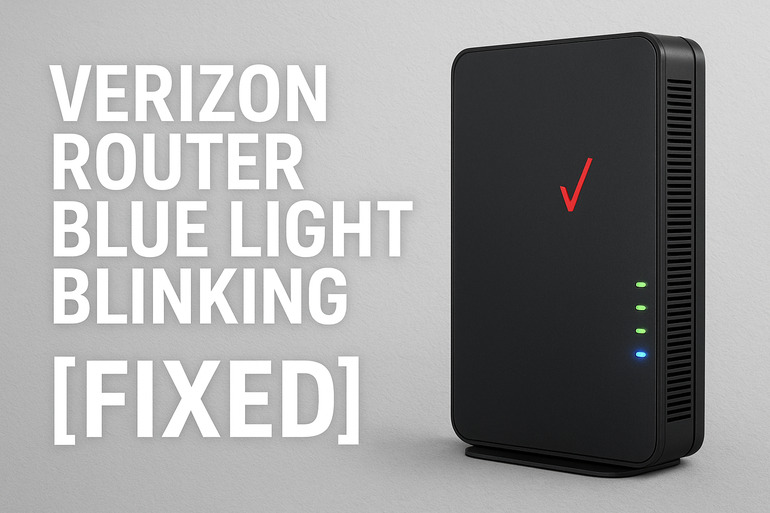
What That Blinking Blue Light Really Means
Your Verizon router uses different colored lights to communicate its status. The blue light, specifically, tells you about your internet connection. When it’s solid blue, everything’s working perfectly. When it starts blinking, your router is trying to connect to the internet but can’t quite get there.
Think of it like your router knocking on a door that won’t open. It keeps trying, which is why you see that constant blinking. Your devices can still connect to the router itself, but none of them can access the internet because the router hasn’t established that crucial link to Verizon’s network.
This blinking can happen right after you set up your router for the first time. It can happen after a power outage. Sometimes it just happens out of nowhere on a regular Tuesday afternoon. The pattern is usually the same though: the blue light blinks steadily, your internet doesn’t work, and you’re left wondering what went wrong.
If you leave this unfixed, you’ll have no internet access at all. Your smart TV won’t stream anything. Your laptop won’t load web pages. Even your phone will switch to cellular data because the WiFi isn’t actually connected to anything useful. Plus, the longer you wait, the more frustrated you’ll get trying to work or relax without a functioning connection.
Verizon Router Blue Light Blinking: Common Causes
Several things can trigger that blinking blue light, and knowing which one is affecting you helps you fix it faster. Let me walk you through the most common culprits I’ve seen over the years.
1. Loose or Damaged Cables
Your router connects to the internet through physical cables, and these cables take more abuse than you’d think. Someone vacuums near them, pets chew on them, or they just get bumped when you’re moving furniture around.
A loose cable at either end can break the connection instantly. You might have accidentally kicked the cable running from your wall to the router, or the cable connecting to the ONT box outside might have gotten wet during a storm. Even a slightly loose connection can cause problems.
Sometimes the cable looks fine from the outside but has internal damage. Maybe it got pinched in a door or bent too sharply around a corner. The copper wires inside can break while the outer coating stays intact, making it hard to spot the problem just by looking.
2. Service Outage in Your Area
Verizon’s network occasionally goes down for maintenance or experiences unexpected problems. This isn’t something you can control, but it explains why your router suddenly can’t connect even though nothing changed on your end.
During an outage, your router keeps trying to reach Verizon’s servers but gets no response. That’s why the blue light keeps blinking. Your equipment is working fine, but there’s nothing on the other end to connect to right now.
3. Router Needs a Fresh Start
Electronic devices get confused sometimes, just like we do. Your router might have encountered a minor software glitch, or its memory might be full from running continuously for months without a break.
These small issues build up over time. Your router might start responding slower, dropping connections randomly, or failing to establish new ones. A simple restart clears out these temporary problems and gives your router a clean slate to work with.
4. Firmware Problems
Your router runs on software called firmware, which Verizon updates periodically to fix bugs and improve performance. Sometimes these updates don’t install correctly, or an old version of firmware starts causing conflicts with Verizon’s current network setup.
You might not even know an update tried to install. Many routers attempt updates automatically in the middle of the night, and if something interrupts that process, you wake up to a blinking blue light and no internet.
Outdated firmware can also struggle to communicate with newer network equipment on Verizon’s end. As they upgrade their systems, your router needs matching updates to keep pace.
5. Account or Payment Issues
Your router might be working perfectly, but Verizon’s system has flagged your account for some reason. Maybe your payment didn’t go through this month, or there’s a technical error showing your account as inactive.
Your router doesn’t know about billing issues. It just knows it’s being denied access to the network, so it keeps trying to connect and failing. The blue light blinks because, from the router’s perspective, it should be able to connect but something is blocking it.
Verizon Router Blue Light Blinking: DIY Fixes
Getting your internet back up and running usually involves trying a few simple solutions. Start with the easiest ones first, and work your way through the list until something works.
1. Check All Your Cables
Start at your router and follow each cable to where it plugs in. Push firmly on both ends to make sure they’re seated properly. You should feel a little click with ethernet cables when they lock into place.
Look closely at the cables themselves. Bend them gently and check for any spots that feel different or look damaged. If you have pets, check for bite marks. If any cable looks suspicious, try swapping it out for a different one if you have a spare.
Pay special attention to the cable running to your ONT box. This is usually a black or gray box mounted on the outside of your house or in your garage. Make sure that connection is tight and the cable isn’t pinched anywhere along its path.
2. Power Cycle Everything
Unplug your router from the power outlet. Wait a full 30 seconds before plugging it back in. This waiting period is important because it lets all the capacitors discharge completely.
While you’re waiting, unplug your ONT box too if you can access it easily. Give it the same 30-second treatment. When you plug everything back in, start with the ONT first, let it fully boot up for about two minutes, then plug in your router.
Watch the lights as your router starts up. You’ll see different colors flash before hopefully settling on a solid blue. This whole process might take three to five minutes, so be patient. Don’t unplug anything again during this time.
3. Factory Reset Your Router
Find the small reset button on your router. It’s usually recessed, so you’ll need something thin like a paperclip to press it. Hold that button down for about 15 seconds while the router is powered on.
Your router will restart on its own. All the lights will flash, and you’ll need to set up your WiFi network again from scratch. This means choosing a network name and password like you did when you first got the router.
Before you do this, write down your current WiFi name and password. You can use the same ones again, or pick new ones. Keep this information somewhere safe because you’ll need to reconnect all your devices after the reset.
4. Update Your Router Firmware
Log into your router’s settings by typing its IP address into a web browser. Usually, it’s 192.168.1.1, but check the sticker on your router to be sure. You’ll need your admin username and password, which are also on that sticker unless you changed them.
Once you’re logged in, look for a section called Firmware Update, Software Update, or something similar. Click the button to check for updates. If one is available, let it download and install. Your router will restart automatically when it’s done.
Don’t turn off your router or unplug it during a firmware update. This can actually make things worse. The update usually takes five to ten minutes. Your internet will be down during this time, but that’s normal. Just let it finish completely.
5. Check for Service Outages
Open a web browser on your phone using cellular data, not WiFi. Go to Verizon’s website and look for their service status page. You can also check their social media accounts or call their support number.
If there’s an outage in your area, you’ll just have to wait for Verizon to fix it. There’s nothing wrong with your equipment, and none of the other fixes will help. Outages usually get resolved within a few hours, though major ones can take longer.
You can also ask neighbors if their Verizon internet is working. If everyone on your street has the same problem, it’s definitely a service outage. Save yourself the troubleshooting time and just wait it out.
6. Verify Your Account Status
Log into your Verizon account online or through their app. Check that your service is active and your billing is current. Sometimes payments fail because of expired credit cards or bank issues, and the service gets suspended automatically.
Look for any notifications or alerts on your account page. Verizon usually sends emails about billing problems, but those might have gone to your spam folder. If you find an issue, fixing your payment should restore your service within a few minutes.
Contact Verizon support if everything looks correct on your account but you still have no internet. They can see things on their end that you can’t, like technical flags or system errors affecting your connection. Their support team can often fix account-related issues right over the phone.
7. Contact Verizon Technical Support
If none of these fixes work, reach out to Verizon’s technical support team. They have diagnostic tools that can test your line remotely and spot problems you can’t see. They might need to send a technician to your location if the issue is with outside equipment.
Before you call, write down everything you’ve already tried. This saves time and helps the support agent figure out what to check next. Have your account information ready too, along with the model number of your router.
Wrapping Up
That blinking blue light on your Verizon router doesn’t have to ruin your day. Most of the time, it’s a simple fix that takes just a few minutes of your time.
Start with the quick solutions like checking cables and restarting your equipment. These solve the majority of connection problems without any hassle. If those don’t work, try the more involved fixes like firmware updates or factory resets. One of these approaches will usually get you back online and turn that blinking blue into a steady, reassuring glow.