Your internet was working fine this morning, and now that green light on your Xfinity modem is blinking like crazy while your connection crawls slower than dial-up. Every webpage takes forever to load, your streaming stops every few seconds, and your smart home devices act like they’ve never heard of WiFi.
That blinking green light means your modem lost its connection to Comcast and keeps trying to get it back. Think of it like your modem knocking on a door that won’t open. The thing is, most of these connection hiccups come from simple problems with equally simple solutions you can handle yourself.
What’s Really Happening When That Light Blinks
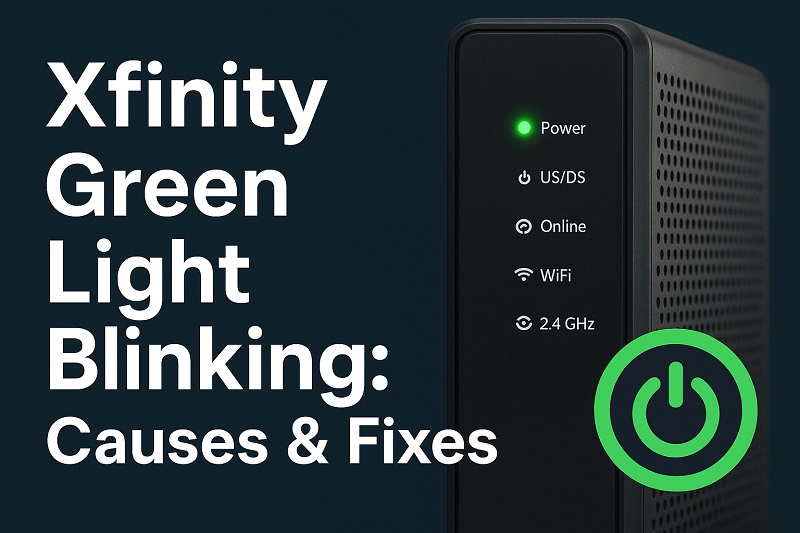
Your Xfinity modem has one job: stay connected to Comcast’s network so you can use the internet. That green light tells you how well it’s doing that job. Solid green means everything’s perfect. Blinking green means your modem is stuck trying to connect but can’t quite make it happen.
Picture your modem like someone trying to make a phone call, but the call keeps dropping. It dials, gets a busy signal, hangs up, and tries again. That’s exactly what’s happening when you see that blinking light – your modem is dialing Comcast over and over, hoping someone picks up.
This back-and-forth happens because something broke the normal connection. Maybe a cable got loose, maybe there’s a problem with Comcast’s system, or maybe your modem just needs a quick restart to clear its head.
While your modem keeps trying to connect, your internet either works terribly or doesn’t work at all. Every device in your house that needs internet – your phone, laptop, smart TV, even your WiFi doorbell – all struggle because they can’t get the signal they need. Fix the blinking light, and everything else goes back to normal.
Xfinity Green Light Blinking: Common Causes
A few different things can make your Xfinity modem’s green light start blinking instead of staying steady. Knowing what usually causes this helps you fix it faster.
1. The Internet Is Down in Your Area
Sometimes Comcast’s system goes down, and it’s not your fault at all. They might be fixing something, upgrading equipment, or dealing with storm damage that knocked out service for your whole neighborhood.
When this happens, thousands of people lose internet at the same time. Your modem keeps trying to connect, but there’s nothing to connect to until Comcast fixes their end.
2. Cables Got Loose or Broke
That thick cable going from your modem to the wall carries your internet signal. If it gets loose, your signal gets weak or disappears completely. This happens more than you’d think – cables work loose from vibration, temperature changes, or just time.
Sometimes cables actually break. Pets chew them, furniture pinches them, or they just wear out after years of use. Even tiny damage can mess up your signal.
The metal connectors on the ends can also go bad. If they get corroded or bent, they won’t make a good connection even if the cable itself is fine.
3. Your Modem Got Too Hot
Modems create heat when they work, and they need air flowing around them to stay cool. When they get too hot, they start acting weird – including problems connecting to the network.
Dust builds up inside and acts like a blanket, trapping heat. Many people stick their modems in cabinets or closets where there’s no airflow, which makes the problem worse.
4. The Software Got Confused
Your modem runs computer programs that control how it works. Sometimes these programs glitch out and cause connection problems. Power outages can mess up software updates and leave your modem confused about what to do.
When the software gets scrambled, your modem might forget how to connect properly or get stuck in loops where it keeps trying the same thing over and over.
5. The Signal Is Too Weak or Too Strong
Your modem needs the signal coming from outside to be just the right strength – not too weak, not too strong. Both cause problems, just different ones.
Weak signals usually mean there’s a problem with the wiring outside your house or with equipment Comcast uses to send signals to your area. Strong signals can actually overload your modem and make it shut down to protect itself.
Xfinity Green Light Blinking: How to Fix
Most blinking green light problems have simple solutions you can try right now. Start with the easy stuff first – it usually works.
1. Unplug It and Plug It Back In
This sounds too simple to work, but it fixes more internet problems than anything else. Your modem is basically a computer, and computers sometimes need to restart to work right again.
- Pull the power cord out of your modem completely
- Count to 30 slowly – don’t rush this part
- Plug it back in and wait 3 minutes for everything to start up
Your modem goes through a startup routine when you do this. Different lights will come on and change colors as it boots up and tries to connect. If the problem was just a software glitch, your green light should stop blinking and stay solid.
2. Check Every Cable Connection
Loose connections cause way more problems than people realize. Check every cable connected to your modem, starting with the thick one going to the wall.
That coaxial cable should screw on tight at both ends – tight enough to stay put, but don’t overtighten and strip the threads. Make sure the power cable sits firmly in its socket and hasn’t wiggled loose.
Look at your cables for any damage. Sharp bends, cuts, or chew marks from pets all mess up the signal. If you find damage, you need a new cable – there’s no way to fix a damaged one that will work reliably.
3. Give Your Modem Room to Breathe
Hot modems don’t work well. If yours is stuffed in a cabinet or sitting on top of other electronics, it might be overheating and causing connection problems.
- Move your modem out of any enclosed spaces
- Keep it away from other hot electronics like cable boxes or game consoles
- Clean dust off the vents with compressed air
Your modem needs space around all sides for air to flow. Think of it like a person who needs room to breathe – cramped spaces make everything harder.
4. Check If Comcast’s System Is Down
Before you spend more time fixing things, make sure the problem is actually on your end. If Comcast’s network is down in your area, nothing you do will fix it until they fix their stuff.
Look up Comcast’s outage map online or check their app. Ask your neighbors if their internet is working. Check social media – people always complain about internet outages online, so you’ll see posts from others in your area if it’s a widespread problem.
If lots of people have the same problem, just wait it out. Comcast knows about it and they’re working on it.
5. Reset Everything Back to Factory Settings
When simple fixes don’t work, a factory reset clears out any settings that might be causing problems. This is more drastic because it erases all your custom settings, but it often fixes stubborn issues.
Find the small reset button on your modem – it’s usually on the back or bottom. With the modem plugged in and running, hold that button down for 15-20 seconds using a paperclip or pen tip.
This wipes out everything – your WiFi name, password, all custom settings. You’ll have to set those up again after the reset finishes. But if there was something wrong with your settings, this clears it out completely.
6. Call Xfinity for Help
If none of these fixes work, you probably have a problem that needs a technician or special equipment to diagnose. Signal issues, broken hardware, or problems with Comcast’s equipment outside your house all need professional help to fix properly.
Wrap-Up
A blinking green light on your Xfinity modem means it can’t connect to the internet properly, but most of the time you can fix it yourself in just a few minutes. Start with unplugging and plugging back in – that simple step solves more problems than you’d expect.
Work through the easy fixes first, then move to more involved solutions if needed. Most people find their internet working again after trying just one or two of these steps.