You updated your job title weeks ago. Your email signature looks right. Your company directory shows the new title. But every time you hop on a Microsoft Teams call, that old title stares back at you like it never got the memo. It’s frustrating, especially if you’ve earned a promotion or switched roles.
This little glitch happens more often than you’d think. And while it seems like a small thing, your job title matters for how colleagues and clients see you. In this post, you’ll learn why Teams sometimes refuses to sync your job title and, more importantly, how to fix it yourself.
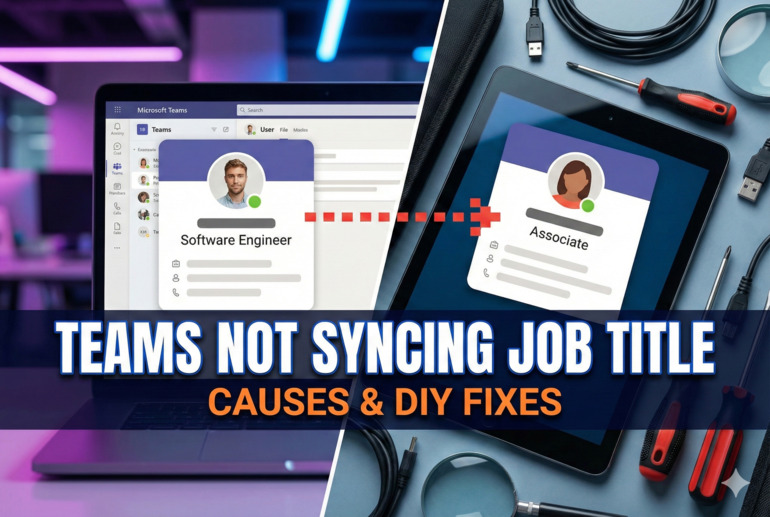
Why Your Job Title Matters in Teams
Your job title in Microsoft Teams pulls from your organization’s directory, usually Microsoft Entra ID (formerly Azure Active Directory) or an on-premises Active Directory. When everything works smoothly, any change your IT admin makes to your profile flows through to Teams within a few hours. Your name, photo, department, and yes, your job title, all update automatically.
But here’s where things get tricky. Teams doesn’t store your job title on its own. It grabs that info fresh from the directory each time someone views your profile. So if your title isn’t updating, the problem usually sits somewhere between your company’s directory and Teams itself. The data might be stuck, cached, or simply not synced properly.
Leaving this unfixed can cause real headaches. Picture joining a video call with a new client who sees “Junior Analyst” under your name when you’ve been a Senior Manager for three months. Or think about internal meetings where colleagues assume you’re in a different department because your old title still shows “Marketing Coordinator” instead of “Product Lead.” These mix-ups create confusion and can even affect how seriously people take your input.
The fix is usually straightforward once you know where to look. Most of the time, you or your IT team can solve this in under an hour. Let’s break down what causes this sync problem and how to get your correct title showing up.
Teams Not Syncing Job Title: Likely Causes
Several things can block your job title from updating in Teams. Understanding what’s causing the issue helps you pick the right fix. Here are the most common culprits.
1. Directory Sync Delays
Your organization likely uses a sync process to push user data from its main directory to Microsoft 365 services, including Teams. This sync doesn’t happen instantly. Depending on how your IT department has configured things, updates might run every 30 minutes, every few hours, or even once a day.
If your job title was changed recently, the sync might not have run yet. Large organizations with thousands of users sometimes experience longer delays because there’s simply more data to process.
Give it at least 24 to 48 hours before assuming something is broken. If your title still shows the old info after two days, the problem likely lies elsewhere.
2. Cached Data in Teams
Teams loves to cache data. It stores copies of your profile information locally on your computer and mobile devices to make the app load faster. This is usually helpful, but it becomes a problem when the cached data is outdated.
Even after your job title updates in the directory, Teams might keep showing the old cached version. This happens on your own device and sometimes on other people’s devices too. The app simply hasn’t bothered to fetch fresh data yet.
3. Hybrid Environment Sync Issues
Many companies run a hybrid setup where they have both on-premises Active Directory and cloud-based Microsoft Entra ID. User data has to flow from the local servers up to the cloud, and this extra step creates more opportunities for things to go wrong.
If your IT admin updated your title in the on-premises directory but the sync to the cloud failed or hasn’t completed, Teams won’t see the change. These hybrid sync issues can be sneaky because everything looks correct on the local network while the cloud services lag behind.
Sometimes the sync tool itself, usually Microsoft Entra Connect, runs into errors or gets paused for maintenance. When this happens, no user updates make it to the cloud until someone fixes the sync process.
4. Incorrect Attribute Mapping
Your job title exists as a specific field or “attribute” in your organization’s directory. For Teams to display it correctly, this attribute needs to be mapped properly so that Microsoft 365 knows where to look for the information.
If someone misconfigured the attribute mapping, Teams might be pulling your title from the wrong field or from a field that’s empty. This is a technical issue that usually requires your IT admin to investigate.
5. License or Permission Problems
In some cases, licensing issues can affect how user data syncs across Microsoft 365 services. If your account has an incomplete license assignment or if certain permissions were changed during your role transition, the sync process might skip updating some of your profile fields.
This doesn’t happen often, but it’s worth checking if none of the other causes seem to fit your situation.
Teams Not Syncing Job Title: DIY Fixes
Now that you know what might be causing the problem, let’s get your job title updated. Try these fixes in order, starting with the simplest ones.
1. Clear the Teams Cache
This fix works surprisingly often. Clearing your local Teams cache forces the app to fetch fresh data from the server, including your updated job title.
Here’s how to do it on Windows:
- Close Microsoft Teams completely. Make sure it’s not running in your system tray.
- Press the Windows key + R to open the Run dialog.
- Type %appdata%\Microsoft\Teams and press Enter.
- Delete everything inside this folder. Don’t worry, Teams will recreate these files when you reopen the app.
- Restart Teams and check if your job title now shows correctly.
On Mac, you’ll find the cache folder at ~/Library/Application Support/Microsoft/Teams. The process is the same: close Teams, delete the folder contents, and restart.
2. Sign Out and Sign Back In
Sometimes the simplest solutions work best. Signing out of Teams and signing back in can refresh your profile data without needing to clear any cache manually.
Open Teams, click on your profile picture in the top right corner, and select Sign out. Wait about 30 seconds, then sign back in with your credentials. This forces Teams to pull your latest profile information from the server.
If you use Teams on multiple devices, repeat this process on each one. Your phone, tablet, and any other computers where you’ve got Teams installed all maintain their own sessions.
3. Ask Your IT Admin to Force a Directory Sync
If clearing your cache and signing out didn’t help, the problem likely sits at the directory level. Your IT admin can manually trigger a sync to push your updated job title to Microsoft 365.
For organizations using Microsoft Entra Connect, the admin can run a delta sync using PowerShell:
- Open PowerShell as an administrator on the server running Entra Connect.
- Run the command: Start-ADSyncSyncCycle -PolicyType Delta
- Wait for the sync to complete, which usually takes a few minutes.
After the sync finishes, give it another hour or two for the changes to propagate through all Microsoft 365 services. Then clear your Teams cache again and check your profile.
4. Verify the Job Title in Microsoft Entra ID
Your IT admin should confirm that your job title actually appears correctly in Microsoft Entra ID. Sometimes the update gets lost somewhere in the chain, and the cloud directory still shows your old title.
To check this, the admin can:
- Sign in to the Microsoft Entra admin center.
- Go to Users and find your account.
- Look at the Job title field under your profile properties.
If the title shows incorrectly here, this is where it needs to be fixed. The admin can edit the field directly in Entra ID, though for hybrid environments, changes should typically be made in the on-premises Active Directory first.
5. Use the Microsoft 365 Admin Center
Another route your IT admin can try is updating your job title directly through the Microsoft 365 admin center. This can sometimes push the change through faster than waiting for a directory sync.
The admin should go to Users > Active users, find your account, and edit the job title field there. In some configurations, this direct edit in Microsoft 365 takes priority and shows up in Teams within minutes rather than hours.
Keep in mind that if your organization uses a hybrid setup, this direct edit might get overwritten the next time the directory syncs. The source of truth should always be your main directory, whether that’s on-premises Active Directory or Entra ID.
6. Contact Your IT Support Team
If you’ve tried everything above and your job title still won’t update, it’s time to get professional help. Your IT support team has access to diagnostic tools and logs that can pinpoint exactly where the sync is failing.
When you contact them, be specific about what you’ve already tried. Let them know you’ve cleared your cache, signed out and back in, and that the problem has persisted for more than 48 hours. This information helps them skip the basic troubleshooting steps and look for deeper issues.
Some sync problems involve backend configurations, service health issues, or third-party integrations that only your IT team can address. There’s no shame in asking for help when you’ve done your part.
Wrapping Up
Getting your job title to sync properly in Teams usually comes down to cache issues or directory sync delays. Most of the time, clearing your Teams cache and signing out fixes things quickly. For stubborn cases, your IT admin can force a sync or verify that your title is correct at the source.
Your job title reflects your role and the work you do. It deserves to show up correctly wherever your name appears. With these fixes, you should have it sorted in no time.