You press the power button on your Steam Deck, ready for some gaming action. But instead of booting up normally, you see that little white LED blinking at you like it’s trying to send morse code. Your screen stays dark, and suddenly your portable gaming plans are on hold.
This blinking white light situation is more common than you might think, and it’s usually telling you something specific about what’s going wrong inside your device. The good news is that most of these issues have straightforward fixes you can handle yourself without shipping your Steam Deck off for repairs. This guide walks you through exactly what causes that blinking light and how to get your device back to normal, step by step.
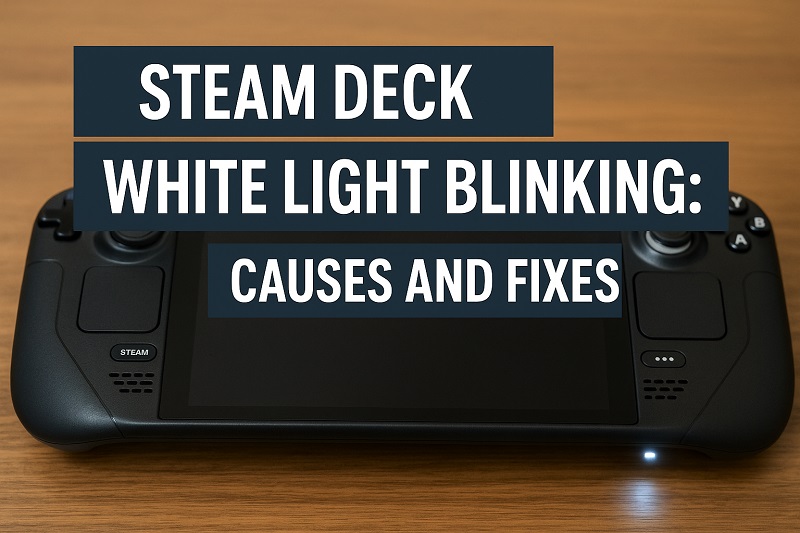
What’s Really Happening When That Light Blinks
The white light on your Steam Deck isn’t just decoration. It’s actually a communication tool that Valve built into the device to help you troubleshoot problems. When it blinks instead of staying solid or turning off completely, your Steam Deck is stuck somewhere between “off” and “fully on.” Think of it like your device is trying to wake up but keeps hitting snooze.
This blinking pattern typically means your Steam Deck is receiving power and attempting to boot, but something’s interrupting that process before it can complete. The system starts initializing, power flows to various components, but then something fails and it resets, creating that repetitive blinking you’re seeing. It’s frustrating because the device clearly has some life in it, yet it won’t actually turn on properly.
The blinking can happen in different patterns, though most people report a steady, rhythmic blink. Some users notice the light blinks a few times, pauses, then repeats. Others see it blink continuously without any break. Each pattern can point to slightly different issues, but they all share one thing in common: your Steam Deck needs some attention before you can get back to gaming.
Left unaddressed, this issue won’t fix itself. Your device will keep trying and failing to boot, potentially draining whatever battery charge remains. In some cases, repeated failed boot attempts could even cause additional stress on internal components. That’s why tackling this problem quickly matters.
Steam Deck White Light Blinking: Common Causes
Multiple factors can trigger that blinking white light on your Steam Deck, and pinpointing the exact cause helps you apply the right fix. Let’s look at the most frequent culprits behind this frustrating issue.
1. Battery Completely Drained
Your Steam Deck’s battery might be so depleted that it can’t supply enough juice to complete the boot process. This happens more often than you’d expect, especially if you haven’t used your device in weeks or left it in sleep mode for an extended period. The battery drains even when the device appears off, and once it hits critically low levels, weird things start happening.
When the battery gets this low, the device tries to turn on but immediately runs out of power mid-boot. It draws just enough energy to light up that LED and begin initialization, then fails. The cycle repeats because the charging circuit is working, feeding tiny amounts of power, but not enough to sustain a full startup sequence.
This situation feels deceptive because you might assume a completely dead battery would show no lights at all. But that blinking actually indicates the device is caught in a loop where it has just enough power to try booting, but not enough to succeed. It’s stuck in gaming limbo.
2. Corrupted Software or Failed Update
Software issues can trap your Steam Deck in a boot loop that manifests as that blinking white light. Maybe an update didn’t install correctly, or some system files got corrupted during your last gaming session. These software glitches prevent the operating system from loading properly, so the device keeps restarting.
Updates are particularly notorious for causing this problem. If your Steam Deck shut down unexpectedly during an update, or if you powered it off manually while files were being written, those incomplete changes can brick the boot process. The system tries to load, encounters corrupted data, fails, and tries again.
3. Faulty Power Button or Hardware Connection
Sometimes the issue isn’t about power or software at all. Your power button might be stuck in a partially pressed position, or there’s a loose connection somewhere inside the device. This creates conflicting signals where the Steam Deck thinks it’s being told to turn on and off simultaneously.
Physical damage from drops or pressure on the device can cause internal ribbon cables to come loose. These cables connect critical components like the battery to the motherboard. A slightly disconnected cable means power flows inconsistently, causing that blinking pattern as the connection makes and breaks contact repeatedly.
4. Overheating Protection Mode
Your Steam Deck has built-in safety features that prevent damage from excessive heat. If the device overheated during your last session or if there’s a problem with the cooling system, it might refuse to fully boot as a protective measure. The blinking light in this case is the device telling you it’s too hot to operate safely.
This often happens if you were playing demanding games in a hot environment, or if dust has clogged the air vents and fan. The thermal sensors detect unsafe temperatures and trigger a shutdown before the boot completes. Even after cooling down, the system might stay stuck in this protective state until you manually reset it.
5. Damaged or Incompatible SD Card
An SD card that’s corrupted, improperly formatted, or simply incompatible with your Steam Deck can prevent the device from booting correctly. The system tries to read the card during startup, encounters errors, and gets stuck in a loop. This happens because the Steam Deck checks all storage devices during initialization.
Some SD cards, especially older or off-brand ones, don’t meet the speed requirements or use file systems that confuse the boot process. If you recently installed a new SD card or if your existing card developed bad sectors, this could be your culprit. The device keeps trying to access the card, fails, resets, and repeats the cycle with that blinking light as the only visible symptom.
Steam Deck White Light Blinking: How to Fix
Getting your Steam Deck working again usually doesn’t require advanced technical skills. These fixes progress from simplest to more involved, so start at the top and work your way down.
1. Perform a Hard Reset
A hard reset clears temporary glitches and forces your Steam Deck to restart its boot sequence from scratch. This simple fix resolves the blinking light issue surprisingly often, especially when software hiccups are to blame.
Hold down the power button for at least 10 to 12 seconds without releasing it. You might see the light change behavior or turn off completely during this time. Keep holding even if you think nothing’s happening. After the full duration, release the button and wait about 30 seconds before pressing it again normally to turn the device on.
This extended button press cuts power to all components and clears the memory completely. It’s different from a normal shutdown because it forces the system to stop whatever process has it stuck. Many users find their Steam Deck boots normally right after this reset, with the blinking light problem completely gone.
2. Charge the Device Properly
If your battery is severely depleted, you need to charge it correctly to break out of that blinking loop. Plug your Steam Deck into the official charger and let it sit for at least 30 minutes without trying to turn it on. This gives the battery enough reserve to handle a full boot sequence.
During this charging period, you might still see the white light blinking. That’s normal. Resist the urge to keep pressing the power button to check if it’s working. Each failed boot attempt uses power that should be going into the battery. Just let it charge undisturbed.
After 30 minutes, try the hard reset method described above, then attempt to power on normally. If the device still won’t start, give it another hour of charging time. Batteries that have been completely drained sometimes need extended charging before they’ll accept power normally again. The charging indicator should eventually show up if you’re patient enough.
3. Remove the SD Card
Pop out your SD card if you have one installed. This eliminates any possibility that the card is causing boot problems. To remove it, locate the SD card slot on the bottom of your Steam Deck and gently push the card in slightly until you hear a click, then let it spring out.
Once the card is out, try powering on your device again. If it boots successfully without the blinking light, your SD card was definitely the problem. You can then troubleshoot the card separately by formatting it on a computer or replacing it with a new one that meets Steam Deck specifications.
Even if the SD card seems fine, keeping it out during troubleshooting eliminates one variable. You can always reinsert it later once you’ve confirmed the device works properly without it. This quick step takes five seconds but solves the issue for a surprising number of users.
4. Boot into Recovery Mode
Recovery mode lets you access your Steam Deck’s system functions even when normal booting fails. This option helps you repair software issues or restore the device to factory settings if needed.
Getting into recovery mode requires a specific button combination:
- Make sure the device is completely off
- Hold down the Volume Up button
- While still holding Volume Up, press the power button
- Keep holding Volume Up until you see the boot menu appear
From the recovery menu, you can try reimaging your Steam Deck, which reinstalls SteamOS without affecting your games. Select the appropriate option using the volume buttons and confirm with the power button. This process takes about 20 minutes but often fixes corrupted software that causes the blinking light.
5. Check for Overheating Issues
Let your Steam Deck cool down completely if it feels warm to the touch. Place it in a cool, well-ventilated area for at least 30 minutes. Don’t put it in a refrigerator or freezer, as rapid temperature changes can cause condensation that damages internal components.
While it’s cooling, check the air vents on top of the device for dust or blockages. Use a can of compressed air to blow out any debris gently. Dust buildup reduces cooling efficiency and can trigger that protective blinking state. Clean vents allow proper airflow and prevent future overheating problems.
Once cooled and cleaned, try powering on the device in a cooler environment. If overheating was your issue, the Steam Deck should boot normally now. Consider adjusting your in-game graphics settings to reduce heat generation during intensive gaming sessions.
6. Inspect Physical Connections
This fix requires opening your Steam Deck, so only attempt it if you’re comfortable with basic electronics and understand this might affect your warranty. You’ll need a small Phillips screwdriver and a plastic prying tool.
After carefully removing the back panel following online teardown guides, check that all ribbon cables are properly seated in their connectors. The battery cable is particularly important. Gently disconnect and reconnect it to ensure a solid connection. Look for any obvious damage to cables or connectors.
Be extremely careful during this process. Those ribbon cables are delicate and can tear easily. If anything looks damaged beyond a simple reseating, or if you’re not confident in your ability to safely handle the internal components, skip this step.
7. Contact Valve Support
If none of these fixes work, your Steam Deck likely has a hardware problem that needs professional attention. Reach out to Valve Support through the Steam website and describe your issue in detail, including everything you’ve already tried. They can guide you through additional troubleshooting or arrange a repair or replacement if your device is still under warranty.
Sometimes the blinking white light indicates a failed component that only Valve’s technicians can replace. Motherboard issues, a faulty power management chip, or damaged internal circuitry require specialized tools and expertise. Don’t feel bad about needing professional help with these more serious problems.
Wrapping Up
That blinking white light on your Steam Deck doesn’t have to mean the end of your gaming sessions. Most of the time, simple fixes like a hard reset, proper charging, or removing your SD card will get you back up and running quickly. Even software issues that seem scary usually respond well to recovery mode.
Start with the easiest solutions and work your way through the list systematically. Pay attention to what your device is telling you through that blinking pattern, and don’t rush the process. Give charging time to work, let the device cool if needed, and be patient with recovery procedures. Your Steam Deck wants to work properly, and with a bit of troubleshooting, you’ll have it back in action before you know it.