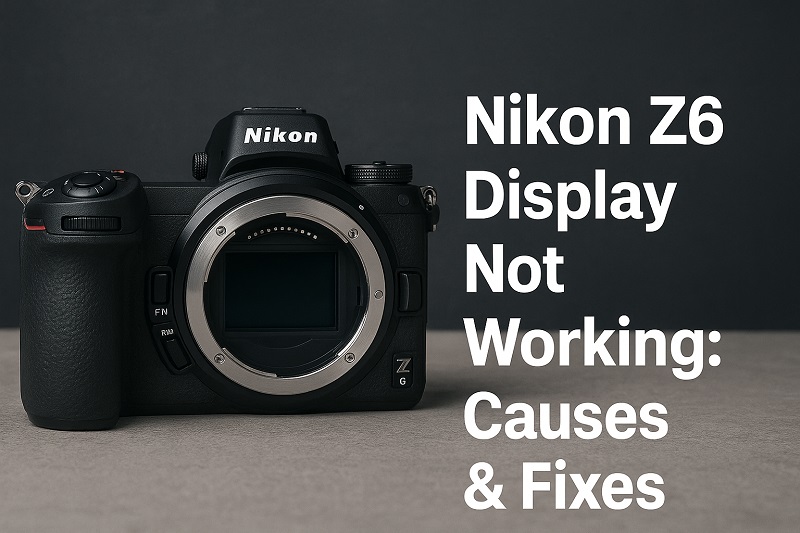
 You’re out capturing stunning shots with your Nikon Z6 when suddenly the LCD screen goes completely black. Your camera still takes photos, but you can’t see anything on the display to frame your shots or review images. This problem can turn your photography session into a frustrating guessing game.
The good part is that most display issues on the Nikon Z6 stem from simple settings mishaps or minor technical glitches that you can fix yourself. This guide will walk you through the most effective troubleshooting steps to get your screen working again, plus help you understand what causes these problems in the first place.
Understanding the Display Problem
When your Nikon Z6 display stops working, you’re dealing with one of the most common technical issues that photographers face. The LCD screen serves as your window into the camera’s functions, showing everything from your composed shots to menu settings and playback images. Without it, you lose access to critical information that makes digital photography so intuitive.
This problem typically manifests in several ways. Sometimes the screen stays completely black while the camera operates normally. Other times, you might see partial display issues where only certain areas work, or the brightness becomes so dim that the screen appears off. You might also encounter situations where the display works intermittently, flickering on and off during use.
The consequences of a non-functioning display extend beyond simple inconvenience. You lose the ability to accurately frame your shots, especially in bright sunlight where the viewfinder becomes your only option. Menu navigation becomes nearly impossible, making it difficult to adjust important settings like ISO, aperture modes, or white balance. Reviewing your photos immediately after shooting also becomes challenging, which can affect your ability to make quick adjustments during important shoots.
Temperature extremes can worsen display problems, particularly in cold weather where LCD screens naturally become less responsive. Battery performance also suffers in these conditions, creating a compound effect that can make display issues more pronounced and persistent.
Nikon Z6 Display Not Working: Common Causes
Understanding what triggers display failures helps you prevent future occurrences and approach troubleshooting more systematically. Most display problems stem from a combination of settings conflicts, power management issues, and environmental factors that affect your camera’s electronic components.
1. Power Management Settings
Your Nikon Z6 includes several power-saving features designed to extend battery life by automatically turning off the display after periods of inactivity. These settings can sometimes create confusion when they activate unexpectedly or when you’re not familiar with how they work.
The camera’s auto power-off function controls when the display shuts down to conserve energy. If this setting is configured for a very short interval, your screen might turn off just as you’re preparing to take a shot. This feature works independently of the camera’s main power system, so your camera remains ready to shoot even when the display appears dead.
Monitor brightness settings also play a crucial role in display functionality. If the brightness gets accidentally adjusted to the lowest setting, the screen might appear completely black even though it’s technically working. This often happens when you’re navigating menus quickly or when the camera gets jostled in your bag with buttons getting pressed accidentally.
2. Viewfinder Priority Mode
Modern mirrorless cameras like the Nikon Z6 automatically switch between the electronic viewfinder and the rear LCD display based on proximity sensors. When you bring the camera to your eye, sensors detect your presence and automatically activate the viewfinder while shutting off the rear display to save power and reduce distractions.
This switching mechanism can sometimes get stuck in viewfinder mode, leaving the rear display permanently off even when you’re not looking through the eyepiece. Dust, debris, or even bright ambient light can confuse these sensors, making them think you’re constantly using the viewfinder.
The eye sensor’s sensitivity settings can also contribute to this problem. If the sensitivity is set too high, even slight movements near the camera or reflections from nearby surfaces can trigger the viewfinder mode. Environmental factors like strong sunlight or artificial lighting can interfere with the sensor’s ability to accurately detect when you’re actually using the viewfinder.
3. Firmware Conflicts and Software Glitches
Like any sophisticated electronic device, your Nikon Z6 relies on firmware to coordinate communication between its various components. Occasionally, temporary software glitches can disrupt the normal flow of information between the camera’s processor and display controller, resulting in a black or unresponsive screen.
These software hiccups often occur after extended shooting sessions when the camera’s processor has been working intensively. Heat buildup from continuous operation can sometimes cause minor timing issues in the camera’s internal communication systems. Memory buffer overflows during burst shooting or when processing large RAW files can also trigger temporary display problems.
Outdated firmware versions may contain bugs that affect display functionality under specific conditions. Camera manufacturers regularly release firmware updates that address these issues, but many photographers overlook these important updates. Running older firmware can leave your camera vulnerable to known display problems that newer versions have already resolved.
4. Battery and Power Supply Issues
Insufficient power supply creates one of the most common triggers for display malfunctions in digital cameras. The LCD screen requires a steady flow of electricity to maintain proper brightness and color accuracy. When battery levels drop or when the battery’s ability to deliver consistent power diminishes, the display often becomes the first component to show signs of trouble.
Older batteries that have gone through hundreds of charge cycles may struggle to provide the stable power output that modern camera displays require. Even if your battery indicator shows a reasonable charge level, an aging battery might not deliver enough current during peak demand periods, causing the display to shut down unexpectedly.
Cold weather significantly compounds battery performance issues. Lithium-ion batteries lose capacity rapidly in low temperatures, and this reduced capacity affects power-hungry components like LCD displays first. The combination of cold weather and an aging battery can create display problems that seem mysterious until you understand the underlying power dynamics.
5. Physical Connection Problems
Internal connection issues between the display panel and the camera’s main circuit board can create intermittent or permanent display failures. These connections consist of delicate ribbon cables and tiny connectors that can become loose due to repeated vibration, temperature cycling, or simply the normal wear and tear of regular use.
Camera impacts from drops or bumps can jar these internal connections loose without causing obvious external damage. Even minor shocks that don’t seem significant enough to worry about can affect the precise tolerances required for proper electrical contact between display components.
Manufacturing variations and quality control issues occasionally result in connections that gradually deteriorate over time. Some cameras may develop loose connections after months or years of normal use, particularly if they’ve been exposed to extreme temperature changes that cause materials to expand and contract repeatedly.
Nikon Z6 Display Not Working: DIY Fixes
Getting your display working again often requires a systematic approach that addresses the most likely causes first. These solutions progress from simple setting adjustments to more comprehensive troubleshooting steps that resolve deeper technical issues.
1. Check Power Management Settings
Start by examining your camera’s power management configuration, which controls when and how the display turns off to conserve battery life. Access your camera’s setup menu and navigate to the power management section where you’ll find several relevant settings.
Locate the “Auto power off” setting and check its current configuration. If it’s set to a very short interval like 30 seconds or 1 minute, try extending it to 5 or 10 minutes to see if this resolves the issue. This change will help you determine whether aggressive power saving is causing your display problems.
Next, find the “Monitor off delay” setting, which specifically controls how long the rear LCD stays active during different shooting modes. Adjust this setting to “10 min” or “No limit” temporarily while you test other solutions. Also check the “Standby timer” setting, which affects how quickly the camera enters sleep mode between shots.
2. Reset Display and Viewfinder Settings
Your camera’s display preferences might have gotten configured in a way that prevents normal LCD operation. Press the Menu button and navigate to the Custom Settings menu, then find the display-related options.
Look for the “Monitor mode” or “Display options” setting and ensure it’s configured to show the rear LCD when you’re not using the viewfinder. Some cameras offer choices like “Monitor only,” “Viewfinder only,” or “Auto” – select “Auto” or “Monitor only” to ensure the rear display remains active.
Check the “Monitor brightness” setting and adjust it to the middle position or higher. If someone accidentally adjusted this to the minimum setting, your display might appear completely black even though it’s functioning normally. Try taking a photo and then pressing the playback button to see if increasing brightness reveals a functioning display.
3. Perform a Soft Reset
When software glitches cause display problems, a soft reset can clear temporary conflicts without affecting your saved settings or images. This process refreshes the camera’s internal memory and restarts communication between components.
Turn off your camera completely and remove the battery for at least 30 seconds. This duration allows the camera’s internal capacitors to discharge completely, ensuring that all temporary memory gets cleared. While the battery is out, press and hold the shutter button for 10 seconds to help drain any residual power.
Reinsert the battery and memory card, then turn the camera back on. Check whether the display now functions normally by navigating through menus and taking a test photo. Sometimes this simple reset resolves mysterious display issues that seemed more serious than they actually were.
4. Clean the Eye Sensor
The proximity sensor that switches between the viewfinder and LCD display can malfunction when dust or debris accumulates around the eyepiece area. This sensor uses infrared light to detect when you bring the camera to your eye, and contamination can cause it to behave erratically.
Use a clean, dry microfiber cloth to gently wipe around the viewfinder eyepiece, paying particular attention to the small sensor window usually located near the top of the eyepiece. Avoid using liquids or compressed air, which might push debris deeper into the camera.
After cleaning, test the sensor by covering and uncovering the eyepiece while watching the rear display. The LCD should turn off when you cover the eyepiece and turn back on when you remove the obstruction. If the sensor still doesn’t respond correctly, try adjusting the eye sensor sensitivity in your camera’s menu settings.
5. Update Camera Firmware
Outdated firmware can contain bugs that affect display functionality, and manufacturers regularly release updates that address these issues. Visit Nikon’s official website and search for firmware updates specific to your Z6 model.
Download the latest firmware file to a formatted memory card and follow Nikon’s specific instructions for your camera model. The update process typically involves inserting the memory card with the firmware file and following on-screen prompts. Make sure your battery is fully charged before starting this process, as losing power during a firmware update can cause serious problems.
After the update completes, test your display functionality thoroughly by navigating menus, taking photos, and using different shooting modes. Firmware updates often resolve multiple issues simultaneously, so you might notice improvements in other camera functions as well.
6. Replace or Test Battery
Power supply problems frequently masquerade as display malfunctions, so testing with a different battery can quickly identify whether power issues are causing your problems. If you have a spare EN-EL15b battery, swap it in and test the display functionality.
Even if your current battery shows a reasonable charge level, it might not deliver the consistent power required for proper display operation. Batteries naturally degrade over time and through repeated charge cycles, losing their ability to maintain steady voltage output under load.
If you don’t have a spare battery, try charging your current battery completely and testing the display immediately after charging. Battery problems often become more apparent when the camera is working harder, such as during continuous shooting or when using power-intensive features like image stabilization.
7. Contact Professional Service
When all other solutions fail to resolve your display problem, the issue likely involves hardware components that require professional attention. Internal connection problems, display panel failures, or circuit board issues need specialized tools and expertise to diagnose and repair safely.
Professional camera service technicians have access to genuine Nikon replacement parts and the technical documentation needed to properly diagnose complex electronic problems. They can also perform comprehensive testing that goes beyond what you can accomplish with basic troubleshooting steps. Attempting to disassemble your camera yourself will void the warranty and could cause additional damage that makes repairs more expensive.
Wrapping Up
Most Nikon Z6 display problems stem from simple setting conflicts or minor technical issues that you can resolve with basic troubleshooting. Power management settings, viewfinder sensor problems, and software glitches account for the majority of display malfunctions that seem serious but actually have straightforward solutions.
Starting with the easiest fixes like checking your power settings and performing a soft reset often saves time and gets you back to shooting quickly. When these simple solutions don’t work, systematic troubleshooting through firmware updates and hardware testing helps identify more complex problems that might require professional attention.