Your Nest thermostat has been working fine for months, maybe even years. Then one day, you walk past it and notice a blinking light. At first, you might think it’s no big deal, but that little light keeps flashing, and now you’re wondering if something’s wrong with your heating or cooling system.
A blinking light on your Nest thermostat is its way of telling you something needs attention. Sometimes it’s a minor hiccup that you can fix in minutes. Other times, it might point to a bigger issue that needs a bit more work. Either way, you’ll learn exactly what that blinking light means and how to get your thermostat back to normal without calling a technician.
What’s Really Happening When Your Nest Thermostat Blinks
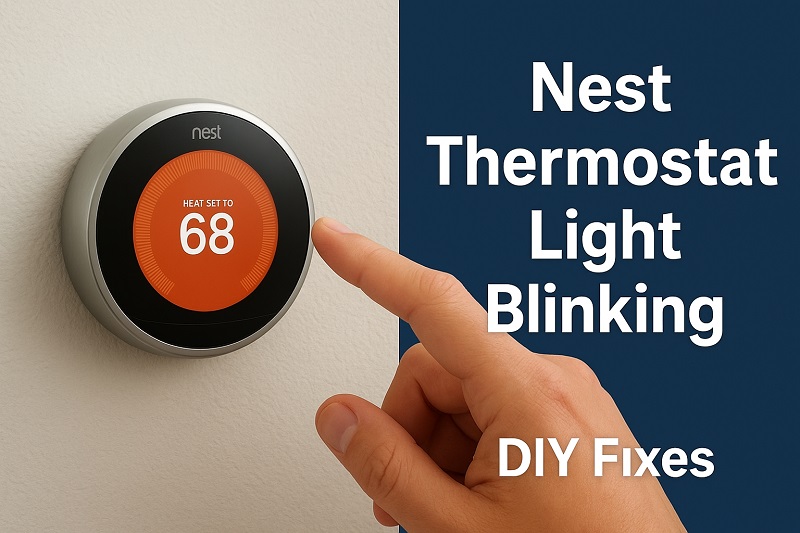
That blinking light isn’t just for show. Your Nest thermostat uses it as a communication tool, almost like a secret code to let you know what’s going on inside. Different colors and blinking patterns mean different things, but most of the time, you’re looking at a red, green, yellow, or blue light flashing at you.
A red blinking light usually signals a power problem. Your thermostat might not be getting enough juice from your HVAC system’s wiring, or its internal battery could be running too low. Green lights often mean your thermostat is updating its software or starting up after a restart. Yellow or orange blinks typically point to issues with your heating or cooling equipment, while blue lights can indicate that your system is actively cooling your home.
The pattern matters too. A slow, steady blink tells a different story than a rapid flash. Some users see their Nest blink once every few seconds, while others report constant flashing that won’t stop. Pay attention to how fast the light blinks and what color it is, because these details help you figure out what’s actually wrong.
If you ignore a blinking light for too long, you might end up with a thermostat that stops working altogether. Your heating or cooling could shut down unexpectedly, leaving you sweating in summer or shivering in winter. Worse yet, some power issues can drain the battery completely, forcing you to remove the thermostat from the wall and charge it manually before it works again.
Nest Thermostat Light Blinking: Likely Causes
Understanding why your Nest thermostat started blinking helps you fix it faster. Let’s look at what’s usually behind that annoying light show.
1. Low Power Supply From the C-Wire
Your Nest thermostat needs steady power to function properly, and it gets most of that power through something called a C-wire (common wire). This wire provides continuous voltage from your HVAC system. Without it, or if it’s not working correctly, your thermostat has to rely solely on its backup battery, which drains quickly.
Many older homes don’t have a C-wire installed because traditional thermostats didn’t need one. If your Nest keeps blinking red and you notice it’s struggling to stay powered on, there’s a good chance you’re missing this crucial wire. Even if you have a C-wire, loose connections at either end can create the same power shortage.
The battery inside your Nest tries to compensate, but it can’t keep up forever. You’ll notice the blinking gets worse when your heating or air conditioning kicks on because these actions demand more power. Eventually, the thermostat gives up and shuts down until it can recharge enough to turn back on.
2. Dead or Dying Battery
Inside your Nest thermostat sits a rechargeable lithium-ion battery. This battery acts as a backup power source and helps the device stay on during brief power interruptions. Over time, like any rechargeable battery, it loses its ability to hold a charge.
A failing battery shows up as a blinking red light, especially if your thermostat keeps restarting on its own or turning off completely. You might find that it works fine for a few hours, then suddenly goes dark. This on-and-off behavior is classic battery trouble.
3. Wiring Issues or Loose Connections
The wires connecting your Nest to your HVAC system need to be secure and properly attached. Sometimes during installation, a wire doesn’t get pushed in all the way. Other times, the wire itself is damaged, frayed, or corroded. Even a wire that looks fine on the outside might have internal breaks you can’t see.
Loose connections cause intermittent power delivery. Your thermostat might work perfectly for days, then suddenly start blinking when vibrations from your HVAC system jostle the wires. Temperature changes can also cause metal connections to expand and contract, making loose wires even looser over time.
If you recently had work done on your heating or cooling system, someone might have accidentally pulled a wire loose. Even just taking the thermostat off the wall to change batteries in your smoke detector could knock something out of place if you’re not careful.
4. Software Glitches or Failed Updates
Your Nest thermostat runs on software, just like your phone or computer. Sometimes that software gets confused, especially after an automatic update. Google pushes updates to Nest devices regularly to add new features or fix bugs, but occasionally these updates don’t install correctly.
A green blinking light often means your thermostat is stuck in update mode. It might be trying to download new software but can’t finish because of a weak Wi-Fi signal or a temporary server issue on Google’s end. Sometimes the update downloads fine but fails during installation, leaving your device in a weird in-between state.
Other times, the software just freezes up for no clear reason. Maybe there’s a memory leak, or two features are conflicting with each other. These glitches can trigger random blinking lights that don’t match any documented pattern.
5. Incompatible HVAC System
Not every heating and cooling system plays nice with Nest thermostats. Some older systems, especially those with specific millivolt setups or proprietary controls, simply can’t provide the right kind of power signal. High-voltage systems are also incompatible and can cause blinking lights or even damage your thermostat.
If you installed your Nest yourself without checking compatibility first, you might have connected it to a system that’s fighting against it. The thermostat tries to work, draws power in ways the system wasn’t designed to deliver, and ends up blinking to signal the mismatch. Heat pumps with specific configurations can also cause problems if the wiring isn’t adapted correctly for Nest’s requirements.
Nest Thermostat Light Blinking: How to Fix
Getting rid of that blinking light is usually simpler than you think. Here are practical fixes you can try right now.
1. Check and Secure All Wire Connections
Start by pulling your Nest thermostat off its wall plate. Press on the display and pull gently toward you. Once it’s off, you’ll see the wires connected to the base. Take a photo with your phone before touching anything, so you can reference it later if needed.
Look closely at each wire. Make sure every one is pushed firmly into its terminal. You should see the metal part of the wire completely inside the connector, not sticking out at all. If any wire looks loose, press the connector tab, remove the wire, and reinsert it until you hear or feel a click.
While you’re at it, inspect the wires themselves. Look for any fraying, burn marks, or green corrosion. If you spot damage, you’ll need to cut off the bad section, strip a bit of fresh wire, and reconnect it. Check both ends of each wire, including where they connect to your HVAC system’s control board.
2. Install or Fix Your C-Wire Connection
If you don’t have a C-wire, you have a few options. The easiest solution is using a Nest Power Connector, a small adapter that Google sells specifically for this problem. You install it at your HVAC system’s control board, and it uses two existing wires to create the constant power your Nest needs.
Installing the Power Connector takes about 15 minutes. Turn off power to your HVAC system at the breaker first. Open the control panel on your furnace or air handler. You’ll connect the adapter to your system’s transformer and route the wires back to your thermostat. The Nest app has step-by-step instructions with pictures that make this pretty straightforward.
Another option is running a new C-wire from your HVAC system to your thermostat. This works best if you’re comfortable doing basic electrical work and have an easy path between the two locations. You’ll need to identify the C terminal on your system’s control board, attach a new wire there, run it to your thermostat location, and connect it to the C terminal on your Nest base.
3. Manually Charge the Battery
Sometimes your Nest’s battery just needs a good charge to get back on track. Remove the thermostat from the wall and connect it to your computer or phone charger using a standard micro-USB cable. You’ll find the charging port on the back of the display unit.
Let it charge for at least an hour, maybe two if the battery was completely dead. You’ll see a blinking red light at first, which should turn solid or stop blinking as the battery fills up. Once it’s charged, put it back on the wall plate and see if the blinking problem goes away.
Keep an eye on it over the next few days. If the battery drains again quickly, you might have a deeper power supply issue that needs addressing. A healthy Nest battery, when properly powered by your HVAC system, should rarely need manual charging.
4. Restart Your Thermostat
A simple restart fixes more problems than you’d think. With your Nest on the wall, press the display to wake it up. Go to Settings (the gear icon), then scroll down and select Restart. Confirm your choice and wait while the device shuts down and boots back up.
This process clears temporary glitches in the software and resets the connection between your thermostat and your HVAC system. It’s like turning your computer off and on again. Many users find that a blinking light disappears completely after a restart.
If you can’t access the menu because your thermostat won’t respond, you can force a restart by removing it from the wall plate for about 30 seconds, then reattaching it. This cuts power completely and forces a fresh start.
5. Reset to Factory Settings
When a restart doesn’t work, a factory reset might do the trick. This wipes all your settings and returns your Nest to how it was when you first bought it. You’ll need to set it up again afterward, but you’ll eliminate any corrupted settings or software issues.
Go to Settings, then Reset, and choose All Settings. The thermostat will ask you to confirm because this can’t be undone. After the reset completes, follow the setup wizard to reconnect to Wi-Fi and configure your heating and cooling preferences.
Before doing this, write down any custom schedules or settings you want to keep. Take screenshots if that’s easier. You’ll need to manually recreate everything after the reset.
6. Verify System Compatibility and Update Software
Open the Nest app on your phone and check if your thermostat has any pending software updates. Go to your device settings and look for an update option. If one’s available, let it install. Make sure your Wi-Fi connection is strong and stable during the update process.
Also double-check that your HVAC system is actually compatible with Nest. Google has a compatibility checker on their website where you can enter your system’s details. If you discover your system isn’t compatible, you might need to add a relay or use a different thermostat altogether. Some incompatible systems can work with Nest if you add the right accessories, but others simply won’t cooperate no matter what you do.
7. Contact a Professional HVAC Technician
If none of these fixes stop the blinking, it’s time to call in an expert. Your HVAC system might have issues that go beyond the thermostat itself, like a failing transformer or control board problems. A licensed technician has the tools and knowledge to diagnose these deeper issues safely. They can also check things you can’t easily access, like the wiring inside your walls or specific voltage requirements your system needs. Sometimes what looks like a thermostat problem is actually your furnace or air conditioner crying out for help.
Wrapping Up
That blinking light on your Nest thermostat might seem mysterious at first, but now you know it’s just trying to communicate with you. Most causes are simple fixes you can handle yourself with a few basic tools and a little patience. Start with the easiest solutions first, like checking wire connections and restarting your device.
If you work through these fixes methodically, you’ll probably have your thermostat working normally again within an hour. Keep an eye on it for a few days after fixing the issue to make sure the problem doesn’t come back. Your home’s comfort depends on this little device working properly, so it’s worth taking the time to get it right.