You know that moment when you walk into your living room and notice something’s off? Your Jio Fiber box is acting weird again. That green light won’t stop blinking, and suddenly your favorite show keeps buffering every few seconds.
I get it. You’re probably thinking your internet is about to die completely, or worse, you’ll have to spend hours on the phone with customer service. But here’s what I’ve learned after fixing hundreds of these boxes: most of the time, it’s something simple you can handle yourself.
Let me show you exactly what’s happening with that annoying blinking light and how to get your internet back to normal speed. No tech degree needed.
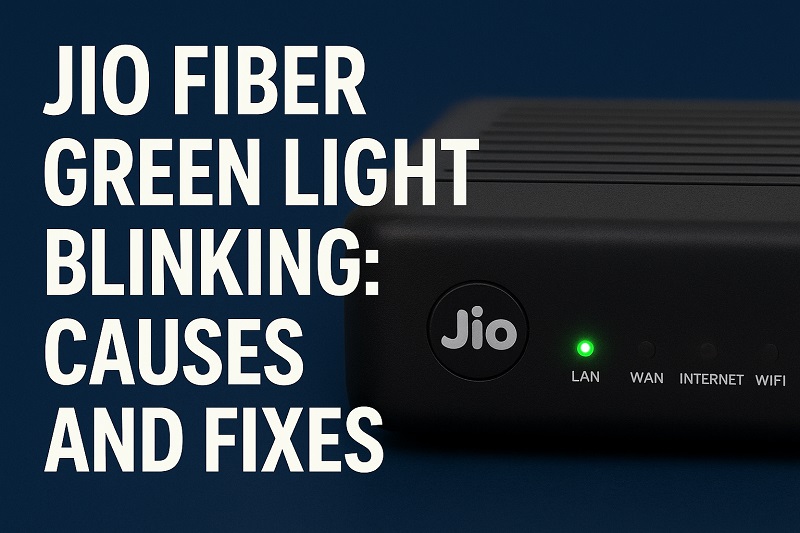
What’s Really Going On With That Blinking Light
Your Jio router talks to you through those little colored lights. Think of them as your router’s way of sending you text messages about how it’s feeling.
When that green light stays solid and steady, everything’s perfect. Your router is happy, your internet is fast, and you can binge-watch without any problems. It’s basically your router saying “all good here!”
But when it starts blinking? That’s your router telling you it’s struggling. Maybe it’s getting internet, but not as much as it wants. Or the connection keeps dropping and coming back. You’ll notice this when web pages take forever to load or your video calls keep freezing.
The speed of the blinking matters too. Fast blinking usually means your router is working really hard to connect. Slow, steady blinking means it found a connection but it’s pretty weak. Either way, something needs fixing.
Jio Fiber Green Light Blinking: Likely Causes
Your router doesn’t just start acting up for no reason. There’s always something causing that blinking, and once you know what to look for, fixing it becomes much easier.
1. Your Cables Are Playing Hide and Seek
Cables have this sneaky habit of working themselves loose. You bump the table, the cat walks by, or sometimes they just get tired of staying put.
Every cable going into your router needs to fit snugly. When one gets loose, even slightly, your connection starts acting up. It’s like having a phone charger that only works when you hold it at exactly the right angle.
Physical damage happens more often than you’d think. I’ve seen cables that looked fine from the outside but had tiny breaks inside. Your dog might have given it a little chew, or maybe you accidentally rolled a chair over it. These small damages can cause big connection problems.
2. Too Many People Want Internet Right Now
Picture your neighborhood’s internet like a highway. During the day, traffic flows smoothly. But around dinner time, everyone gets home from work and school, and suddenly that highway gets crowded.
Between 7 and 11 PM, everyone’s trying to stream movies, play games, and video chat with friends. All that internet traffic has to squeeze through the same pipes, so everyone gets a little less speed.
Your router knows when this happens. It keeps trying to give you the fast internet you’re paying for, but there’s only so much to go around. That’s when you see the blinking light and slower speeds.
3. Your Router Is Getting Too Hot
Electronics get hot when they work hard, just like you do. Your router runs 24/7, and if it can’t cool down properly, it starts having problems.
Most people stick their routers in cabinets or behind furniture where air can’t move around them. Others pile books or other gadgets on top. Your router needs space to breathe, just like you do on a hot day.
Dust is another sneaky problem. It builds up inside your router over months, acting like a thick blanket that traps heat. When your router gets too toasty, it can’t work at full speed, and you get that blinking light telling you something’s wrong.
4. The Router’s Brain Is Having a Bad Day
Your router has a tiny computer inside that runs special software. Sometimes this software gets confused, just like when your phone starts acting weird and needs a restart.
These glitches happen after power outages, software updates, or just from running non-stop for months. Your router’s memory gets full of old information it doesn’t need anymore, kind of like when your computer slows down because you have too many programs open.
When the software gets mixed up, your router can’t maintain a steady connection. It keeps trying to fix itself, which shows up as that blinking green light pattern.
5. Mother Nature Is Messing With Your Internet
Weather affects your internet more than you might expect. Heavy rain can get into connection boxes outside your house. Extreme cold makes cables contract and lose their grip. Even strong winds can mess with equipment.
The fiber cables themselves handle weather pretty well, but all the other equipment between your house and Jio’s main system can have problems. When weather affects any part of that chain, you feel it at home with slower speeds and connection drops.
Jio Fiber Green Light Blinking: How to Fix
Here’s where we fix that blinking light problem. These solutions work for most people, and you don’t need any special tools or technical skills to try them.
1. Play Detective With Your Cables
Start by turning off your router completely. Now look at every single cable connected to it. I mean really look at them.
Unplug each cable and plug it back in firmly. You want to hear a little click or feel it lock into place. Check the cables themselves for any obvious damage like bends, cuts, or chew marks.
The main fiber cable usually goes into a green port and is the most important one. Make sure it’s seated properly and the connection feels solid. Once everything’s reconnected, turn your router back on and wait a few minutes. This simple check fixes about half of all blinking light problems.
2. Give Your Router a Fresh Start
This isn’t just turning it off and on again. You need to do a proper restart that clears everything out of its memory.
Pull the power cord completely out of the wall. Don’t just hit the power button on the router itself. Count to 30 slowly. This gives your router time to completely shut down and clear out any temporary glitches.
Plug it back in and be patient. Your router needs time to wake up, connect to Jio’s network, and get everything working again. The lights will blink in different patterns during startup, and that’s normal. Wait about 3-4 minutes before deciding if it worked.
3. Help Your Router Cool Down
Look at where your router is sitting right now. Can air move freely around it? If it’s stuffed in a cabinet or has things piled on top, that’s probably your problem.
Move anything sitting on top of your router. Give it at least 6 inches of clear space on all sides. If it’s in a closed cabinet, try moving it to an open shelf or table instead.
Grab a can of compressed air from any electronics store and gently blow out the vents on your router. You’ll be surprised how much dust comes out. Don’t use a vacuum cleaner – the static electricity can damage your router.
4. Update Your Router’s Software
Your router needs software updates just like your phone does. These updates fix bugs and improve performance, which can stop that blinking light problem.
Open a web browser on your computer and type in your router’s address. It’s usually 192.168.1.1 or 192.168.0.1. The username and password are printed on a sticker on your router.
Look for a section called “Administration,” “System,” or “Firmware Update.” If there’s an update available, let it download and install. Don’t turn off your router during this process – it can break things permanently.
If updates don’t help, you might need to reset your router to factory settings. This erases all your custom settings, so you’ll need to set up your Wi-Fi name and password again. But it often fixes stubborn software problems that cause connection issues.
5. Test at Different Times
Pay attention to when your internet acts up. Is it mostly in the evening when everyone’s home? Or does it happen randomly throughout the day?
Use a speed test website to check your internet speed at different times. Test it early in the morning, mid-afternoon, and again around 8 PM. If your speed drops significantly in the evening, you’re dealing with network congestion.
Keep notes for a few days about when the blinking happens most. This helps you figure out if it’s a time-based problem or something wrong with your specific setup.
6. Call in the Professionals
Sometimes the problem isn’t in your house at all. If you’ve tried everything above and that green light keeps blinking, it’s time to get Jio’s technical team involved.
Before you call, write down what you’ve already tried and when the problem happens most often. This saves time and helps them figure out what’s wrong faster. The issue might be with the fiber line outside your house or equipment in your neighborhood that only they can fix.
Wrap-Up
That blinking green light doesn’t have to drive you crazy anymore. Most of these problems have simple fixes that take just a few minutes to try.
Start with the easy stuff: check your cables and restart your router. These two steps solve most blinking light issues without any hassle. If those don’t work, you’ve still narrowed down the problem and can move on to the other solutions with confidence.