Your Instant Pot sits there like a silent statue, its display screen completely blank or flickering with strange symbols. You’re staring at your kitchen counter wondering if dinner plans just went out the window.
This frustrating situation happens more often than you’d think, and the good news is that most display issues can be resolved without calling for professional help. Whether your screen shows nothing at all, displays error codes, or flickers intermittently, there are several practical steps you can take to get your pressure cooker back to its reliable self.
You’ll learn exactly what causes these display problems, how to identify the root issue, and most importantly, how to fix them using simple techniques that work in most cases.
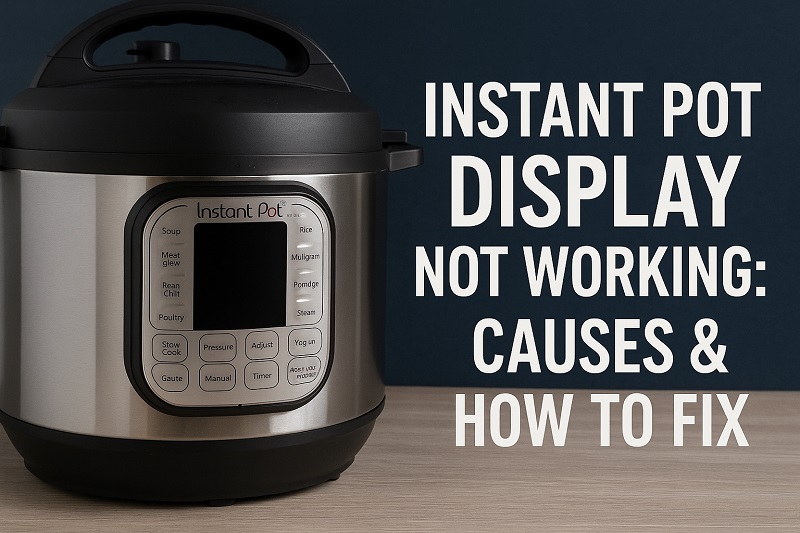
What’s Really Happening When Your Display Goes Dark
The display on your Instant Pot serves as the command center for all your cooking adventures. When it stops working properly, you lose access to timing controls, pressure settings, and temperature readings that make this appliance so convenient.
A non-functioning display can show up in several ways. Sometimes the screen stays completely black no matter what buttons you press. Other times you might see partial text, scrambled characters, or error codes that don’t make sense. The display might also flicker on and off randomly, making it impossible to set your cooking programs.
Behind that digital screen lies a complex network of electronic components working together. The display connects to the main control board through delicate circuits that can be disrupted by various factors. Power fluctuations, moisture exposure, and simple wear and tear all play roles in display malfunctions.
Temperature extremes can also affect your display’s performance. If your Instant Pot gets too hot during operation or sits in a very cold kitchen, the electronic components might respond unpredictably. The liquid crystal display technology used in these units operates within specific temperature ranges, and going beyond those limits can cause temporary or permanent issues.
Instant Pot Display Not Working: Common Causes
Understanding what typically causes display problems helps you target your troubleshooting efforts more effectively. Most issues stem from a handful of common culprits that affect the electrical connections or the display components themselves.
1. Power Supply Issues
Inconsistent electrical power ranks as the top reason why Instant Pot displays malfunction. Your kitchen outlets might seem fine for other appliances, but pressure cookers draw significant power that can reveal underlying electrical problems.
Voltage fluctuations from your home’s electrical system can confuse the delicate electronics inside your Instant Pot. When the unit doesn’t receive steady, clean power, the display controller struggles to function properly. This often results in a completely blank screen or erratic behavior where the display works intermittently.
Power surges from lightning strikes or electrical grid issues can damage internal components permanently. Even minor surges that don’t affect other appliances might be enough to disrupt your Instant Pot’s sensitive control circuits.
2. Moisture and Steam Damage
Steam finding its way into electronic components creates serious problems for display functionality. While Instant Pots are designed to handle moisture, the seals around the display area can degrade over time, allowing steam to penetrate sensitive circuits.
Condensation buildup inside the unit poses another threat. During normal cooking cycles, moisture naturally accumulates, but if drainage pathways become blocked, water can reach areas where it shouldn’t go. This moisture creates short circuits that can permanently damage display components.
Cleaning your Instant Pot with too much water presents similar risks. Water that seeps into button gaps or display edges can cause immediate display problems or create corrosion that leads to failures months later. Even small amounts of moisture in the wrong places can disrupt the delicate connections that make your display work.
3. Faulty Control Board Connections
Loose or corroded connections between the display and main control board often cause intermittent display issues. These connections can work loose from vibrations during pressure cooking cycles or simply from repeated heating and cooling.
Internal connector pins may develop oxidation over time, especially in humid kitchen environments. This oxidation creates resistance in the circuits that carry display signals, leading to garbled text, missing characters, or complete display failure.
Manufacturing defects in soldering joints occasionally show up as display problems after months or years of use. These weak connections eventually fail under the thermal stress of normal operation, causing sudden display malfunctions that seem to happen without warning.
4. Overheating Problems
Excessive heat buildup around the control electronics can cause temporary or permanent display damage. Blocked ventilation slots prevent proper air circulation, allowing internal temperatures to rise beyond safe operating levels.
Prolonged cooking sessions without adequate cooling time between uses can stress electronic components. The display controller generates its own heat during operation, and when combined with radiant heat from cooking processes, temperatures can exceed design limits. This thermal stress manifests as display dimming, character distortion, or complete failure.
Kitchen environments with poor ventilation compound overheating issues. If your Instant Pot operates in a space with limited airflow or near other heat-generating appliances, the accumulated heat can overwhelm its cooling capacity and damage display components.
5. Software Glitches and Memory Corruption
Electronic memory corruption occasionally affects display operation, especially in older Instant Pot models. These units store program settings and operational parameters in memory chips that can become corrupted from power interruptions or electromagnetic interference.
Software bugs in the control program might cause display anomalies that look like hardware problems. These glitches can make the screen show incorrect information, freeze on certain displays, or cycle through random characters. While less common than physical issues, software problems do occur and often require specific reset procedures to resolve.
Electromagnetic interference from other kitchen appliances can disrupt the microprocessor signals that control your display. Microwave ovens, induction cooktops, and even cell phones operating nearby might generate interference strong enough to cause temporary display malfunctions.
Instant Pot Display Not Working: How to Fix
Getting your display working again usually involves systematic troubleshooting that starts with simple solutions and progresses to more involved fixes. Most problems resolve with basic steps that you can handle safely at home.
1. Check Power Connection and Outlet
Start with the most basic potential cause by examining your power setup carefully. Unplug your Instant Pot completely and inspect the power cord for any visible damage, kinks, or worn spots that might interrupt electrical flow.
Test your wall outlet with another appliance to confirm it’s delivering power consistently. Kitchen outlets sometimes develop problems that aren’t immediately obvious, especially those connected to ground fault circuit interrupters that might trip intermittently. Try plugging your Instant Pot into a different outlet, preferably one on a separate circuit.
Clean the power cord connections where they meet both the wall outlet and your Instant Pot. Dust and cooking residue can accumulate in these areas, creating resistance that affects power delivery. Make sure all connections fit snugly without any looseness that could cause intermittent power loss.
2. Perform a Complete System Reset
A full reset clears temporary software glitches and memory corruption that might affect display operation. Unplug your Instant Pot from power and leave it disconnected for at least 10 minutes to allow internal capacitors to discharge completely.
While the unit remains unplugged, press and hold the power button for 30 seconds to ensure any residual charge dissipates. This step helps reset the internal microprocessor and clears any stuck program states that might interfere with normal display function.
Reconnect power and attempt to turn on your Instant Pot normally. Many display issues resolve completely after this simple reset procedure, especially problems related to software glitches or temporary memory corruption.
3. Clean Around Display and Controls
Moisture and debris around the display area often cause connection problems that affect screen operation. Use a slightly damp microfiber cloth to clean around the display edges, being careful not to let any moisture seep into gaps or openings.
Pay special attention to the area where the display meets the housing, as cooking residue tends to accumulate in these crevices. Use a soft brush or cotton swab to remove any buildup that might be affecting the display connections. Avoid using harsh chemicals or excessive moisture that could worsen the problem.
- Remove any visible moisture or condensation from the display surface
- Clean button areas gently without pressing them repeatedly
- Allow all cleaned areas to dry completely before reconnecting power
- Check for any signs of corrosion around metal components
4. Test Different Function Buttons
Sometimes display problems only affect certain areas of the screen, and testing various functions helps identify whether you’re dealing with a partial or complete failure. Try pressing different program buttons while watching for any display response, even if it’s incomplete or incorrect.
Check whether the display shows anything when you adjust time settings or switch between different cooking modes. Partial display function suggests connection issues rather than complete component failure, which often means easier repairs are possible.
Document any patterns you notice in display behavior. If certain buttons consistently produce display responses while others don’t, this information helps pinpoint whether the problem lies in the display itself or in specific control circuits.
5. Check for Loose Internal Connections
This step requires some disassembly, so only attempt it if you’re comfortable working with small electronics. Unplug your unit and remove the bottom cover to access internal components, following safety precautions to avoid electrical shock.
Locate the ribbon cable or connector that links the display to the main control board. Gently disconnect and reconnect this connection, checking for signs of corrosion or damage on the contact points. Sometimes simply reseating these connections resolves display problems completely.
Inspect other internal connectors for obvious problems like burn marks, corrosion, or loose fits. While you shouldn’t attempt major repairs without expertise, identifying obviously damaged components helps you decide whether professional repair is worthwhile or if replacement makes more sense.
6. Contact a Qualified Appliance Repair Technician
If none of the previous steps restore your display function, the problem likely requires professional diagnosis and repair. Internal component replacement or circuit board repair demands specialized tools and expertise that most home users don’t possess safely.
A qualified technician can perform voltage testing, component analysis, and precise repairs that address root causes rather than symptoms. They also have access to replacement parts and can determine whether repair costs justify fixing your unit versus replacing it with a newer model.
Professional repair becomes especially important if you discover signs of electrical damage, burn marks, or component corrosion during your troubleshooting efforts. These conditions can pose safety risks if not properly addressed by someone with appropriate training and equipment.
Wrapping Up
Display problems with your Instant Pot usually stem from manageable issues like power fluctuations, moisture intrusion, or loose connections rather than catastrophic failures. Starting with simple solutions like power resets and cleaning often restores full functionality without any cost or complexity.
When basic troubleshooting doesn’t resolve your display issues, the systematic approach outlined here helps you identify whether professional repair makes financial sense for your specific situation. Most importantly, you now have the knowledge to prevent many common display problems through proper maintenance and careful operation of your pressure cooking companion.