You glance at your Garmin watch expecting to see your body battery score, but there’s nothing. Just a blank spot where that helpful energy meter should be. It’s frustrating because you rely on that number to plan your day, your workouts, and even your rest periods.
This happens more often than you’d think, and the good news is that you can usually get it working again without sending your watch anywhere. Let me walk you through what’s happening and how to fix it yourself.
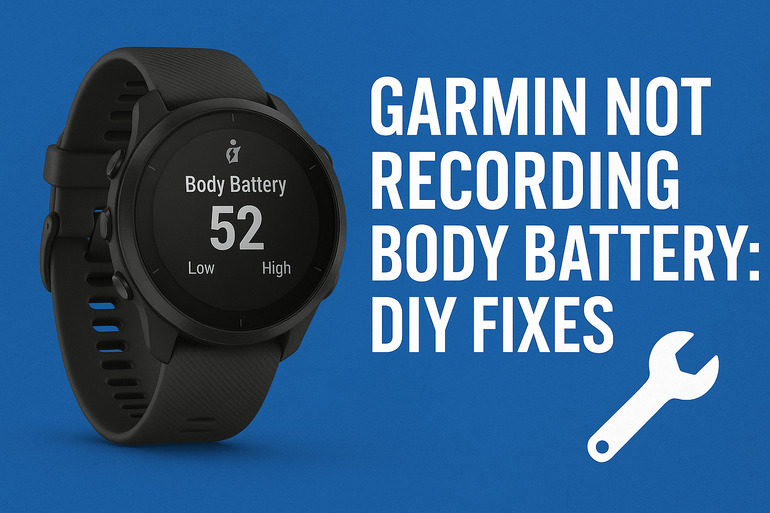
What’s Going On With Your Body Battery
Your Garmin’s body battery is like a fuel gauge for your energy levels. It tracks how much juice you have left throughout the day by watching your heart rate, sleep quality, stress levels, and physical activity. The score ranges from 0 to 100, with higher numbers meaning you’re ready to take on anything.
This feature needs continuous heart rate data to work properly. Your watch monitors tiny changes in the time between each heartbeat, something called heart rate variability. That data gets crunched through Garmin’s algorithms to figure out if you’re charging up during rest or draining during activity.
Here’s where things get tricky. If your watch can’t read your heart rate properly, the body battery feature stops recording. Sometimes it shows old data. Other times it displays nothing at all. Your watch might still track steps and GPS perfectly fine, but that specific energy score just disappears.
The feature requires you to wear your watch 24/7, including during sleep. Missing even a few hours can create gaps in the data that mess up the entire calculation. Your body battery reading depends on seeing the full picture of your day and night patterns.
Garmin Not Recording Body Battery: Common Causes
Several things can interrupt your body battery tracking, and most of them are easier to fix than you’d expect. Let me break down what typically goes wrong so you can spot the issue faster.
1. Poor Watch Contact With Your Skin
Your watch needs solid contact with your wrist to read your heart rate accurately. Even small gaps between the sensor and your skin can throw off the readings completely.
When you wear your watch too loosely, it bounces around during movement. That constant shifting creates moments where the sensors can’t detect anything. Your watch tries to compensate, but if it happens too often, the body battery feature just gives up.
Tight clothing sleeves pushing against the watch can cause similar problems. The fabric creates pressure points that lift the sensor away from your skin just enough to break the connection.
2. Dirty Optical Sensors
Those green lights on the back of your watch are optical sensors that read your blood flow. Sweat, dirt, sunscreen, and dead skin cells build up on them over time, creating a film that blocks the light.
Your watch keeps trying to get readings through this layer of gunk, but the data becomes unreliable. Eventually, the body battery stops updating because the information is too inconsistent to use.
3. Outdated Software Version
Garmin releases software updates that fix bugs and improve how features work. An outdated version might have glitches that prevent body battery from recording properly.
These updates often include patches for data syncing issues too. Your watch might be collecting the information but failing to process it correctly because of a software hiccup.
4. Incorrect Settings Configuration
Body battery won’t work if certain settings are turned off or configured wrong. The all-day heart rate monitoring needs to be active for the feature to function.
Sometimes settings get changed accidentally through the watch interface or the Garmin Connect app. You might have disabled something during a workout mode change or while adjusting other preferences. A single toggle in the wrong position can shut down the entire feature.
5. Depleted Watch Battery
Your watch needs enough power to run the continuous heart rate monitoring that feeds body battery data. If your battery level drops too low, the watch automatically turns off non-essential features to conserve energy.
Body battery tracking is one of the first things to go when power runs low. Your watch prioritizes basic timekeeping and urgent notifications over energy tracking. This happens gradually, so you might not notice right away that the feature stopped working hours ago.
Garmin Not Recording Body Battery: DIY Fixes
Getting your body battery back on track usually takes just a few simple steps. Let me show you the fixes that work most reliably based on what I’ve seen over the years.
1. Adjust Your Watch Fit
Start by repositioning your watch on your wrist. It should sit snugly about a finger’s width above your wrist bone. You want it tight enough that it doesn’t slide around, but not so tight that it’s uncomfortable or leaves deep marks on your skin.
Try this quick test: slide two fingers under the band. If they fit easily with room to spare, tighten the watch one notch. During workouts, you might need to go even tighter since your wrist expands slightly with increased blood flow.
Pay attention to where you wear it throughout the day. Switching wrists occasionally can help if one side gives better readings than the other. Some people get more accurate data on their non-dominant wrist.
2. Clean the Sensors Thoroughly
Turn off your watch and remove it from your wrist. Use a soft, lint-free cloth dampened with water to gently wipe the back of the watch where the green lights are located. Make small circular motions to lift away any residue.
For stubborn buildup, use a tiny bit of isopropyl alcohol on the cloth. This cuts through oils and sunscreen that plain water can’t remove. Let the sensors air dry completely before putting the watch back on.
Clean your wrist too. Wash the area where you wear the watch with soap and water, then dry it thoroughly. Oils from your skin transfer back onto clean sensors quickly if you skip this step.
3. Restart Your Garmin Device
Press and hold the power button on your watch for about 15 seconds until the screen goes black. Wait for it to reboot completely before trying anything else. This clears temporary data glitches that might be blocking the body battery feature.
After the restart, check if the body battery widget shows up again. Give it a few hours to start collecting new data if you see zeros or dashes.
4. Update Your Watch Software
Open the Garmin Connect app on your phone and check for available updates. Your watch needs to be connected via Bluetooth and have at least 50% battery for the update to start.
Follow the prompts to download and install any new software. The process can take 10 to 30 minutes depending on the update size. Your watch will restart automatically when finished.
After updating, sync your watch with the app again. This ensures all the new features and fixes are properly activated. Body battery tracking should resume within a few hours once everything syncs correctly.
5. Verify Your Heart Rate Settings
Go into your watch settings and find the heart rate options. Make sure all-day heart rate monitoring is turned on. This setting might be under Wrist Heart Rate or Activity Tracking depending on your watch model.
Check that your heart rate zones are set up correctly too. If these aren’t configured, your watch might struggle to interpret the data properly. Here’s what to verify:
- All-day heart rate: Enabled
- Heart rate broadcasting: Can be off
- Wrist-based heart rate: On
- Abnormal heart rate alerts: Your preference
Scroll through the body battery widget settings as well. There might be a toggle specifically for this feature that got switched off somehow.
6. Reset Body Battery Data
Sometimes the accumulated data gets corrupted and needs a fresh start. Go to your body battery widget, press and hold on it, then look for an option to reset or clear the data.
This wipes the history but allows the feature to begin tracking cleanly again. You’ll lose your past body battery scores, but the feature should start recording properly from that point forward.
Your watch will need a full sleep cycle to establish a new baseline. Wear it continuously for 24 hours including overnight, and you should see your body battery populate by the next morning.
7. Contact Garmin Support
If none of these fixes work, there might be a hardware problem with your watch’s optical sensors. Garmin’s support team can run diagnostics and determine if your device needs repair or replacement.
Reach out through the Garmin website or call their customer service line. Have your watch’s serial number ready along with a description of what you’ve already tried. They might spot something specific to your watch model that requires a different approach.
Wrapping Up
Your Garmin’s body battery feature gives you valuable insights into your energy patterns, but it needs proper conditions to work right. Most recording issues come from simple things like watch placement, dirty sensors, or settings that got changed accidentally.
Start with the easiest fixes first. Clean your watch, adjust how you wear it, and check your settings before assuming something’s seriously broken. Nine times out of ten, you’ll have your body battery tracking again within an hour or two of trying these steps.