Your cycling data sits there, trapped inside your Garmin Edge 840. You’ve finished an amazing ride, and now you’re ready to check those stats, share your route, or analyze your performance. But nothing happens. The device refuses to sync, leaving your hard-earned data locked away.
This syncing hiccup happens more often than you’d think. Your Edge 840 talks to the Garmin Connect app through Bluetooth, Wi-Fi, or USB connections, and any hiccup along that path stops everything cold.
You’ll learn what causes these syncing failures and exactly how to fix them yourself. Most solutions take just a few minutes, and you won’t need any special tools or technical knowledge.
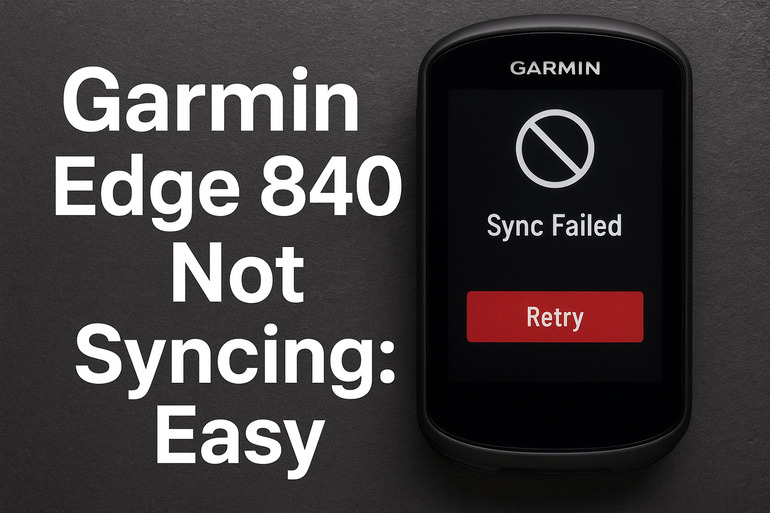
What’s Really Happening When Your Edge 840 Won’t Sync
Syncing moves your ride data from the Edge 840 to Garmin Connect servers. Think of it as a three-way handshake between your device, your phone, and Garmin’s cloud. Your Edge 840 collects all that juicy data during your ride. Speed, heart rate, elevation, GPS coordinates. Everything gets packaged up and needs to travel to your phone or computer first, then onward to Garmin’s servers.
That transfer can break down at several points. Your Bluetooth connection might be weak or interfered with by other devices. The Wi-Fi network you’re on could be blocking the data packets. Sometimes the Garmin Connect app itself gets stuck in a weird state, unable to receive or process incoming information.
Here’s what typically goes wrong during a failed sync:
- The device and app lose their connection mid-transfer, leaving incomplete files
- Corrupted data files on your Edge 840 prevent proper upload
- Outdated firmware creates compatibility issues between device and app
- Server-side problems at Garmin temporarily block all uploads
Your activities stay stuck on the device until this communication path gets restored. Those rides still exist in the Edge 840’s memory, but they’re essentially invisible to the outside system until syncing works again. The longer you wait, the more activities pile up, making the eventual sync take longer and increasing the chances of data corruption.
Garmin Edge 840 Not Syncing: Likely Causes
Pinpointing why your Edge 840 refuses to sync helps you fix it faster. Several common culprits repeatedly show up, and understanding them gives you a clear troubleshooting path.
1. Bluetooth Connection Problems
Bluetooth forms the primary bridge between your Edge 840 and your smartphone. When this connection weakens or breaks, syncing stops immediately. Physical distance matters more than you might think. Walking more than 30 feet away from your phone while your device tries to sync will often interrupt the transfer.
Other electronic devices create interference too. Wireless headphones, smartwatches, and even microwave ovens can flood the 2.4 GHz frequency band that Bluetooth uses. Your Edge 840 then struggles to maintain a clear signal through all that electronic noise.
Sometimes the Bluetooth pairing itself becomes corrupted. Your phone remembers the device but can’t actually talk to it properly. This creates a situation where both devices think they’re connected, but no data actually flows between them.
2. Outdated Software Versions
Garmin regularly updates both the Edge 840 firmware and the Connect app. These updates often change how the two systems communicate with each other. Running old firmware on your device while your phone has the latest app version creates compatibility mismatches. They literally speak different languages at that point.
Security updates complicate this further. Newer app versions sometimes require specific security protocols that older firmware versions don’t support. Your Edge 840 might try to connect using an outdated encryption method that the app now rejects. This security mismatch presents itself as a syncing failure even though both devices appear connected.
3. App Cache and Data Issues
The Garmin Connect app stores temporary files and cached data on your phone. This cached information speeds up normal operations, but it can become corrupted over time. Incomplete sync attempts leave behind partial data files that confuse subsequent sync tries.
Your phone’s storage situation plays a role too. Low storage space prevents the app from writing new temporary files it needs during syncing. The app might successfully receive data from your Edge 840 but then fail to save it locally before uploading to Garmin’s servers. This creates a sync loop where the same activities keep trying to upload repeatedly.
4. Wi-Fi Network Configuration
Your Edge 840 can sync directly over Wi-Fi without involving your phone. This seems convenient until network security settings get in the way. Corporate networks, hotels, and public Wi-Fi often require you to accept terms or enter credentials through a web portal. Your Edge 840 can’t handle these authentication pages.
Firewall settings on your home router might block the specific ports Garmin uses for syncing. The device connects to your Wi-Fi network successfully but can’t reach Garmin’s servers. Router firmware sometimes changes port configurations during updates, suddenly blocking connections that previously worked fine.
Network congestion creates problems during peak usage times. If too many devices crowd your Wi-Fi network simultaneously, your Edge 840’s sync requests get deprioritized or dropped entirely. The device keeps retrying, but the network can’t give it enough bandwidth to complete the transfer.
5. Account and Server Problems
Sometimes the problem lives on Garmin’s end rather than with your device. Server maintenance, unexpected outages, or database issues can temporarily prevent all syncing. Your Edge 840 and app might work perfectly, but Garmin’s servers simply aren’t accepting uploads at that moment.
Account-specific issues crop up occasionally. Authentication tokens expire, password changes don’t propagate correctly, or account flags get set incorrectly. Your device tries to sync but gets rejected because Garmin’s servers don’t recognize your credentials as valid anymore. These authentication failures often look identical to connection problems from the user’s perspective.
Garmin Edge 840 Not Syncing: How to Fix
Getting your Edge 840 syncing again usually takes just a few simple steps. Try these fixes in order, starting with the quickest solutions before moving to more involved ones.
1. Reset Bluetooth Connection
Refreshing the Bluetooth connection clears out many common glitches. Start by opening your phone’s Bluetooth settings and finding your Edge 840 in the list of paired devices. Tap the information icon next to it and select “Forget This Device.” This completely removes the pairing information from your phone’s memory.
Now grab your Edge 840 and swipe down from the top of the screen to access the control menu. Tap the Bluetooth icon to turn it off, wait about 10 seconds, then turn it back on. Open the Garmin Connect app on your phone and go to the devices menu. Select “Add Device” and follow the prompts to pair your Edge 840 again. Keep both devices within a few feet of each other during this process.
Once paired, manually trigger a sync by pulling down on the Garmin Connect home screen. Your activities should start transferring within a few seconds. This fresh pairing often resolves corruption issues that developed in the previous connection.
2. Update Firmware and App
Running the latest software versions eliminates compatibility problems. On your Edge 840, press and hold the power button, then select Settings from the menu. Scroll to System, then Software Update. If your device shows an available update, select it and let it download and install. Keep the device plugged into power during this process as it can take 15-20 minutes.
Check your phone’s app store for Garmin Connect updates. Android users go to the Play Store, iPhone users check the App Store. Search for Garmin Connect and tap Update if one appears. After both updates complete, restart both your phone and your Edge 840 before attempting to sync again.
3. Clear App Cache and Data
Clearing corrupted cache files gives the app a fresh start. For Android, go to Settings, then Apps, find Garmin Connect, and tap Storage. You’ll see options for Clear Cache and Clear Data. Tap Clear Cache first and try syncing. If that doesn’t work, come back and tap Clear Data. This second option logs you out, so have your account credentials ready.
iPhone users need to uninstall and reinstall the app completely since iOS doesn’t offer separate cache clearing. Press and hold the Garmin Connect app icon, tap Remove App, then confirm. Go to the App Store, search for Garmin Connect, and install it again.
After clearing cache or reinstalling, log back into your Garmin account and repair your Edge 840. The clean slate often resolves sync issues caused by corrupted temporary files.
4. Try Wi-Fi Sync Instead
Switching to Wi-Fi bypasses Bluetooth problems entirely. On your Edge 840, swipe down to access the control menu and tap the Wi-Fi icon. Select your home network from the list and enter your password. Make sure you’re using a 2.4 GHz network rather than 5 GHz, as the Edge 840 only supports 2.4 GHz.
Once connected, your device automatically syncs pending activities. You’ll see a small syncing icon appear on the screen. Wi-Fi sync runs faster than Bluetooth and handles larger data transfers more reliably. If Wi-Fi sync works but Bluetooth doesn’t, you’ve confirmed a Bluetooth-specific problem that might need deeper troubleshooting.
5. Manually Upload via USB
USB transfer provides a bulletproof alternative when wireless methods fail. Connect your Edge 840 to your computer using the charging cable. The device appears as a removable drive. Open it and look for a folder called Activities or Garmin/Activities. Inside you’ll find .FIT files for each unsynced activity.
Copy these .FIT files to your computer desktop. Then go to connect.garmin.com in your web browser and log into your account. Click the upload icon (usually in the top right) and select the .FIT files you copied. Garmin processes them and adds the activities to your account within a few seconds.
This manual method saves your ride data even when everything else fails. It’s slower than automatic syncing but guarantees your activities don’t get lost. Keep the original .FIT files on your computer as backups until you confirm they appear correctly in Garmin Connect.
6. Factory Reset the Device
A factory reset wipes all settings and returns your Edge 840 to its original state. This nuclear option fixes stubborn problems but erases your customizations. Before resetting, manually upload any unsynced activities using the USB method described above. You don’t want to lose that data.
On your Edge 840, hold the power button, go to Settings, then System. Scroll to Reset and select Delete Data and Reset Settings. The device restarts and takes you through initial setup again. Pair it with your phone, reconnect Wi-Fi, and configure your preferred settings. Most users find that syncing works perfectly after a reset since all corrupted data gets cleared out.
7. Contact Garmin Support
If none of these solutions work, reach out to Garmin’s support team. They have diagnostic tools that can check your account status, verify server connectivity, and identify hardware issues. Visit support.garmin.com or call their support line. Have your device serial number ready, which you’ll find in the System settings on your Edge 840.
Garmin support can also initiate warranty replacements if your device has a hardware defect. Sometimes the Bluetooth or Wi-Fi chip develops problems that no amount of troubleshooting can fix. Support staff can run remote diagnostics to identify these hardware failures and get you a replacement if needed.
Wrapping Up
Syncing problems with your Edge 840 rarely need professional help. Most issues stem from simple connection hiccups, outdated software, or cache problems that you can fix yourself in minutes. The USB upload method guarantees your ride data stays safe even when wireless syncing completely fails.
Start with the quick fixes like resetting Bluetooth or clearing app cache before moving to more involved solutions. Your cycling achievements deserve to be tracked and shared properly. With these troubleshooting steps, you’ll get your data flowing again and back to focusing on what really matters—your rides.