Your Fossil Gen 6 just died, and now it’s sitting on the charger like a stubborn rock that refuses to wake up. You’ve tried everything you can think of, but that battery icon stays empty. It’s frustrating, especially when you need your smartwatch to track your morning run or check those important notifications throughout the day.
Here’s some good news: most charging problems with the Fossil Gen 6 have simple fixes you can handle yourself. You won’t need any special tools or tech wizardry to get your watch back up and running. This guide walks you through everything from understanding why your watch stopped charging to fixing it step by step, so you can get back to using your favorite wrist companion.
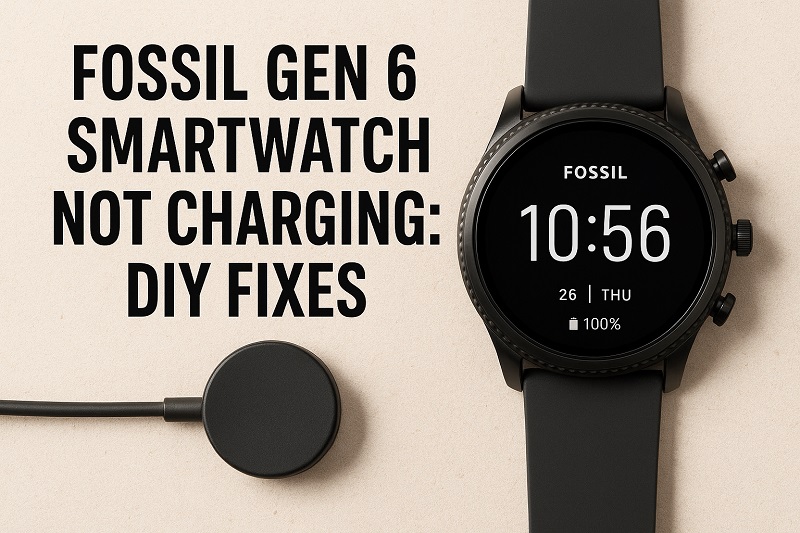
Why Your Fossil Gen 6 Won’t Charge
The Fossil Gen 6 uses magnetic charging, which means a small disc with pins connects to the back of your watch. When everything works properly, the watch snaps onto the charger, and power flows right through. But here’s where things can go wrong: this system relies on clean contact points and proper alignment. Even the tiniest bit of dirt or a slight misalignment can stop the whole charging process.
Your watch might show zero signs of life, or maybe it displays a charging icon but the battery percentage never moves. Sometimes you’ll see the screen light up for a second before going dark again. These symptoms point to different issues, but they all share one thing in common: something is blocking the flow of electricity from your charger to your watch battery.
The battery inside your Fossil Gen 6 is designed to last through hundreds of charge cycles, but it doesn’t live forever. After about two years of daily charging, you might notice it holds less power than it used to. This is completely normal wear and tear. What’s not normal is a watch that suddenly refuses to charge at all, especially if it’s relatively new.
Left unfixed, a charging problem means your smartwatch becomes nothing more than a regular watch without the smart features. You lose fitness tracking, notifications, contactless payments, and all those helpful apps you’ve grown used to. Plus, if your battery drains completely and stays dead for weeks, it could cause permanent damage that makes the problem even harder to fix later.
Fossil Gen 6 Not Charging: Likely Causes
Before you can fix the problem, you need to know what’s causing it. The charging issue usually stems from one of several common culprits. Let’s look at what might be stopping your watch from powering up.
1. Dirty Charging Contacts
The back of your Fossil Gen 6 has four small metal pins that connect with your charger. These pins are magnets for dirt, dust, dead skin cells, lotion, and sweat. You wear your watch every day, and all that gunk builds up over time without you even noticing.
Even a microscopic layer of residue creates a barrier between the charging pins and your watch. Electricity can’t flow through dirt the way it flows through clean metal. This is probably the most frequent reason why smartwatches stop charging properly.
Your charger’s pins face the same problem from the other side. They sit on your desk or nightstand collecting dust, and if you ever touched them with dirty fingers, there’s oil on them too. Both sides need to be spotless for charging to work.
2. Faulty Charging Cable or Adapter
Your charging cable might look fine on the outside, but internal wires can break from repeated bending and twisting. Maybe you’ve been wrapping the cable too tightly, or perhaps it got pinched in a drawer. These small damages add up until one day the cable just stops working.
The USB adapter or power brick can fail too. If you’re plugging into a computer’s USB port, that port might not be delivering enough power. Some USB ports provide less electricity than others, especially older ones or those on unpowered USB hubs.
3. Software Glitch
Sometimes your watch’s software gets confused and stops recognizing the charger. This happens after updates, or when background processes freeze up. Your Fossil Gen 6 runs Wear OS, and like any computer operating system, it can hit snags.
The watch might think it’s charging when it’s not, or it could be stuck in a boot loop that prevents proper charging. These software hiccups don’t mean anything is physically broken. A simple restart often clears things up and gets the charging process back on track.
4. Misaligned Charger Placement
The magnetic charger needs to sit in exactly the right spot on your watch back. If it’s even slightly off center, the pins won’t make proper contact. This seems obvious, but it’s easier to mess up than you’d think, especially if you’re placing the watch on the charger in the dark or without looking carefully.
Your charger might have shifted position over time if the cable tension pulls it at an angle. Some charging stands have weak magnets that don’t hold the watch firmly enough. When the connection isn’t solid, charging stops and starts randomly, or doesn’t happen at all.
5. Battery Degradation or Hardware Failure
Batteries lose capacity over time, but they can also develop internal problems that prevent charging entirely. If your watch took a hard hit or got wet beyond its water resistance rating, the charging circuit inside could be damaged. This is less common than the other causes, but it happens.
The charging port on the watch back can also wear out from daily use. Those little pins take a beating every time you snap the charger on and off. After hundreds of connections, they might not spring back properly or could lose their ability to conduct electricity efficiently.
Fossil Gen 6 Not Charging: How to Fix
Ready to get your watch charging again? These fixes start with the simplest solutions and work up to more involved troubleshooting. Try them in order, and there’s a great chance you’ll solve the problem before reaching the end of this list.
1. Clean the Charging Contacts Thoroughly
Grab a microfiber cloth or a cotton swab and some rubbing alcohol. Turn your watch over and look at the four metal pins on the back. You’ll probably see some buildup even if it doesn’t look dirty at first glance. Dip your cotton swab in rubbing alcohol and gently scrub each pin in a circular motion.
Pay special attention to the area around the pins too. Wipe the entire back of the watch until your cloth or swab comes away clean. Let everything air dry for about thirty seconds. Rubbing alcohol evaporates quickly, so you won’t have to wait long.
Now clean your charger’s pins the same way. Rub them with an alcohol-dampened cloth until they shine. Some people use a soft toothbrush for this, which works great for getting into tiny grooves. Once both sides are spotless, try charging your watch again. This simple cleaning fixes the problem more often than any other solution.
2. Try a Different Power Source
Unplug your charging cable from wherever it’s connected and plug it into a different outlet. If you were using a computer USB port, switch to a wall adapter. If you were using a wall adapter, try a different one or switch to a computer port just to test.
Make sure any wall adapter you use outputs at least 5 volts and 1 amp. Check the tiny text printed on the adapter itself for these specs. Anything less might not provide enough juice to charge your watch properly. Phone chargers usually work perfectly fine.
Let your watch sit on the charger for at least ten minutes after switching power sources. Sometimes a fully drained battery needs time to accept enough charge before the screen even shows signs of life.
3. Restart Your Fossil Gen 6
Hold down the middle button on your watch for about ten seconds. Keep holding even if the screen goes black. Eventually, you’ll feel a vibration and see the Fossil logo appear. This forces your watch to restart completely, clearing out any software problems that might be interfering with charging.
If your watch is completely dead and won’t restart normally, try this: place it on the charger and immediately hold the middle button down. Keep holding for at least thirty seconds. This sometimes kickstarts a watch that’s stuck in a weird state.
After the restart, check if the watch recognizes the charger. You should see a charging icon on the screen within a few seconds of placing it on the charging disc. If not, leave it there for five minutes anyway before moving on to the next fix.
4. Check Charger Alignment and Connection
Take your watch off the charger and look at how the magnetic disc sits. Place the watch back on very deliberately, making sure it’s centered. You should feel the magnets pull the watch into place with a satisfying click. If the connection feels weak or wobbly, something’s wrong with the alignment.
Try rotating the watch slightly on the charger. Sometimes one position works better than others because of how the pins line up. Don’t force anything, but experiment with small adjustments. The watch should sit flat against the charger without gaps or tilting.
Inspect your charging cable where it connects to the magnetic disc. Cables can get twisted near the connection point, which pulls the disc at an odd angle. Straighten out any kinks and make sure the cable hangs naturally without tension. A properly positioned charger makes all the difference for consistent charging.
5. Test with an Alternative Charging Cable
If you have access to another Fossil Gen 6 charging cable, or if you know someone who has the same watch, borrow their charger for a test. This tells you immediately whether your original cable is the problem. Fossil chargers aren’t universal across all their watch models, so make sure you’re using one specifically for the Gen 6.
You can order a replacement charger online from Fossil or third-party sellers. Before buying, read reviews carefully because charging accessories vary wildly in quality. Some cheap alternatives work great, while others fail within weeks. Stick with well-reviewed options or official Fossil replacements when possible.
While testing a different cable, keep using your original power adapter first. If the new cable works with your adapter, you know the cable was the issue. If it still doesn’t charge, the problem might be with your adapter, the watch itself, or both.
6. Perform a Factory Reset
This is a bigger step that erases your watch data, so you’ll want to back up anything important first. Open the Settings app on your watch, scroll to System, then tap Reset. Confirm that you want to erase everything. Your watch will restart and go back to its original out-of-box state.
Factory resets clear deep software issues that simple restarts can’t touch. Sometimes Wear OS gets corrupted files or conflicting settings that mess with basic functions like charging. Starting fresh often solves these mysterious problems. After the reset, try charging before you set up the watch again.
You’ll need to re-pair your watch with your phone and reinstall your apps afterward. It’s annoying, but it’s worth it if this fixes your charging problem. Plus, a fresh start sometimes makes your watch run faster and smoother overall.
7. Contact a Professional Technician
If none of these fixes work, your watch likely has a hardware problem that needs professional repair. Reach out to Fossil customer support or visit an authorized service center. They have diagnostic tools that can pinpoint exactly what’s broken inside your watch.
Check if your watch is still under warranty before paying for repairs. Fossil typically offers a two-year limited warranty that covers manufacturing defects. If your charging issue started without any physical damage on your part, warranty service might be free. Keep your proof of purchase handy when you contact support.
Wrapping Up
A Fossil Gen 6 that won’t charge doesn’t have to mean the end of your smartwatch. Most charging problems come from simple issues like dirty contacts or software glitches that you can fix in minutes. Start with the easy solutions first, and work your way through the troubleshooting steps patiently.
Regular maintenance helps prevent charging problems before they start. Clean those charging contacts every couple of weeks, handle your cable gently, and keep your watch’s software updated. These small habits keep your Gen 6 running smoothly for years. Your smartwatch is too useful to sit dead on a shelf, so give these fixes a try and get back to enjoying all those features you rely on every day.