You’re trying to close an app on your Mac, but it just won’t budge. You’ve tried everything you know, including the classic Command-Q, but the stubborn app stays right there on your screen. Frustrating, right?
This happens more often than you’d think, and it’s one of those tech hiccups that can turn a productive day into a test of patience. Your Mac usually handles everything smoothly, but sometimes an app decides to hang on like a kid who doesn’t want to leave the playground. We’re going to walk through why this happens and, most importantly, how you can actually get that app to close when it refuses to cooperate.
Why Apps Refuse to Close Properly
When an app won’t force quit on your Mac, something has gone wrong with how the app communicates with macOS. Think of it like a conversation between two people where one person stops listening. The app might be stuck in the middle of a task, waiting for something that never comes, or it could be dealing with corrupted data that’s making it confused about what to do next.
Your Mac’s operating system usually keeps everything running in neat little compartments. Each app gets its own space to work, and when you tell it to close, it’s supposed to wrap things up nicely and exit. But sometimes an app gets tangled up in its own processes. Maybe it’s trying to save a file that’s too big, or it’s waiting for a response from the internet that never arrives.
The longer you leave a frozen app running, the more resources it hogs. Your Mac might start slowing down because the stuck app is eating up memory and processing power. You might notice your fan spinning louder than usual, or other apps starting to lag. In really bad cases, the frozen app can even affect other programs you’re trying to use.
What makes this particularly annoying is that macOS is designed to be stable and reliable. When an app refuses to quit, it feels like something fundamental has broken. But here’s some reassurance: this is usually temporary, and there are several ways to handle it without needing to restart your entire computer.
App Not Force Quitting Mac: Common Causes
Several things can cause an app to refuse quitting, even when you’re using the force quit option. Let’s look at the most frequent culprits behind this stubborn behavior.
1. Background Processes Still Running
An app isn’t always just one thing. Many programs run multiple processes in the background, kind of like how a restaurant has both the dining room staff and the kitchen crew. When you force quit, you might be closing the main window, but those background helpers keep chugging along behind the scenes.
This happens a lot with creative software like photo editors or video converters. They might have processes that continue encoding or rendering even after you close the main window. Your Mac thinks the app is still doing important work, so it refuses to shut everything down completely.
Sometimes these background processes get stuck in a loop, repeating the same task over and over without finishing. That’s when things get messy, and the normal force quit command can’t break through because the app isn’t technically frozen, it’s just lost in its own work.
2. Corrupted Cache or Preference Files
Every app stores little files on your Mac that remember your settings and save temporary data. These cache and preference files are supposed to make the app run faster and remember how you like things. But sometimes these files get damaged or filled with conflicting information.
When an app tries to close, it often needs to read or write to these files. If they’re corrupted, the app gets stuck trying to process information that doesn’t make sense. It’s like trying to follow directions that have half the words missing. The app just sits there, unable to move forward or backward.
3. System Resources Exhausted
Your Mac has a limited amount of memory and processing power, even if it’s a newer model. When too many apps are open at once, or when one app is using way more resources than it should, your whole system can become strained.
An app trying to quit needs a little bit of system resources to clean up after itself. If your Mac is already maxed out, there’s nothing left for the closing process. The app sits in limbo, unable to properly shut down because the system can’t give it the attention it needs.
4. Software Conflicts Between Apps
Sometimes two apps don’t play nicely together, especially if they’re both trying to control the same part of your system. This is common with apps that modify how your Mac works, like menu bar utilities, system cleaners, or security software.
One app might be holding onto something the other app needs, or they might both be trying to access the same file at the same time. When you try to force quit one of them, it can’t fully close because the other app still has hooks into it. This creates a deadlock where neither app wants to give up control.
5. macOS System Issues
Your Mac’s operating system itself can sometimes be the problem. If macOS has been running for a long time without a restart, certain system processes can become unstable. Little bugs accumulate, memory management gets sloppy, and the commands you give your Mac take longer to process.
Updates to macOS can also introduce compatibility issues with older apps. An app that worked perfectly fine last month might struggle after a system update because it wasn’t designed to work with the new version. These conflicts often show up as apps refusing to quit properly.
System files can also become corrupted over time, especially if your Mac has experienced crashes or improper shutdowns. When the core files that manage how apps start and stop get damaged, even basic functions like force quitting can fail.
App Not Force Quitting Mac: How to Fix
Getting a stubborn app to finally close requires a systematic approach. Here are the most effective methods you can try, starting with the gentlest and moving up to more forceful options.
1. Try the Standard Force Quit Dialog
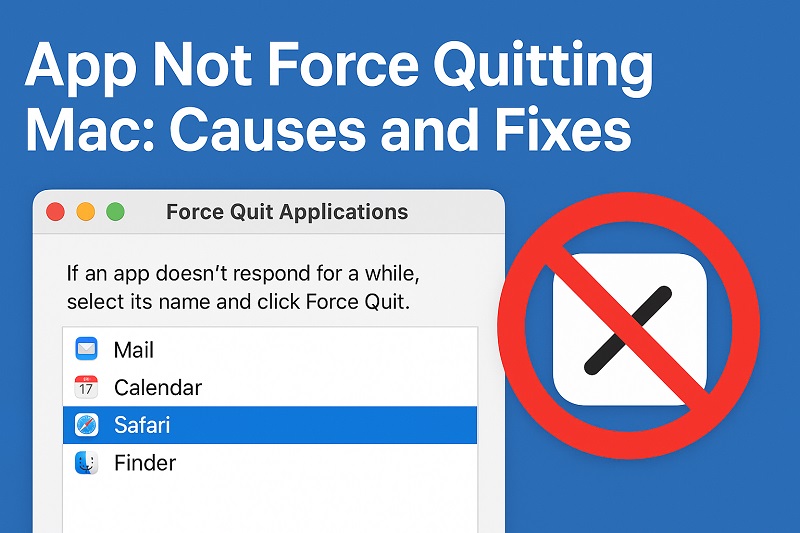
Before doing anything drastic, give the built-in force quit tool another shot, but this time make sure you’re using it correctly. Press Command-Option-Escape on your keyboard, and a window will pop up showing all your running apps.
Look for the app that’s giving you trouble. If it’s frozen, you’ll usually see “not responding” next to its name in red text. Click on the app’s name once to select it, then click the Force Quit button at the bottom of the window. Wait about 10 seconds to see if it closes.
Sometimes the first attempt doesn’t work, but a second try does. If nothing happens after your first attempt, try selecting the app again and clicking Force Quit one more time. Your Mac might need that extra nudge to break through whatever’s keeping the app stuck.
2. Force Quit From the Activity Monitor
Activity Monitor is like looking under the hood of your Mac. It shows you everything that’s running and lets you force quit with more authority than the regular method. You can find Activity Monitor by opening Spotlight (press Command-Space) and typing “Activity Monitor.”
Once it opens, you’ll see a list of all active processes. Click the CPU tab at the top, then look through the list for the name of your stuck app. Sometimes the app name might be slightly different here than what you see normally. Click on it once to select it, then click the X button in the top-left corner of the window.
A dialog will appear asking if you want to quit or force quit. Choose Force Quit. Activity Monitor has more direct access to system processes, so this method often works when the regular force quit dialog fails. If the app has multiple processes running, you might need to force quit each one individually.
3. Use Terminal Commands
The Terminal gives you direct access to your Mac’s inner workings. It might look intimidating if you’ve never used it, but the commands are simple. Open Terminal from your Applications folder, or use Spotlight to find it.
Type this command and press Enter:
killall [app name]
Replace [app name] with the actual name of your app. For example, if Safari is frozen, you’d type killall Safari. Make sure you get the capitalization right because Terminal is picky about that.
If that doesn’t work, you can try a more forceful command. First, type ps -ax and press Enter. This shows you a list of all running processes with ID numbers. Find your app in the list and note the number on the far left. Then type kill -9 [number] and press Enter, replacing [number] with the ID you found. This is the most aggressive way to stop a process, and it almost always works.
4. Clear the App’s Cache Files
Sometimes you need to remove the app’s corrupted temporary files before it will close properly. Open Finder and click Go in the menu bar at the top of your screen. Hold down the Option key, and you’ll see Library appear in the dropdown menu. Click Library.
Look for a folder called Caches. Inside, you’ll find folders for most of your apps. Find the folder that matches your stuck app and move it to the Trash. Don’t empty the Trash yet, just in case you need to put it back.
Now try force quitting the app again using Activity Monitor. With the corrupted cache files out of the way, the app often closes immediately. If it works, you can empty the Trash. The app will create fresh cache files the next time you open it.
5. Restart Your Mac (Smart Way)
If nothing else works, a restart will definitely close the app, but you want to do it right to avoid losing work in other programs. First, save everything you can in your other open apps. Then click the Apple menu in the top-left corner and choose Restart.
Your Mac will ask if you want to reopen windows when logging back in. Uncheck that box so the problematic app doesn’t automatically open again. Click Restart to confirm. As your Mac shuts down, it forces all apps to close using system-level commands that apps can’t ignore.
After your Mac restarts, everything should be fresh and working properly. This clears out all the temporary glitches and memory issues that might have been causing the problem. If the same app keeps freezing and refusing to quit, that’s a sign you might need to update or reinstall it.
6. Reset NVRAM/PRAM
Your Mac stores certain settings in special memory called NVRAM (or PRAM on older Macs). Sometimes this memory gets confused and causes apps to behave strangely. Resetting it can solve mysterious problems that other fixes don’t touch.
Shut down your Mac completely. Then turn it back on and immediately press and hold Command-Option-P-R. Keep holding these keys for about 20 seconds. You’ll hear the startup sound twice (or see the Apple logo appear and disappear twice if you have a newer Mac). Then let go.
Your Mac will finish starting up, and some settings like volume level and screen resolution might reset to defaults. This is normal. Try opening and closing the app that was giving you trouble. Often this deep reset clears up whatever was causing the force quit failure.
7. Contact a Professional Technician
If you’ve tried everything here and the app still won’t quit, or if the problem keeps happening over and over, it’s time to get expert help. There might be deeper system issues at play that require professional diagnosis. A qualified Mac technician can run diagnostic tests to check for hardware problems, corrupted system files, or software conflicts you might not be able to spot on your own.
Wrapping Up
Apps that refuse to force quit can feel like a major roadblock, but now you’ve got a toolbox full of solutions. Most of the time, one of these methods will break through and get that stubborn app to finally close.
The key is staying patient and working through the options systematically. Start gentle and get more forceful only if you need to. Your Mac is a reliable machine, and these hiccups are usually just temporary glitches that are easy to fix once you know how.