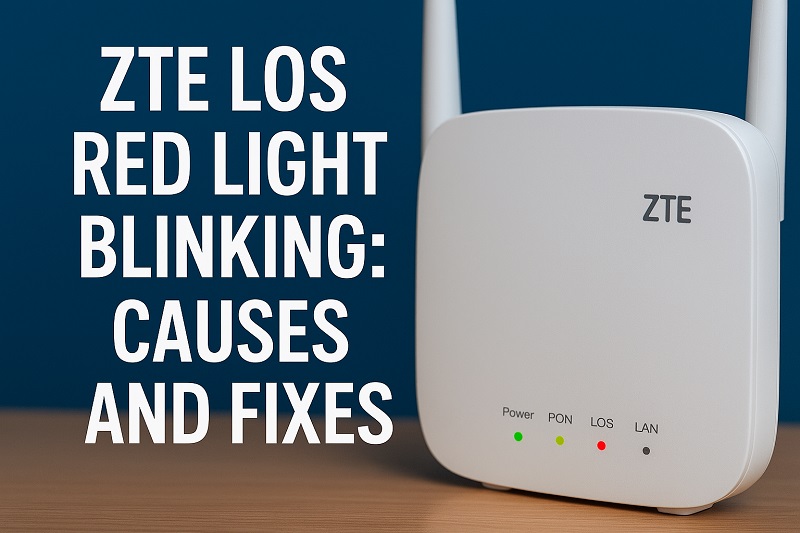
That blinking red light on your ZTE modem can stop you in your tracks. One moment you’re streaming your favorite show, the next you’re staring at a device that seems to have lost its mind. The LOS indicator glowing red means your internet connection has taken an unexpected break.
Most people panic when they see this light, but here’s what you need to know: this issue is almost always fixable at home. You’ll learn exactly what causes that red light to blink, why it matters, and how to get your connection back up without calling your internet provider or spending money on a technician.
What’s Really Happening When That Red Light Blinks
LOS stands for Loss of Signal. When this light turns red and starts blinking on your ZTE modem, it’s telling you that the device can’t communicate with your internet service provider’s network. Think of it like a phone call that suddenly drops. Your modem is trying to reach out to the main network, but nothing’s coming back.
This signal travels through fiber optic cables, which use light to carry data at incredible speeds. Your modem receives these light signals and converts them into the internet connection you use every day. When something interrupts this light path, even slightly, your modem loses its connection to the outside internet.
The blinking pattern is actually your modem’s way of showing it’s still trying to find that signal. It hasn’t given up yet. Your device keeps searching, attempting to reestablish contact with the network every few seconds. This is different from a solid red light, which usually means a more serious hardware failure.
Left unfixed, this problem means no internet at all. Your streaming stops, your work-from-home setup grinds to a halt, and smart home devices go offline. Everything that depends on your connection becomes useless until you restore that signal. The good news is that most causes are surprisingly simple to fix once you know what to look for.
ZTE LOS Red Light Blinking: Likely Causes
Several things can interrupt the signal between your modem and the network. Some are completely within your control, while others might need a quick call to your provider.
1. Loose or Disconnected Fiber Cable
The fiber optic cable plugging into your modem is incredibly sensitive. Even a slight wiggle or partial disconnection can break the light signal completely. These cables use a special connector that clicks into place, but they can work themselves loose over time from vibrations, bumps, or just regular movement around your modem.
You might have accidentally tugged the cable while cleaning or rearranging furniture. Maybe someone moved the modem without realizing how delicate that connection is. Sometimes the connector simply wasn’t pushed in all the way during the initial installation.
This is one of the most common causes because fiber cables are so thin and easy to disturb. Unlike the thick coaxial cables used in older internet setups, fiber cables need a perfect connection to work properly.
2. Damaged Fiber Optic Cable
Fiber cables are made of extremely thin glass strands that carry light signals. Bend one too sharply, and you can crack the glass inside without seeing any damage on the outside. The cable might look perfect but be completely broken internally.
Physical damage often happens at stress points where the cable bends or where it enters your home. Running over the cable with a chair, pinching it in a door, or letting pets chew on it can all cause internal breaks. Even a tight bend around a corner can be enough.
3. Service Outage in Your Area
Sometimes the problem isn’t in your home at all. Your internet provider might be doing maintenance, or there could be an outage affecting your neighborhood. Construction crews occasionally cut fiber lines by accident when digging. Severe weather can damage equipment at the network level.
These outages can last anywhere from a few minutes to several hours, depending on what caused them and how quickly technicians can make repairs. Your modem will keep blinking red until service comes back online.
This cause is frustrating because there’s nothing you can do except wait. Your equipment is working fine, but the signal simply isn’t reaching your area yet.
4. Modem Hardware Failure
Modems don’t last forever. The optical receiver inside your device can fail after years of use. Power surges from lightning strikes or electrical issues can fry internal components. Heat buildup from poor ventilation can damage sensitive electronics over time.
Hardware failures usually happen gradually. You might notice your connection dropping more frequently before the red light appears permanently. The device might feel unusually hot to the touch or make strange clicking sounds.
5. Network Equipment Issues at the Provider’s End
The equipment that sends signals to your modem exists in a central office or distribution point. These devices can malfunction, overheat, or need configuration updates. Sometimes technicians make changes to the network that temporarily disrupt service to individual customers.
Port configurations can get corrupted, or your account might get accidentally disconnected during system maintenance. These issues are rare but do happen, especially after your provider performs upgrades or makes changes to their infrastructure.
ZTE LOS Red Light Blinking: How to Fix
You can solve most LOS red light issues yourself with a few simple steps. Start with the easiest fixes first before moving on to more complicated solutions.
1. Check and Reseat the Fiber Cable
Look at the back or side of your ZTE modem for the fiber optic cable. It’s usually a thin cable that’s different from your power cord and Ethernet cables. The connector is typically green or blue and fits into a port labeled PON, OPTICAL, or FIBER.
Carefully remove the cable by pressing the small clip on the connector and pulling it straight out. Don’t yank or twist it. Examine the cable end for any visible damage, dirt, or debris. The tip should look clean and clear.
Push the cable back in firmly until you hear or feel a click. Make sure it’s fully seated and the clip has engaged. Wait about 30 seconds for your modem to detect the connection. The red light should stop blinking if this was the issue.
2. Power Cycle Your Modem
Unplug the power cable from your modem completely. Don’t use any power button; actually disconnect it from the wall outlet or power strip. Wait a full 30 seconds. This gives the device time to fully discharge and reset its internal memory.
Plug the power back in and wait for the modem to restart completely. This usually takes 2-3 minutes. Watch the lights as they cycle through their startup sequence. The LOS light should eventually turn green or blue if the connection is good.
3. Inspect the Fiber Cable for Visible Damage
Follow the fiber cable from your modem to where it enters your home. Look for any kinks, sharp bends, or places where the cable might be pinched. The cable should have gentle curves, never tight 90-degree angles.
Check if anything is sitting on the cable or if it’s caught in a door or window. Look for any areas where the outer coating appears damaged, even if the cable still seems to work. Fiber cables can break internally while looking fine on the outside.
If you find damage, don’t try to repair it yourself. Contact your internet provider to have them send a technician with the proper equipment. They’ll need to run a new cable or repair the damaged section.
4. Check for Service Outages
Use your phone’s mobile data to visit your internet provider’s website or social media pages. Most providers post updates about known outages affecting specific areas. You can also check outage-tracking websites that collect reports from multiple users.
Call your provider’s customer service line. Automated systems often announce known outages before connecting you to a representative. If there’s an outage, they’ll give you an estimated time for service restoration.
5. Clean the Fiber Connector
Dust and dirt on the fiber connector can block the light signal just like smudges on eyeglasses. Disconnect the fiber cable carefully. Use a lint-free cloth or specialized fiber optic cleaning wipe to gently clean the connector tip. Never use regular tissues or paper towels, as they can scratch the delicate surface.
Let the connector air dry completely if you used any cleaning solution. Don’t blow on it, as moisture from your breath can cause problems. Reconnect the cable firmly once it’s clean and dry.
This simple cleaning can make a surprising difference if buildup has accumulated over months or years. The light signal needs a clear path to travel properly.
6. Verify Modem Placement and Ventilation
Move your modem away from heat sources like radiators, direct sunlight, or other electronic devices that generate warmth. Make sure there’s at least 4-6 inches of space around it for air circulation. Overheating can cause the optical receiver to malfunction.
Remove any objects stacked on top of the modem. Don’t keep it in a closed cabinet or drawer. The device needs to breathe. Feel the modem’s surface. If it’s uncomfortably hot, it needs better ventilation.
After improving ventilation, power cycle the modem again. Let it cool down for 10-15 minutes before reconnecting power. Overheated components sometimes recover once they cool to normal operating temperature.
7. Contact Your Internet Service Provider
If none of these fixes work, your provider needs to get involved. The problem might be with their network equipment, your account configuration, or hardware that needs professional attention. Call their technical support line and explain that you’ve already tried basic fixes.
They can run remote diagnostics to check signal levels and see if their equipment is communicating with your modem. They’ll tell you if a technician needs to visit your home or if they can fix the issue remotely. Most providers don’t charge for service calls related to their equipment or network problems.
Wrapping Up
That blinking red LOS light on your ZTE modem doesn’t have to mean hours without internet. You now know it’s a signal problem, not some mysterious technical failure. Start with the simple fixes: check your cables, restart your modem, and make sure everything is connected properly.
Most of the time, you’ll get back online within minutes using these steps. Even if you need to call your provider, you’ll sound knowledgeable about what’s happening and what you’ve already tried. Your internet connection is too important to let a little red light keep you offline for long.