You’re printing labels for your business, and suddenly your Zebra ZD220 printer stops working. Instead of churning out labels like it should, there’s a red light blinking at you. It’s frustrating, especially when you’ve got work piling up and deadlines breathing down your neck.
That red light isn’t just there to annoy you. It’s actually your printer’s way of saying something’s wrong and needs your attention. The good part is that most of these issues are things you can fix yourself without calling a technician or spending money on repairs.
This guide walks you through everything you need to know about that blinking red light. You’ll learn what causes it, how to identify the specific problem, and most importantly, how to get your printer back to work.
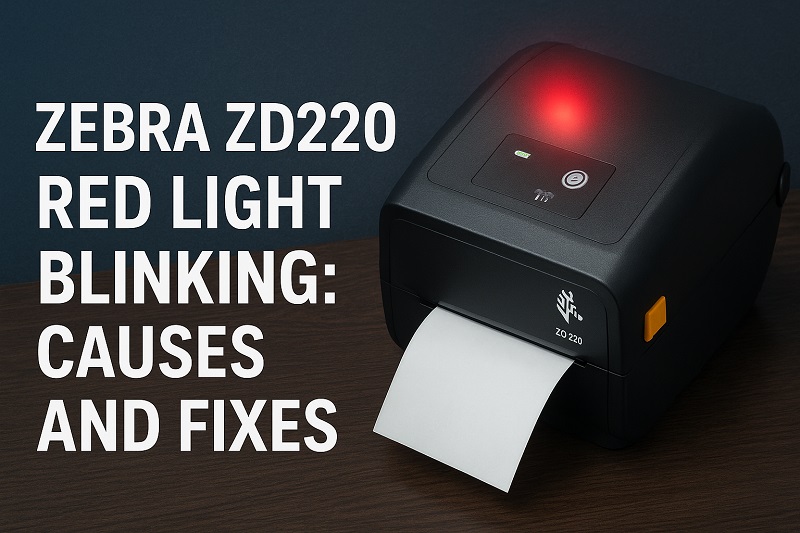
What That Red Light Really Means
Your Zebra ZD220 uses different colored lights to communicate its status. When everything’s working fine, you’ll see a solid green light. But when that light turns red and starts blinking, your printer has detected a problem that’s preventing it from operating normally.
The red light can blink in different patterns, and each pattern means something specific. Sometimes it blinks once, pauses, then blinks again. Other times it might blink rapidly without stopping. These patterns are like morse code, telling you exactly what’s wrong if you know how to read them.
Most people panic when they see that red light, but there’s usually no need to worry. The printer isn’t broken beyond repair. In fact, the blinking light is actually helpful because it stops the printer from making the problem worse. Think of it as a safety feature that protects both your printer and your labels from getting damaged.
Your printer might also pause mid-job when the red light appears. This can leave you with half-printed labels or a ribbon that’s stuck halfway through. The printer does this intentionally to prevent wasting materials and to give you a chance to fix the issue before continuing.
Zebra ZD220 Red Light Blinking: Likely Causes
Several things can trigger that red light on your ZD220. Understanding these causes helps you fix the problem faster and prevents it from happening again in the future.
1. Label Roll Loaded Incorrectly
Your printer needs labels to be loaded in a very specific way. If the labels aren’t sitting right on the spindle or if they’re threaded through the wrong path, the printer’s sensors can’t detect them properly.
The sensor that checks for labels is a tiny component inside the printer. When labels aren’t positioned correctly, this sensor either can’t see them at all or gets confused about where they are. This triggers the red light because the printer thinks it’s out of labels even when it’s not.
Sometimes the labels might look like they’re loaded fine from the outside, but internally they’re slightly off. Even a millimeter can make a difference with these sensors. Your printer is precise, and it needs everything lined up just right to work.
2. Ribbon Problems or Misalignment
If you’re using thermal transfer printing, your printer needs a ribbon to print. This ribbon has to wind through a specific path and sit perfectly aligned between the printhead and the labels. Any deviation from this path causes problems.
Ribbons can get twisted as they unwind, especially if they were stored improperly or if the roll wasn’t manufactured perfectly. A twisted ribbon won’t make proper contact with the labels, and the printer knows this. The sensors detect the misalignment and trigger the red light to prevent printing disasters.
3. Printhead Issues
The printhead is the component that actually creates your labels. It’s a delicate piece of equipment that heats up to transfer ink from the ribbon to your labels, or in direct thermal mode, it heats the label material itself to create an image.
Over time, printhead surfaces collect dust, adhesive residue from labels, and general grime. This buildup creates an insulating layer that prevents proper heat transfer. Your printer’s sensors detect that the printhead isn’t functioning at optimal levels and throw up that red light as a warning.
Physical damage to the printhead can also cause this. If something hard scratched the surface or if there’s a burned-out section, the printer can’t print properly. These printheads aren’t cheap to replace, so your printer warns you early with that blinking light before things get worse.
4. Paper or Label Jam
Jams happen more often than you’d think, even with quality printers like the ZD220. A piece of label backing might tear off and get stuck inside. Or a label might peel away from its backing mid-print and wedge itself somewhere it shouldn’t be.
These jams physically block the path that labels need to travel through your printer. When the sensors detect that labels aren’t moving forward as they should, the red light comes on immediately. Your printer stops to prevent the jam from getting worse and potentially damaging internal components.
5. Sensor Calibration Problems
Your printer has several sensors that detect labels, gaps between labels, and the ribbon position. These sensors need to be calibrated to match the specific labels and ribbons you’re using.
When you switch to a different label size or a different type of material, the sensors might not recognize them properly. The printer expects one thing based on its current calibration, but it’s seeing something different. This mismatch confuses the system and triggers the red light.
Environmental factors like dust accumulation on the sensors can throw off their readings too. Even if you haven’t changed your labels, dirty sensors might start giving false readings after weeks or months of use.
Zebra ZD220 Red Light Blinking: DIY Fixes
You can resolve most red light issues yourself with some simple troubleshooting. These fixes are arranged from simplest to most involved, so start at the top and work your way down.
1. Check and Reload Your Labels
Open the printer cover and take a look at how your labels are loaded. Pull them out completely, then reload them following the diagram on the inside of the printer cover.
Make sure the labels are centered on the spindle and that they’re feeding straight through the guides. The guides should gently touch both edges of the label roll without crushing it. If the guides are too loose, adjust them inward until they just barely touch the edges.
Thread the labels through the sensor area carefully. There’s usually a clear path marked inside the printer showing exactly where labels should go. Once everything’s in place, close the cover and press the feed button to test. The printer should recognize the labels and stop blinking red.
2. Inspect and Reseat the Ribbon
If you’re using thermal transfer mode, open the printer and examine the ribbon path. Look for any twists, wrinkles, or areas where the ribbon looks damaged.
Remove both the supply and take-up ribbons completely. Check that you’re using the correct ribbon type for your printer settings. Zebra printers can be picky about ribbon specifications. Reload the ribbon carefully, making sure it winds through every guide point shown in the manual.
Pay special attention to the tension. The ribbon should be snug but not overly tight. Too much tension can cause it to snap, while too little tension leads to wrinkles and poor print quality. After reloading, manually advance the ribbon a bit using the feed button to ensure it’s moving smoothly through the entire path.
3. Clean the Printhead
Power off your printer and let the printhead cool down completely. This is important because printheads get extremely hot during operation and you could burn yourself.
Use a printhead cleaning pen or a cotton swab dipped in isopropyl alcohol. Gently wipe across the entire length of the printhead in one direction. Don’t scrub back and forth, as this can damage the delicate surface. You’ll probably see dirt and residue coming off on your swab.
Let the printhead dry for a few minutes before closing the printer and powering it back on. Clean printheads improve print quality and prevent future errors. Make this part of your regular maintenance routine every few weeks.
4. Look for and Remove Jams
Check every area where labels travel through your printer. Start at the label entry point and trace the path all the way to where labels exit.
Common jam spots include the area around the printhead, the space between the platen roller and the printhead, and the output slot. Use a flashlight to see into tight spaces. If you find any stuck label pieces, remove them carefully with tweezers or your fingers.
Steps to clear a jam:
- Power off the printer completely
- Open all access doors and covers
- Remove the label roll and ribbon
- Look for torn pieces of labels or backing paper
- Gently pull out any stuck material
- Rotate the platen roller by hand to check for resistance
- Reload everything once the path is completely clear
5. Run a Sensor Calibration
Your printer can recalibrate its sensors to match your current labels. This process takes just a minute and fixes many mysterious red light issues.
Press and hold the feed button while you turn on the printer. Keep holding until the printer starts a calibration cycle. You’ll see labels feeding through as the printer learns their size and the gaps between them.
Let the calibration complete without interrupting it. The printer will feed several labels, pause, then feed a few more. When it’s done, the status light should turn solid green. Try printing a test label to confirm everything’s working properly.
6. Check Printer Settings and Driver Configuration
Sometimes the issue isn’t mechanical at all. Your computer might be sending instructions that don’t match your actual printer setup.
Open your printer settings on your computer and verify that the label size, print mode (direct thermal or thermal transfer), and darkness settings match what you’re actually using. Mismatched settings can confuse the printer and trigger error lights.
If you recently updated your operating system or printer driver, try rolling back to the previous version or reinstalling the current driver fresh. Driver glitches can cause communication errors between your computer and printer.
7. Contact Zebra Support or a Qualified Technician
If you’ve tried everything and that red light keeps blinking, it’s time to get professional help. There might be an internal component failure or a more complex issue that requires specialized tools to diagnose.
Zebra offers technical support that can walk you through advanced troubleshooting steps. They can also tell you if your printer needs repair or if it’s still under warranty. Sometimes a faulty sensor or a damaged internal component needs replacement, and trying to fix these yourself could void your warranty or cause more damage.
Wrapping Up
That blinking red light on your Zebra ZD220 doesn’t have to ruin your day. Most of the time, it’s pointing to something simple like labels that need reloading or a printhead that needs cleaning. By working through these fixes systematically, you can usually get back to printing within minutes.
Regular maintenance prevents many of these issues from happening in the first place. Clean your printhead weekly, check your label alignment before starting big print jobs, and keep your printer in a clean environment. These small habits keep your ZD220 running smoothly and that red light stays off where it belongs.