There’s a yellow light blinking on your HP printer right now. You’ve got a report due in an hour, or maybe you’re printing concert tickets you bought weeks ago. Whatever it is, your printer has decided this exact moment is perfect for throwing a fit.
Here’s what you need to know. That yellow light is actually helpful once you understand it. Your printer is basically tapping you on the shoulder and saying something needs fixing. Most times, it’s nothing serious. Paper got stuck. A cartridge isn’t sitting right. A door didn’t close all the way. Small stuff that takes maybe ten minutes to sort out.
This guide shows you exactly what that light means and walks you through every fix that actually works. No tech speak. No vague suggestions. Just clear steps that get your printer working again.
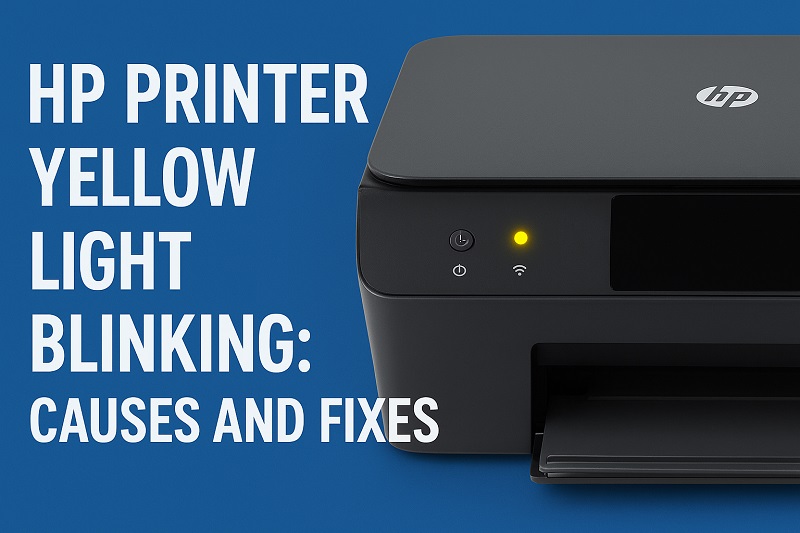
What’s Going On When That Yellow Light Blinks
HP printers talk to you through lights. Green means everything’s fine. Blue also means you’re good to go, depending on which model you own. Yellow means stop and pay attention. Something’s off, and your printer won’t do anything until you fix it.
This isn’t a total breakdown situation. Yellow is a warning, not a crisis. Your printer caught a problem early and put itself on pause. Different printers blink in different ways. Some flash quickly. Others blink slowly. The speed and pattern can mean slightly different things, but they all point to the same group of usual suspects.
You can’t just ignore this and hope it goes away. Your printer will sit there blinking at you for days if you let it. Some models might squeeze out one print job before they completely stop. Others quit immediately. Either way, you’re stuck until you deal with whatever triggered the alert.
The thing is, HP put these lights there to make your life easier. Instead of making you guess what’s broken, the yellow blink tells you where to start looking. Nine times out of ten, you’re dealing with paper issues, ink cartridge problems, or something that didn’t connect properly. All things you can fix yourself without calling anyone or spending money.
HP Printer Yellow Light Blinking: Common Causes
A handful of problems cause nearly every yellow light situation. Once you know what you’re looking for, fixing things gets way easier. Here’s what’s probably happening inside your printer right now.
1. Paper Jam or Misaligned Paper
Paper jams cause more blinking yellow lights than anything else. A tiny piece of torn paper hiding somewhere inside will set off the sensors. Your printer has rollers and sensors all through the path where paper travels. When paper tears or crumples up, bits get stuck in spots you can’t see from the outside. Sometimes paper feeds in crooked without actually jamming, and the sensors still freak out about it.
Paper jams happen more when you use cheap paper or when it’s really humid. Humidity makes sheets stick together. Your printer grabs two sheets at once, they crumple inside, and everything stops. The sensors catch the problem and shut down the whole operation before your print head gets damaged.
2. Ink Cartridge Problems
Your cartridges might be empty, pushed in wrong, or just not talking to the printer properly. HP printers are picky about how cartridges sit in their slots. You need to hear that click when you push one in. If you don’t hear it, the little electrical contacts aren’t touching, and your printer can’t tell the cartridge is even there. So it blinks yellow and refuses to print.
New cartridges come with protective tape that has to come completely off. That thin orange or pink strip blocks the ink from flowing. Your printer tries to use the cartridge, realizes no ink is coming out, and decides something must be wrong. Sometimes old dried ink builds up on the contacts and blocks the connection between cartridge and printer.
Third-party cartridges can be tricky too. Lots of them work great, but some don’t have the right chip that HP printers look for. Your printer might reject them completely or work sometimes and fail other times, blinking yellow whenever it can’t read the cartridge info it expects to find.
3. Printer Door or Cover Not Closed Properly
Printers have doors and covers everywhere, and every single one has a tiny sensor checking if it’s closed. If even one door is open a crack, your printer thinks you’re still messing around inside and won’t start. The yellow light blinks to tell you something’s still open.
This happens constantly. You check your ink levels or clear a jam and don’t quite push the door hard enough when you close it. Maybe something sitting next to your printer is blocking a side panel from shutting all the way. The latch feels closed to you, but that sensor disagrees and keeps the printer locked down.
4. Outdated or Corrupted Printer Drivers
Drivers are the software that lets your computer and printer understand each other. When drivers get old or messed up, your printer starts acting weird. It gets confused commands from your computer and pauses while trying to figure out what you want. That’s when the yellow light starts blinking.
This usually happens after you update Windows or macOS. Your computer gets the newest version of everything, but your printer driver stays old. They stop speaking the same language, and errors pile up. Sometimes a printer software update fails halfway through and leaves broken files that kill the connection between computer and printer.
5. Network or Connection Issues
Wireless printers lose their connection to WiFi all the time, and that sets off the yellow light. Your printer might have dropped off your network completely, or maybe the signal is too weak where the printer sits. When it can’t keep a steady connection, that light starts blinking to let you know.
USB printers have their own headaches. Loose cables, broken USB ports, or using the wrong kind of USB cable all mess up communication. Your computer thinks the printer is connected fine, but the printer disagrees, and there’s your blinking yellow light.
HP Printer Yellow Light Blinking: DIY Fixes
Time to fix this thing. These solutions go from easiest to slightly more involved. Start at the top and work down the list until your printer stops complaining.
1. Check for and Remove Paper Jams
Turn off your printer and unplug it from the wall. This resets everything and makes it safe to poke around inside. Open every door and panel you can find. The main paper tray, the back panel, the top cover where cartridges live. Grab a flashlight and look everywhere for stuck paper.
When you find jammed paper, pull it out slowly. Yanking just tears it and leaves pieces behind that are harder to find. If it won’t budge, stop pulling and try from a different angle. Turn the rollers with your fingers and check between them for tiny paper scraps. Tweezers help you grab small pieces you can’t reach with your fingers.
After you’ve checked everywhere and pulled out all the paper you found, close all the doors firmly. Plug the printer back in and turn it on. If paper was your problem, that yellow light should stop blinking now. Still going? Move to the next fix.
2. Reseat the Ink Cartridges
Open the door where your ink cartridges sit. The carriage will slide to the middle. Wait until it completely stops moving before you touch anything. Take out each cartridge one at a time by pressing down gently and pulling it straight out.
Look at each cartridge for protective tape. Any orange or pink strips need to come off completely. Check the copper or gold contacts on each cartridge. Dirty contacts or dried ink? Wipe them gently with a clean cloth that’s barely damp with distilled water. Let them dry for a minute.
Push each cartridge back in firmly until you hear or feel it click into place. Make sure each color goes in its correct spot. Close the cartridge door. Your printer might take a minute to initialize before the yellow light stops blinking.
3. Verify All Doors and Covers Are Closed
Walk around your printer and push on every single door, panel, and cover you can find. Really push them to make sure they’re latched. The cartridge door is usually the problem, but check the back panel and any side covers your model has too. Sometimes a latch wears out and won’t catch right even when the door looks closed.
If a door won’t stay shut, look for things blocking it. Pull your printer away from the wall so nothing’s in the way. Check the latches for broken plastic bits that might stop the door from closing all the way.
4. Restart Your Printer and Computer
This sounds too basic to work, but it does. Turn off your printer with its power button, then unplug it from the wall. Wait a full minute. This clears out the printer’s memory completely.
Restart your computer while you’re waiting. This refreshes how your computer talks to the printer. After your computer comes back on, plug your printer back in and power it up. Let it finish starting up completely. A simple restart fixes communication problems more often than you’d think.
5. Update Your Printer Drivers
Go to HP’s support website and find your exact printer model. Download the newest driver for your operating system. Before you install the new one, uninstall your old printer software. This stops old and new files from fighting each other.
Run the file you downloaded and do what it tells you. Installation takes about five to ten minutes. Don’t interrupt it or close anything until it’s completely done. When it finishes, restart your computer one more time. Fresh drivers should fix any communication problems that caused the yellow blinking.
6. Reset Your Printer’s Network Connection
For wireless printers, reconnect to your WiFi from scratch. Find the wireless button on your printer’s control panel. Go into the wireless setup menu and pick your network from the list. Type in your WiFi password carefully. One wrong letter or number and it won’t connect.
If you use a USB cable, unplug it from both ends. Look at the cable for damage. Try plugging into a different USB port on your computer. Use a port right on the computer, not on a hub. Plug everything back in tight.
After reconnecting, print a network test page from your printer’s settings. This tells you if your printer can see the network. If the connection looks good but that yellow light keeps blinking, something else is wrong.
7. Contact a Qualified Printer Technician
You’ve tried everything on this list and that yellow light is still going. Something bigger is broken. Internal sensors can fail. The mainboard can go bad. Mechanical parts wear out. These problems need someone who knows what they’re doing. Call HP support or find a printer repair shop near you.
Before you call, write down your printer’s exact model number and what you already tried. This saves time and helps the tech understand what’s happening faster. Some problems need replacement parts that regular people shouldn’t try to install themselves.
Wrap-Up
A blinking yellow light doesn’t mean your printer is toast. Most times, it’s pointing you straight to a quick fix. Paper stuck somewhere, a cartridge that needs adjusting, or a loose connection. These are the usual culprits, and you just learned how to handle every one of them.
Start simple. Look for paper. Pop out your cartridges and put them back in. Make sure everything’s closed tight. These quick checks fix the problem way more often than you’d expect. If you need to mess with drivers or reset your network, just take it slow and follow each step. Your printer will be working again soon.