You’ve added a photo on your phone, but it won’t show up on your laptop. Or maybe you saved a file in the cloud, and it refuses to appear on your tablet. This frustrating situation happens more often than you’d think.
Syncing problems can mess up your day. Files go missing. Photos stay stuck on one device. Your calendar events show up late, or they don’t show up at all.
Today, we’ll look at what syncing really means, why it stops working, and how you can fix it yourself without calling tech support.
Understanding Syncing Problems
Syncing is basically your devices talking to each other and sharing information. Think of it like passing notes between friends, except these notes are your photos, files, contacts, and calendar events. Your phone sends the note to a middle person (usually a cloud service), and that middle person passes it along to your computer or tablet.
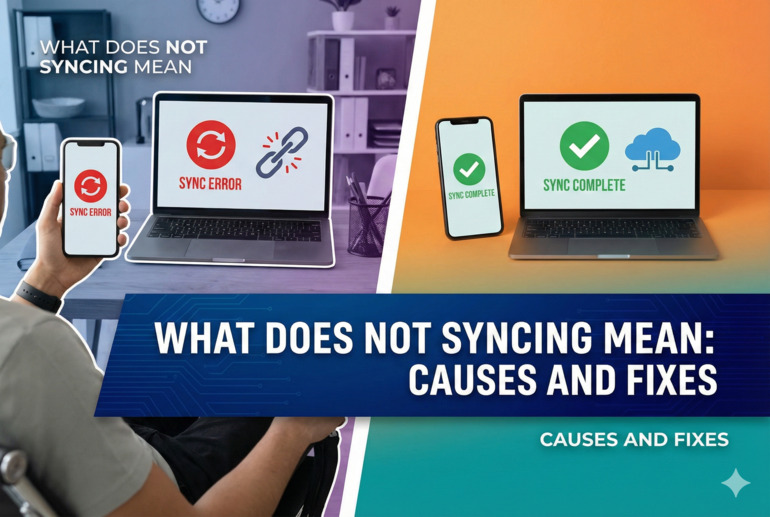
When syncing fails, that note-passing system breaks down. Your devices can’t share information anymore. A photo you take stays trapped on your phone. A document you edit on your laptop doesn’t update on your tablet. Your contacts remain outdated across different devices.
This breakdown can happen in different ways. Sometimes syncing stops completely, and nothing moves between your devices. Other times, syncing works but takes forever to finish. You might also see partial syncing, where some items transfer but others get left behind.
If you ignore syncing problems, things get messy fast. You’ll end up with different versions of the same file scattered across your devices. Your phone might have one version of a document while your computer has a completely different one. This creates confusion, lost work, and wasted time trying to figure out which version is the right one.
What Does Not Syncing Mean: Likely Causes
Several things can stop your devices from sharing information properly. Let’s look at the most common culprits that break the syncing process.
1. Poor Internet Connection
Your devices need a steady internet connection to sync properly. Think of the internet as a bridge your data crosses to get from one device to another. If that bridge has holes or keeps shaking, your data can’t make the trip safely.
Weak WiFi signals create a major problem here. When your phone or laptop sits too far from the router, the connection gets spotty. Your device might connect and disconnect repeatedly, interrupting the syncing process midway.
Mobile data can cause similar issues. If you’re in an area with weak cellular coverage, your phone struggles to send information to the cloud. The syncing process starts, then stops, then starts again, creating an endless loop that never finishes.
2. Storage Space Running Out
Your devices and cloud accounts have limited space. When that space fills up, syncing grinds to a halt. Your phone can’t upload new photos because your cloud storage is maxed out. Your computer can’t download files because the hard drive is too full.
This happens more than you’d expect. People snap hundreds of photos, download apps they barely use, and forget about old files taking up room. Before long, there’s no space left for new data to sync.
3. Outdated Apps or Software
Apps need regular updates to work properly. These updates fix bugs, improve performance, and keep the syncing features running smoothly. When you skip updates, you’re using old code that might have syncing problems built right in.
Your operating system matters too. An outdated phone or computer system can’t communicate well with newer cloud services. The old software speaks a different language than the new services, causing miscommunication that breaks syncing.
Sometimes, app developers change how syncing works in newer versions. If you’re still using an old version, it might try to sync using methods that no longer work. This creates a disconnect between what your device wants to do and what the cloud service expects.
4. Account and Permission Issues
Syncing requires proper login credentials and permissions. If your account details are wrong or your login session expired, syncing stops working. Your device tries to access the cloud service, but the service doesn’t recognize you anymore.
Two-factor authentication can complicate things. You might have enabled extra security on your account, but forgot to complete the verification step on one of your devices. That device now sits locked out, unable to sync.
Permission settings play a big role too. Maybe you changed privacy settings on your phone and accidentally blocked the syncing app from accessing your photos or files. The app wants to sync but doesn’t have permission to grab the data it needs.
5. Conflicting Files or Corrupted Data
Files with the same name can confuse the syncing system. If you edited a document on two different devices without syncing in between, both devices now have different versions with the same filename. The system doesn’t know which version to keep, so it freezes.
Corrupted files throw another wrench in the works. A photo file might get damaged during transfer or editing. When the syncing system tries to handle this broken file, it gets stuck. The corruption spreads through the syncing queue, blocking other files from transferring.
What Does Not Syncing Mean: DIY Fixes
Getting your devices back in sync doesn’t require expert skills. Here are practical steps you can take right now to fix the problem.
1. Check Your Internet Connection
Start with the basics. Open a web browser and try loading a few websites. If pages load slowly or don’t load at all, your internet connection is the problem.
Move closer to your WiFi router if possible. Walls and distance weaken the signal, so getting nearer can make a huge difference. Try turning WiFi off and back on again on your device. This simple reset often fixes temporary connection glitches.
If you’re using mobile data, check your signal strength. Look for the bars at the top of your phone screen. Less than three bars means weak coverage that could interrupt syncing. Switch to WiFi if available, or move to a spot with better cellular reception.
2. Free Up Storage Space
Check how much storage you have left on your device and in your cloud account. On most phones, you can find this in Settings under Storage. For cloud accounts, log in through a web browser to check your available space.
Start deleting items you don’t need anymore. Old photos, unused apps, and downloads you’ve forgotten about eat up valuable space. Your device and cloud service both need breathing room to sync properly.
Back up important files to an external hard drive before deleting them. This keeps your data safe while freeing up space for syncing. Once you’ve cleared enough room, try syncing again.
3. Update Your Apps and Software
Open your device’s app store and check for updates. Most apps show a pending updates section. Install all available updates, especially for the apps you use for syncing like cloud storage services or photo apps.
System updates matter just as much. Go to your device settings and look for software update options. If an update is available, download and install it. These updates often fix known syncing bugs.
After updating, restart your device completely. Turn it off, wait a few seconds, then turn it back on. This gives the new software a fresh start and clears out any lingering issues from the old version.
4. Sign Out and Sign Back In
Sometimes your account just needs a fresh login. Open the app that’s having syncing trouble and find the account settings. Sign out completely, then sign back in using your username and password.
This refreshes your login session and clears any authentication problems that might be blocking syncing. Make sure you’re using the correct password. A wrong password, even if you can log in, can cause partial syncing failures.
For services with two-factor authentication, complete all verification steps carefully. Check your phone for verification codes or approve the login attempt in your authenticator app. Missing this step leaves your account in a half-logged-in state that blocks syncing.
5. Toggle Sync Settings Off and On
Find the sync settings in your app or device settings. Look for options labeled Sync, Auto-Sync, or Backup. Turn these settings off completely.
Wait about 30 seconds. This pause gives the system time to fully stop all syncing processes. Then turn the settings back on. This restart often clears temporary glitches that were blocking the syncing process.
Check individual sync options too. Many apps let you choose what to sync, like contacts, calendar, photos, or files. Make sure the items you want to sync are actually enabled in these settings.
6. Clear App Cache and Data
Apps store temporary files called cache to work faster. Sometimes this cache gets cluttered or corrupted, causing syncing problems. You can clear it without losing your important data.
Go to your device settings and find the app manager or applications section. Locate the syncing app, tap on it, and look for options to clear cache. Do this first because it’s safe and won’t delete your account information.
If clearing cache doesn’t help, try clearing app data. This resets the app to its original state, so you’ll need to log in again afterwards. Your synced content should still be safe in the cloud, but the app itself gets a fresh start.
7. Contact Technical Support
If none of these fixes work, you’re dealing with a problem that needs expert help. Reach out to the support team for your specific service or device. Most companies offer free technical support through email, chat, or phone.
Before contacting support, write down what you’ve already tried. This saves time and helps the support person understand your situation faster. Have your account information ready too.
Wrapping Up
Syncing keeps your digital life organized across all your devices. When it stops working, you don’t have to panic or feel helpless.
Most syncing problems come from simple issues like weak internet, full storage, or outdated software. You can fix these yourself using the steps we’ve covered. Start with the easiest solutions first, then work your way through the list until syncing starts working again. Your devices will be sharing information smoothly before you know it.