You glance at your computer clock and notice it’s showing the wrong time. Maybe it’s off by a few minutes, or perhaps it’s hours behind. Either way, your Windows 11 PC refuses to keep the correct time, and it’s throwing off your whole day.
This might seem like a small annoyance, but an incorrect system clock can cause real problems. Files get stamped with wrong dates. Websites show security errors. Your calendar reminders fire at odd moments. In this article, you’ll learn exactly why this happens and how to fix it yourself without calling anyone for help.
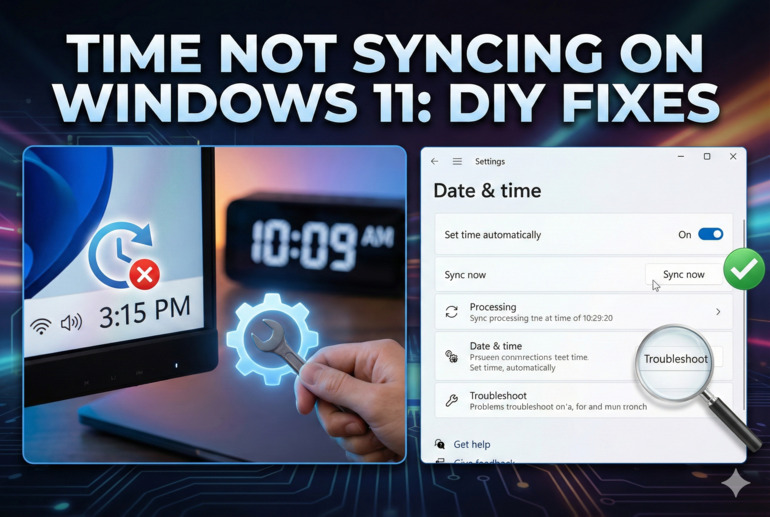
What Does “Time Not Syncing” Actually Mean?
Your Windows 11 computer has a built-in clock that keeps track of the current time. To stay accurate, this clock connects to special time servers on the internet. These servers have super precise clocks that tell your computer exactly what time it is. This process of checking and updating is called time synchronization, or “time sync” for short.
When time sync fails, your computer can’t reach these servers or something blocks the update. Your PC then relies on its own internal clock, which slowly drifts away from the real time. Think of it like a wristwatch that loses a few seconds every day. After a week, you’re already a minute off. After a month, you might be five or ten minutes behind.
The effects go beyond simple inconvenience. Many apps and services depend on accurate time. Two-factor authentication codes won’t work if your clock is too far off. Online banking might reject your login. Video calls might not connect properly because the other person’s computer thinks you’re in a different time zone. Some software licenses even stop working when they detect a big time mismatch.
Your computer stores time in two ways. There’s the software clock that Windows manages, and there’s a tiny hardware clock on your motherboard that runs even when your PC is off. Problems with either one can cause sync failures, and figuring out which one is acting up helps you find the right fix faster.
Time Not Syncing on Windows 11: Likely Causes
Several things can stop your computer from keeping the right time. Understanding what’s behind the problem makes fixing it much easier.
1. Windows Time Service Not Running
Windows uses a special background program called the Windows Time Service to handle all the sync work. If this service stops running or gets stuck, your clock won’t update no matter what you try.
Sometimes Windows updates turn off this service by accident. Other times, another program might interfere with it. You won’t see any error message when this happens. Your clock just quietly falls behind while you go about your day, unaware that the sync process has completely stopped.
2. Wrong Time Server Settings
Your computer needs to know which time server to contact. Windows comes with a default server address, but this setting can get changed or corrupted. Maybe you or someone else typed in a wrong address. Maybe a software glitch erased the setting entirely.
When your PC tries to reach a server that doesn’t exist or isn’t responding, the sync fails silently. Your computer shrugs its shoulders and keeps using whatever time it already has. This is especially common on computers that have been through multiple Windows upgrades over the years.
3. Firewall or Network Blocking
Time sync uses specific pathways through your network and the internet. Firewalls, both the one built into Windows and any extra security software you’ve installed, sometimes block these pathways by mistake.
Corporate networks and school networks often have strict rules about what traffic can pass through. If you’re using your laptop at work or on a public Wi-Fi network, the network itself might be stopping the time sync from happening. Your computer can’t reach the time server, so it gives up and stays out of sync.
Even your home router could be the culprit. Some routers have built-in security features that accidentally block the connection your computer needs to check the time.
4. Dead or Dying CMOS Battery
Inside your computer sits a small battery about the size of a coin. This battery powers the hardware clock on your motherboard when your PC is turned off. It’s called a CMOS battery, and it typically lasts three to five years.
When this battery starts dying, your computer loses track of time whenever you shut it down. You might notice the clock resetting to a date years in the past every time you start your PC. Even if Windows syncs the time after you log in, the underlying problem remains until you replace that little battery.
5. Conflicting Time Zone Settings
Windows handles time zones in a specific way, and sometimes things get tangled up. You might have your time zone set correctly, but a setting deep in the system could be telling Windows to do something different.
This happens frequently when people travel with their laptops or when automatic time zone detection picks the wrong location. Your computer thinks it’s in Tokyo when you’re actually in Toronto, and every sync attempt makes things worse instead of better.
Time Not Syncing on Windows 11: DIY Fixes
Most time sync problems have straightforward solutions you can try at home. Work through these fixes one at a time until your clock starts behaving again.
1. Restart the Windows Time Service
The quickest fix is often restarting the service that handles time sync. This clears out any stuck processes and gives the system a fresh start.
Press the Windows key and type “services” then hit Enter. In the window that opens, scroll down until you find “Windows Time” in the list. Right-click on it and select “Restart” from the menu. If the restart option is grayed out, click “Start” instead.
After doing this, right-click on the clock in your taskbar and choose “Adjust date and time.” Toggle off “Set time automatically” then toggle it back on. This forces Windows to try syncing right away with a freshly running service.
2. Change Your Time Server
Switching to a different time server can solve problems caused by unreachable or slow default servers. Windows lets you pick from several options or even add your own.
Open Settings by pressing Windows key plus I. Go to “Time & language” then “Date & time.” Scroll down and click “Additional clocks” then select the “Internet Time” tab. Click “Change settings” and you’ll see a dropdown menu with server options.
Try “time.windows.com” first. If that doesn’t work, switch to “time.nist.gov” which is run by the U.S. government and very reliable. Click “Update now” after selecting a new server to test it immediately.
3. Use Command Prompt to Force a Sync
Sometimes the graphical menus don’t cooperate, and you need to go straight to the source. The Command Prompt lets you force a time sync with a few typed commands.
Click the Start button and type “cmd” then right-click on Command Prompt and choose “Run as administrator.” You need admin rights for this to work. Once the black window opens, type these commands one at a time, pressing Enter after each:
- net stop w32time (this stops the time service)
- w32tm /unregister (this removes the old settings)
- w32tm /register (this sets up fresh settings)
- net start w32time (this starts the service again)
- w32tm /resync (this forces an immediate sync)
Watch for any error messages. If everything says “successful” or “completed,” your time should update within a few seconds.
4. Check Your Firewall Settings
Your security software might be blocking the time sync without telling you. You’ll need to add an exception or temporarily test with the firewall off.
Open Windows Security by clicking the shield icon in your taskbar or searching for it in the Start menu. Go to “Firewall & network protection” and click “Allow an app through firewall.” Look for “Windows Time” in the list and make sure both the Private and Public boxes are checked.
If you use third-party security software like Norton, McAfee, or Bitdefender, check their settings too. Look for options related to network access or application permissions. You might need to add w32time.exe to an allowed list.
5. Replace the CMOS Battery
If your clock resets to an old date every time you shut down, the CMOS battery is probably dead. Replacing it is simple and cheap, usually costing less than five dollars.
For a desktop computer, turn off and unplug your PC. Open the side panel and look for a shiny silver disc about the size of a nickel on the motherboard. Gently push the clip holding it in place and the battery will pop out. Take note of which side faces up. Buy a replacement CR2032 battery from any electronics store or pharmacy and snap the new one in the same way the old one sat.
Laptop batteries are trickier to reach. You’ll usually need to remove the bottom panel, and in some models, the battery hides under other components. Check your laptop’s manual or look up a video for your specific model before attempting this.
6. Contact a Professional Technician
If none of these fixes work, something deeper might be wrong. Corrupted system files, motherboard issues, or unusual software conflicts sometimes require expert eyes to sort out.
A local computer repair shop can run diagnostics that go beyond what you can do at home. They have tools to test hardware components and experience spotting obscure problems. Spending a little on professional help beats spending hours frustrated and still stuck with the wrong time on your screen.
Wrapping Up
A clock that won’t sync properly touches more of your daily computer use than you might expect. From login troubles to file confusion, the ripple effects spread quickly. The fixes covered here handle the vast majority of cases, so there’s a strong chance one of them will get your time back on track.
Take it step by step, starting with the simplest solutions before moving to the more involved ones. Most people find their answer within the first three or four attempts. And once your clock shows the right time again, your apps, websites, and schedules will all fall back into place where they belong.