You grab your Samsung phone, open the email app, and nothing new shows up. You know there should be messages waiting for you because you checked on your computer five minutes ago. But your phone just sits there, showing the same old emails from yesterday.
This syncing issue is one of the most common complaints Samsung users have. It can mess up your day, especially if you rely on your phone for work or important updates. In this post, you will learn why this happens and how to fix it yourself without needing to visit a repair shop.
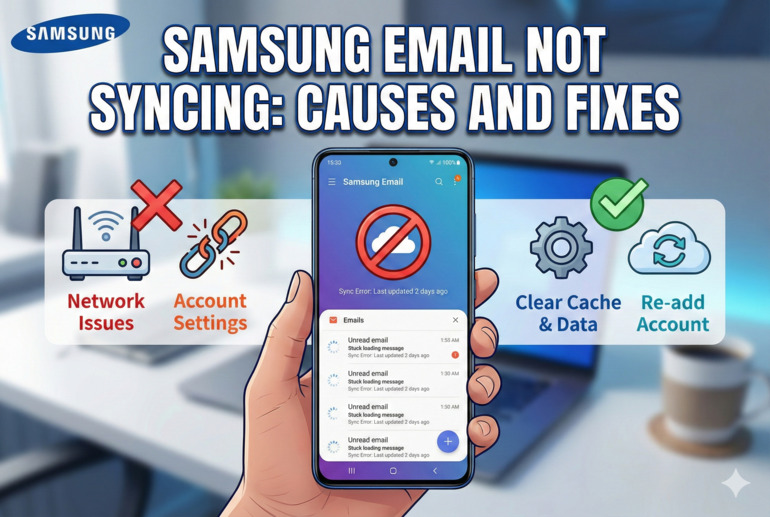
What Does “Email Not Syncing” Actually Mean?
Your Samsung phone is supposed to talk to your email server regularly. Think of it like two friends who check in with each other throughout the day. Your phone asks the server, “Hey, any new messages?” and the server sends them over. When syncing stops working, that conversation breaks down. Your phone either stops asking, or the server stops answering.
The signs are pretty easy to spot. You might notice that emails you already read on another device still show as unread on your Samsung. Or maybe new emails take hours to appear, if they show up at all. Some people find that their sent emails from the phone never make it to the server, so the message only exists on their device.
Leaving this problem unfixed can cause real headaches. You could miss important messages from your boss, your bank, or your family. Emails you send might get stuck in limbo, making people think you never replied. Over time, your inbox can get out of sync so badly that deleting an email on one device does nothing on the other.
Here are some quick signs that your Samsung email is not syncing properly:
- New emails appear late or not at all on your phone
- Read/unread status does not match across devices
- Sent emails stay only on your phone and do not appear elsewhere
- Deleted emails keep coming back like they were never removed
- Error messages pop up saying sync failed or connection lost
Samsung Email Not Syncing: Common Causes
Several things can break the sync between your Samsung phone and your email server. Understanding what went wrong makes fixing it much easier.
1. Sync Is Turned Off in Settings
This one catches a lot of people off guard. Your Samsung phone has a setting that controls whether apps can sync data in the background. If this gets turned off, your email app will not check for new messages unless you open it manually.
Sometimes this setting gets switched off by accident. Other times, a system update resets it. Either way, your phone sits quietly, never reaching out to the email server.
You might also have sync turned off for the email app specifically while keeping it on for other apps. Samsung lets you control sync on an app-by-app basis, which is helpful but can also lead to confusion.
2. Poor or Unstable Internet Connection
Your email needs the internet to sync. That sounds obvious, but the connection does not always have to be completely dead to cause problems. A weak Wi-Fi signal or spotty mobile data can interrupt the sync process halfway through.
When the connection drops during a sync, your phone might think the process finished when it actually did not. This leaves your inbox in a weird half-updated state.
3. Incorrect Account Settings
Email accounts need specific settings to work correctly. These include things like the server address, port numbers, and security options. If any of these get changed or entered wrong, your phone cannot talk to the email server properly.
This problem often shows up after you change your email password. Your phone still tries to use the old password, and the server keeps saying no.
4. Outdated Email App or System Software
Software updates often include fixes for bugs that cause syncing problems. Running an old version of the Samsung Email app or an outdated Android system can leave known issues unpatched on your phone.
Developers constantly find and fix problems with how apps connect to servers. Skipping updates means missing out on these fixes. Your phone might be struggling with a bug that was solved months ago.
5. Corrupted App Cache or Data
Every app on your phone stores temporary files called cache. This helps the app run faster by keeping frequently used data close at hand. But sometimes this cache gets messed up. Corrupted files can confuse the email app and stop it from syncing correctly.
The same goes for the app’s stored data. If something goes wrong with how the app saves your account information locally, syncing can break down completely.
Samsung Email Not Syncing: DIY Fixes
Most syncing problems have simple solutions you can try at home. Work through these fixes one at a time until your email starts working again.
1. Check and Enable Sync Settings
Start with the basics. Go to your phone’s Settings, then tap Accounts and backup, and select Manage accounts. Find your email account in the list and tap on it. Look for an option called Sync account and make sure it is turned on.
While you are there, check the master sync toggle too. Pull down your notification shade and look for a button that says Auto sync or shows a circular arrows icon. Make sure this is enabled.
After turning sync on, give your phone a minute, then open the email app to see if new messages appear.
2. Restart Your Phone and Check Your Internet
A simple restart fixes more problems than you might expect. Hold the power button, tap Restart, and wait for your phone to come back on. This clears out temporary glitches that could be blocking the sync.
Once your phone is back, test your internet connection. Open a web browser and load any website. If pages load slowly or not at all, your internet is the issue. Try these steps:
- Switch between Wi-Fi and mobile data to see if one works better
- Move closer to your router if using Wi-Fi
- Turn airplane mode on for 30 seconds, then turn it off to reset your connection
3. Remove and Re-add Your Email Account
Sometimes the best fix is starting fresh with your email account on the phone. This forces your device to set up the connection from scratch and can clear out any corrupted settings.
Before doing this, make sure you know your email address and password. Then follow these steps:
- Open Settings and go to Accounts and backup
- Tap Manage accounts and select your email account
- Tap Remove account and confirm your choice
- Go back to Manage accounts and tap Add account
- Select your email type and enter your login details
Your phone will download your emails again, and syncing should work properly.
4. Clear the Email App’s Cache and Data
Cleaning out the app’s stored files can fix stubborn syncing issues. This process will not delete your actual emails since those live on the server, but it will reset the app to a fresh state.
Here is how to do it:
- Open Settings and tap Apps
- Find and tap on Samsung Email (or whatever email app you use)
- Tap Storage
- Tap Clear cache first and test if syncing works
- If the problem continues, go back and tap Clear data
After clearing data, you will need to set up your email account again on the app.
5. Update Your Email App and Phone Software
Running the latest software gives you the best chance of avoiding bugs. Open the Galaxy Store or Play Store, search for your email app, and tap Update if one is available.
For your phone’s system software, go to Settings, then Software update, and tap Download and install. If an update is waiting, install it and restart your phone.
These updates often include specific fixes for syncing problems that Samsung and Google have already identified and solved.
6. Contact a Professional or Your Email Provider
If none of these fixes work, the problem might be bigger than a DIY solution can handle. Your email provider’s servers could be having issues, or your account might have a problem that needs attention from their support team.
Reach out to your email provider’s customer support. They can check if anything is wrong on their end and walk you through additional troubleshooting steps. For Samsung-specific issues, you can also visit a Samsung service center or contact Samsung support directly.
Wrapping Up
Email syncing problems on Samsung phones usually come down to settings, connection issues, or software glitches. The fixes are straightforward, and you can handle most of them in just a few minutes with no special tools or technical knowledge.
Your emails keep you connected to work, family, and everything in between. Taking a few minutes to troubleshoot when syncing breaks down is well worth the effort. Start with the simplest solutions and work your way up until your inbox is back to normal.