That amber light on your AirPods case won’t stop flashing, and you’re probably wondering if you need to start shopping for new earbuds. Before you panic or start counting how much money you’ll have to spend, take a breath.
Nine times out of ten, that blinking light is just your AirPods asking for some basic help. They’re not broken – they’re communicating. And the best part? You can usually get them working perfectly again without leaving your house or opening your wallet.
I’m going to show you exactly how to decode what that light means and fix whatever’s causing the trouble. These are real solutions that actually work, not just “try turning it off and on” nonsense.
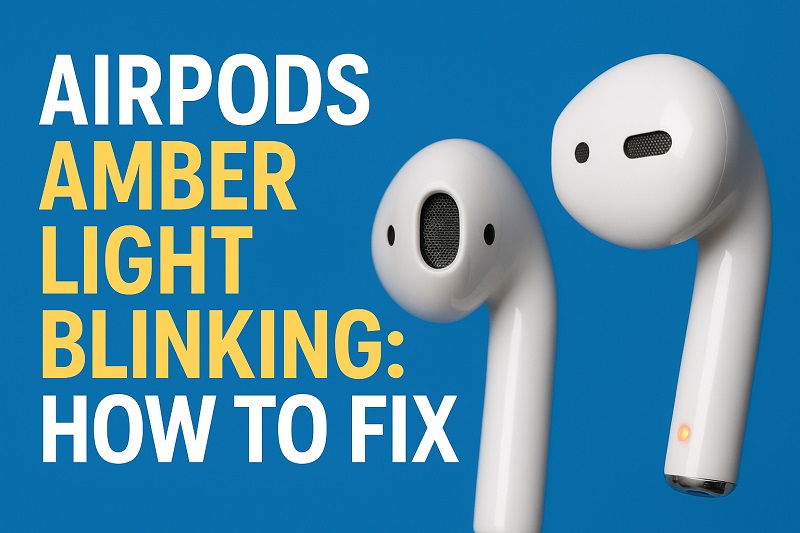
What That Amber Light Really Means
That little amber light is basically your AirPods’ way of saying “Houston, we have a problem.” It’s not trying to stress you out – it’s actually trying to help by giving you a heads up that something needs fixing.
Think of it like your car’s check engine light, but way less scary and much easier to deal with. The light shows up when your AirPods can’t do their job properly, whether that’s charging, connecting, or just working like they should.
When the light stays solid amber, that usually means one thing. But when it starts blinking? That’s when your AirPods are being more specific about what’s bothering them. The blinking pattern is like a secret message telling you exactly what kind of help they need.
Different problems make the light blink in different ways. Sometimes it’s a connection issue, sometimes it’s about power, and sometimes your AirPods just need a good reset to get their head back in the game. Once you know what to look for, fixing these problems becomes pretty straightforward.
AirPods Amber Light Blinking: Common Causes
A few different things can make that amber light start its blinking routine. Knowing which one is causing your headache makes fixing it a whole lot easier.
1. Your AirPods Are Stuck Trying to Connect
Sometimes your AirPods get confused about which device they should be talking to. Maybe you switched from your phone to your laptop, or maybe you accidentally messed up the Bluetooth settings somewhere along the way.
When this happens, your AirPods sit there blinking amber because they remember being connected to something, but they can’t make that connection work anymore. It’s like trying to call someone whose number got disconnected – the phone keeps trying, but nothing happens.
This gets really common when you use your AirPods with multiple devices throughout the day. Your iPhone, iPad, and MacBook all want to be friends with your AirPods, and sometimes they get their wires crossed about whose turn it is.
2. The Case Battery Is Almost Dead
Your AirPods case needs power to work properly. When the battery gets really low, weird stuff starts happening. The case might have just enough juice to show you that amber light, but not enough to actually charge your AirPods or keep a steady connection going.
A dying case creates all sorts of problems. Your AirPods might connect for a few seconds, then cut out when the case can’t keep up. That’s when you get that frustrating blinking pattern that makes you want to throw the whole thing across the room.
3. The Charging Spots Are Dirty
Those tiny metal circles inside your case? They get gross. Pocket lint, dust, random bits of stuff – it all ends up in there eventually, and when those contacts get gunked up, your AirPods can’t charge properly.
You’d be shocked at how much junk can build up in those little spaces. Every time you stick your AirPods in your pocket or bag, you’re basically inviting debris to come along for the ride.
The worse it gets, the harder it becomes for your AirPods to make a good connection with the case. That’s when the amber blinking starts, because your AirPods are trying to charge but can’t get the power they need.
4. Software Got Scrambled
Your AirPods have their own little computer inside, and sometimes that computer gets confused. Just like your phone or laptop, the software can glitch out and start acting weird, which shows up as blinking lights and connection problems.
This happens a lot after updates – either your AirPods get new software, or your phone does, and suddenly they don’t talk to each other as nicely as they used to. It’s like they’re speaking slightly different languages all of a sudden.
5. Something Got Banged Up
AirPods are pretty tough, but they’re not indestructible. Drop your case enough times, leave it in a hot car, or just use it heavily for a couple years, and things can start wearing out inside.
The damage isn’t always obvious from the outside. Internal parts might shift around, connections might get loose, or tiny circuits might develop problems that only show up as weird blinking patterns. This kind of issue usually develops slowly rather than happening all at once.
AirPods Amber Light Blinking: How to Fix
Most amber blinking problems are easier to fix than you think. Start with the simple stuff first – you’ll probably solve your problem without having to get fancy about it.
1. Give Your AirPods a Fresh Start
Resetting your AirPods is like rebooting your computer when it’s acting up. It clears out all the digital cobwebs and gives everything a chance to start over clean. This fix works about 70% of the time, which makes it worth trying first.
Put both AirPods in the case and shut the lid. Count to 30, then open it back up and find that little button on the back of the case. Hold that button down for about 15 seconds until the light changes from amber to white.
When you see white light, you’re golden. Your AirPods just wiped their memory clean, so you’ll need to set them up again like they’re brand new. But all those software hiccups that were causing the blinking? Gone.
2. Clean Out the Gunk
This sounds too simple to work, but cleaning your AirPods case fixes more problems than you’d expect. Get a cotton swab or a clean, soft toothbrush and gently scrub those metal contact points inside the case and on your AirPods.
Focus on those circular spots where your AirPods sit. They need perfect contact to charge properly and talk to each other. Get rid of any fuzz, dust, or random particles you can see, but don’t go crazy – these parts are delicate.
Pop your AirPods back in after cleaning and see if the blinking stops. Sometimes all they needed was a good cleaning to get back to normal.
3. Charge Everything Up
Plug your case into power and let it sit for at least an hour. Use the Lightning cable that came with it, or put it on a wireless charger if your case supports that. Don’t mess with it while it’s charging – just let it do its thing.
The amber light might keep blinking at first, but that’s normal. Eventually it should turn solid amber, then green when everything’s fully charged. If your case battery was completely dead, this process takes time.
4. Update Your Phone or Computer
Old software causes all kinds of connection headaches. Check if your iPhone, iPad, or whatever device you’re using has any updates waiting. Installing fresh software often fixes compatibility problems between your device and your AirPods.
On your iPhone, go to Settings, then General, then Software Update. For Mac computers, click the Apple menu and look for System Updates. Getting the latest software keeps your AirPods happy too, since they update automatically when connected to an updated iOS device.
5. Start Over With Pairing
Sometimes the connection between your AirPods and your device gets corrupted beyond repair. When that happens, you need to wipe the slate clean and start fresh. Go to your Bluetooth settings and remove your AirPods completely.
After you’ve deleted them from your device’s memory, do that reset trick from earlier, then go through the setup process like you just bought them. This creates a brand new connection without any of the baggage from the old one.
6. Call in the Experts
If none of this stuff works, your AirPods might have a hardware problem that needs professional help. Contact Apple Support or head to an Apple Store for proper diagnosis. They can run tests and figure out if you need repairs or replacement under warranty.
Wrap-Up
That blinking amber light doesn’t mean your AirPods are done for. Most of the time, it’s just a minor hiccup that you can fix yourself in a few minutes. The key is starting simple and working your way up.
Try the reset and cleaning first – those two fixes solve most amber light problems. Your AirPods want to work properly, and that blinking light is just their way of asking for a little help getting back on track.