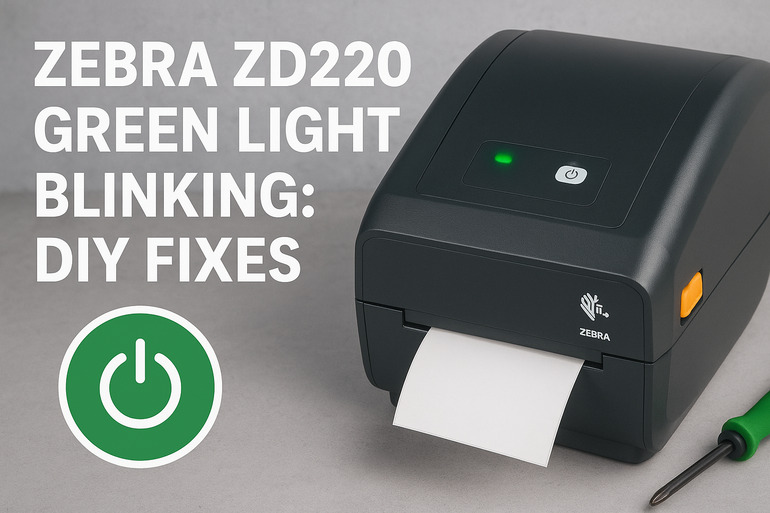
Your Zebra ZD220 printer is sitting there blinking its green light at you, and nothing’s printing. Maybe you’ve got labels to make, shipping tags to produce, or barcodes to scan. But here you are, stuck watching a tiny light flash on and off while your work piles up.
This happens more often than you’d think. That blinking green light is your printer’s way of saying something’s wrong, but it won’t always tell you what. Good news is that most of these problems are things you can fix yourself without calling a tech support line or spending hours on hold.
What That Blinking Green Light Means
Your printer uses lights to communicate. Normally, a solid green light means everything’s working fine and the printer is ready to go. But when that light starts blinking, it’s telling you the printer has noticed something that’s stopping it from doing its job.
Think of it like your car’s check engine light. The blinking pattern is a signal. Sometimes it blinks fast, sometimes slow. The printer might be waiting for you to fix something simple, or it could be stuck trying to process a job that went wrong.
Here’s what can happen if you ignore this problem. Your print queue backs up. Labels don’t get made. Shipments get delayed. If you’re running a business, that green blink can cost you real time and money. Plus, leaving the printer in this error state for too long can sometimes cause other issues down the line.
Most blinking light problems fall into a few categories:
- Paper or label issues where the printer can’t detect or feed media properly
- Communication errors between your computer and the printer
- Sensor problems that make the printer think something’s wrong even when it isn’t
- Driver or software glitches that confuse the printer’s instructions
Zebra ZD220 Green Light Blinking: Common Causes
Several things can trigger that annoying blinking light on your ZD220. Understanding what causes the problem helps you fix it faster and prevents it from happening again.
1. Labels Loaded Incorrectly
Your printer is picky about how labels sit inside it. If the label roll isn’t positioned just right, or if the guides are too loose or too tight, the printer gets confused.
The ZD220 uses sensors to detect where each label starts and ends. These sensors look for gaps between labels or marks on the backing paper. When labels shift even a tiny bit to the left or right, those sensors miss their target.
You might have loaded everything perfectly, but labels can shift during printing. The roll spins, vibration happens, and suddenly your guides aren’t holding things in place anymore.
2. Dirty or Blocked Sensors
Those sensors I mentioned? They’re tiny optical devices that shine light and measure what bounces back. Over time, they get covered in dust, adhesive residue from labels, or tiny paper fibers.
A dirty sensor can’t do its job properly. It might think there’s no label loaded at all, or it could fail to detect the gaps between labels. This happens gradually, so you might not notice until one day the printer just stops working.
3. Wrong Media Settings in the Printer
Your printer has settings that tell it what kind of labels you’re using. There are settings for gap labels, continuous labels, black mark labels, and more. If these settings don’t match what’s actually loaded, the printer throws a fit.
Maybe you switched from gap labels to continuous feed and forgot to update the settings. Or someone else used the printer before you and changed everything around. Either way, the mismatch causes that green light to start blinking.
The printer tries to find gaps that aren’t there, or ignores gaps that are. It’s like giving someone directions to a blue house when the house is actually red. They’ll never find it.
4. Outdated or Corrupt Printer Drivers
Your computer talks to your printer through software called drivers. These drivers translate your print commands into language the printer understands. When drivers get old or damaged, communication breaks down.
An outdated driver might send instructions the printer doesn’t recognize anymore. A corrupt driver might send garbled messages that confuse the printer’s brain. Either situation can leave your printer blinking and waiting for clear instructions that never come.
This happens after operating system updates, software installations, or just random computer glitches. Files get corrupted, settings change, and suddenly your printer can’t understand your computer anymore.
5. Ribbon Issues (If Using Thermal Transfer Mode)
If you’re printing with thermal transfer instead of direct thermal, you need a ribbon. That ribbon has to feed smoothly through the printer, staying aligned and tensioned just right.
A wrinkled ribbon causes problems. A ribbon that’s wound too tight or too loose throws off the printer’s timing. The printer might detect the ribbon isn’t moving correctly and stop everything until you fix it.
Sometimes the ribbon runs out mid-job. The printer knows it can’t finish printing without ribbon, so it blinks at you instead of producing blank, useless labels.
Zebra ZD220 Green Light Blinking: DIY Fixes
Fixing this blinking light issue usually takes just a few minutes once you know what to try. Here are the most effective solutions that work for most people dealing with this problem.
1. Reload Your Labels Properly
Start by opening the printer and taking out your label roll completely. Look at the guides on both sides. These plastic pieces should slide smoothly but hold firmly.
Position your label roll back in the printer, making sure it feeds from underneath (or over the top, depending on your model and manual). Pull a few labels through so they come out the front of the printer. Now adjust those side guides so they just barely touch the edges of the labels. They should hold the labels straight without squeezing them.
Close the printer cover and press the feed button once. The printer should grab the label and move it forward smoothly. If it does, you’ve fixed the problem. If not, try adjusting the guides a bit tighter or looser until the printer feeds correctly.
2. Clean the Sensors Thoroughly
Turn off your printer and unplug it for safety. Open the cover and look for two small sensors. One is usually near where the labels feed through, and another might be under the printhead area. They look like tiny black rectangles or circles.
Get a lint-free cloth or a cotton swab and some isopropyl alcohol (rubbing alcohol works fine). Dampen the cloth or swab just a little and gently wipe each sensor. You’re trying to remove dust, sticky residue, and any buildup that blocks the sensor’s view.
Let everything dry for a minute. Plug the printer back in, turn it on, and try printing. Clean sensors can instantly fix blinking light problems because now the printer can actually see your labels again.
3. Calibrate the Printer
Your printer needs to learn where labels start and stop. This process is called calibration, and it’s easier than it sounds.
Make sure labels are loaded correctly first. Then hold down the feed button for about three seconds until the printer starts moving labels through on its own. It’ll feed several labels, measuring the gaps or marks as it goes.
You’ll see the printer slow down, speed up, and finally stop with a fresh label ready to print. This calibration teaches the printer exactly what your current labels look like. Try printing something now. That blinking light should be gone.
4. Check and Update Media Settings
You need to get into the printer’s settings. You can do this through the Zebra Setup Utilities software on your computer, or sometimes through buttons on the printer itself.
Look for media type settings. Common options include:
- Gap/Notch (for labels with spaces between them)
- Continuous (for one long roll with no gaps)
- Mark (for labels with black marks on the back)
Pick the setting that matches your actual labels. If you have gaps between labels, choose Gap. If your labels connect without spaces, choose Continuous.
Save these settings and try printing again. Sometimes the printer just needed to know what it’s working with.
5. Reinstall or Update Printer Drivers
Head to the Zebra website and search for ZD220 drivers. Download the latest version for your operating system. While that’s downloading, go to your computer’s device manager and find your Zebra printer. Right-click it and choose to uninstall the device.
Once it’s gone, restart your computer. After it boots back up, install those new drivers you downloaded. Follow the installation wizard, and let it detect your printer.
This gives you a fresh start with updated software. Your computer and printer can talk clearly again, which often stops that blinking light problem.
6. Inspect and Reseat the Ribbon (Thermal Transfer Models)
If you’re using thermal transfer printing, open the printer and look at your ribbon. It should be smooth, not wrinkled or bunched up anywhere. The ribbon feeds from one spool, goes under the printhead, and winds onto another spool.
Check both spools. Make sure they’re seated correctly on their spindles. Remove the ribbon completely and reload it, following the path shown in your printer manual or on the diagram usually printed inside the printer cover.
Tension matters here. The ribbon shouldn’t be super tight or really loose. It should have just a little give to it. Once reloaded, close the cover and try a test print.
7. Contact a Printer Technician
If none of these fixes work, you might have a hardware problem that needs professional attention. A technician can check for damaged sensors, motor issues, or circuit board problems that you can’t fix at home. Sometimes printers just need expert care, and that’s perfectly fine.
Wrapping Up
That blinking green light on your Zebra ZD220 usually points to something simple. Maybe your labels shifted, sensors got dusty, or settings don’t match what you loaded. Most times, you can fix these problems yourself in less time than it takes to call support.
Start with the easy stuff like reloading labels and cleaning sensors. Those two fixes alone solve probably 70% of blinking light cases I’ve seen. If those don’t work, move through the other solutions one by one. Your printer will be back to making perfect labels before you know it.