Your Xbox Series S is sitting there, giving you a light show you didn’t ask for. That blinking light can feel like your console is trying to tell you something important, but you’re stuck playing a guessing game.
Here’s what you need to know: that blinking light isn’t random. It’s actually your console’s way of signaling that something needs attention, and the good news is that most of these issues have simple fixes you can handle yourself.
What’s Really Going On With That Blinking Light
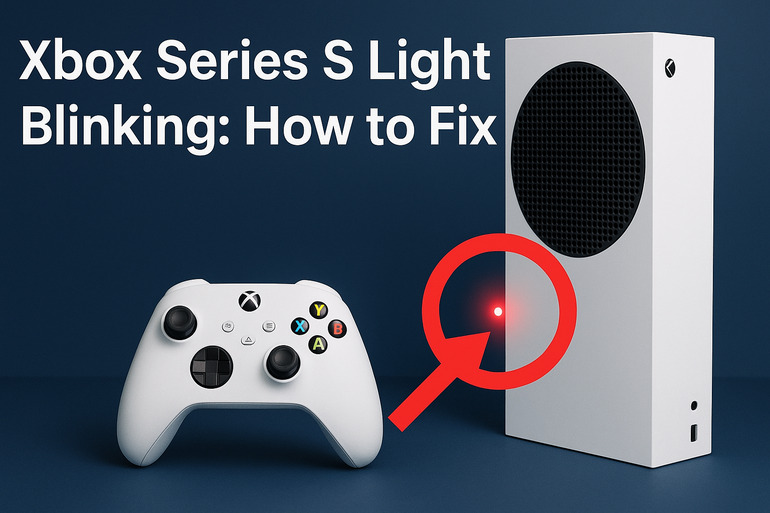
That blinking power light on your Xbox Series S is like a warning signal. Your console has detected something off and is letting you know before things get worse. Sometimes the light blinks white, sometimes orange, and each color tells a different story about what’s happening inside.
Most people first notice this when they press the power button and instead of the console firing up normally, the light just keeps blinking. Your controller might not connect. The TV shows no signal. Your gaming session gets put on hold, and frustration sets in fast.
This happens because the console is stuck in a partial boot state. Think of it like your console trying to wake up but keeps hitting the snooze button. The hardware is getting power, but something is stopping it from fully starting up.
If you ignore this problem, you might face bigger headaches later. Your console could stop responding completely, or worse, you might end up with corrupted game saves or system files. Catching this early means you can usually fix it without losing any of your progress or settings.
Xbox Series S Light Blinking: Common Causes
Several things can trigger that annoying blinking light. Understanding what causes it helps you pick the right fix faster.
1. Power Supply Issues
Your power brick or cable might be the troublemaker here. Even though the Xbox Series S has an internal power supply, the cable connecting it to the wall can wear out or get damaged over time.
A loose connection at either end creates an unstable power flow. Your console tries to boot, doesn’t get steady power, and shuts back down. This cycle repeats, creating that blinking pattern you’re seeing.
Sometimes the outlet itself is faulty. Maybe it’s old, maybe something else on the same circuit is drawing too much power. Your Xbox senses the unstable voltage and refuses to fully start as a safety measure.
2. Overheating Protection Mode
Heat is a console’s worst enemy. Your Xbox Series S has built-in sensors that monitor temperature constantly. When things get too hot inside, the system activates protection mode to prevent permanent damage.
This usually happens when the vents get blocked. Maybe you placed the console in an entertainment center with poor airflow, or dust has built up inside over months of use. The internal fan spins faster trying to cool things down, but if that doesn’t work, the console partially shuts down.
3. Corrupted System Files
Sometimes a failed update or unexpected power loss during operation messes up critical system files. Your Xbox tries to load these files when starting up, hits an error, and can’t proceed.
This corruption can happen if you unplugged the console while it was installing an update. It can also occur during sudden power outages. The system gets stuck trying to read damaged files, creating that endless blinking cycle.
4. Hardware Component Malfunction
Internal components can fail or become unseated. The hard drive might have issues, or one of the connection points on the motherboard could have loosened from normal vibration over time.
Even small things like a faulty capacitor can cause startup problems. Your console runs a quick check of all major components during boot, and if something doesn’t respond correctly, it stops the startup process.
5. HDMI Connection Problems
Your HDMI cable or port might be causing the issue. A damaged cable sends incomplete signals, and your console can’t establish proper communication with your TV or monitor.
The Xbox Series S checks for display output during startup. If it can’t detect a valid connection, the system might pause the boot process. Bent pins in the HDMI port or a cable with internal wire breaks both create similar symptoms.
Xbox Series S Light Blinking: How to Fix
Fixing this problem is usually easier than you think. Try these solutions in order, starting with the simplest ones first.
1. Power Cycle Your Console
This classic fix works more often than you’d expect. Completely cutting power lets your console reset all its temporary settings and clear any minor glitches causing the blinking.
Here’s what to do:
- Press and hold the power button on your console for 10 seconds until it shuts down completely
- Unplug the power cable from the back of the console
- Wait for at least 2 minutes (this lets residual power drain completely)
- Plug the cable back in firmly
- Press the power button to restart
This process clears the console’s temporary memory and often resolves software-related blinking issues. Your Xbox basically gets a fresh start, like rebooting your phone when it acts weird.
2. Check All Cable Connections
Loose cables are sneaky troublemakers. Even if a cable looks connected, it might not be seated properly, causing intermittent power issues.
Start by unplugging the power cable from both the console and the wall outlet. Look closely at both ends for any visible damage, bent prongs, or debris. Plug it back in, making sure you hear or feel a solid click at both connection points.
Next, check your HDMI cable the same way. Remove it completely, inspect the cable and both ports for damage, then reconnect it firmly. Try a different HDMI cable if you have one available, as cables can fail internally even when they look fine on the outside.
Sometimes switching to a different wall outlet helps too. The outlet you’re using might have voltage issues you can’t see.
3. Improve Ventilation and Clean the Vents
Heat buildup causes all sorts of problems. Your Xbox needs room to breathe, and blocked vents make overheating almost guaranteed.
Move your console to a more open location if it’s currently cramped. Leave at least 4 to 6 inches of clear space on all sides. Never place anything on top of the console, even if it seems flat enough.
Grab a can of compressed air and blow short bursts into the vent openings. You’ll probably see dust coming out. Hold the can upright and use quick sprays rather than long continuous blasts. This prevents moisture from the can getting inside your console.
If you’re comfortable opening the console, you can clean the fan and heatsink more thoroughly. But if you’re under warranty, stick to external cleaning only.
4. Try a Different Display Output
Your TV or monitor might be part of the problem. Testing with a different screen helps you figure out if the issue is with your console or your display setup.
Connect your Xbox to another TV if possible. Use a different HDMI port on your current TV if you don’t have another screen available. Some HDMI ports work better than others, especially on older TVs.
Make sure your TV is on and set to the correct input before powering up the console. Some TVs take a few seconds to recognize new devices, and your Xbox might interpret this delay as a connection problem.
5. Boot Into Safe Mode
Safe mode lets your console start with minimal features, which can help fix software issues causing the blinking light.
To access safe mode:
- Turn off your console completely
- Press and hold the power button and the eject button together
- Keep holding both buttons until you hear two beeps (usually takes about 10 seconds)
- Your console should boot into a special troubleshooting menu
From here, you can try options like “Reset console but keep games and apps” which fixes system files without deleting your content. This often resolves corruption issues that cause startup problems.
6. Factory Reset (Last Resort Before Professional Help)
If nothing else works, a factory reset might be necessary. This wipes everything and returns your console to how it was when you first bought it.
Back up your important saves to the cloud first if possible. Go through the safe mode menu to access the factory reset option. Choose the option that preserves your games if you want to avoid massive downloads later.
A factory reset takes time, but it eliminates any software problems causing the blinking. You’ll need to set everything up again afterwards, but at least your console should work properly.
7. Contact Xbox Support or a Professional Technician
Sometimes the problem runs deeper than software glitches or loose cables. If you’ve tried everything and that light still blinks, you’re likely dealing with a hardware failure that needs professional attention.
Reach out to Xbox Support through their website or phone line. They can run remote diagnostics and tell you if your console needs repair service. If your console is still under warranty, they’ll handle the repair or replacement at no cost to you.
For out-of-warranty consoles, a local electronics repair shop might be cheaper than official Xbox service. Just make sure they have experience with gaming consoles specifically.
Wrapping Up
That blinking light on your Xbox Series S might seem scary at first, but it’s usually fixable with some basic troubleshooting. Most cases come down to power issues, overheating, or software hiccups that you can handle yourself in just a few minutes.
Start with the simple fixes like power cycling and checking cables. Work your way through the other solutions if needed. Your console will likely be back to normal before you know it, and you’ll be back to gaming without that annoying blink interrupting your fun.