Your TP-Link router sits there on your desk, and suddenly you notice something odd. That power light that’s usually solid green is now flashing at you like a tiny strobe. You might feel a twinge of panic, especially if you’re in the middle of streaming a show or working from home.
This blinking power light isn’t your router trying to send you morse code messages. It’s actually telling you something’s wrong, and figuring out what that something is can save you hours of frustration and maybe even a call to tech support.
What That Blinking Power Light Really Means
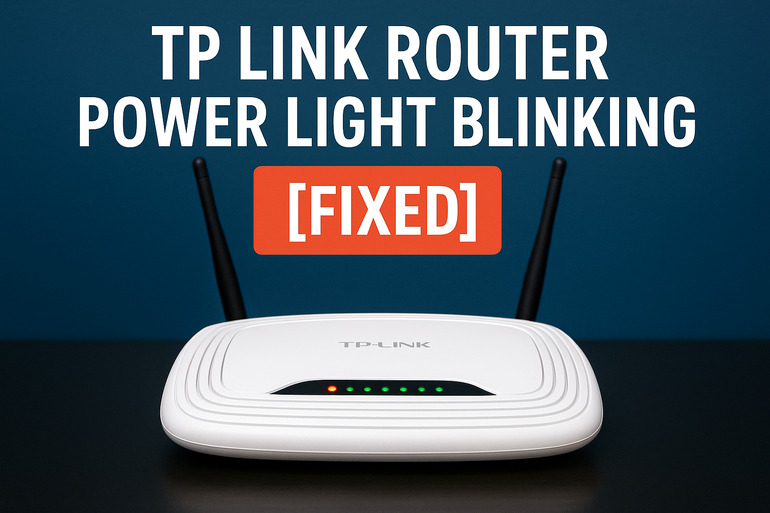
When your TP-Link router’s power light starts blinking instead of staying steady, it’s basically your device’s way of waving a red flag. Under normal conditions, that power indicator should glow solid once your router finishes booting up. A blinking pattern means the router is either struggling to start properly, dealing with a power hiccup, or facing some internal issue that’s preventing it from functioning normally.
Most TP-Link routers go through a quick blinking phase right after you plug them in. This typically lasts 30 to 60 seconds while the device runs through its startup checks. But if that blinking continues beyond a couple of minutes, you’ve got a problem that needs attention.
The tricky part is that different blink patterns can mean different things. A slow, rhythmic blink might indicate one issue, while a rapid flickering could point to something else entirely. Some routers blink orange or amber instead of green, which often signals a more serious problem.
If you ignore this warning sign, you’re looking at potential internet outages, dropped connections, and devices that can’t stay online. Your smart TV stops streaming mid-episode. Your video calls freeze up. Your smart home gadgets go offline. Everything that depends on your internet connection basically stops working right, and that’s a headache nobody wants to deal with on a busy day.
TP-Link Router Power Light Blinking: Common Causes
Several things can trigger that annoying blinking power light on your TP-Link router. Understanding what causes this issue helps you fix it faster and prevents you from trying solutions that won’t actually help your specific situation.
1. Faulty Power Adapter or Cable
Your power adapter does more than just plug your router into the wall. It converts the electrical current from your outlet into the specific voltage your router needs. Over time, these adapters wear out, get damaged, or simply stop working properly.
The cable connecting the adapter to your router can also develop problems. Pets might chew on it. You might accidentally bend it too sharply when moving furniture. The connection points where the cable meets the adapter or router can become loose or corroded, especially in humid environments.
When your router doesn’t get steady, clean power, it can’t maintain its normal operations. It might try to boot up, fail, try again, and fail again, creating that blinking pattern you’re seeing. Sometimes the power supply works well enough to light up the router but not well enough to keep it running stable.
2. Firmware Corruption or Update Issues
Firmware is like your router’s brain. It tells the device how to operate, manage connections, and handle all the technical stuff that happens behind the scenes. Sometimes this firmware gets corrupted, maybe from a power outage during an automatic update or from a failed manual update you tried to install.
A corrupted firmware makes your router confused about what it’s supposed to do. It starts up, hits an error, restarts, hits the same error, and keeps repeating this cycle. That’s when you see the power light blinking endlessly instead of settling into its normal solid state.
3. Hardware Failure or Overheating
Electronic devices generate heat when they run, and routers are no exception. If your router sits in a spot with poor airflow, like inside a closed cabinet or buried under a stack of papers, it can overheat. High temperatures damage the internal components over time.
The circuit board inside your router has various chips and components that can fail. Capacitors bulge and leak. Solder joints crack from repeated heating and cooling cycles. These failures prevent your router from starting up correctly, which triggers that blinking power light.
Overheating is particularly sneaky because your router might work fine for a while, then start acting up after it’s been running for an hour or two. By the time you notice the blinking light, the damage might already be affecting multiple internal parts.
4. Loose Internal Connections
Inside your router, there are several connections that need to stay secure for everything to work properly. The power socket where your cable plugs in can become loose over time, especially if you frequently unplug and replug the device. Moving your router around can jostle internal components, causing connections to separate slightly.
These loose connections create intermittent power delivery. Your router gets power, loses it momentarily, gets it again, creating an unstable situation that manifests as a blinking power light. Sometimes just the vibration from normal use is enough to make a partially loose connection act up.
5. Manufacturing Defects or Component Wear
Even brand new routers can have hidden defects that don’t show up immediately. A factory might install a component that’s slightly out of specification. A quality control check might miss a tiny crack in a circuit trace. These issues can cause problems right out of the box or develop quickly after you start using the device.
Older routers naturally experience component wear. Electronic parts have lifespans, and after years of constant use, things start to fail. The power regulation circuit might weaken. Memory chips can develop bad sectors. Any of these age-related issues can prevent your router from maintaining stable operation.
Sometimes environmental factors speed up this wear. Dust buildup inside the router acts like an insulating blanket, trapping heat. Voltage fluctuations from your home’s electrical system stress the power components. High humidity can cause corrosion on metal contacts and traces.
TP-Link Router Power Light Blinking: DIY Fixes
Getting your router back to normal doesn’t always require professional help. Try these fixes in order, and there’s a good chance you’ll solve the problem yourself without spending money or waiting for a technician.
1. Check and Replace the Power Supply
Start by examining your power adapter carefully. Look for any obvious damage like cracks in the plastic casing, frayed wires, or burn marks. Sniff near the adapter for any burning smell, which indicates overheating or electrical failure.
Unplug everything and inspect the cable for kinks, cuts, or areas where the outer insulation looks damaged. Check both ends where the cable connects to make sure they’re firmly seated. Sometimes simply unplugging and replugging can fix a loose connection.
If you have another TP-Link router or a similar device with the same voltage requirements, try swapping power adapters. Make sure the replacement adapter matches your router’s specifications exactly. Using the wrong voltage can damage your router permanently. If the blinking stops with a different adapter, you’ve found your culprit and need to buy a replacement.
2. Power Cycle Your Router Properly
A proper power cycle does more than a simple restart. First, unplug the power cable from your router completely. Wait a full 30 seconds while the device drains any residual electrical charge from its capacitors.
While you’re waiting, also unplug your modem if you have a separate one. After 30 seconds, plug your modem back in first and let it fully boot up for about two minutes. Then plug your router back in and watch the power light. This full reset often clears temporary glitches that cause blinking issues.
3. Reset the Router to Factory Settings
Your router has a small reset button, usually recessed into the case to prevent accidental presses. You’ll need something thin like a paperclip or pin to reach it. Locate this button on the back or bottom of your router.
With the router powered on, press and hold the reset button for about 10 to 15 seconds. You should see the lights on your router flash or change pattern. Release the button and wait for the router to restart completely. This wipes all your custom settings and returns everything to how it was when you first bought it.
Keep in mind that you’ll need to set up your WiFi network again after a factory reset. That means choosing a network name, password, and any other custom settings you had before. Write these down beforehand if you want to use the same ones.
4. Update or Reinstall the Firmware
Head to the TP-Link website and find your specific router model. Download the latest firmware file to your computer. Make sure you get the exact version for your router model, as using the wrong firmware can brick your device completely.
Connect your computer directly to the router using an ethernet cable rather than WiFi. This ensures a stable connection during the update process. Log into your router’s admin panel by typing 192.168.0.1 or 192.168.1.1 into your web browser.
Find the firmware update section in your router’s settings menu. Upload the firmware file you downloaded and let the update process complete. Your router will restart several times during this process, and the power light might blink. Don’t interrupt it or unplug anything until the update finishes completely and the router settles into a steady light pattern.
5. Improve Ventilation and Cooling
Move your router to a location where air can flow freely around it. Take it out of any enclosed spaces and place it on a flat, open surface. Make sure there’s at least two inches of clearance on all sides.
Check the ventilation slots on your router for dust buildup. You can use a can of compressed air to blow out any accumulated dust gently. Hold the can upright and use short bursts to avoid moisture from the propellant getting inside your device. Clean vents allow heat to escape properly, preventing overheating that can cause startup problems.
If your router sits in a particularly warm spot, like near a window that gets direct sunlight or next to other heat-generating electronics, find a cooler location. Some people even add a small USB-powered fan nearby to improve air circulation, though this usually isn’t necessary for most home setups.
6. Contact TP-Link Support or a Technician
If you’ve tried everything above and that power light still blinks, you’re likely dealing with a hardware failure that requires professional attention. Reach out to TP-Link’s customer support first, especially if your router is still under warranty.
Professional technicians have diagnostic tools and replacement parts that aren’t available to regular users. They can test individual components, replace failed parts, or help you process a warranty claim if applicable. Sometimes the most practical solution is simply replacing the router, especially if it’s several years old and repair costs approach the price of a new device.
Wrapping Up
That blinking power light on your TP-Link router usually stems from fixable issues like power supply problems, firmware glitches, or overheating. Working through the solutions methodically gives you a great chance of getting everything back to normal without professional help.
Most people find success with simple fixes like replacing the power adapter or doing a proper reset. If these don’t work, don’t feel bad about reaching out for help. Sometimes hardware just fails, and getting a replacement is the smart move.