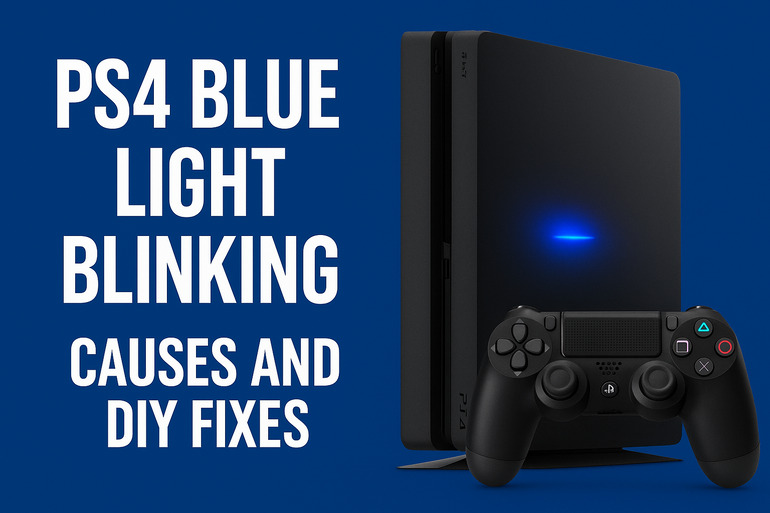
You press the power button on your PS4, and instead of hearing that satisfying beep and seeing your games load up, you get a pulsing blue light that goes on and on. Your TV stays black. Nothing happens.
This frustrating issue has a name in the gaming community: the Blue Light of Death. Here’s what causes it and how you can fix it yourself without spending money on repairs.
What’s Actually Happening With That Blue Light
That blue light on your PS4 should only blink for a few seconds while your console starts up. Once everything loads properly, it turns white to show you’re good to go. But sometimes it keeps blinking blue and never switches to white.
This happens because your PS4 is trying to start but can’t complete the process. Something is stopping it from fully booting up. Your console is stuck in a loop where it keeps trying but failing to connect with your TV or finish loading its system.
If you leave this unfixed, you simply won’t be able to play your games. Your console becomes a fancy paperweight. The good news is that this usually stems from connection issues or software glitches rather than serious hardware damage. Most of the time, you can fix it at home.
The blinking can last anywhere from a few minutes to indefinitely. Some people see their PS4 blink for hours before giving up. Others notice the console making strange noises or getting unusually hot while the blue light pulses.
PS4 Blue Light Blinking: Likely Causes
Several things can trigger this blue light problem. Understanding what’s behind it helps you pick the right fix faster.
1. HDMI Connection Problems
Your HDMI cable or port might be loose, damaged, or dirty. This is actually the most common culprit. If your PS4 can’t establish a solid video connection with your TV, it stays in that startup phase indefinitely.
Sometimes the cable gets bent at weird angles over time. Other times, dust builds up in the port and blocks proper contact between the cable and console.
2. Power Supply Issues
Your PS4 needs stable, consistent power to boot properly. If the power supply inside your console is failing or your power cable isn’t seated correctly, you’ll see that endless blue blink. Think of it like trying to start a car with a weak battery.
Power surges from your wall outlet can also mess with the console’s ability to draw the right amount of electricity. Sometimes the power supply unit gets dusty or overheated, which affects how it delivers power to the rest of your system.
Even a loose connection at the back of your console where the power cable plugs in can cause this. You might not notice it’s slightly loose just by looking at it.
3. Hard Drive Failure or Disconnection
Your PS4 stores all its operating system files on an internal hard drive. If that drive gets disconnected from the motherboard, corrupted, or starts failing, your console can’t load what it needs to finish starting up.
This can happen if you’ve moved your console recently and something got jostled inside. It can also occur naturally over time as the drive ages and develops bad sectors.
4. Overheating and Dust Buildup
When your PS4 gets too hot or has too much dust clogging its vents, it can refuse to fully start as a protection mechanism. The system basically says, “I’m not turning on completely because I’ll damage myself if I do.”
Dust acts like a blanket inside your console, trapping heat around sensitive components. Over months and years, this buildup gets worse and worse.
5. Software Corruption
Sometimes your PS4’s operating system files get corrupted during an update or after an improper shutdown. If the system can’t read its own startup files correctly, it gets stuck trying to load them over and over.
This often happens if your console loses power suddenly while updating or if you unplug it without shutting it down properly first. The files end up incomplete or scrambled.
PS4 Blue Light Blinking: DIY Fixes
Here are practical solutions you can try right now. Start with the easiest ones and work your way down the list.
1. Check Your HDMI Connection
Start here because it’s the quickest fix and solves the problem about 40% of the time. Unplug your HDMI cable from both your PS4 and your TV. Look at both ends for any bent pins or visible damage.
Blow gently into the HDMI port on your PS4 to clear out dust. You can also use compressed air if you have it. Plug everything back in firmly, making sure you hear or feel a solid click. Try a different HDMI port on your TV if yours has multiple ones.
If you have another HDMI cable lying around, swap it out. Cables do go bad over time, and sometimes buying a new one for $10 fixes everything.
2. Power Cycle Your Console
This simple reset clears temporary glitches. Turn off your PS4 completely by holding the power button until you hear two beeps (about seven seconds). Unplug the power cable from the back of the console and wait a full two minutes.
While you’re waiting, press and hold the power button for 30 seconds even though it’s unplugged. This drains any residual power. Plug everything back in and try starting it up again.
3. Boot Into Safe Mode and Rebuild Database
Safe Mode lets your PS4 start with only the most basic functions, which can bypass whatever’s causing the blue light. Turn off your console completely. Hold the power button and keep holding it until you hear a second beep (this takes about seven seconds).
Connect your controller to the console with a USB cable. Press the PS button on your controller. You’ll see a menu with several options.
Select “Rebuild Database.” This process can take anywhere from a few minutes to a few hours depending on how much data you have. Your PS4 will scan and reorganize all your data, which often fixes corrupted files causing startup issues. Your games and saves stay intact during this process.
4. Reseat the Hard Drive
If you’re comfortable opening your console, reseating the hard drive works surprisingly often. Turn off and unplug your PS4 completely. Remove the shiny plastic panel on the left side of the console (when looking at it from the front). It slides off.
You’ll see the hard drive cage held in by one screw. Remove that screw and gently pull the cage out. Take the hard drive out of its cage, then put it back in firmly. Make sure it’s seated properly.
Reverse the process to put everything back together. This fixes issues where the drive connection got loose.
5. Clean Out Dust and Check for Overheating
Dust is a silent killer for consoles. Unplug your PS4 and move it to a well-lit area. Use compressed air to blow into all the vents. You’ll probably see dust clouds coming out.
Pay special attention to the side vents and back ports. If you’ve never cleaned it before, you might be shocked at how much dust comes out. Let the console sit for 10 minutes before plugging it back in.
6. Try a Different Power Outlet
This sounds too simple, but faulty outlets cause more problems than people think. Plug your PS4 directly into a wall outlet instead of a power strip. Some power strips don’t deliver consistent power.
If possible, try a completely different room in your house. This helps you rule out electrical issues at that specific outlet.
7. Contact a Professional Repair Technician
If none of these fixes work, you might have a hardware issue that needs professional attention. This could be a failing power supply unit, a damaged motherboard, or other internal component problems. A qualified repair shop can diagnose and fix these issues, though it will cost you some money.
Wrapping Up
That blinking blue light feels scary when it first happens, but it’s usually fixable at home. Most cases come down to connection issues, dust, or software glitches that you can handle yourself with basic tools and patience.
Start with the simple fixes like checking cables and power cycling. Work through the list methodically. Many people find their PS4 working again after just the first or second fix. Your gaming sessions don’t have to stay interrupted for long.