Your Garmin Fenix 8 tracks nearly every aspect of your sleep, from deep sleep cycles to restless movements throughout the night. But there’s one thing that might be slipping through the cracks: your afternoon naps. You settle down for a quick power nap, wake up refreshed, and check your watch expecting to see the data logged. Instead, you find nothing.
This happens more often than you’d think, and it’s frustrating when you’re trying to get a complete picture of your rest patterns. Missing nap data means incomplete recovery metrics and a less accurate view of your overall health.
You’ll learn exactly why your Fenix 8 might be skipping those daytime snoozes and, better yet, how to fix it yourself without sending the watch back or waiting on customer support. Let’s get your nap tracking working properly again.
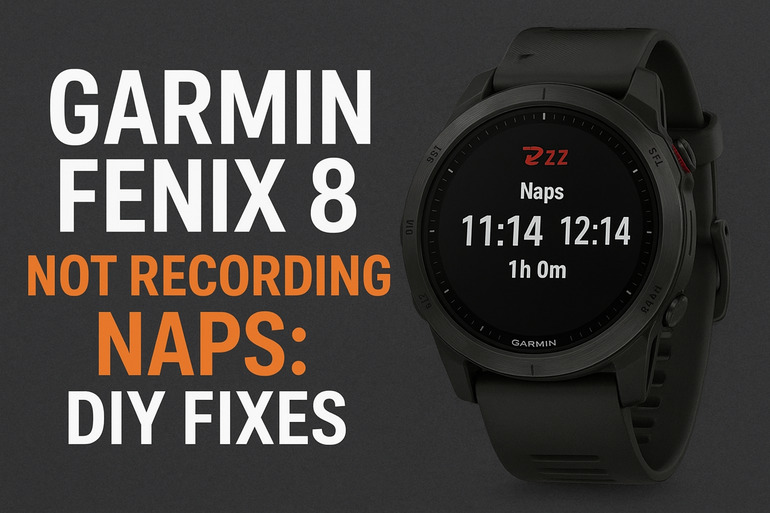
Why Your Fenix 8 Struggles with Nap Detection
Sleep tracking on smartwatches works differently than most people realize. Your Fenix 8 doesn’t just detect when you’re lying still. It uses a combination of accelerometer data, heart rate patterns, and movement algorithms to determine whether you’re actually asleep. During nighttime sleep, these patterns are usually distinct enough for the watch to recognize what’s happening.
Naps throw a wrench into this system. They’re shorter, sometimes lighter, and happen during times when the watch expects you to be active. Your heart rate during a 20-minute afternoon nap might not drop as significantly as it does during deep nighttime sleep. The watch might interpret your nap as simply sitting still on the couch watching TV.
The Fenix 8 has specific thresholds it looks for before logging sleep. These include sustained low movement, consistent heart rate patterns, and a minimum duration. If your nap doesn’t tick all these boxes, the watch won’t register it at all. This becomes problematic if you’re tracking recovery metrics or trying to optimize your rest schedule. Without nap data, your Body Battery readings will be off, and you won’t get credit for the rest you actually took.
Here’s what makes this particularly annoying: the watch can detect naps under the right conditions, but those conditions need to align perfectly. A nap that’s too short, too restless, or taken at an unusual time might simply vanish from your health stats. Athletes who depend on strategic napping for recovery find this especially frustrating since those short rest periods genuinely matter for performance.
Garmin Fenix 8 Not Recording Naps: Likely Causes
Several factors can prevent your Fenix 8 from recognizing your naps as actual sleep. Some are related to how you’ve configured the watch, while others stem from the nature of napping itself. Understanding what’s blocking the detection helps you target the right fix.
1. Sleep Mode Settings Are Too Restrictive
Your watch has a sleep detection window programmed into its settings. Most users set this for typical nighttime hours, like 10 PM to 7 AM. Outside this window, the watch essentially stops looking for sleep events. So when you lie down for a nap at 2 PM, the watch doesn’t even bother checking if you’ve dozed off.
This setting makes sense for people with regular sleep schedules who only sleep at night. But if you nap regularly or work shifts, these tight time restrictions actively work against accurate tracking. The watch simply isn’t programmed to look for sleep outside your designated hours.
Think of it like setting a security system to only monitor your house during certain hours. The system works perfectly within that timeframe, but outside those hours, it’s not even watching. Your Fenix 8 treats nap detection the same way unless you adjust the settings to broaden the monitoring window.
2. Your Naps Are Too Short
Garmin watches have a built-in minimum duration for what they consider sleep. This threshold typically sits around 20 to 30 minutes. If your power nap only lasts 15 minutes, the watch won’t log it even if you fell genuinely asleep. The algorithm treats these ultra-short rest periods as momentary stillness rather than actual sleep events.
Those quick 10-minute catnaps that leave you feeling refreshed won’t show up in your sleep data. While they might benefit you physically, they fall below the watch’s recognition radar. This becomes an issue if you practice polyphasic sleep patterns or rely on several micro-naps throughout your day for recovery.
3. Heart Rate Sensor Isn’t Reading Properly
Sleep detection relies heavily on heart rate data. When you sleep, your heart rate typically drops to lower resting values. The Fenix 8 looks for these characteristic patterns to confirm you’re actually sleeping rather than just sitting still. If the sensor can’t get clean readings, the watch can’t make an accurate determination.
Several things interfere with sensor accuracy. A loose watch band allows the sensor to shift away from your skin. Dirt or sweat buildup on the sensor creates a barrier between the light and your blood vessels. Tattoos, scars, or even very dark skin tones can make it harder for optical sensors to get reliable readings. Cold temperatures cause vasoconstriction, reducing blood flow to your wrist and making detection more difficult.
Without good heart rate data, your watch is essentially flying blind. It might see that you’re not moving much, but without the corresponding heart rate drop that characterizes sleep, it won’t log the nap. This explains why some naps get recorded while others in similar conditions don’t.
4. Activity Tracking Is Interfering
If you start a timed activity on your watch before lying down for a nap, the watch prioritizes that activity over sleep detection. Let’s say you begin a yoga or meditation session and then drift off. The watch keeps tracking the activity instead of switching to sleep mode. This happens because the activity tracking takes precedence in the watch’s hierarchy of functions.
Even ambient activity tracking can cause conflicts. If the watch thinks you’re in the middle of your daily routine based on your typical patterns, it might resist switching to sleep detection mode during the day. The algorithm essentially decides you can’t possibly be sleeping because you’re usually active at this hour.
5. Wrist Movement During the Nap
Light sleepers often move more during naps than during deep nighttime sleep. You might shift positions frequently, adjust your arms, or wake up briefly without fully realizing it. Each of these movements registers on the accelerometer, and too much activity convinces the watch that you’re not really sleeping. The threshold for what counts as sleep-compatible movement is fairly strict.
Napping positions sometimes amplify this problem. If you nap sitting up in a chair or propped against pillows, you’re more likely to shift around than if you were lying flat in bed. Your arm position matters too. Resting your head on your watch arm can trigger constant movement readings as you breathe or adjust your head slightly. These micro-movements add up and prevent the watch from confidently labeling the period as sleep.
Garmin Fenix 8 Not Recording Naps: DIY Fixes
Fixing nap detection usually requires adjusting how the watch monitors your sleep patterns. You’re not dealing with a hardware defect here, just settings and habits that need tweaking. Most of these solutions take just a few minutes to implement.
1. Expand Your Sleep Detection Window
Opening up the sleep monitoring timeframe gives your watch permission to look for sleep events throughout the day. Head into your watch settings and find the Sleep Detection or Sleep Mode section. You’ll see options for setting sleep time windows. Instead of restricting it to evening hours, expand the window to cover your entire waking day.
You could set it from 12 PM to 12 PM, effectively creating a 24-hour monitoring period. This tells the watch to stay alert for sleep patterns at any time. The trade-off is minimal since the watch only logs actual sleep, not every moment of stillness. You won’t suddenly see false positives cluttering your data.
After making this change, test it with your next nap. Make sure the nap lasts at least 20 minutes to meet the minimum duration threshold. Check your sleep data afterward to confirm the watch captured it. If this fixes the problem, you’re done. If naps still aren’t showing up, move to the next solution.
2. Optimize Watch Placement and Fit
The sensor on the back of your Fenix 8 needs solid contact with your skin. Before napping, check that your watch band is snug but not uncomfortably tight. You should be able to slide one finger under the band, but it shouldn’t shift around easily when you move your wrist. The sensor should sit flush against your skin without any gaps.
Clean the sensor area with a slightly damp cloth. Dried sweat, lotion, or general grime can block the light used for heart rate detection. While you’re at it, check the underside of your wrist too. Oil from your skin or residue from products can create an invisible barrier. A quick wipe before lying down takes seconds but significantly improves sensor performance. If you’ve been wearing the watch all day during workouts, this cleaning step becomes even more critical.
3. Enable All-Day Heart Rate Monitoring
Your watch might be in a power-saving mode that reduces heart rate measurement frequency. Go to Settings, then Sensors, and find Heart Rate settings. Make sure the heart rate monitor is set to continuous or all-day tracking rather than interval-based measurements. Continuous tracking gives the watch more data points to work with when determining if you’re asleep.
This does drain battery faster than intermittent monitoring, but the difference is usually minor on the Fenix 8. You’re trading maybe half a day of battery life for much more reliable sleep detection. If battery life matters more to you than nap tracking, you’ll need to decide which priority wins. For most people focused on accurate health data, the battery trade-off is worth it.
Once enabled, give the watch a full day to adjust to the new monitoring pattern. Then test with a nap. The increased sampling rate should provide the watch with enough data to confidently recognize your sleep state, even during shorter daytime rest periods.
4. Avoid Active Tracking Before Naps
If you’ve been running a timed activity on your watch, stop it before lying down. Press the button to end the activity and let the watch return to its normal monitoring mode. This clears the activity priority and allows sleep detection to take over. Even meditation or breathing exercises should be stopped if you plan to transition into actual sleep.
Wait a minute or two after ending the activity before settling in for your nap. This gives the watch time to process the activity data and reset its monitoring algorithms. That brief pause helps ensure the watch is ready to detect sleep rather than continuing to log the previous activity mode.
5. Update Your Watch Software
Garmin regularly improves sleep detection algorithms through software updates. Connect your Fenix 8 to the Garmin Connect app on your phone and check for available updates. If there’s a newer version available, install it. These updates often refine how the watch interprets rest periods and can specifically improve nap detection accuracy.
The update process usually takes about 10 to 15 minutes. Keep your watch on the charger during this time to prevent interruptions. Once complete, restart the watch by holding down the power button and selecting restart. Fresh software combined with optimized settings gives you the best chance of consistent nap tracking.
6. Contact Garmin Support If Nothing Works
If you’ve tried all these fixes and your naps still aren’t being recorded, there might be a deeper issue with your specific watch unit. Reach out to Garmin’s customer support team through their website or phone line. They can run diagnostics on your device remotely or determine if you need a warranty replacement. Sometimes hardware defects with the heart rate sensor slip through quality control, and support can identify these problems.
Before contacting them, document your troubleshooting steps and test results. Note which settings you changed and how long your typical naps last. This information helps support narrow down the problem faster. Having your watch’s serial number ready speeds up the process too since they’ll need it to look up your device history.
Support might suggest additional firmware updates or specific setting combinations you haven’t tried. In cases where the watch has a manufacturing defect, they’ll arrange for repair or replacement under warranty. Don’t hesitate to reach out if the basic fixes aren’t resolving the problem.
Wrapping Up
Getting your Fenix 8 to reliably track naps mostly comes down to adjusting settings and ensuring good sensor contact. The watch has the capability built in, but default configurations often prioritize nighttime sleep over daytime rest. Expanding your sleep detection window and maintaining proper watch fit solves the problem for most people.
Start with the simplest fixes first: broaden your monitoring hours, clean the sensor, and make sure continuous heart rate tracking is enabled. These changes take minimal effort but dramatically improve detection accuracy. Your recovery metrics become more complete when every rest period gets counted. Try these adjustments before your next nap and see which combination works best for your sleep patterns.