Nothing’s more frustrating than realizing your security DVR hasn’t been recording. You check the footage and there’s just nothing there.
Here’s what usually happens: your DVR stops saving video, but everything else looks normal. Live feeds work fine. The system powers on like always. You’d never know there’s a problem until you actually need to watch something back. That’s when you find empty folders and missing recordings.
This guide shows you exactly how to fix it. Most recording issues come from five or six common problems, and you can solve nearly all of them yourself. Takes maybe twenty minutes if you know where to look.
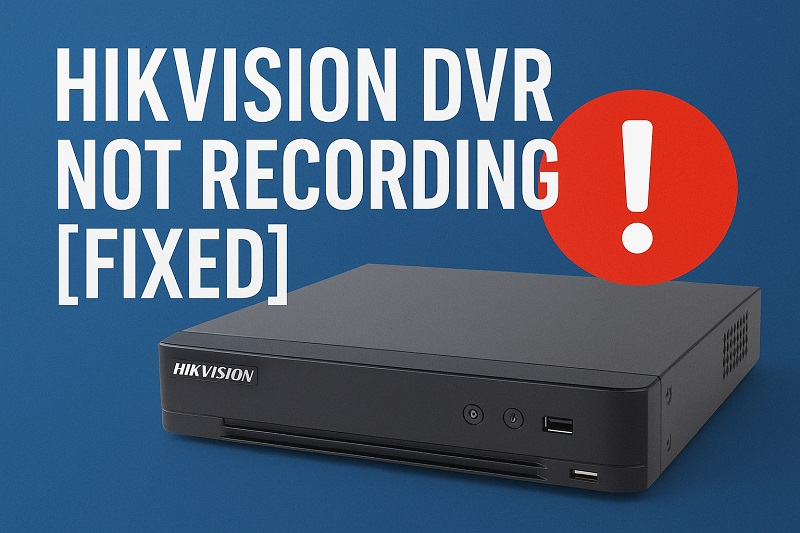
Why Your DVR Stops Recording
Think of your DVR as a machine that does one specific thing. It grabs video from your cameras and saves it to a hard drive. That’s it. When recording stops, something broke that simple process.
The system needs a few things working right. Space on the hard drive. Good connections to each camera. Settings that tell it when to record. Break any of those links and recording just quits.
Here’s the tricky part. Your DVR can look totally fine on the outside while failing completely at its actual job. Cameras still show up on your screen. You can click through menus. Everything responds. But zero footage gets saved to the drive, and you won’t know until you go looking for it.
Storage problems cause most failures. Your hard drive fills up, or it breaks, or the DVR loses track of it somehow. Settings cause the next biggest batch of issues. Maybe overwrite got turned off. Maybe the recording schedule changed. Maybe motion detection sensitivity dropped too low. Then you’ve got hardware stuff like loose cables or cameras that stopped talking to the DVR properly. Each problem needs its own fix.
Hikvision DVR Not Recording: Common Causes
Recording problems don’t just appear out of nowhere. Something specific triggered your DVR to stop saving footage. Let’s look at what usually causes this headache.
1. Hard Drive Is Full or Failing
Your hard drive stores everything your cameras capture. When it fills up completely, recording has nowhere to go. Many DVRs should overwrite old footage automatically, but if that feature isn’t enabled or isn’t working properly, recording just stops cold.
You might think your 1TB or 2TB drive can hold months of footage. Actually, with multiple cameras recording continuously, you’d be surprised how fast storage disappears. A four-camera system recording at decent quality can eat through a terabyte in less than a month.
Hard drives also fail over time. They’re mechanical devices with moving parts spinning thousands of times per minute. After a few years of constant use, they wear out. Your DVR might not detect the drive anymore, or the drive might be there but unable to write new data.
2. Overwrite Setting Is Disabled
This setting tells your DVR what to do when the hard drive fills up. If overwrite is turned off, the DVR stops recording once there’s no more space. It’s protecting old footage by refusing to delete it, but that means new footage gets ignored.
Someone might have disabled this feature intentionally to preserve specific recordings. Or it could have been changed during a firmware update. Either way, your DVR hits maximum capacity and then goes silent.
3. Recording Schedule Got Changed
DVRs let you set when cameras should record. You can choose continuous recording, motion-only recording, or specific time windows. If these schedules get modified, your cameras might only record during certain hours or not at all.
This happens more than people realize. Someone adjusts settings through the mobile app or web interface, clicks the wrong option, and suddenly your 24/7 recording becomes 9-to-5 weekday recording. You don’t notice until you need footage from a Saturday night.
Settings can also reset after power outages or firmware updates. Your carefully configured recording schedule might revert to default settings without warning.
4. Camera Connection Problems
Each camera needs a solid connection to the DVR. If a camera loses its connection, that channel stops recording even if the camera still appears on your monitor showing live video. The DVR might be receiving the video feed but not saving it properly.
This often traces back to cable issues. A damaged or loose network cable, a corroded connector, or a cable that got accidentally unplugged can interrupt the recording function. Power over Ethernet (PoE) cameras are especially vulnerable because the same cable carries both power and data.
5. Motion Detection Settings Are Too Restrictive
If you set your DVR to record only when motion is detected, overly strict sensitivity settings can prevent recording. The DVR might be waiting for motion that meets your threshold, but normal activity doesn’t trigger it.
You might have cranked down the sensitivity to avoid constant alerts from trees swaying or car headlights. Now the DVR ignores everything except the most dramatic movements. Someone could walk right through the frame without triggering a recording.
Motion detection zones also matter. If you blocked out most of the camera’s view to reduce false alerts, motion might be happening outside those active zones. The DVR sees movement but ignores it because it’s in a masked area.
Hikvision DVR Not Recording: DIY Fixes
Getting your DVR recording again usually doesn’t require professional help. Try these solutions in order, and you’ll likely solve the problem before reaching the last one.
1. Check Hard Drive Status and Free Up Space
Start by accessing your DVR’s menu and looking at the hard drive information. Most Hikvision DVRs show this under Storage or HDD settings. You’ll see how much space is used and whether the drive is detected at all.
If your drive shows 100% full and overwrite is disabled, you’ve found your problem. Delete old footage you don’t need, or enable overwrite to let the DVR manage storage automatically. Go to Storage Management, find the Overwrite option, and turn it on.
If the hard drive isn’t showing up at all, turn off the DVR, unplug it, open the case, and check that the drive’s cables are connected firmly. A loose SATA cable or power connector can make the drive invisible to the system. Reconnect everything snugly and power back up.
2. Verify and Adjust Recording Schedules
Pull up your recording schedule for each camera. You’re looking for gaps in the timeline or days with no recording enabled. The interface usually shows a grid with time slots, and recorded periods should be highlighted or colored.
To fix schedule problems, set all cameras to continuous 24/7 recording first. This ensures you’re capturing everything while you troubleshoot other potential issues. Later, you can adjust back to motion-only or specific hours if you prefer.
Most DVRs let you copy schedules from one camera to all cameras. Use this feature to quickly apply the same recording pattern across your entire system. It saves time and ensures consistency.
3. Reset Recording Parameters
Sometimes the recording settings get corrupted or misconfigured in ways that aren’t obvious. Resetting them to factory defaults often solves mysterious recording failures.
Go to your DVR’s System Settings, find Recording Configuration, and look for a reset or restore defaults option. This won’t delete your existing footage, but it will reset recording quality, schedule, and mode back to factory settings.
After resetting, you’ll need to reconfigure your preferences. Set your desired resolution, frame rate, and recording mode for each camera. Most people choose 1080p resolution at 15-20 frames per second for a good balance between quality and storage usage.
4. Test and Reconnect Cameras
Check each camera individually. Go to the camera management section and see if all channels show as connected and active. If a camera appears offline or shows “No Video,” that channel won’t record.
For problematic cameras, try unplugging them for 30 seconds, then plugging back in. This forces a fresh connection between the camera and DVR. If using PoE, make sure you’re not exceeding the power budget of your PoE switch or DVR’s built-in PoE ports.
Swap cables between a working camera and a non-working camera. If the problem moves with the cable, you’ve got a bad cable that needs replacement. If the problem stays with the camera location, check the camera itself or the cable run.
5. Adjust Motion Detection Sensitivity
Access the motion detection settings for each camera. You’ll see a sensitivity slider and usually a grid showing motion detection zones. Start by increasing sensitivity to a medium-high level and enable motion detection across the entire viewing area.
Test the settings by waving your hand in front of the camera and checking if it triggers recording. Watch the motion detection visualization on your monitor, which usually highlights detected motion with colored boxes or outlines.
Fine-tune from there. If you’re getting too many false alerts, slightly reduce sensitivity or mask out problem areas like trees or roads. But make sure the main areas you care about remain active and sensitive enough to catch real activity.
6. Update Firmware and Check System Health
Outdated firmware can cause recording glitches. Check your current firmware version against Hikvision’s website to see if updates are available. Download the appropriate firmware file for your exact DVR model.
Back up your settings before updating, then follow Hikvision’s update instructions carefully. Never interrupt a firmware update or power off the DVR during the process. Let it complete fully and reboot on its own.
After updating, check that all your settings remained intact. Sometimes updates reset certain configurations, so you might need to re-enable overwrite or adjust recording schedules again.
7. Contact a Security System Technician
If none of these fixes work, your DVR might have a hardware failure that requires professional diagnosis. The hard drive could be completely dead, or there might be issues with the DVR’s recording circuitry or processor.
A qualified technician can test components, replace the hard drive if needed, or determine if the DVR itself needs replacement. They can also check for issues you can’t easily diagnose at home, like failing capacitors or corrupted firmware that won’t update normally.
Wrap-Up
Your Hikvision DVR’s recording failure probably stems from something fixable. Most of the time, it’s a full hard drive, a disabled setting, or a connection issue rather than a catastrophic hardware problem. Working through the solutions methodically should get you recording again.
Keep an eye on your DVR’s health going forward. Check storage levels monthly, verify recordings are actually saving, and test your system periodically by reviewing recent footage. A little maintenance prevents that awful moment when you need footage that isn’t there.