You press the power button on your Dell Optiplex, expecting it to start up like normal. Instead, you get an orange light blinking at you, and your computer refuses to turn on. It’s frustrating, especially if you need to get work done right away.
This blinking orange light is your computer’s way of telling you something’s wrong inside. Think of it like a check engine light in your car. Your Dell is trying to communicate with you through this pattern of blinks, and once you understand what it means, fixing it becomes much easier.
By the end of this article, you’ll know exactly why that orange light is blinking, what causes it, and how to fix it yourself without needing to call a technician.
What That Blinking Orange Light Really Means
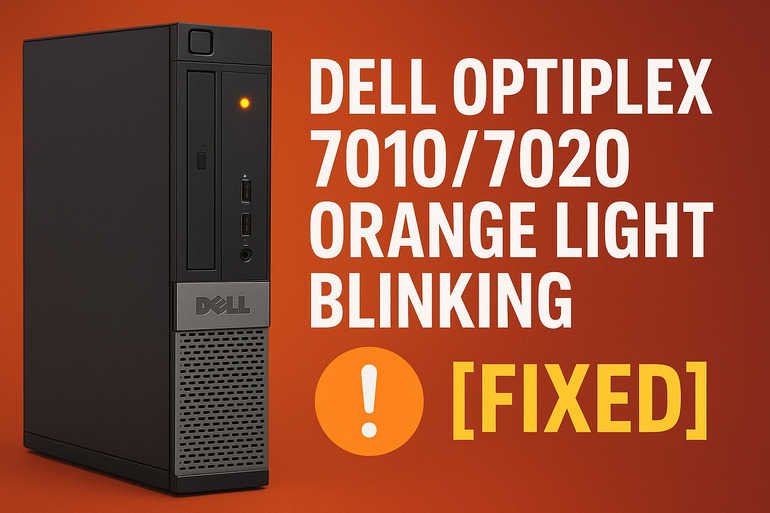
Your Dell Optiplex uses colored lights as a simple way to show you its health status. When everything’s working fine, you’ll see a solid white or blue light. But when that light turns orange and starts blinking, your computer is telling you it found a hardware problem during its startup check.
Every time you turn on your Dell, it runs something called a Power-On Self-Test. This is basically your computer checking all its parts before fully starting up. If something fails this test, the computer stops and shows you that blinking orange light. Different blink patterns mean different things, though most people see either two blinks, three blinks, or four blinks repeating over and over.
This isn’t a software problem. Your operating system hasn’t even started loading yet. Something physical inside your computer is either loose, dirty, broken, or not getting enough power. That’s actually good news because it means you can often fix it yourself with basic tools.
If you leave this problem alone and keep trying to force your computer to start, you might damage other parts. Your Dell is protecting itself by refusing to boot up. It’s better to figure out what’s wrong now than to end up with a bigger repair bill later.
Dell Optiplex Orange Light Blinking: Likely Causes
Several things can trigger that annoying orange light on your Optiplex. Let’s look at what usually causes this problem so you know what you’re dealing with.
1. Loose or Faulty RAM Sticks
Your RAM (memory) sits in slots on your motherboard, and sometimes these sticks wiggle loose over time. Maybe you moved your computer recently, or maybe dust buildup pushed them slightly out of position. Even a tiny gap between the RAM and its slot can stop your computer from starting.
RAM can fail too. If you’ve had your Optiplex for several years, one of your memory sticks might have developed problems. Computers are picky about memory, and if even one stick goes bad, the whole system refuses to boot.
You’ll often see two or three blinks in a repeating pattern if RAM is your problem. This is actually one of the easier fixes, which is why we check RAM first.
2. Power Supply Issues
Your power supply takes electricity from the wall and turns it into the specific voltages your computer parts need. Over time, power supplies wear out. The capacitors inside them can bulge or leak, causing the power supply to deliver unstable power or not enough power at all.
Sometimes the power supply works fine for smaller tasks but can’t handle the full load of starting up your computer. You might hear it making weird buzzing or whining sounds. Or it might feel unusually hot to the touch.
A failing power supply often causes four blinks on your Dell. This component works hard every single day your computer is on, so it’s actually pretty common for it to wear out after a few years of heavy use.
3. Motherboard Connection Problems
Your motherboard is like the nervous system of your computer. Everything plugs into it. Sometimes the 24-pin power connector that feeds electricity to your motherboard gets loose. Other times, smaller connectors for things like your CPU power come unplugged slightly.
Dust and dirt can get into these connections too. You’d be surprised how much crud builds up inside a computer over a few years. This gunk can block proper electrical contact between your power supply cables and your motherboard sockets.
4. Graphics Card or Other Expansion Cards
If your Optiplex has a separate graphics card plugged into it, that card might be causing your startup problems. Graphics cards need to be firmly seated in their PCI Express slot and need extra power from the power supply. If either of these connections gets loose, your computer won’t start.
Even if your graphics card seems fine, it might have failed internally. These cards run hot, and heat kills electronics over time. The same goes for any other cards you might have installed, like sound cards or network cards.
5. CMOS Battery Depletion
That little round battery on your motherboard (it looks like a watch battery) keeps your BIOS settings saved even when your computer is unplugged. If this battery dies, your Dell might have trouble starting up properly. It loses track of important hardware configuration details.
Your computer tries to boot with default settings, but those might not match your actual hardware setup anymore. This causes confusion during the startup test, triggering that orange light. CMOS batteries typically last three to five years, so if your Optiplex is getting older, this could be your culprit.
Dell Optiplex Orange Light Blinking: How to Fix
Now that you know what might be wrong, let’s fix it. Try these solutions in order, starting with the easiest ones first.
1. Reseat Your RAM
Pop open your computer case and find your RAM sticks. They’re usually long, thin rectangles sticking up from the motherboard. Press down the clips on both ends of each stick, pull the RAM out gently, and then push it firmly back into place until you hear a click.
This simple act fixes the problem about 40% of the time. Dust or slight movement causes most RAM connection issues, and reseating clears both problems at once. Make sure you press down firmly and evenly on both ends of each stick.
If reseating doesn’t work, try removing all but one RAM stick and testing. If your computer starts with just one stick, you’ve found a bad piece of RAM. Test each stick individually in the first slot to figure out which one is faulty. You can then replace just that stick instead of buying all new memory.
2. Check All Power Connections
Turn off your computer and unplug it from the wall. Open the case and look for the big 24-pin connector going into your motherboard. Pull it out and plug it back in firmly. Do the same with the smaller 4-pin or 8-pin CPU power connector near your processor.
Look at every cable coming from your power supply. Make sure they’re all snug in their sockets. Pay special attention to any cables going to your graphics card if you have one. Sometimes these cables look connected but aren’t fully seated.
3. Test Without Extra Hardware
Unplug everything that’s not essential for your computer to start. This means unplugging your keyboard, mouse, any external drives, USB devices, and even your graphics card if you have one (assuming your processor has built-in graphics).
Try starting your computer with just the basics connected. If it starts now, you know one of those extra pieces was causing the problem. Plug things back in one at a time until you find the troublemaker.
This method helps you isolate exactly which part is causing your orange light. Sometimes a failing USB device or a bad graphics card can prevent your entire system from starting.
4. Replace the CMOS Battery
Find that small round battery on your motherboard. You can pop it out with your fingernail or a small flathead screwdriver. Take it to any electronics store or pharmacy and buy an exact replacement (usually a CR2032).
Pop the new battery in with the positive side facing up (you’ll see a plus sign on the battery). This gives your motherboard a fresh start with its memory. You might need to go into your BIOS afterward and reset the date and time, but that’s easy.
Some people skip this step because it seems too simple, but I’ve seen countless computers fixed by a new three-dollar battery. If your Optiplex is more than three years old, this fix is worth trying.
5. Clean Everything Thoroughly
Get a can of compressed air and blow out all the dust from inside your computer. Pay special attention to the RAM slots, expansion card slots, and any connectors. Dust acts like a tiny insulator and can block electrical connections.
While you’re at it, look for any obvious problems. Check for bulging capacitors on your motherboard (they look like little cylinders that have swollen up). Sniff for any burning smells. Look for scorch marks or discolored areas.
Physical cleaning solves more computer problems than you’d think. I’ve seen systems that wouldn’t start simply because dust was shorting out connections on the motherboard.
6. Test or Replace the Power Supply
If nothing else has worked, your power supply might be dying. You can test this by borrowing a power supply from another computer or buying a cheap tester online. Power supply testers cost about ten dollars and can save you from buying parts you don’t need.
If your power supply tests bad or you just want to replace it to be sure, make sure you buy one with enough wattage for your system. The Dell Optiplex 7010 and 7020 typically use 240W to 290W power supplies. Match the form factor too, as these Dells use specific sizes.
Swapping a power supply is pretty straightforward. You unplug all the cables, remove four screws, slide out the old unit, and reverse the process with the new one. Just make sure you plug everything back in exactly how it was before.
7. Contact a Computer Technician
If you’ve tried everything on this list and that orange light still blinks, it’s time to call in a professional. You might have a failed motherboard or processor, and those repairs require special skills and tools. Sometimes the cost of professional repair exceeds the value of the computer, so a technician can also help you decide whether to fix it or replace it.
Wrapping Up
That blinking orange light on your Dell Optiplex might seem scary at first, but it’s usually something you can fix yourself in less than an hour. Start with the simple fixes like reseating your RAM and checking your connections. Most of the time, one of these basic solutions gets your computer running again.
Even if you end up needing professional help, you’ll have eliminated the easy problems first. You’ll also understand your computer better, which makes you less dependent on repair shops for minor issues. Your Optiplex is trying to tell you what’s wrong through that blinking light, and now you know how to listen.